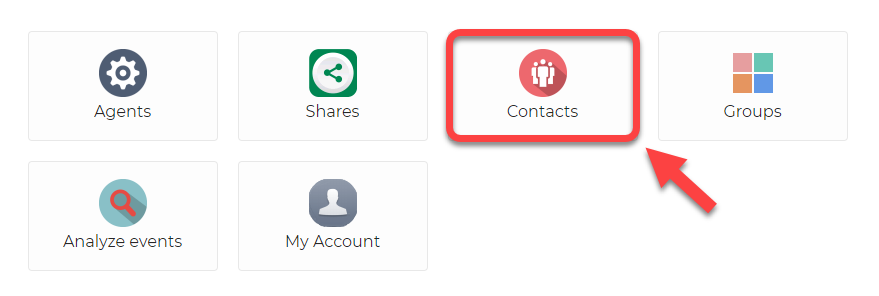
When you are signed into your personal account, you can find Contacts on your dashboard here:
Using this option, you can manage your contacts.
Such as creating a contact, editing a contact, enabling/disabling a contact, deleting a contact, and accepting an incoming contact request.
The Node is a fundamental component of DWService. In fact, it allows the connection between the user and the agent. When the agent connects to the DWService infrastructure, it is redirected to the nearest node or to a less loaded Node. In the same way when a user connects to the agent it is redirected to the Node where the agent is connected. To allow users to have a stable and fast session it is necessary that their agents are connected to neighboring and performing Nodes.
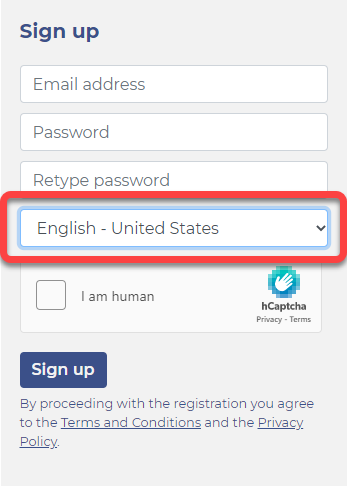
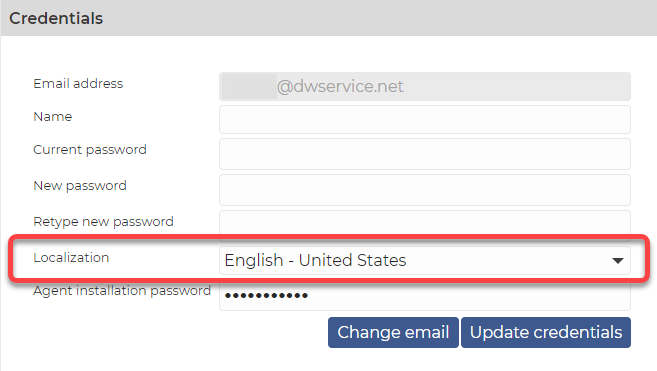
This option allows you to select your country and language from a drop-down list. If the selected language exists in our system, because the translation has already been done, the user interface will be displayed in that language.
This setting is available in two places:
1. During the Sign-up process, after entering your email address and password.
2. After signing into your personal profile by selecting the My Account option and then going to the Credentials section.
You may encounter a username in our service in the following cases:
When you sign up for our service, an account is created with a username and password. In this case, the username is your email address.
When you sign into your account, you must enter your email address as your username.
When you install the agent with credentials, you must use your email address as your username.
When you share your agent using a username and password. In this case the system will generate a username for you consisting of numbers.
The username looks like this: 123-456-789-012
When you run the DWAgent Installer and select Run instead of Install. Then the system will generate a username for you consisting of numbers.
The username looks like this: 123-456-789-01
ℹ️ A form of multifactor authentication. In this case, during authentication, after entering the username and password, a time-based password consisting of 6 digits is required as well.
The TOTP code looks like this: 123 456
🛡️ As the TOTP is generated by another device (e.g. a mobile phone or a tablet), or possibly by software, it further enhances security by ensuring that only you can sign into your personal account.
A password is secure if it is strong. A password is strong if it contains:
lowercase letters (a, b, c …)
capital letters (A, B, C …)
numbers (1, 2, 3 …)
special characters (?, !, % …)
as many characters as possible (at least 15 characters).
The more complicated a password is, the better. This drastically reduces the chances of unauthorized persons cracking your password and gaining access to your account and personal data.
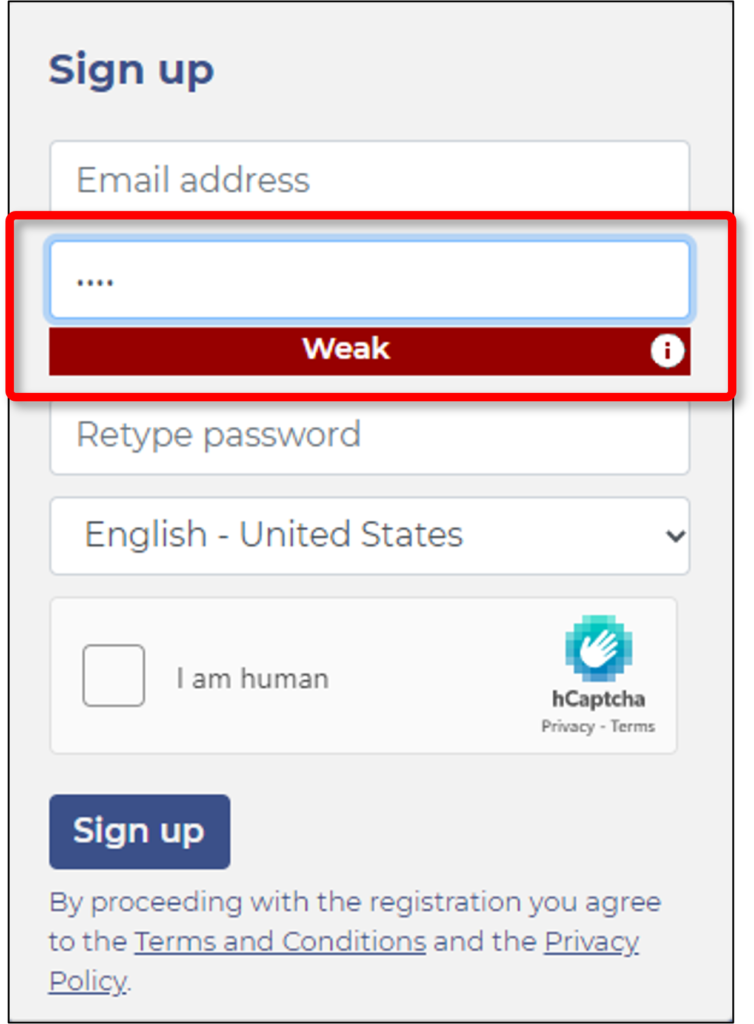
Note: Our system does not allow weak passwords for security reasons (to keep your data safe and secure).
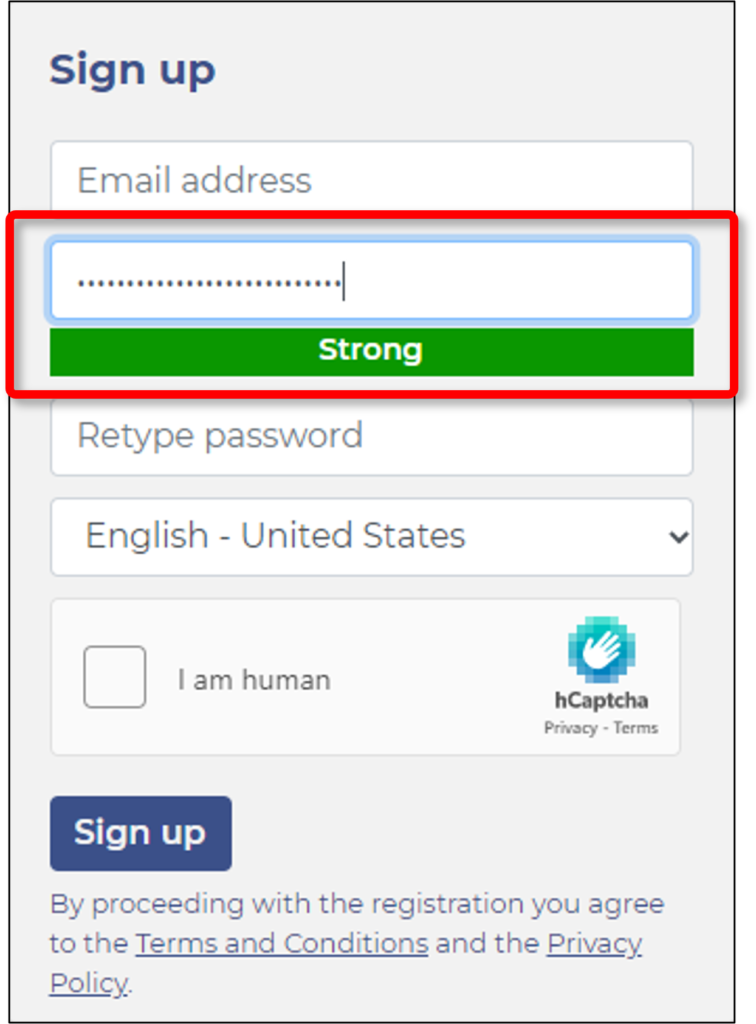
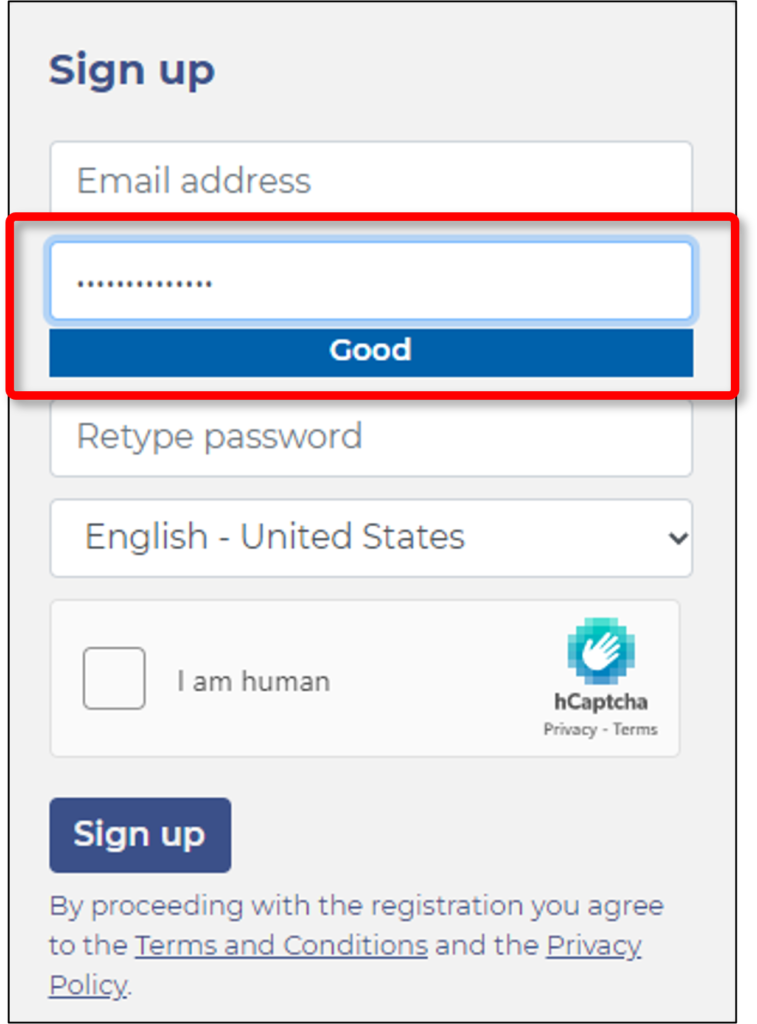
If you enter a Strong password, you will see the following:
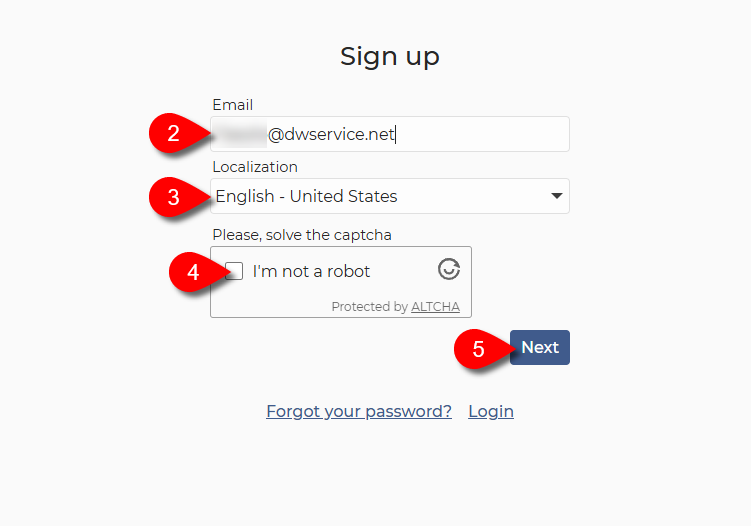
2. Enter your Email address.
3. Select your localization/language from the drop-down list.
4. Solve the Captcha (tick the checkbox).
5. Click on the Next button.
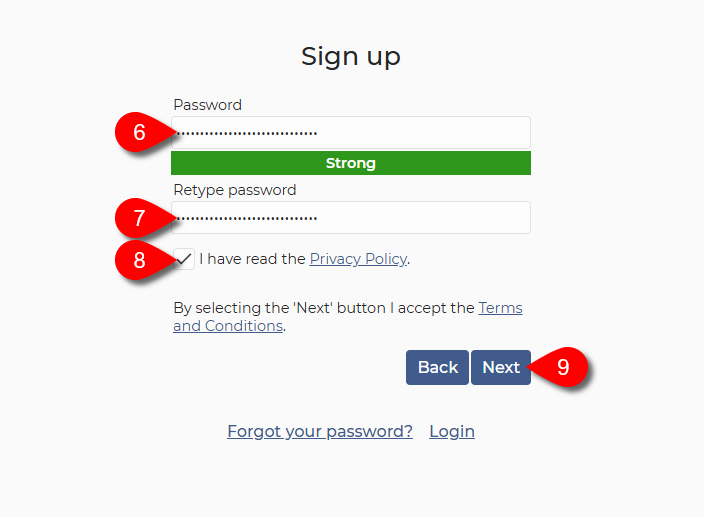
The following form appears:
6. Enter a Good password or Strong password for your account.
7. Retype your password.
8. ReadthePrivacyPolicyand, ifyouacceptit, tick thecheckbox.
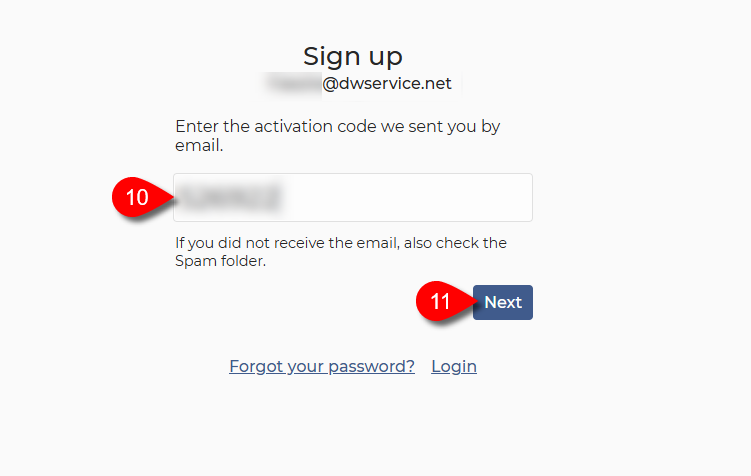
9. Click on the Next button.
The password is what keeps unauthorized people from accessing your personal account, your device and your shares. That’s why it’s important to keep your passwords as secure as possible. The security requirements for passwords are detailed below.
A password is secure if it is Strong. What does it mean a strong password?
A password is strong if it contains:
lowercase letters (a, b, c …)
capital letters (A, B, C …)
numbers (1, 2, 3 …)
special characters (?, !, % …)
and has as many characters as possible (at least 15 characters).
The more complicated a password is, the better. This drastically reduces the chances of unauthorized persons cracking your password and gaining access to your account and personal data.
Note: Our system does not allow weak passwords for security reasons (to keep your data safe and secure).
A password is secure if it is unique. This means that you should use 1 password only for 1 service. Never reuse the same password. If you have many passwords, consider using a secure Password Manager. This drastically reduces the chances of an attack.
A password is secure if you are the only one who has it. Do not share your passwords with anyone else.
Note: The only exception to this is when you share your agent with someone else using Shares, and the password you set there you share with the other party.
Watch our tutorial video on How to set up a new password if you know your current one:
Watch our tutorial video on How to set up a new password if you have forgotten your current one: