Open source

The agent software is free and open source.

We provide source code of the agent software so that anyone can see what it does in their system. This also means you can modify the code, for example to restrict or monitor specific operations.

The source code is hosted on GitHub, you can download it here: https://github.com/dwservice/agent.

Subscriptions

Our service is free by default.

But we would like to extend our activities and improve the quality of DWService. That’s why we now offer subscriptions!

Subscription is not mandatory, but your financial contributions will support the maintenance, improvement, and promotion of DWService.

The Free plan gives you a maximum bandwidth of 6 Mbps.

With a subscription, depending on the plan you choose, you get the bandwidth that comes with it.

The bigger the package, the more bandwidth you get.

More bandwidth means smoother usage and a better user experience, even with multiple simultaneous connections.

You can be our subscriber for as long as you like and cancel it whenever you want.

More information on subscription plans is available here: https://www.dwservice.net/contribute-subscriptions.html

We are using Paddle (www.paddle.com) as reseller of our subscription.

If you would like to read more about why we use Paddle as a reseller, check out this link: DWService now available with a merchant of record – DWService News


Client

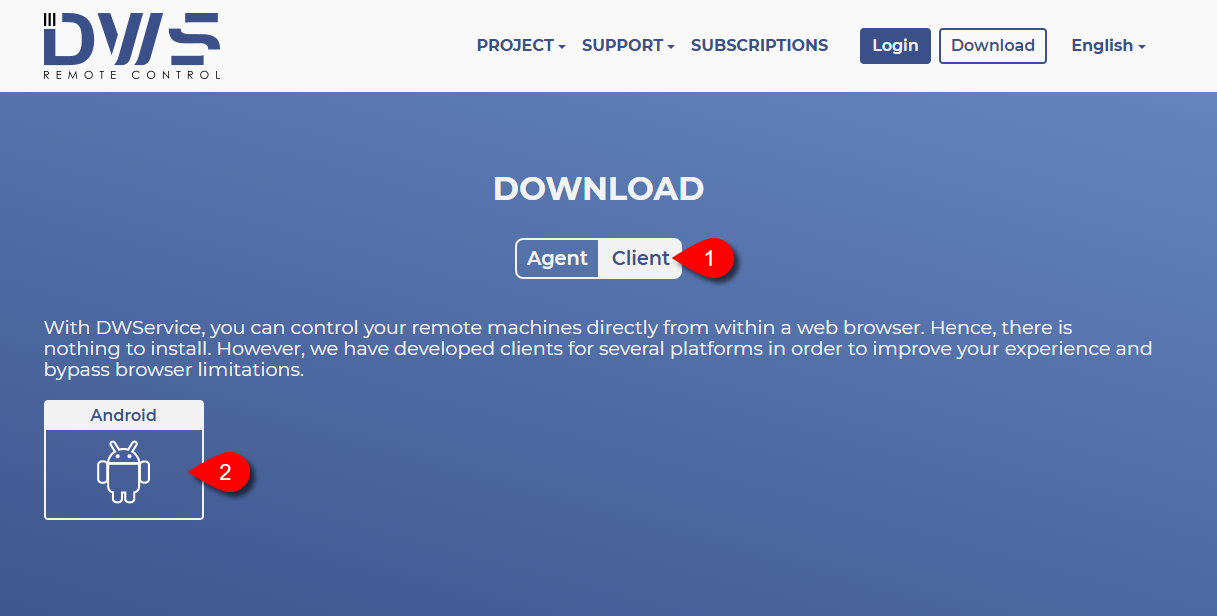
With DWService, you can control your remote machines directly from within a web browser. Hence, there is nothing to install.

However, we have developed clients for several platforms in order to improve your experience and bypass browser limitations.
The Android version is now publicly available. You can access it in the following way (just an example):
Visit our Download page: https://www.dwservice.net/download.html

You will see the following:

1. Select the Client option.
2. Click on the Android icon.

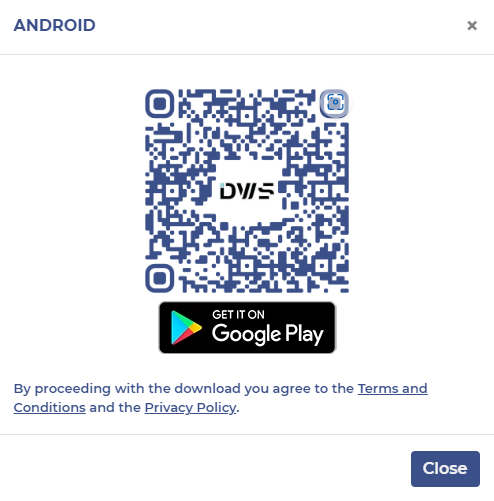
A window will appear that contains the following:

  • QR code – Using a QR code reader on a mobile device, the Google Play Store opens, from where the Client can be installed.
  • GET IT ON Google Play button – Clicking the button opens the Google Play Store.


Login

ℹ️ Login is different depending on the situation. The following login processes may be available:


Login to your account (without Two-Factor Authentication)

To login to your account, visit https://www.dwservice.net. You will see the following:
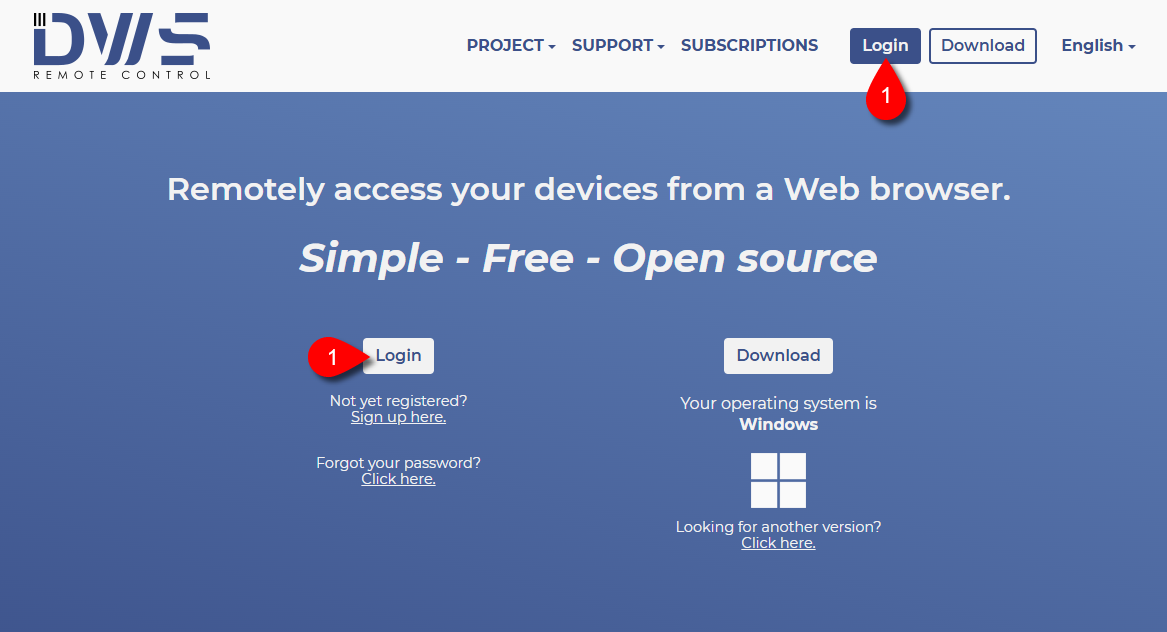
1. Click on one of the Login buttons. (It does not matter which Login button you click on.)

You will see the following:
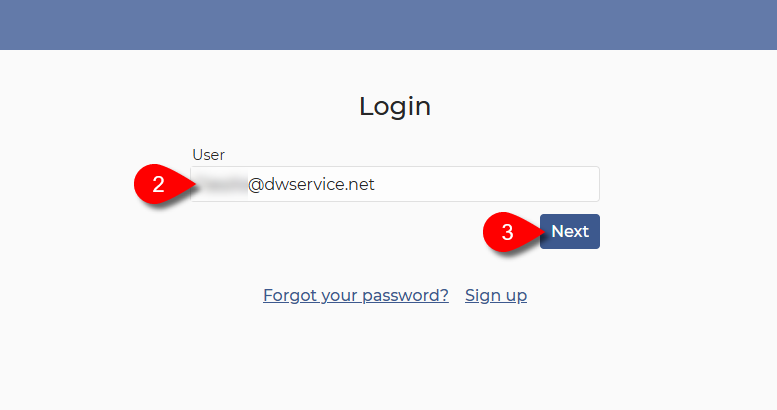
 

2. Enter your Username, which is your e-mail address.

3. Click on the Next button.

You will see the following:
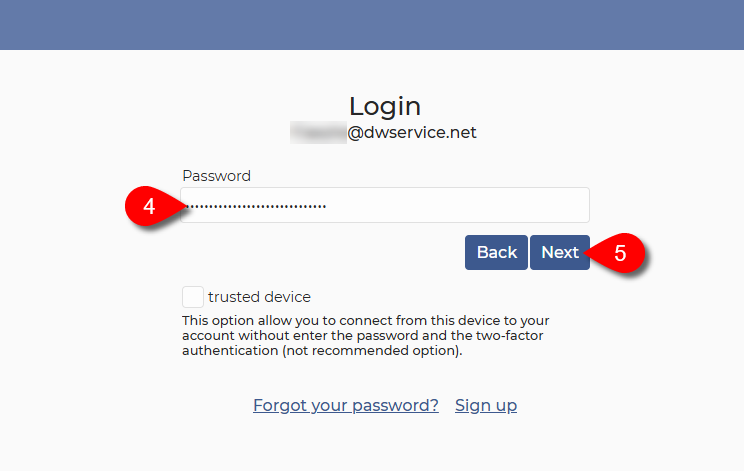
 

4. Enter your Password.

5. Click on the Next button.

Your Dashboard will appear:
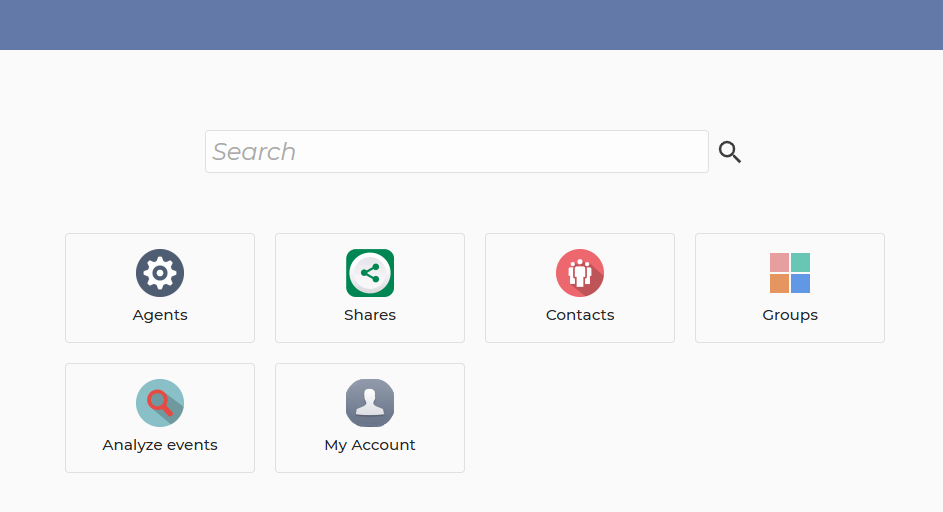

Login to your account (with Two-Factor Authentication – TOTP)

To login to your account, visit https://www.dwservice.net. You will see the following:

1. Click on one of the Login buttons. (It does not matter which Login button you click on.)

You will see the following:

2. Enter your Username, which is your e-mail address.

3. Click on the Next button.

You will see the following:

4. Enter your Password.

5. Click on the Next button.

You will see the following:
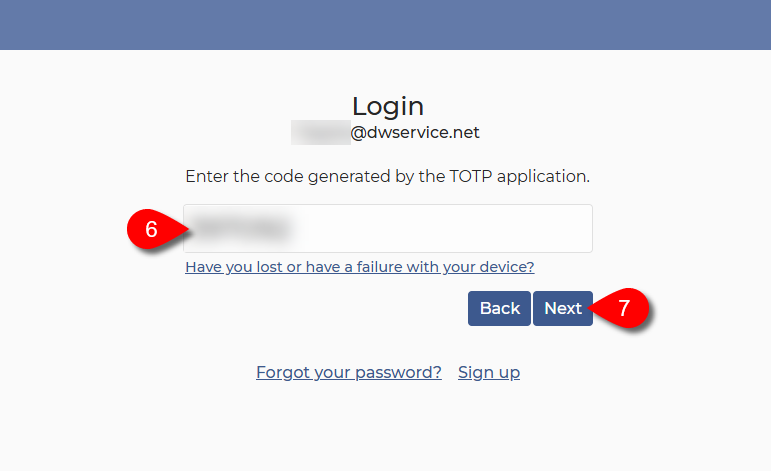
Open your authenticator app, which generates a code for you to login.

6. Enter the 6-digit TOTP code generated by your authenticator application.

7. Click on the Next button.

Your Dashboard will appear:


Login to your account (with Two-Factor Authentication – Email)

To login to your account, visit https://www.dwservice.net. You will see the following:

1. Click on one of the Login buttons. (It does not matter which Login button you click on.)

You will see the following:

2. Enter your Username, which is your e-mail address.

3. Click on the Next button.

You will see the following:

4. Enter your Password.

5. Click on the Next button.

You will see the following:
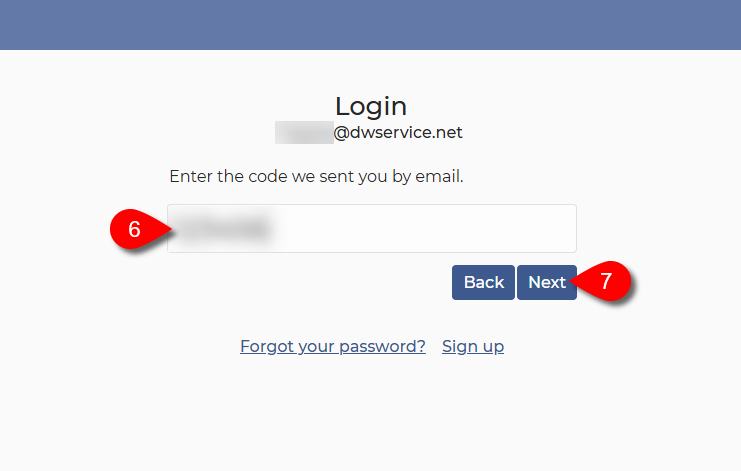
Our system has sent you an email containing the 6digit code. Open your mailbox and check your inbox.

💡 Hint: If the email is not in your inbox folder, check your other folders as well (Spam folder, Junk mail folder, other folders)

6. Enter the 6-digit code you received in the email.

7. Click on the Next button.

Your Dashboard will appear:


Login to your account (with Two-Factor Authentication – Device)

To login to your account, visit https://www.dwservice.net. You will see the following:

1. Click on one of the Login buttons. (It does not matter which Login button you click on.)

You will see the following:

2. Enter your Username, which is your e-mail address.

3. Click on the Next button.

You will see the following:

4. Enter your Password.

5. Click on the Next button.

You will see the following:
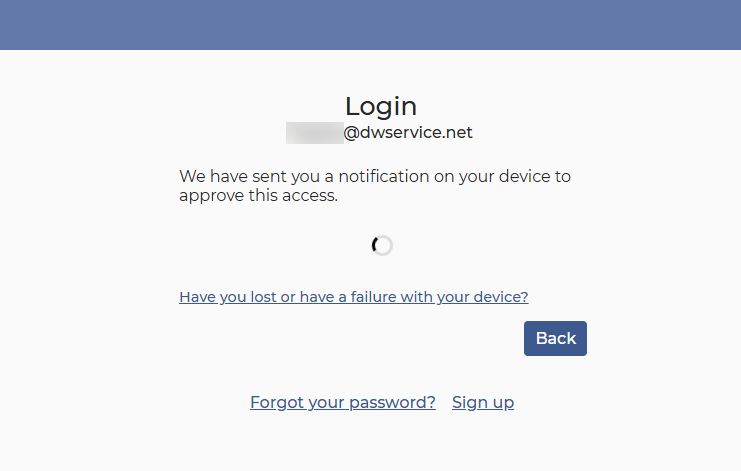
Our system has sent a notification to your device. Check the notification on your device. You should see one like this:
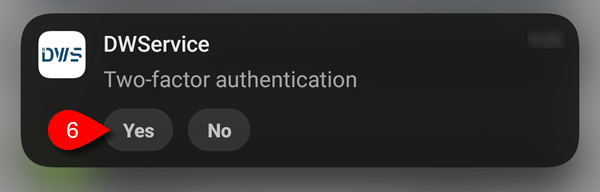
6. To accept the login request, tap the Yes button on the notification.

Your Dashboard will appear:


Login to your account on a trusted device

ℹ️ If you regularly use a device to log in to your account, you have the possibility to mark it as trusted. If you mark a device as trusted, you will no longer need to enter your password and use the Two-Factor Authentication on that web browser when logging in. This makes using our service more convenient.

⚠️ But because marking an untrusted device as trusted can be risky, you should only use it if you are fully confident that your device (and your browser) is secure and can be trusted.

If you choose to use this feature, you can do the following:

To login to your account, visit https://www.dwservice.net. You will see the following:

1. Click on one of the Login buttons. (It does not matter which Login button you click on.)

You will see the following:

2. Enter your Username, which is your e-mail address.

3. Click on the Next button.

You will see the following:
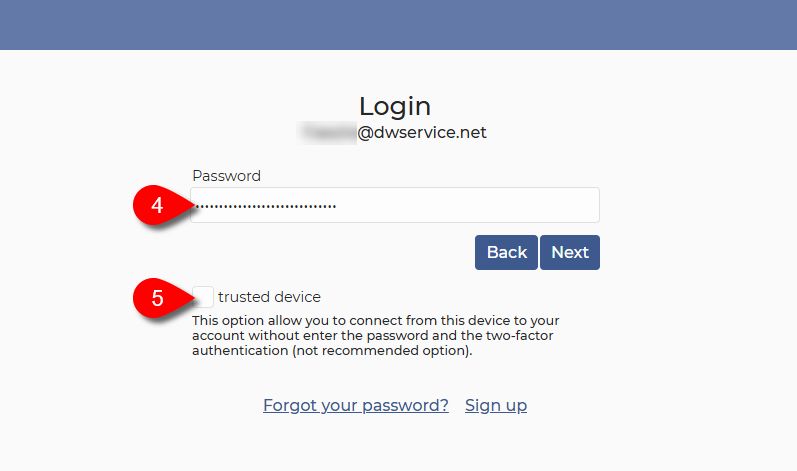
4. In the Password field, enter the password for your account.

5. Tick the checkbox in front of trusted device text.

A warning windows appears:
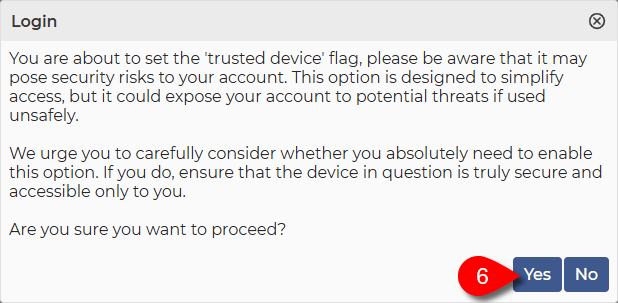
6. To confirm, click on the Yes button.

You will see the following:
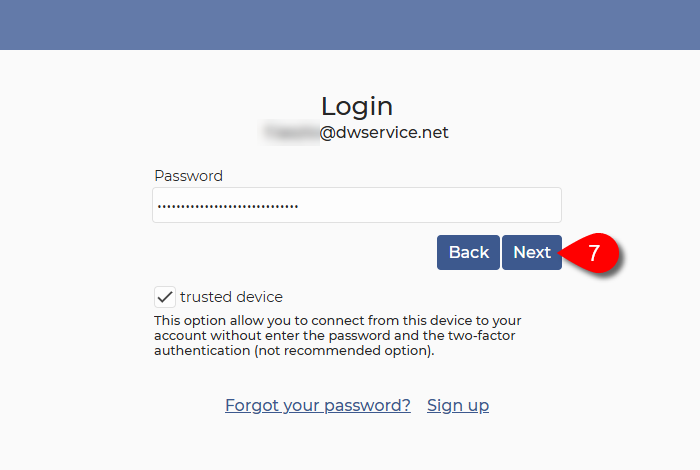
7. Click on the Next button.

Afterwards, two things can happen:

  • If Two-Factor Authentication is not enabled for your account, you are already logged in to your account.
  • If Two-Factor Authentication is enabled for your account, then you must authenticate yourself with a code or a device. After successful authentication, you will be logged in to your account.

The next time you want to log in to your account, you will see the account marked as trusted on the login page:
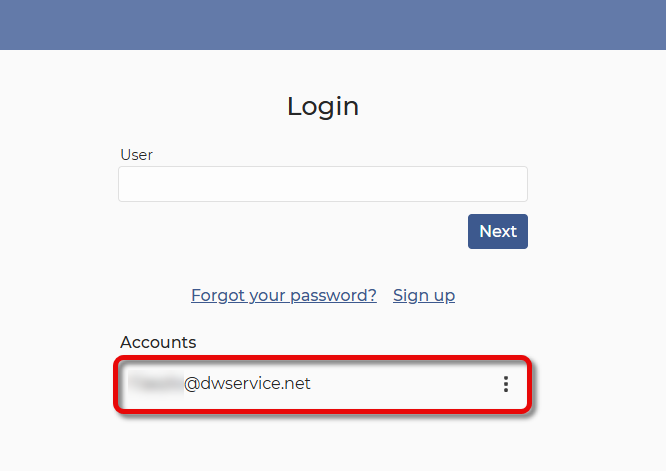
You just need to click on it, and you will be logged in and your Dashboard will appear:

Remove the mark as trusted

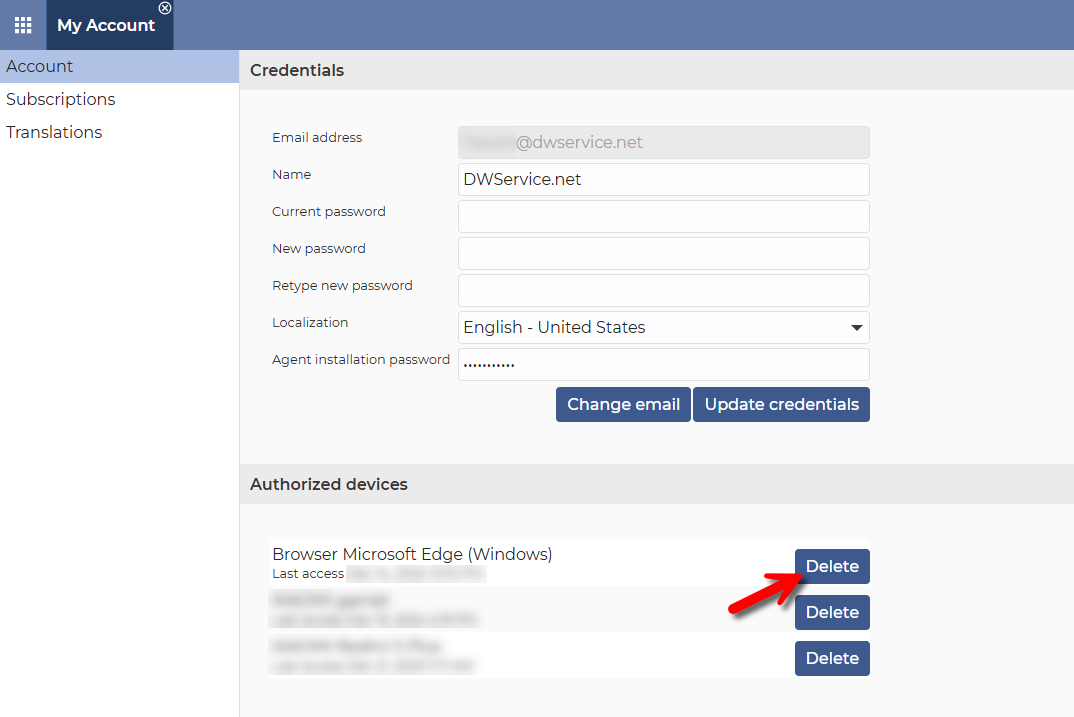
If you think the device (or the web browser) is no more trustworthy, you can remove it. There are two ways to do it:
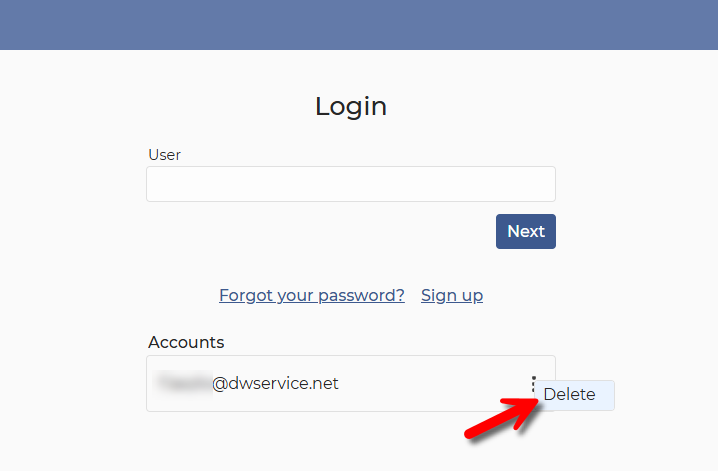
The other way is to remove it from your Authorized devices list in the My Account section after you sign in to your account:

Login (if the Agent is Running on the remote device)

To login, visit https://www.dwservice.net.

You will see the following:

1. Click on one of the Login buttons. (It does not matter which Login button you click on.)

You will see the following:
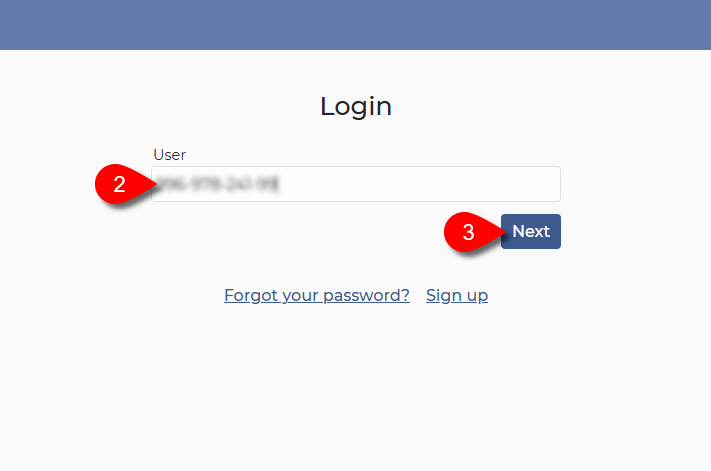
2. Enter the Username that was generated by the Agent running on the remote device.
The username is 11 digits, in the following format: xxx-xxx-xxx-xx

3. Click on the Next button.

You will see the following:
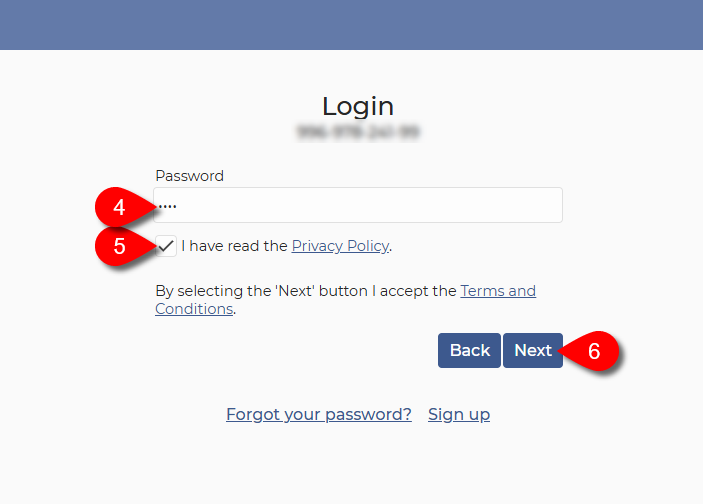
4. Enter the Password that was generated by the Agent running on the remote device.
The Password is 4 digits, in the following format: xxxx

5. Once you have read the Privacy Policy and you accept it, please tick the checkbox.

6. Click on the Next button.

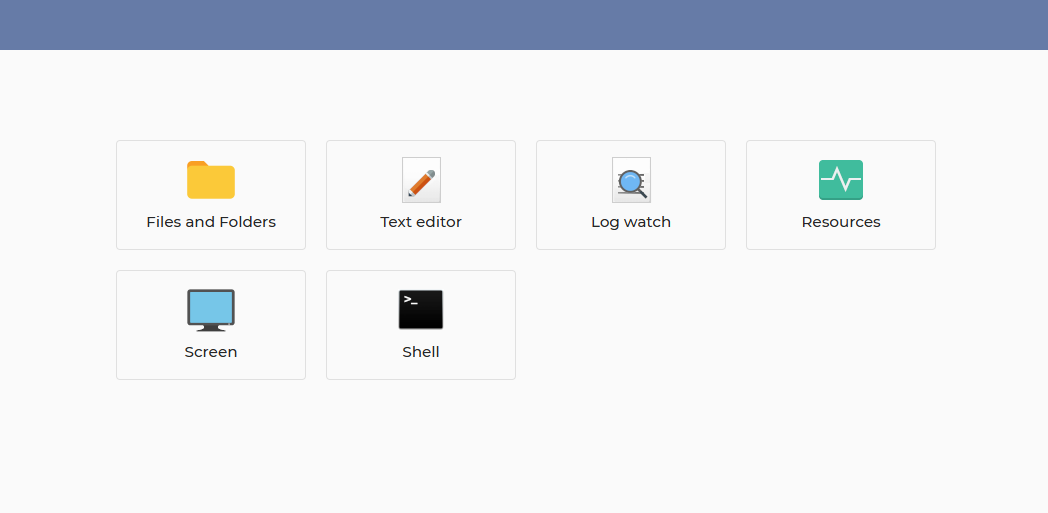
The Applications will appear:
Contact

The meaning of Contact:

  • other DWService user you have contacted
  • other DWService user who has contacted you

You can manage your contacts after signing into your personal account by selecting Contacts. Such as:

  • Add Contact
  • Edit Contact
  • Enable / Disable Contact
  • Delete Contact

Contacts

When you are signed into your personal account, you can find Contacts on your dashboard here:

Using this option, you can manage your contacts.
Such as creating a contact, editing a contact, enabling/disabling a contact, deleting a contact, and accepting an incoming contact request.

Related article: Contact

Nodes

The Node is a fundamental component of DWService. In fact, it allows the connection between the user and the agent. When the agent connects to the DWService infrastructure, it is redirected to the nearest node or to a less loaded Node. In the same way when a user connects to the agent it is redirected to the Node where the agent is connected. To allow users to have a stable and fast session it is necessary that their agents are connected to neighboring and performing Nodes.

More information about Nodes can be found here: https://www.dwservice.net/contribute-nodes.html

Localization

This option allows you to select your country and language from a drop-down list. If the selected language exists in our system, because the translation has already been done, the user interface will be displayed in that language.
This setting is available in two places:
1. During the Sign-up process, after entering your email address and password.

2. After signing into your personal profile by selecting the My Account option and then going to the Credentials section.

Username

You may encounter a username in our service in the following cases:

  • When you sign up for our service, an account is created with a username and password. In this case, the username is your email address.
  • When you sign into your account, you must enter your email address as your username.
  • When you install the agent with credentials, you must use your email address as your username.
  • When you share your agent using a username and password. In this case the system will generate a username for you consisting of numbers.
    The username looks like this: 123-456-789-012
  • When you run the DWAgent Installer and select Run instead of Install. Then the system will generate a username for you consisting of numbers.
    The username looks like this: 123-456-789-01

Weak password

⚠️ Never, ever use a weak password! With today’s technology, they can be hacked very quickly, putting your personal data at great risk.

A Good password is:

  • at least 8 characters long.
  • at least one uppercase letter.
  • at least one lowercase letter.
  • at least one digit.
  • at least one special character.

If the password does not meet the Good password requirements, the password is Weak.

You should always use a password that is as strong as possible.

If you enter a Weak password, you will see the following:

More information about Strong Password is available here: Good Password, Strong Password

Watch our tutorial video on How to set up a new password if you know your current one:

Watch our tutorial video on How to set up a new password if you have forgotten your current one: