Captcha

A captcha is a security enhancement tool. It allows our system to make sure that it is not a robot that is trying to create an account with your data.
hCaptcha helps online services keep out bots, spam, and abuse by asking simple questions that are easy for humans and difficult for machines.
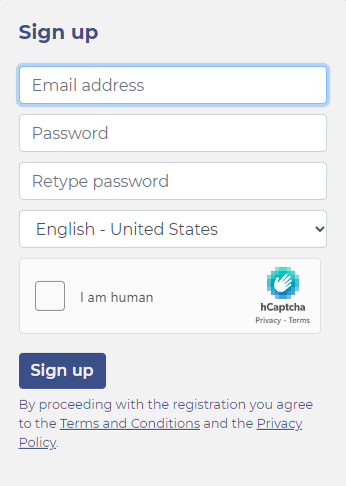
This tool is visible and can be used during the sign-up process.
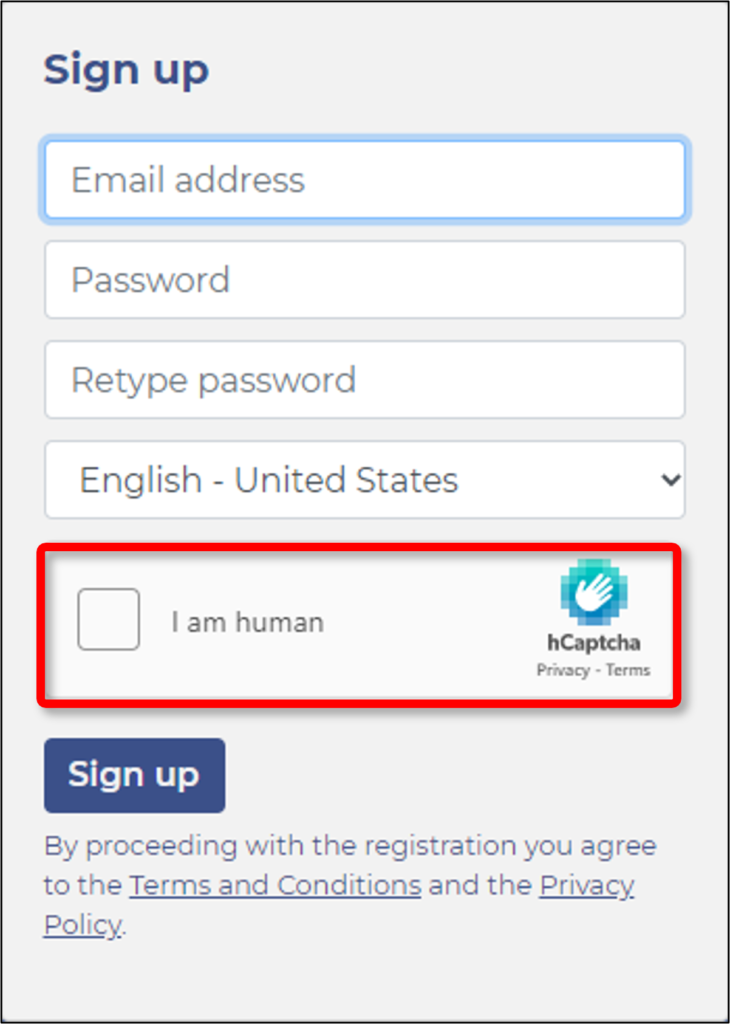
Using the captcha is very simple.

Step1: Click on the checkbox.

Step2: From the images that appear, select the ones that match the criteria.

Step3: Click the Next button.

Step4: From the images that appear, select the ones that match the criteria, again.

Step5: Click the Verify button.

If you have selected the images correctly, a green tick will appear in the checkbox.
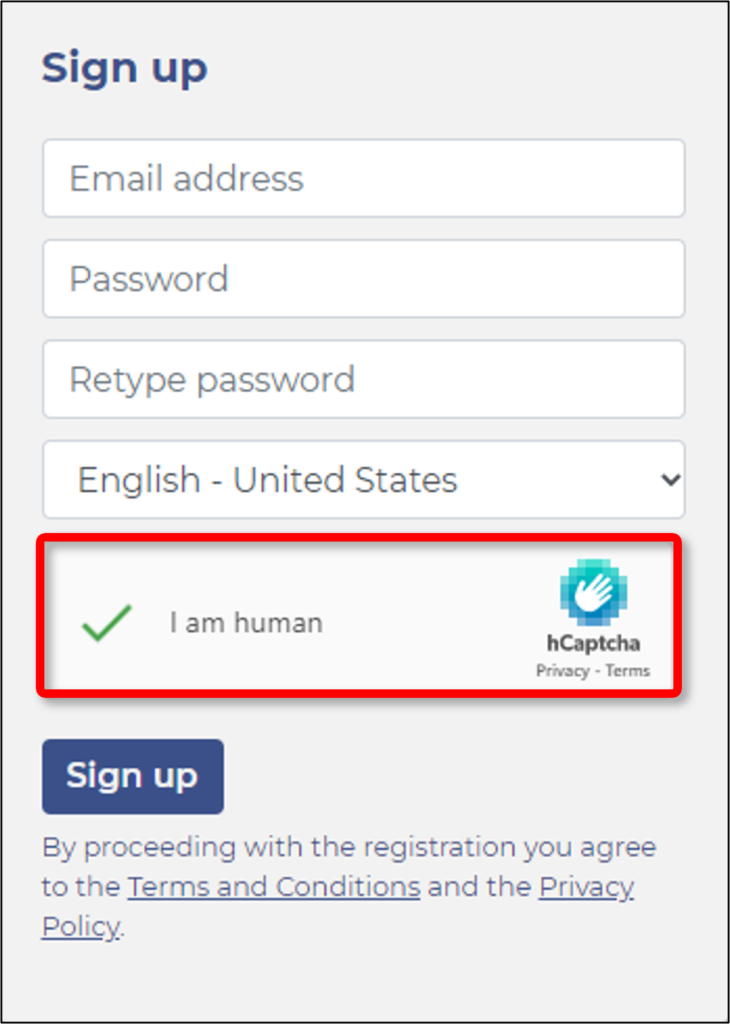
That’s all.

Watch our tutorial video on How to set up a new Password if you have forgotten your current one (the use of hCaptcha is also covered in the video):
Applications

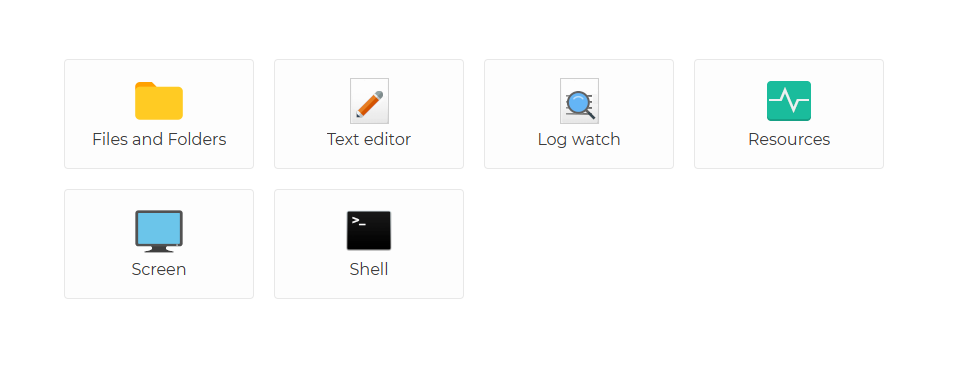
Applications are a very important part of our service. Once you have connected to an agent, you can manage it using the applications.

The currently available applications are:

Files and Folders

Text Editor

Log watch

Resources

Screen

Shell

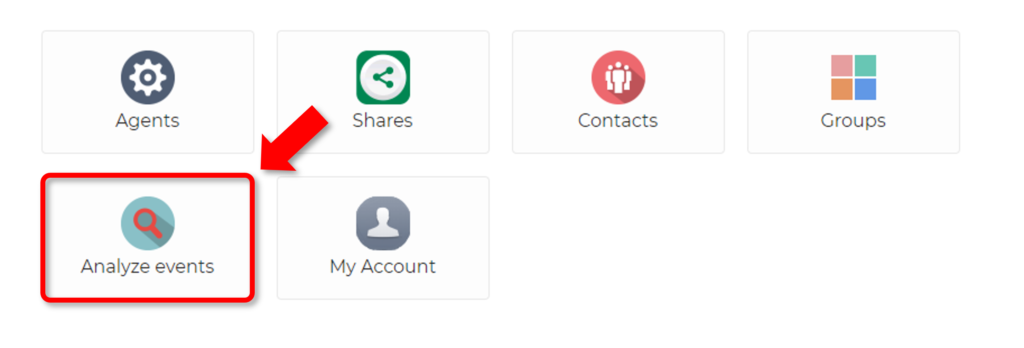
Analyze events

By selecting the Analyze events option, you can check the event log for our service, which you can filter in a variety of ways to easily access the information you need.

Agents

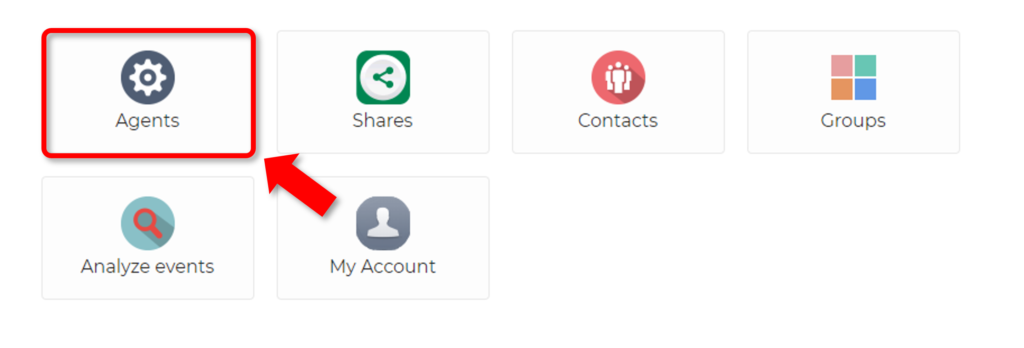
After signing into your account, the dashboard will appear. The first option is the Agents.

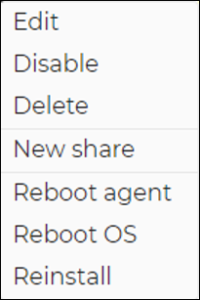
With the Agents option, you can manage Agents. Such as adding an agent, editing an agent, enabling/disabling an agent, deleting an agent, sharing an agent, rebooting an agent, restarting the operating system, reinstalling an agent and connecting to an agent.

Related article: Agent

Account

A DWS account is a personal account. Each account can belong to one person only. The account comes with an email address and a password. By logging into the account, you can manage your Agents, Shares, Contacts, Account, etc.

You can create a DWS account at https://www.dwservice.net by clicking on the
Login/Sign up button.

The sign-up form is the following:

Related articles: Username, Password, Localization, Captcha, Sign-up

Watch our tutorial video on How to create an Account:

Agent

The Agent is a small piece of software that can be downloaded from our website (https://www.dwservice.net/download.html) and installed on the device you want to access remotely. The Agent allows you to connect to the device remotely. The Agent must be running on the remote device for remote access to work. The Agents are available for multiple operating systems, which are the following:

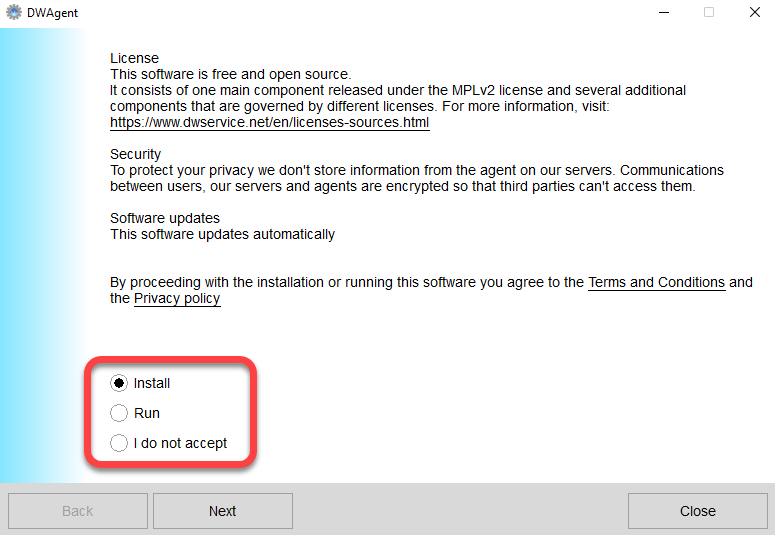
After downloading and opening the Agent file, in the window that appears you can choose from the following:

  • Install (Install the Agent): by selecting this option you can install the Agent on the device. Once installed, the Agent runs continuously in the background on the device and allows you to connect.
  • Run (Run the Agent): If you select this option, the Agent will create a session that will only be active if the window is open. When the window is closed, the session is terminated. Selecting the Run option allows you to connect to the device only as long as the window is open, and the session is active.

Related articles: Download, Run the Agent

Watch our tutorial video on How to download the Agent:

Watch our tutorial video on How to run the Agent:

Watch our tutorial video on How to install the Agent with code (Windows):

Watch our tutorial video on How to install the Agent with credentials (Windows):

Watch our tutorial video on How to install the Agent (Linux):

Watch our tutorial video on How to install the Agent (MacOS):

Basic definitions (alphabetical order)

📖 This section contains explanations of words and phrases related to our service.
🔤 Words and phrases are ordered alphabetically to make them easier to find.

🗑️ How do I manually remove the agent on a Windows?

The easiest way to remove manually the agent on Windows is by stopping and remove service and deleting its files and folder.
Open a new Command window as Administrator and execute the following commands:

  1. Stop the DWAgent service:
    sc stop DWAgent
  2. Delete the DWAgent service:
    sc delete DWAgent
  3. Stop the dwagent.exe task:
    taskkill /f /im dwagent.exe
  4. Remove the DWAgent folder:
    rmdir /s /q "C:\Program Files\DWAgent"
    ⚠️ If the Agent is not installed in the default location, enter the current installation path instead of C:\Program Files\DWAgent“.
  5. Remove the key from the registry:
    reg delete "HKEY_LOCAL_MACHINE\SOFTWARE\Microsoft\Windows\CurrentVersion\Uninstall\DWAgent" /f
  6. Remove DWAgent entry from Windows menu:
    rmdir /s /q "C:\ProgramData\Microsoft\Windows\Start Menu\Programs\DWAgent"

💡 Alternatively, you can create a batch file (for example: dwagent_uninstall.bat) that contains all of the above commands and performs the removal of the Agent from the Windows system with one command. Using this method, do the following:

  1. Create a plain text file and name it for example dwagent_uninstall.bat.
  2. Copy and Paste the following commands into the dwagent_uninstall.bat:
    ⚠️ If the Agent is not installed in the default location, enter the current installation path instead of “C:\Program Files\DWAgent”.

@echo off
sc stop DWAgent
sc delete DWAgent
taskkill /f /im dwagent.exe
rmdir /s /q "C:\Program Files\DWAgent"
reg delete "HKEY_LOCAL_MACHINE\SOFTWARE\Microsoft\Windows\CurrentVersion\Uninstall\DWAgent" /f
rmdir /s /q "C:\ProgramData\Microsoft\Windows\Start Menu\Programs\DWAgent"

3. Save the file.
4. Execute dwagent_uninstall.bat using one of the following methods:

  • Open the command prompt as Administrator and run dwagent_uninstall.bat.
  • Right-click on the dwagent_uninstall.bat file and from the menu that appears, select Run as Administrator.

🗑️ How do I manually remove the agent on a Linux?

The easiest way to remove manually the agent on Linux is by stopping and remove service and deleting its files and folder.
Open a new Terminal window and execute the following commands:

  1. Stop the DWAgent service:
    sudo /usr/share/dwagent/native/dwagsvc stop
  2. Delete the DWAgent service:
    sudo /usr/share/dwagent/native/dwagsvc delete
  3. Remove the DWAgent folder:
    sudo rm -r -f /usr/share/dwagent
  4. Remove the dwagent file:
    sudo rm -f /etc/dwagent
  5. Remove the dwagent_systray.desktop file
    sudo rm -f /etc/xdg/autostart/dwagent_systray.desktop
  6. Restart Linux.

💡 Alternatively, you can create a script file (for example: dwagent_uninstall.sh) that contains all of the above commands and performs the removal of the Agent from the Linux system with one command. Using this method, do the following:

  1. Create a plain text file and name it for example dwagent_uninstall.sh
  2. Copy and Paste the following commands into the dwagent_uninstall.sh:
    ⚠️ If the Agent is not installed in the default location, enter the current installation path instead of “/usr/share/dwagent”.

#!/bin/sh
/usr/share/dwagent/native/dwagsvc stop
/usr/share/dwagent/native/dwagsvc delete
rm -r -f /usr/share/dwagent
rm -f /etc/dwagent
rm -f /etc/xdg/autostart/dwagent_systray.desktop

3. Save the file.
4. Execute dwagent_uninstall.sh using the following command:

sudo bash dwagent_uninstall.sh

5. Restart Linux.

How do I reinstall the agent?

If for some reasons, you need to reinstall the agent. Please follow the steps below.

First log in to you www.dwservice.net account and identify the agent that you have previously configured that you want to reinstall.

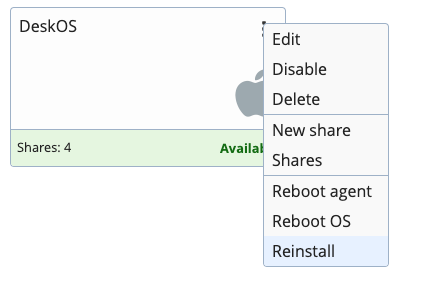
Click on the three vertical dots to get access to several option and choose Reinstall

It will generate a new installation code.

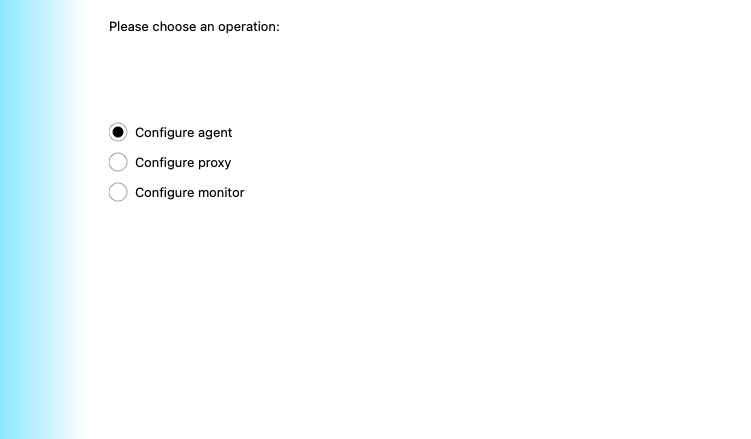
Then go on the machine and in the DWagent interface click on Configure agent than choose next.

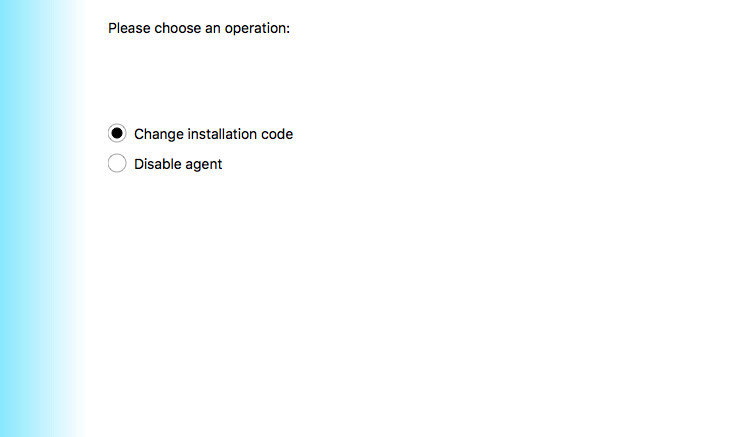
You will get an option to change the installation code

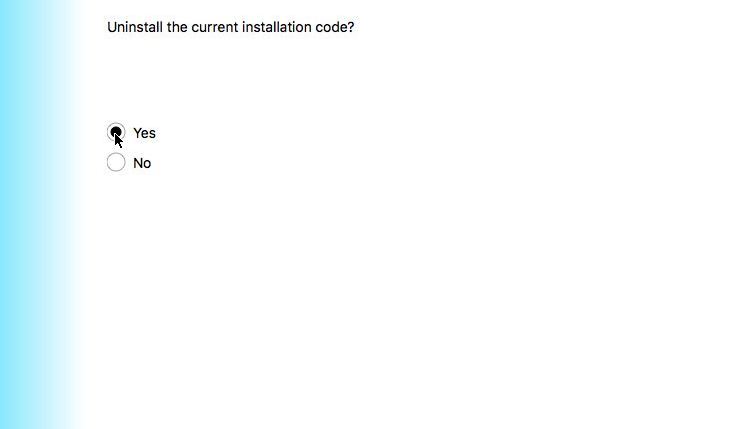
After that screen confirm that you intend to reinstall the agent

Then enter the new code that you generated in the first step from www.dwservice.net