How do I install the agent silently?

This feature is not allowed by default. Please contact us at support@dwservice.net to authorize your account.
The silent installation feature is only available for companies, businesses, enterprises, organizations, foundations, public entities, public authorities, institutes, etc.

❗First, a few key notes on silent installation:

  • Silent installation, as the name of the feature indicates, only applies to installation. This means that once the Agent has been installed, the silent installation has no effect on the operation of the Agent.
  • After a silent installation, the Agent works as if you had installed it without silent installation.
  • With silent installation, the installer’s graphical user interface (GUI) does not appear during the installation, and the installation does not require any interactions (clicks or data entry).
  • Silent installation does not mean that the Agent will be invisible after installation. That is, all parts of the Agent (the Monitor icon in the taskbar, the Agent icon in the Start menu, the service in the services, the task among the running processes) will be visible. These cannot be hidden.

We show you the options of silent installation for the following situations:

Windows

You may install the agent silently by command lines. This way you can start the installer in two modes:

1. Using the installation code (you must first create the agent in your account):

dwagent.exe -silent key=xxx-xxx-xxx logpath=xxxxxx 

Required parameters:

-silentThis parameter indicates that you are installing the Agent silently.

key=xxx-xxx-xxxThis parameter allows you to specify which Agent you are installing. Instead of xxxxxxxxx, enter the Installation Code that was generated for you when you created the Agent. For example: key=123-456-789

Optional parameter:

logpath=xxxxxx ⇒ Use this parameter to specify the full path to the log file and the file name. This log file records the events of the installation process. In case of a possible error, also the error messages. For example: logpath=C:\install.log

An example: dwagent.exe -silent key=123-456-789 group=DWService logpath=C:\install.log

2. Using credentials (You do not need to create the agent in the account):

dwagent.exe -silent user=xxxxxx password=xxxxxx name=xxxxxx group=xxxxxx logpath=xxxxxx

Required parameters:

-silentThis parameter indicates that you are installing the Agent silently.

user=xxxxxx ⇒ This parameter controls which account the Agent is created in. Instead of xxxxxx, enter the username (email address) of the account. For example: user=your@email.com

password=xxxxxx ⇒ This parameter contains the Agent installation password. Instead of xxxxxx, enter the Agent installation password.
⚠️ Important: The Agent installation password cannot be the same as your account password.
📖 You can read more about the Agent installation password here: Agent installation password

Optional parameters:

name=xxxxxx ⇒ Use this parameter to specify the name of the Agent. Instead of xxxxxx, enter a name, which will be the name of the Agent. For example: name=WindowsPC.
💡If you do not specify this parameter, the Agent will be installed with the name of the device.

group=xxxxxxUse this parameter to assign the Agent to the specified group during installation. For example: group=DWService
⚠️ Note: If the specified group does not exist in your account, the Agent will not be assigned to a group.

logpath=xxxxxx ⇒ Use this parameter to specify the full path to the log file and the file name. This log file records the events of the installation process. In case of a possible error, also the error messages. For example: logpath=C:\install.log

NOTE: The password parameter is not your account password. You can set this password in your DWService account.

If you would like to deploy the Agent using Group Policy, here is an example of a script to do so:

IF NOT EXIST "C:\Program Files\DWAgent\agent.py" copy \\xxx.xxx.xxx.xxx\log$\software\dwservice\dwagent.exe c:\temp\ & c:\temp\dwagent.exe -silent user=xxxxxx password=xxxxxx group=xxxxxx & DEL /F /S /Q /A "c:\temp\dwagent.exe"


Linux

You may install the agent silently by command lines. This way you can start the installer in two modes:

1. Using the installation code (you must first create the agent in your account):

dwagent.sh -silent key=xxx-xxx-xxx logpath=xxxxxx

Required parameters:

-silentThis parameter indicates that you are installing the Agent silently.

key=xxx-xxx-xxxThis parameter allows you to specify which Agent you are installing. Instead of xxxxxxxxx, enter the Installation Code that was generated for you when you created the Agent. For example: key=123-456-789

Optional parameter:

logpath=xxxxxx ⇒ Use this parameter to specify the full path to the log file and the file name. This log file records the events of the installation process. In case of a possible error, also the error messages. For example: logpath=/tmp/install.log

An example: dwagent.sh -silent key=123-456-789 group=DWService logpath=/tmp/install.log

2. Using credentials (You do not need to create the agent in the account):

dwagent.sh -silent user=xxxxxx password=xxxxxx name=xxxxxx group=xxxxxx logpath=xxxxxx

Required parameters:

-silentThis parameter indicates that you are installing the Agent silently.

user=xxxxxx ⇒ This parameter controls which account the Agent is created in. Instead of xxxxxx, enter the username (email address) of the account. For example: user=your@email.com

password=xxxxxx ⇒ This parameter contains the Agent installation password. Instead of xxxxxx, enter the Agent installation password.
⚠️ Important: The Agent installation password cannot be the same as your account password.
📖 You can read more about the Agent installation password here: Agent installation password

Optional parameters:

name=xxxxxx ⇒ Use this parameter to specify the name of the Agent. Instead of xxxxxx, enter a name, which will be the name of the Agent. For example: name=LinuxPC.
💡If you do not specify this parameter, the Agent will be installed with the name of the device.

group=xxxxxxUse this parameter to assign the Agent to the specified group during installation. For example: group=DWService
⚠️ Note: If the specified group does not exist in your account, the Agent will not be assigned to a group.

logpath=xxxxxx ⇒ Use this parameter to specify the full path to the log file and the file name. This log file records the events of the installation process. In case of a possible error, also the error messages. For example: logpath=/tmp/install.log

NOTE: The password parameter is not your account password. You can set this password in your DWService account.


MacOS

For macOS, the silent installation process is different.

Here are the steps:

1. Create a script file. For example: dwagent.sh
2. Copy the script below and paste it into the file.
3. Modify your data in the script file (last line of the script – highlighted with colors).
4. Save the file.
5. Run the script file with the following command: sudo sh dwagent.sh

There are several types of scripts depending on the situation.

1. Using the installation code (you must first create the agent in your account), use the following script:

#!/bin/sh
mkdir /var/tmp
cd /var/tmp
curl --location https://www.dwservice.net/download/dwagent_x86.dmg -o dwagent_x86.dmg
hdiutil attach /var/tmp/dwagent_x86.dmg
cp -r /Volumes/DWAgent/DWAgent.app /Applications/
hdiutil detach /Volumes/DWAgent
rm /var/tmp/dwagent_x86.dmg
cd /Applications/DWAgent.app
/Applications/DWAgent.app/Contents/MacOS/extract
chmod -R 755 /Applications/DWAgent.app
/Applications/DWAgent.app/Contents/MacOS/Install /Applications/DWAgent.app/ Y -silent key=xxx-xxx-xxx logpath=xxxxxx

Required parameters:

-silentThis parameter indicates that you are installing the Agent silently.

key=xxx-xxx-xxxThis parameter allows you to specify which Agent you are installing. Instead of xxxxxxxxx, enter the Installation Code that was generated for you when you created the Agent. For example: key=123-456-789

Optional parameter:

logpath=xxxxxx ⇒ Use this parameter to specify the full path to the log file and the file name. This log file records the events of the installation process. In case of a possible error, also the error messages. For example: logpath=$HOME/Documents/install.log

2.1 If you are installing the Agent using Credentials and you specify the Agent name:

#!/bin/sh
mkdir /var/tmp
cd /var/tmp
curl --location https://www.dwservice.net/download/dwagent_x86.dmg -o dwagent_x86.dmg
hdiutil attach /var/tmp/dwagent_x86.dmg
cp -r /Volumes/DWAgent/DWAgent.app /Applications/
hdiutil detach /Volumes/DWAgent
rm /var/tmp/dwagent_x86.dmg
cd /Applications/DWAgent.app
/Applications/DWAgent.app/Contents/MacOS/extract
chmod -R 755 /Applications/DWAgent.app
/Applications/DWAgent.app/Contents/MacOS/Install /Applications/DWAgent.app/ Y -silent user=xxxxxx password=xxxxxx name=xxxxxx group=xxxxxx logpath=xxxxxx


Required parameters:

-silentThis parameter indicates that you are installing the Agent silently.

user=xxxxxx ⇒ This parameter controls which account the Agent is created in. Instead of xxxxxx, enter the username (email address) of the account. For example: user=your@email.com

password=xxxxxx ⇒ This parameter contains the Agent installation password. Instead of xxxxxx, enter the Agent installation password.
⚠️ Important: The Agent installation password cannot be the same as your account password.
📖 You can read more about the Agent installation password here: Agent installation password

Optional parameters:

name=xxxxxx ⇒ Use this parameter to specify the name of the Agent. Instead of xxxxxx, enter a name, which will be the name of the Agent. If you do not specify this parameter, the Agent will be installed with the name of the device. For example: name=MacOS

group=xxxxxxUse this parameter to assign the Agent to the specified group during installation. For example: group=DWService
⚠️ Note: If the specified group does not exist in your account, the Agent will not be assigned to a group.

logpath=xxxxxx ⇒ Use this parameter to specify the full path to the log file and the file name. This log file records the events of the installation process. In case of a possible error, also the error messages. For example: logpath=$HOME/Documents/install.log

2.2 If you are installing the Agent with Credentials and you do NOT specify the Agent name (in this case, the device name will be the Agent name):

#!/bin/sh
name="name=""$(hostname -s)"
mkdir /var/tmp
cd /var/tmp
curl --location https://www.dwservice.net/download/dwagent_x86.dmg -o dwagent_x86.dmg
hdiutil attach /var/tmp/dwagent_x86.dmg
cp -r /Volumes/DWAgent/DWAgent.app /Applications/
hdiutil detach /Volumes/DWAgent
rm /var/tmp/dwagent_x86.dmg
cd /Applications/DWAgent.app
/Applications/DWAgent.app/Contents/MacOS/extract
chmod -R 755 /Applications/DWAgent.app
/Applications/DWAgent.app/Contents/MacOS/Install /Applications/DWAgent.app/ Y -silent user=xxxxxx password=xxxxxx "${name}" group=xxxxxx logpath=xxxxxx

Required parameters:

-silentThis parameter indicates that you are installing the Agent silently.

user=xxxxxx ⇒ This parameter controls which account the Agent is created in. Instead of xxxxxx, enter the username (email address) of the account. For example: user=your@email.com

password=xxxxxx ⇒ This parameter contains the Agent installation password. Instead of xxxxxx, enter the Agent installation password.
⚠️ Important: The Agent installation password cannot be the same as your account password.
📖 You can read more about the Agent installation password here: Agent installation password

"${name}"This variable contains the name of the device. Do not change this parameter, just leave it as it is.

Optional parameter:

group=xxxxxxUse this parameter to assign the Agent to the specified group during installation. For example: group=DWService
⚠️ Note: If the specified group does not exist in your account, the Agent will not be assigned to a group.

logpath=xxxxxx ⇒ Use this parameter to specify the full path to the log file and the file name. This log file records the events of the installation process. In case of a possible error, also the error messages. For example: logpath=$HOME/Documents/install.log

NOTE: The password parameter is not your account password. You can set this password in your DWService account.


Proxy

Using a proxy is optional. It should be used when the Agent accesses the Internet through a proxy.

Proxy can be configured with the following parameters:

proxyType=xxxxxx proxyHost=xxxxxx proxyPort=xxxxxx proxyUser=xxxxxx proxyPassword=xxxxxx

Required parameters:

proxyType=xxxxxxYou can specify the type of the proxy with this parameter. This can be one of these:

      • HTTP
      • SOCKS5
      • SOCKS4
      • SOCKS4a

proxyHost=xxxxxx ⇒ With this parameter you can specify the address / path of the proxy. 

proxyPort=xxxxxx ⇒ With this parameter you can specify the port used by the proxy.

proxyUser=xxxxxx ⇒ With this parameter you can specify the username used for the proxy.

proxyPassword=xxxxxx ⇒ With this parameter you can specify the password of the user used for the proxy.


How do I hide the notification message?

If you want to hide the notification message, please, open the DWAgent and follow the steps below :

🗑️ How do I manually remove the agent on a MacOS?

The easiest way to remove manually the agent on macOS is by deleting its files and folder.

On your macOS system, open Finder.

  1. Go to (hard drive)/Library. You will find a DWAgent folder. Just delete it.

💡 Or use the Terminal to execute the following command:

sudo rm -r -f /Library/DWAgent

2. Go to (hard drive)/Applications. You will find DWAgent. Just delete it.

💡 Or use the Terminal to execute the following command:

sudo rm -r -f /Applications/DWAgent.app

3. Then delete the files below :

  • (Hard Drive)/Library/LaunchAgents/net.dwservice.aglac.plist
  • (Hard Drive)/Library/LaunchAgents/net.dwservice.agsystray.plist

💡 Or use the Terminal to execute the following commands:

sudo rm -f /Library/LaunchAgents/net.dwservice.aglac.plist
sudo rm -f /Library/LaunchAgents/net.dwservice.agsystray.plist

4. Delete the following file:

  • (Hard Drive)/Library/LaunchDaemons/net.dwservice.agsvc.plist

💡 Or use the Terminal to execute the following command:

sudo rm -f /Library/LaunchDaemons/net.dwservice.agsvc.plist

5. Restart the MacOS.


💡 Alternatively, you can create a script file (for example: dwagent_uninstall.sh) that contains all of the above commands and performs the removal of the Agent from the MacOS system with one command. Using this method, do the following:

  1. Create a plain text file and name it for example dwagent_uninstall.sh
  2. Copy and Paste the following commands into the dwagent_uninstall.sh:
    ⚠️ If the Agent is not installed in the default location, enter the current installation path instead of “/Library/DWAgent”.

#!/bin/sh
rm -r -f /Library/DWAgent
rm -r -f /Applications/DWAgent.app
rm -f /Library/LaunchAgents/net.dwservice.aglac.plist
rm -f /Library/LaunchAgents/net.dwservice.agsystray.plist
rm -f /Library/LaunchDaemons/net.dwservice.agsvc.plist

3. Save the file.
4. Execute dwagent_uninstall.sh using the following command:

sudo sh dwagent_uninstall.sh

5. Restart MacOS.


How do I install the agent?

Before installing the agent, you must first add an agent to your personal DWService dashboard

Go to the download page and get the agent for your operating system. You must install the agent on the machine that you want to be able to remote controle.

Once opened choose the Install option

Next, choose where you want to install the agent.

Confirm another time that you wish to proceed with the installation by selecting Yes

The installation process will begin as shown below

Next, choose you will be prompted to enter  an installation code. This is the code that you generated when adding an agent to your dashboard account. This code will ensure that you do have the right to control this machine.

After entering the code, click Next and you are done


How do I use the service?

The connection to a remote system requires that an agent is running on it. The agent is generally installed permanently so that the connection is always available.
Alternatively you can choose to run the agent on demand.

DWService install or Run option
The choice between the two modes is done during installation.

Agent management

How does the bandwidth from paid accounts work with shared agents?

If you have set up agents on a paid account, you may share an agent with free DWService accounts. For instance, a company might want to manage all agents installed on remote computers and share those access with employees who have free DWService accounts.

Whenever a free account access an agent shared by a paid account, they will also benefit from more bandwidth when initiating a session to access this remote computer.

How do subscriptions work?

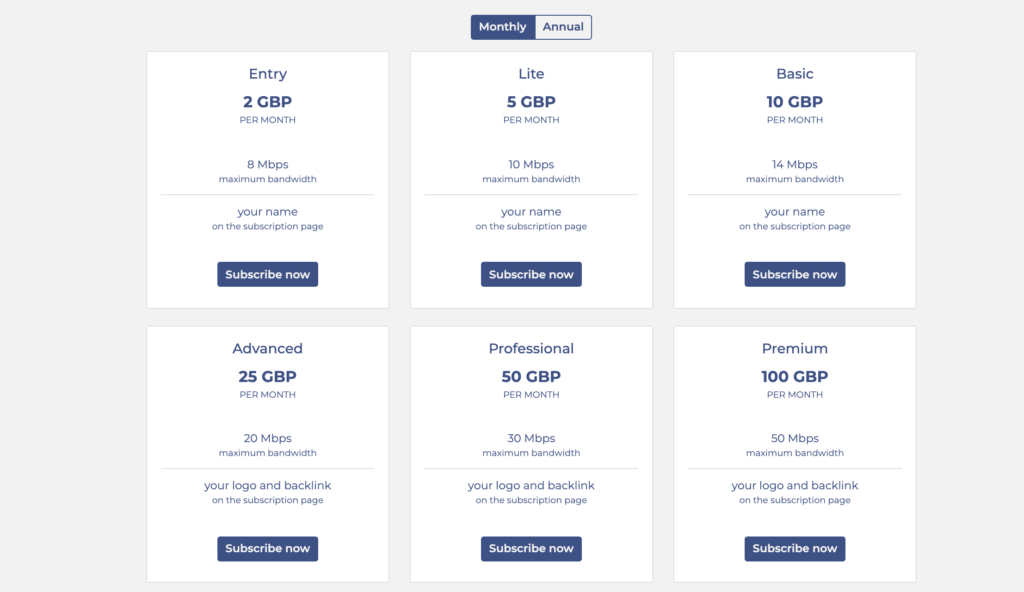
If you are a regular user of DWService, you may want to subscribe to one of our paid plans. Each can be paid on a monthly or annual basis and each unlock more bandwidth when you initiate a session. More specifically :

  • Free account: 6 Mbps maximum bandwidth
  • Entry plan: 8 Mbps maximum bandwidth
  • Lite plan: 10 Mbps maximum bandwidth
  • Basic plan: 14 Mbps maximum bandwidth
  • Advanced plan: 20 Mbps maximum bandwidth
  • Professionel plan: 30 Mbps maximum bandwidth
  • Premium plan: 50 Mbps maximum bandwidth

This bandwidth is unlocked whenever you initiate a session with and agent set up in your account, for instance when you want to interact with the remote screen. More bandwidth means for data going through, hence a smoother experience.
Subscriptions

How to share only a specific folder?

To share only a specific folder, follow the steps below.

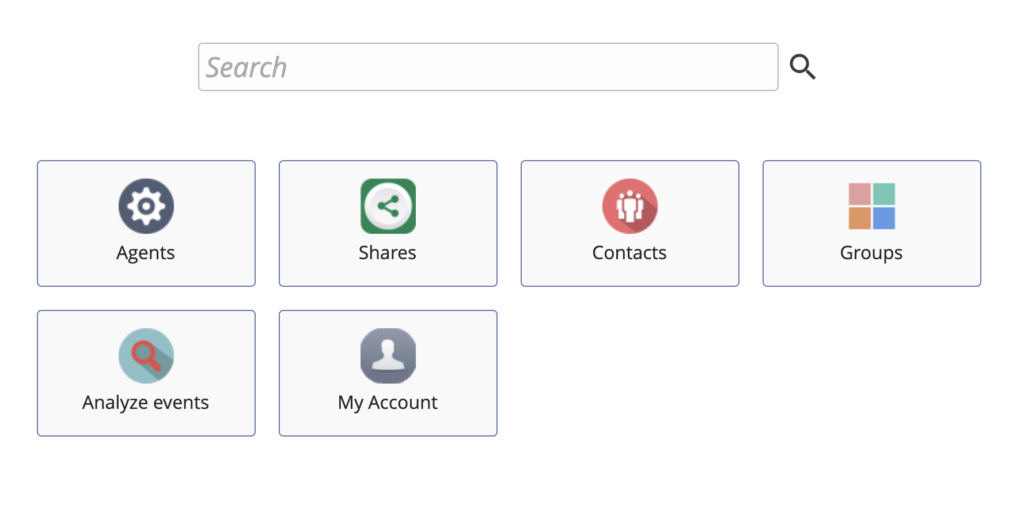
Log in www.dwservice.net, go to Agents
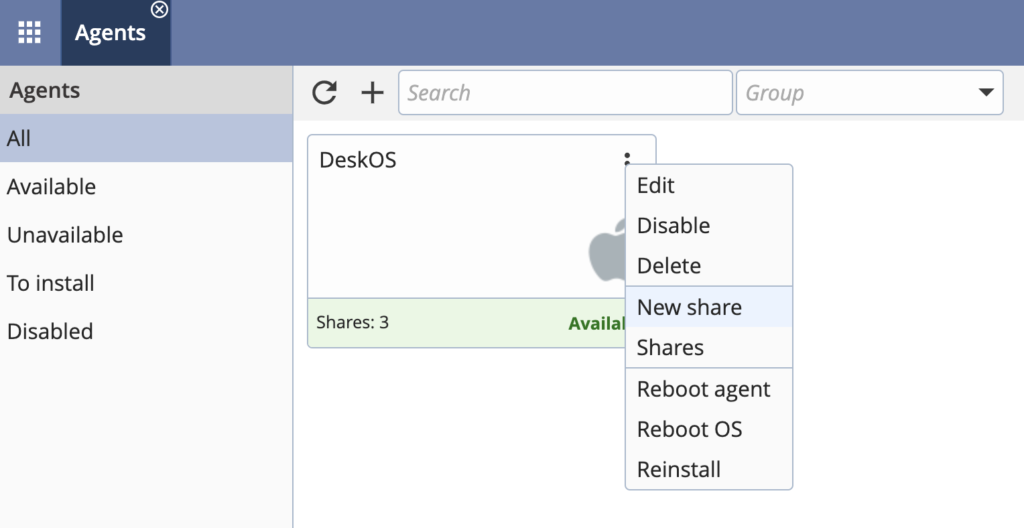
Choose the agent that you want to share, click on the three vertical dots and select New Share.
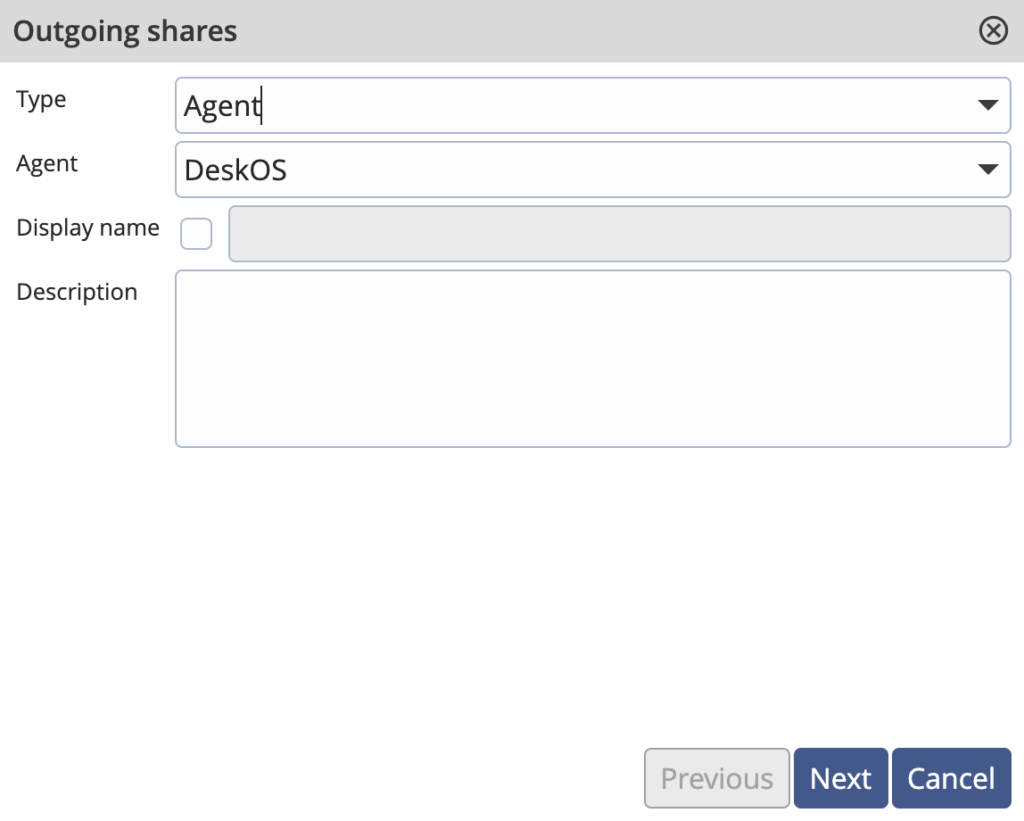
In the next screen, you can add description if you want.
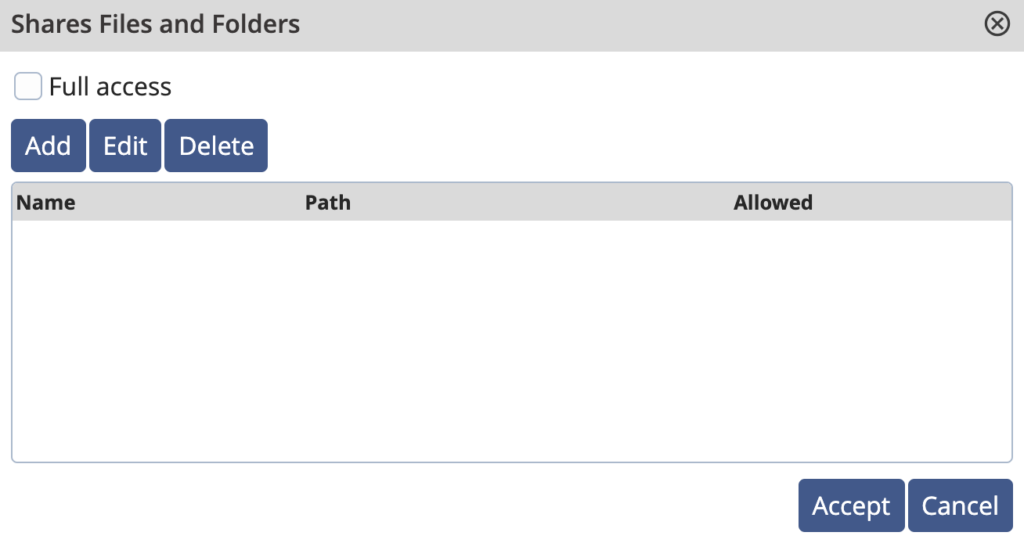
Then you can choose the permission settings. Uncheck Full Access. Select Files and Folders and Click on the wrench icon
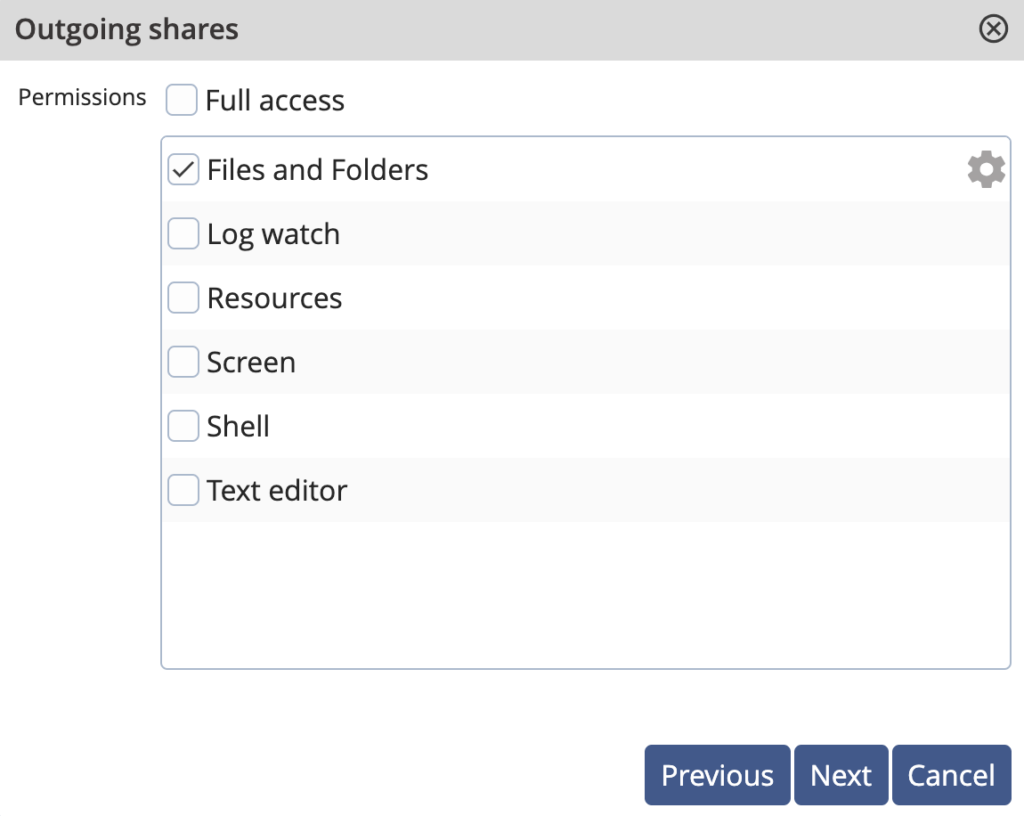
Click on Add to add the folder(s) of your choice that you want to share.
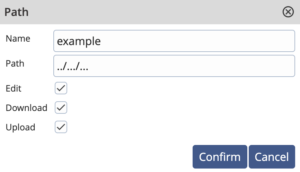
Enter the name and the path of the folder(s)
Then proceed with the sharing process as explained here.