Access a specific app on a particular machine

DWService being quite easy to set up, you might have lots of computers in your account. With time, it may get a little bit hard to distinguish your own machine that you need to access on a regular basis. Luckily, we have a great tip!

The idea is for you to bookmark a certain link tight to a specific web application on a particular machine.
EXAMPLE : DIRECT LINK TO MY FILES

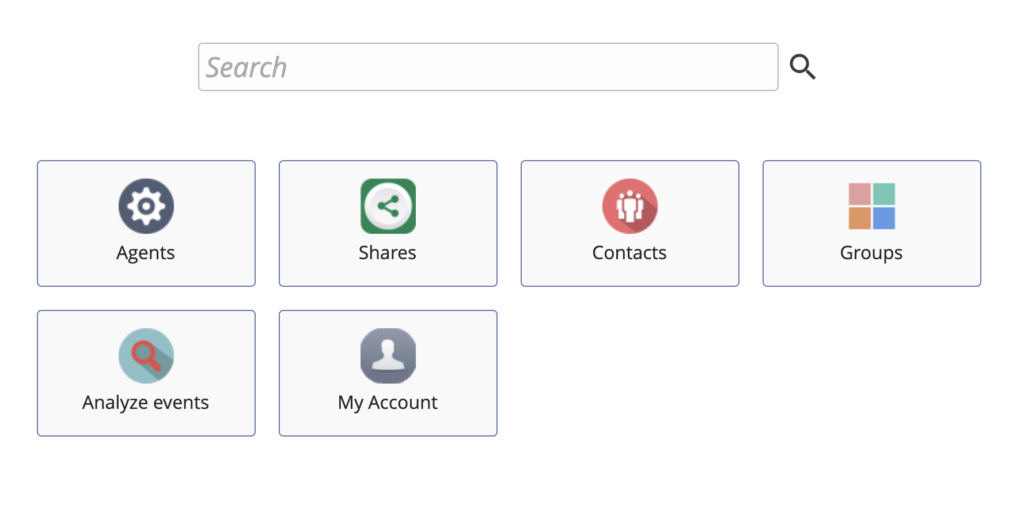
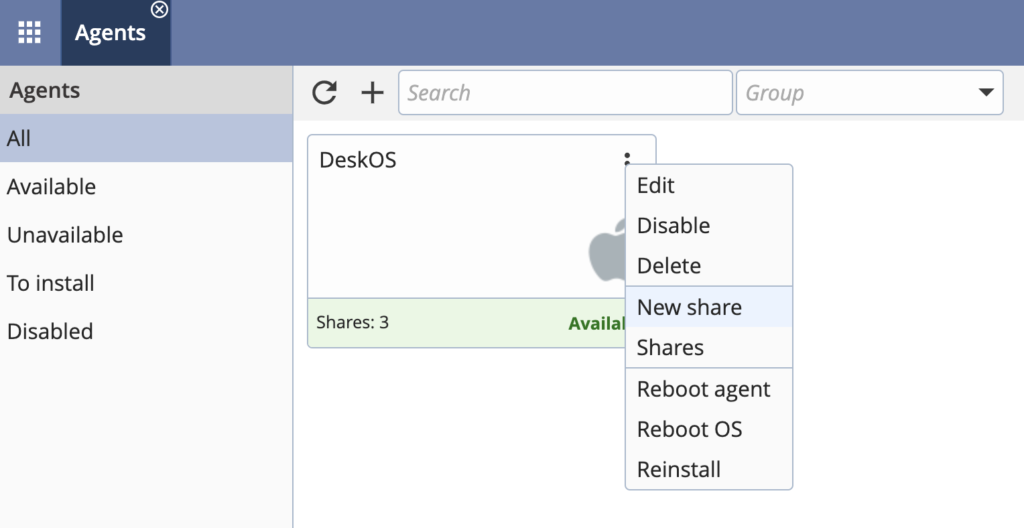
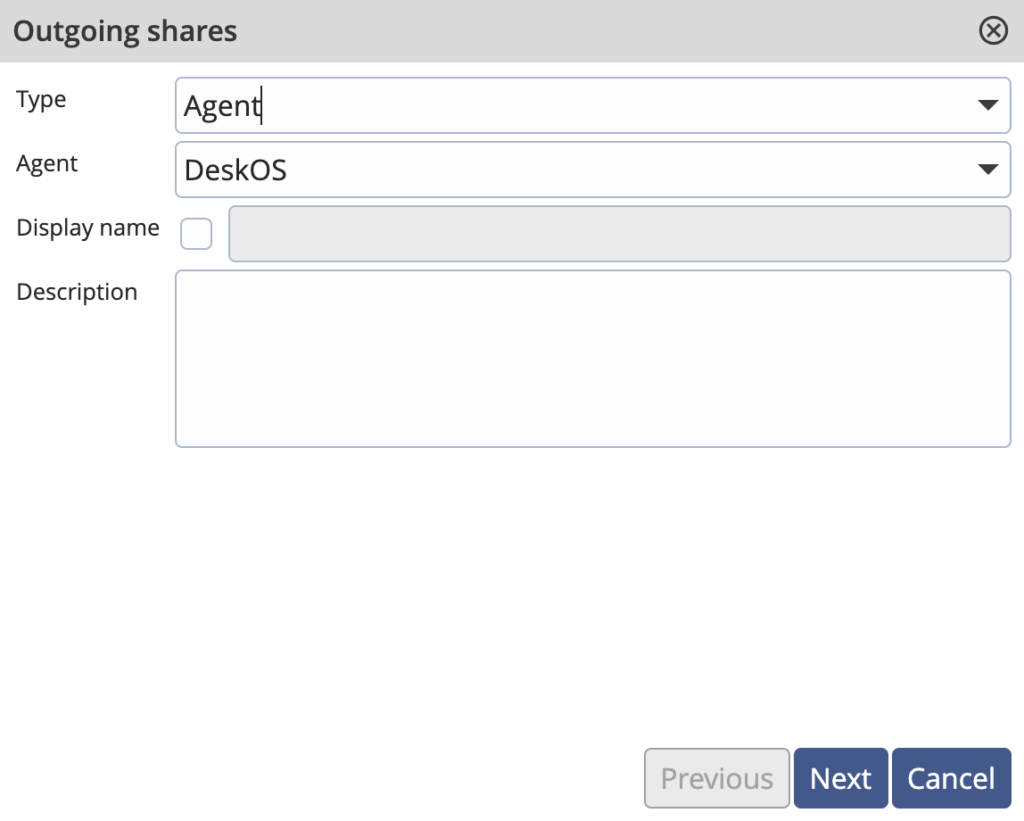
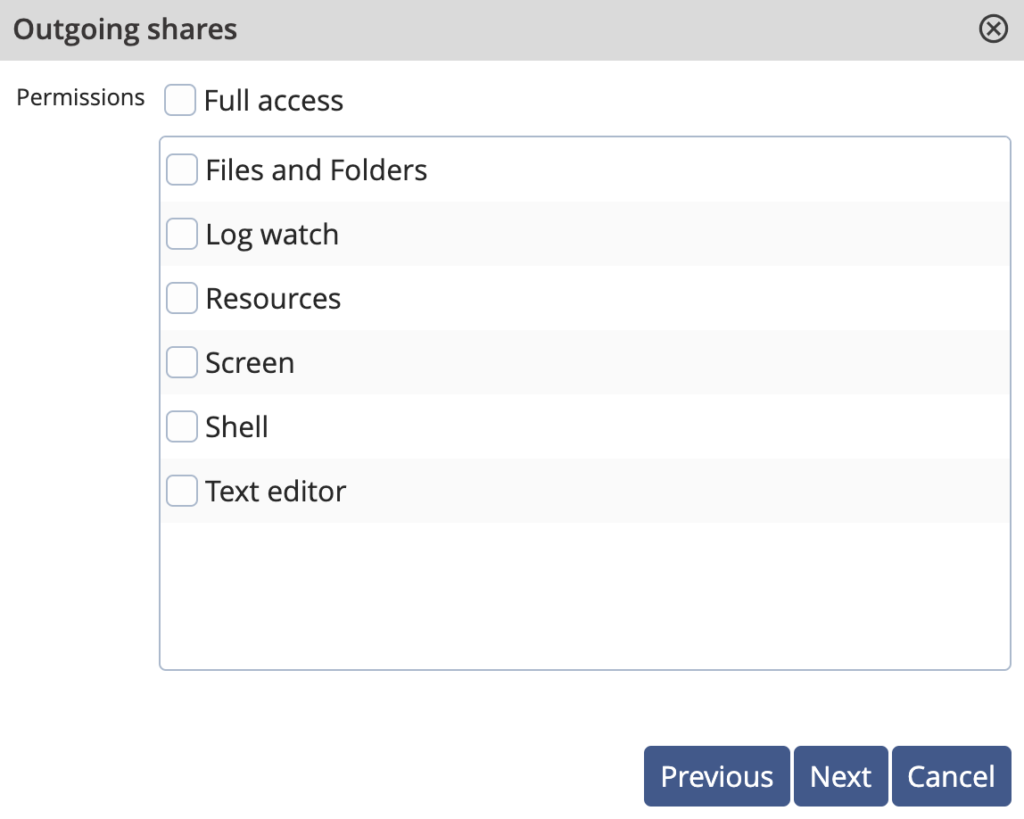
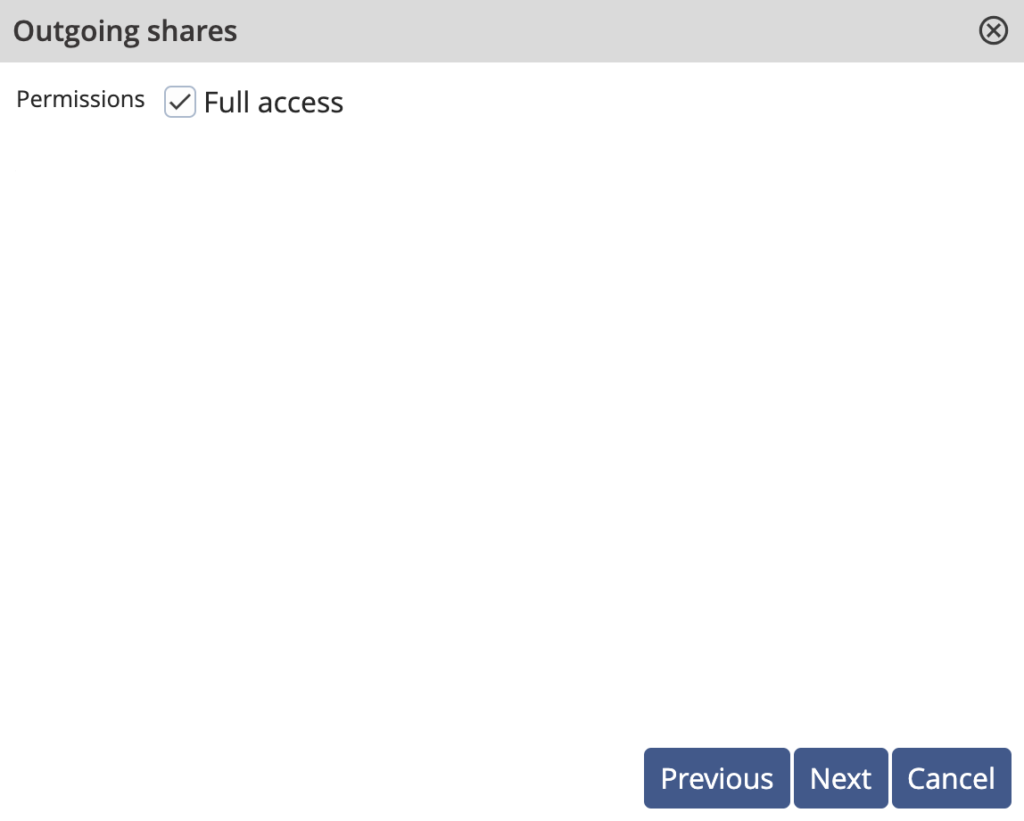
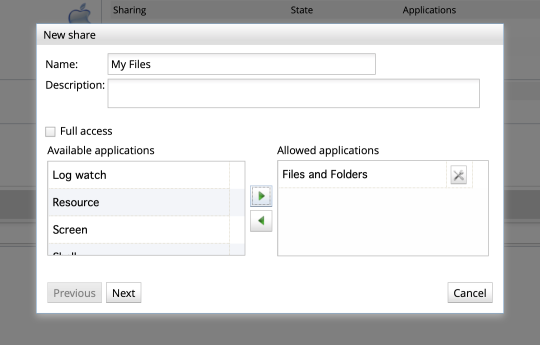
Once logged in your dashboard, click the “+” button of the Sharing section in the computer you want to control. Give it a name, for instance “My Files”. Uncheck “Full access” and add Files and Folders in the Allowed Applications column. Then, click “Next
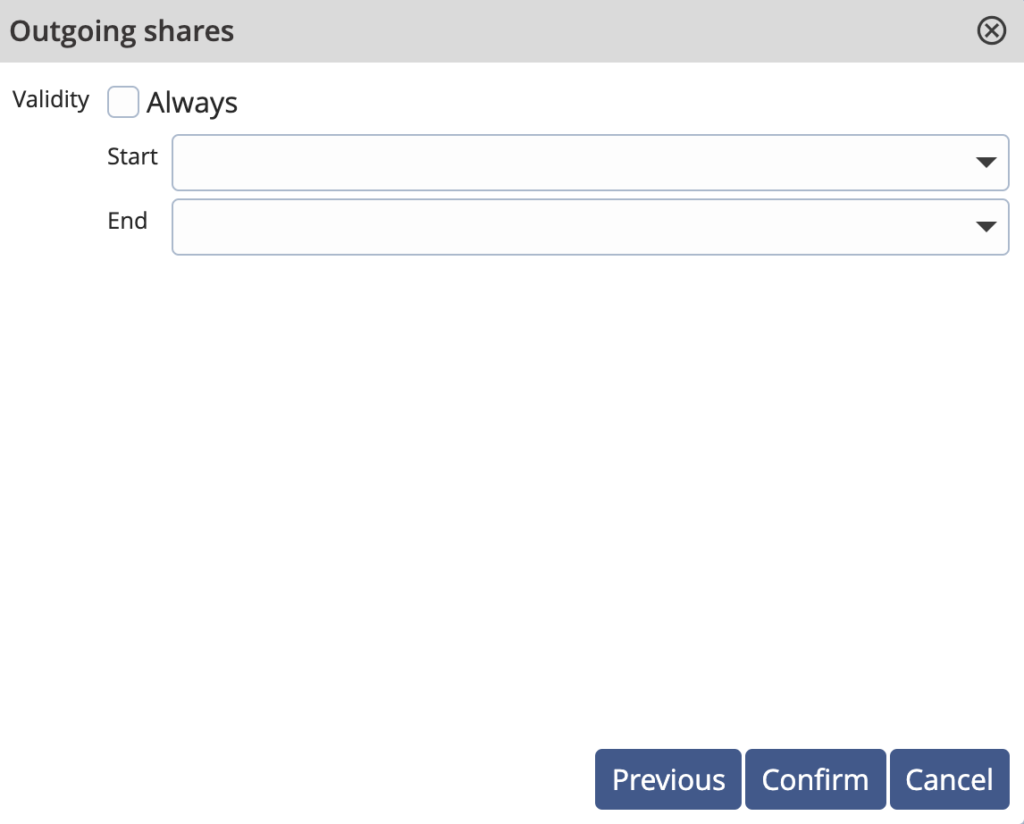
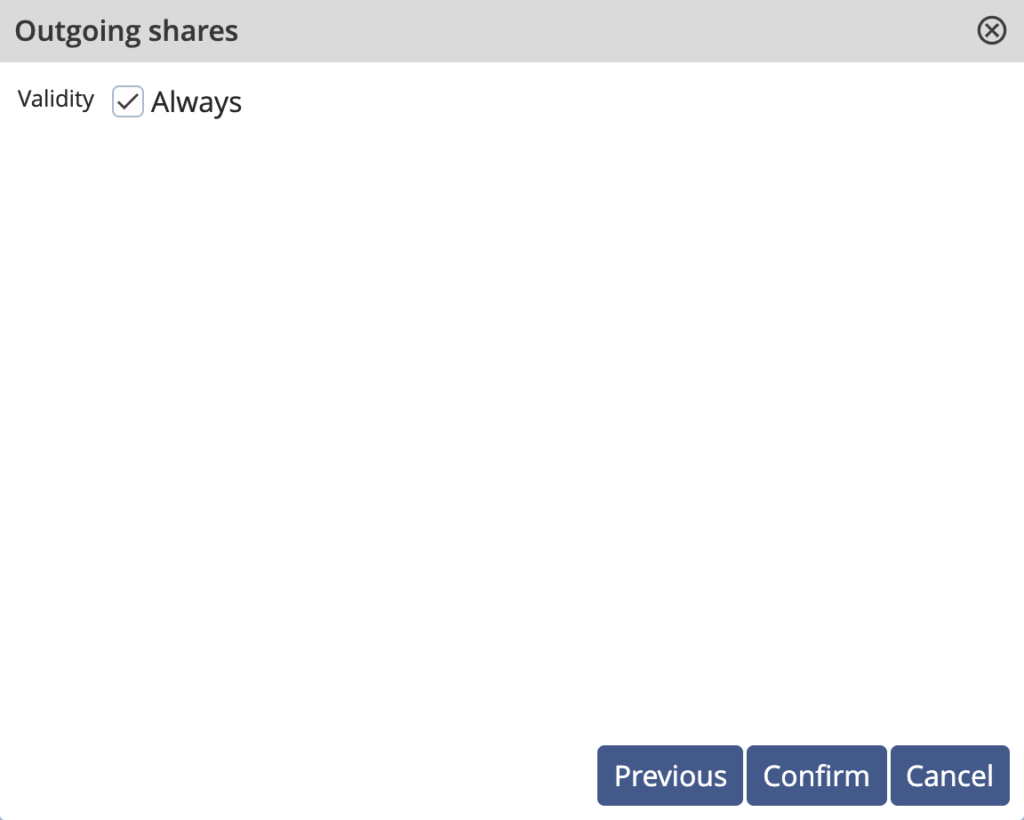
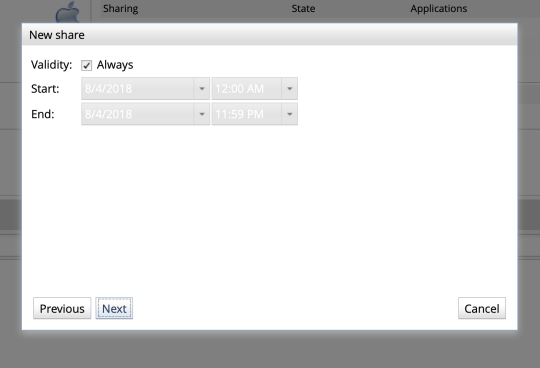
If you want this link to be valid with no time limit, leave the check box Validity: Always. Click Next.

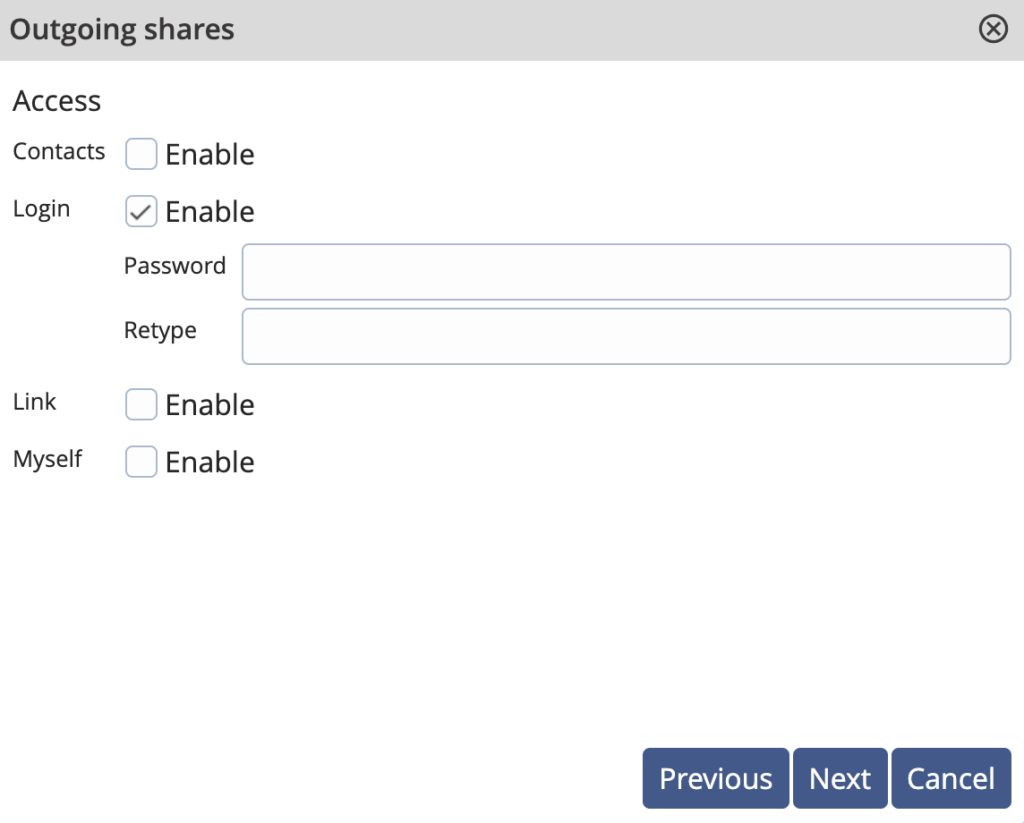
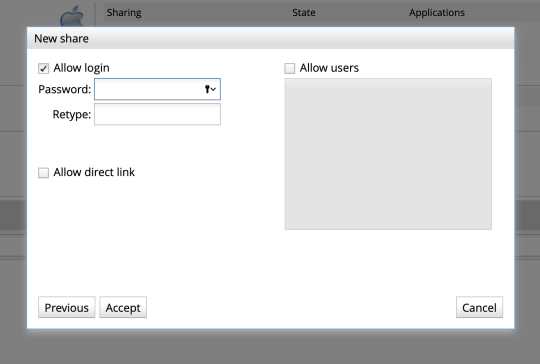
After that, you probably want to secure this connection with a password. So make sure to check the box titled “Allow login” Type in your personal password twice and choose Accept

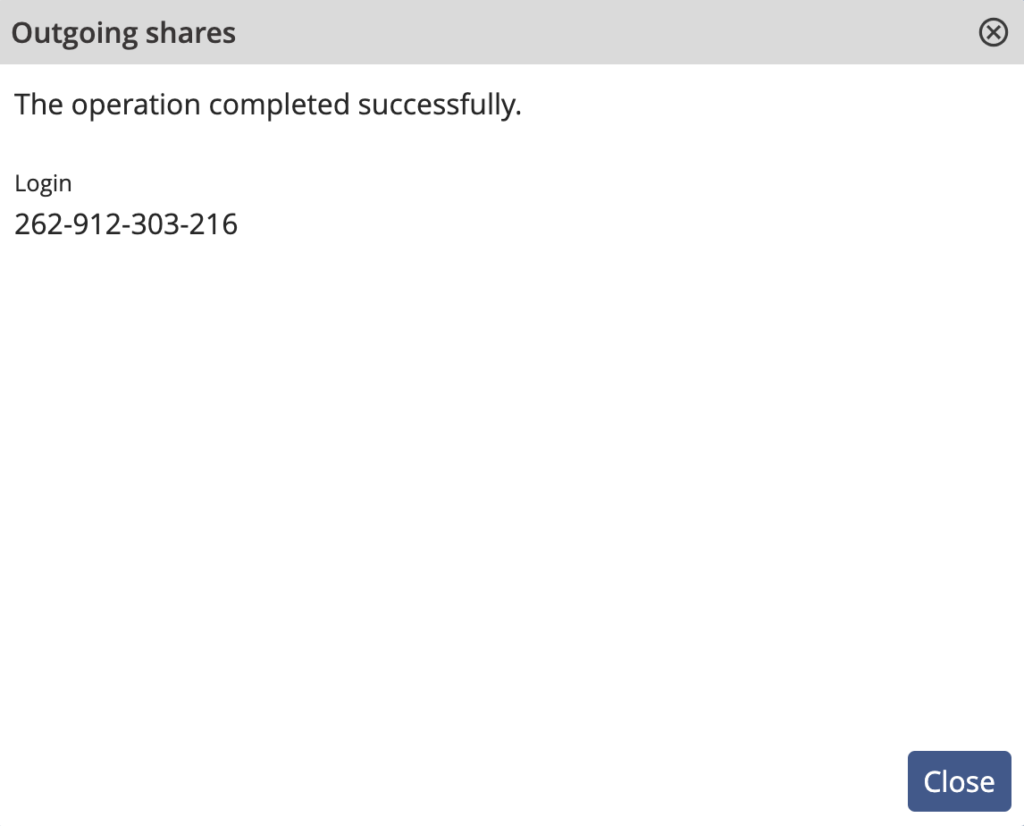
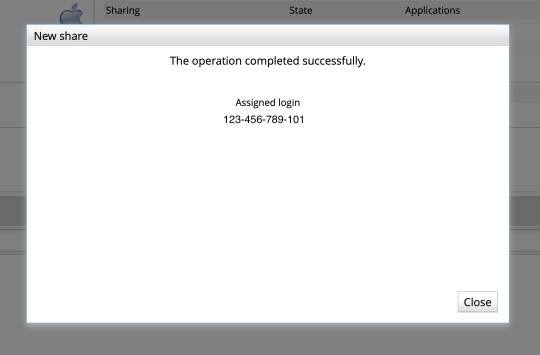
The final screen will present a random login composed of four blocks of three digits which looks a bit like this:

BOOKMARK YOUR CUSTOM DIRECT PATH

Now, your access has been created. If you do not want to bother learning this new random login by heart, we have another trick! Simply bookmark this page:

https://www.dwservice.net/en/login.html?loginUser=123-456-789-101

Of course, replace the end of the URL with your own random login digits. You’ll land on a page where the login field will be prepopulated. Now you simply need to enter the password that you chose earlier on.

Note: This page will be in English, but you can modify that URL by changing

….net/en/login…

…with the letters corresponding to your language (eg.it=Italian, fr=French…)


Access a specific remote machine/agent

Two types of situations are possible:

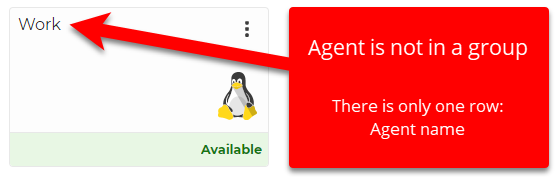
  • The Agent is not in a group.
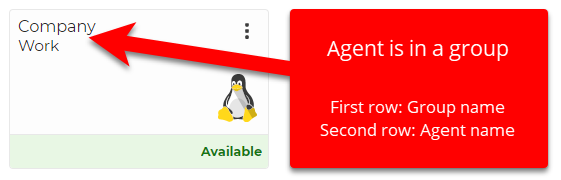
  • The Agent is in a group.

The difference between the two:

First, let’s see how it works when the Agent is not in a group.

Say, for instance, that you have set up your home computer and your work computer in DWService.net. Let’s say you called the first one “Home” and the second one “Work”.

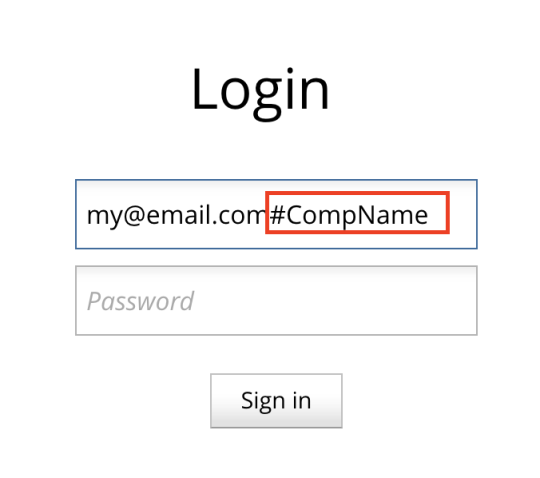
When logging in your dashboard, after your email address, simply append the “#” sign, followed by the computer name of your choice.

If you usually log in with my@email.com, then you would access your work computer by using: my@email.com#Work. Your password, of course, remains unchanged.

This will lead you straight to your work computer dashboard!

The example above showed how you can directly join an Agent that is not in any group.

When the Agent is in a group, the login is as follows: my@email.com#Company/Work

As you can see, the sequence is as follows: email#GroupName/AgentName

Our tutorial video on the process is available on our YouTube channel:

Remote Access

Java

Requirements

  • JDK 11.x
  • ECLIPSE JAVA EE IDE (2020-12)
  • MAVEN 3.6+
  • TOMCAT 9.x

We need eclipse which supports JDK 11 and for Enterprise Java developers as it already comes with apache tomcat 9.x adapter and we do not need to install the related plugins.

Setting up the demo platform

Configure eclipse to use JDK 11, Maven 3.6 + and Tomcat 9.x

  • To configure Java, go to Windows > Preferences > Java > Installed JREs and validate JDK 11.x is selected. If you do not see JDK 11 please add and select from installed location.
  • To configure maven, go to Windows > Preferences > Maven > Installations and validate Maven 3.6 + is selected. If you do not see Maven, please add, and select from installed location.
  • To configure Tomcat, go to Windows > Preferences > Server > Run Time Environments and validate we have Tomcat 9.x added. If not please add, and select from installed location.

Create a new server to run the application.

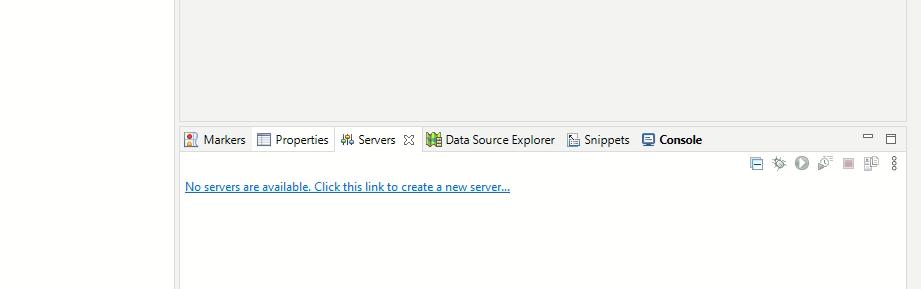
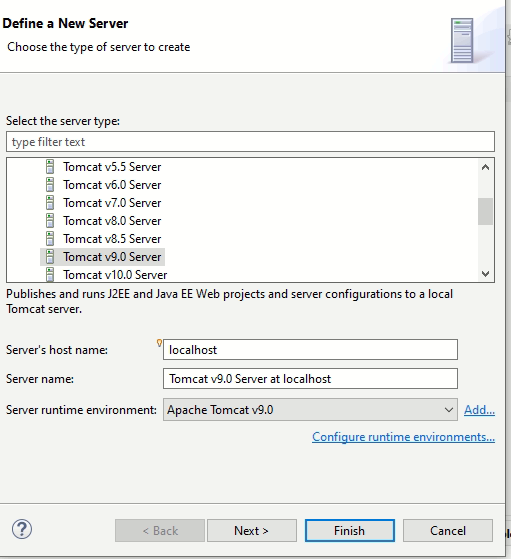
In server tab check if server is linked or not. I now click and in next screen select Tomcat v9.0 Server and select the tomcat runtime environment added in previous step.

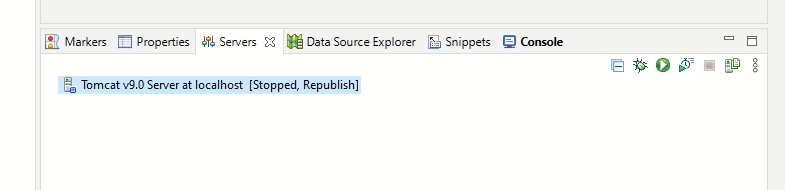
On clicking Finish you can see the server in Servers Tab

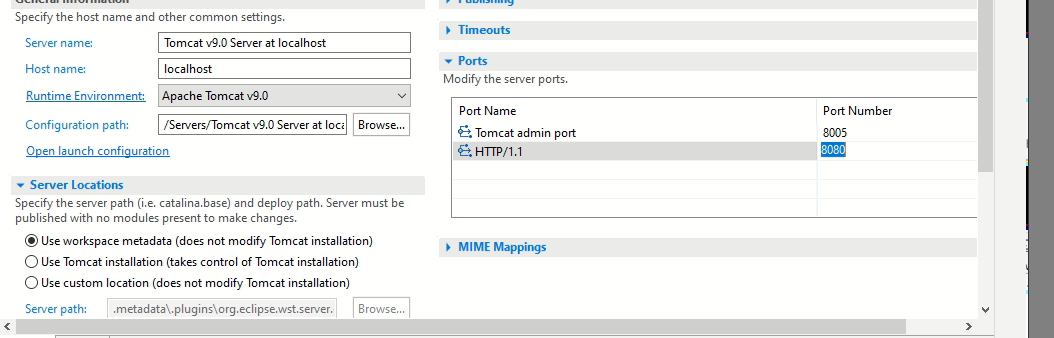
By default, server is running on port 8080. In case you want to run on any other report double click the server shown in Servers tab and configure port as shown in below screen

Change the port and save the config using Ctrl-s

Importing project

  • Download this file: java_example.zip
  • Extract the files.
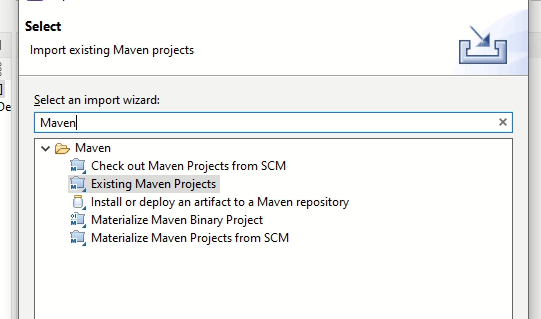
  • In Eclipse select File > Import. Then search “Existing Maven Projects”.
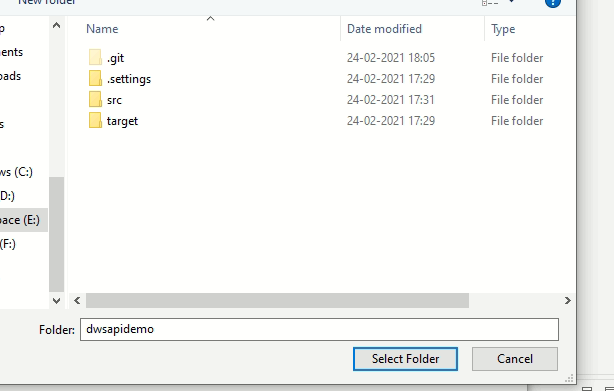
  • Click Next and browse to folder extracted in above step, Select Folder and click Finish.
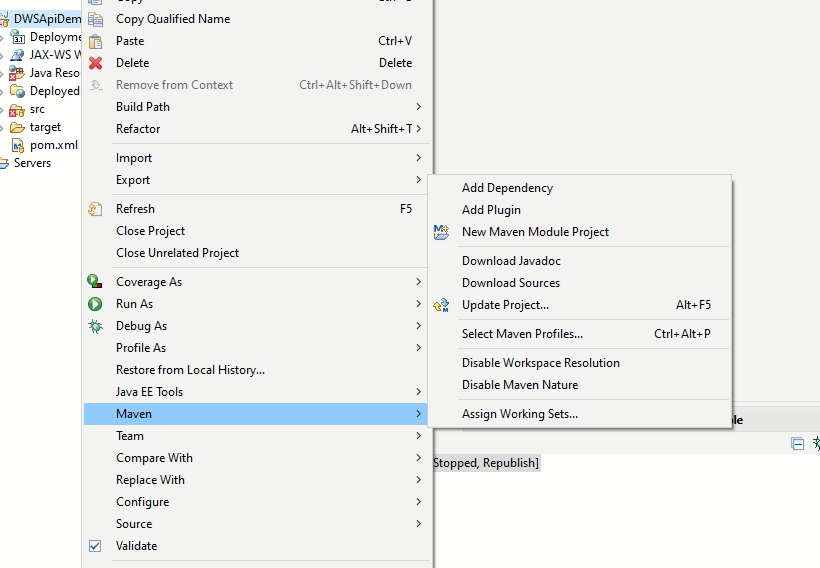
  • After above step wait for eclipse to import project. Eclipse will download all required dependencies from maven. Though eclipse will automatically download all dependencies still just to make sure right click project and select Maven > Update Project

Run project

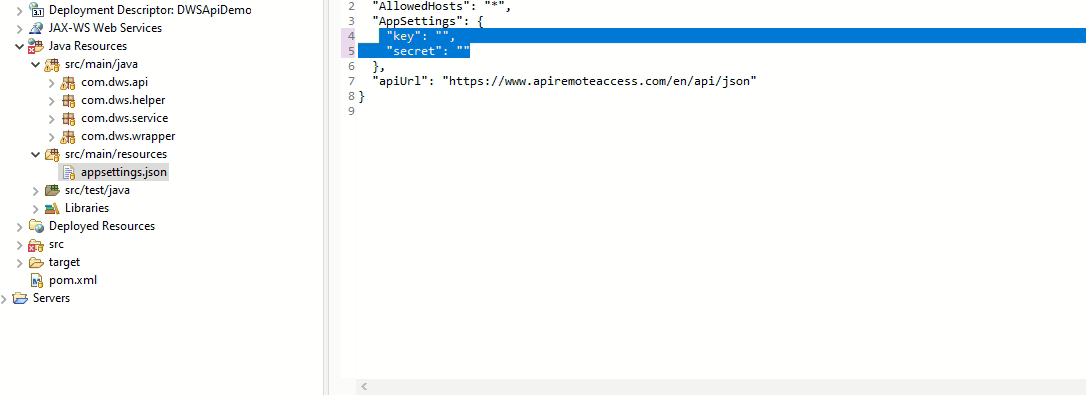
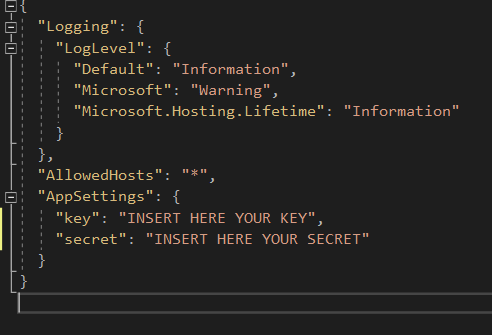
  • Enter your key and secret in the file appsettings.json as shown in the figure:
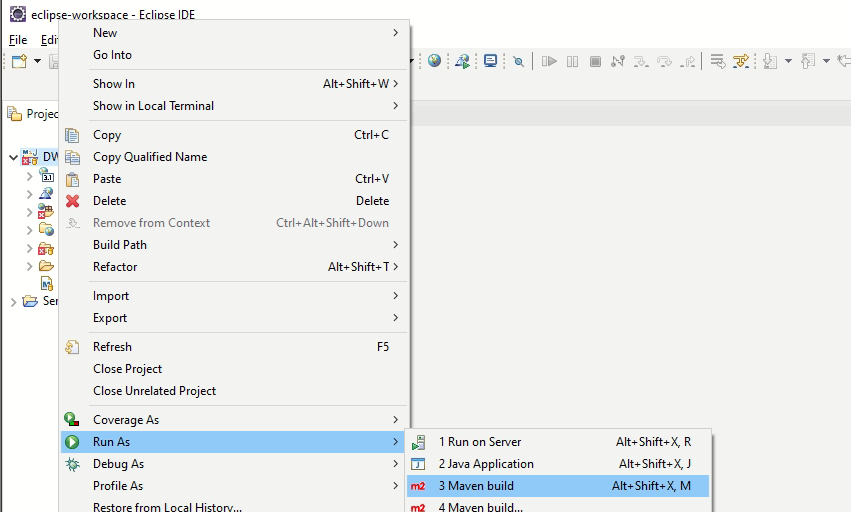
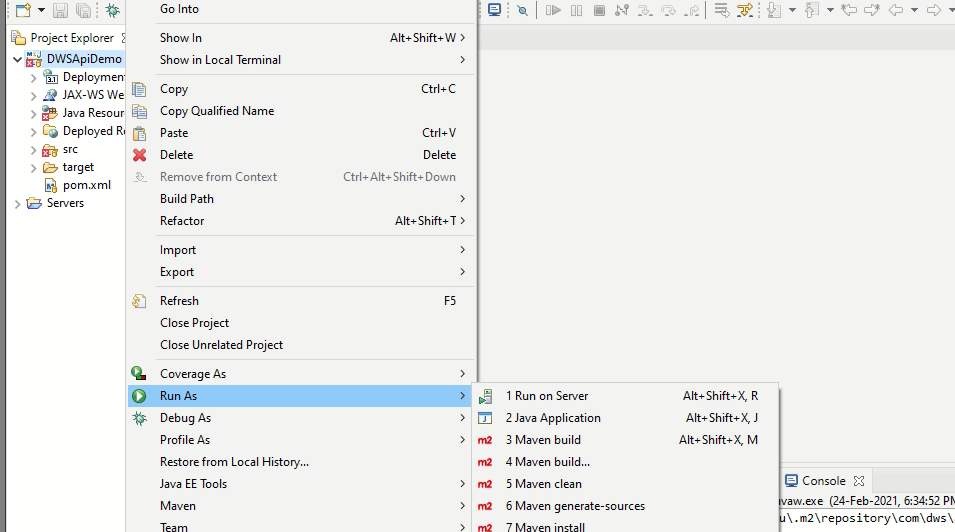
  • Compile project using maven. Right click project Run As > Maven Build:
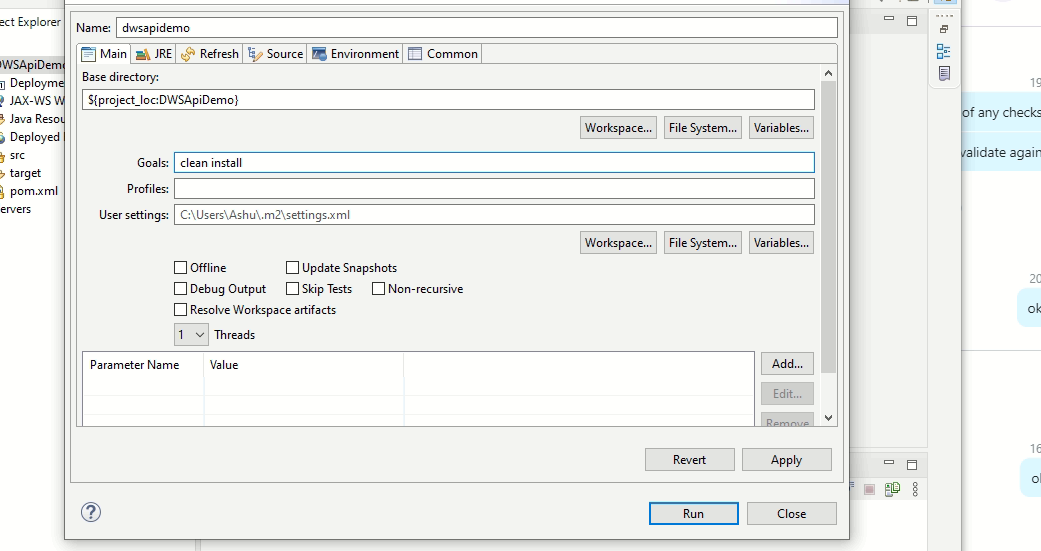
  • In goals add “clean install” and click Run:
  • After successful build right click project and Run As > Run On Server OR Run Ad > Debug On Server
  • In next screen select the server defined earlier and click finish. Once server is started you can access the portal:
    http://localhost:8080/DWSApiDemo/
    Port may be different as configured in server config.

Discovering the demo platform

Add services

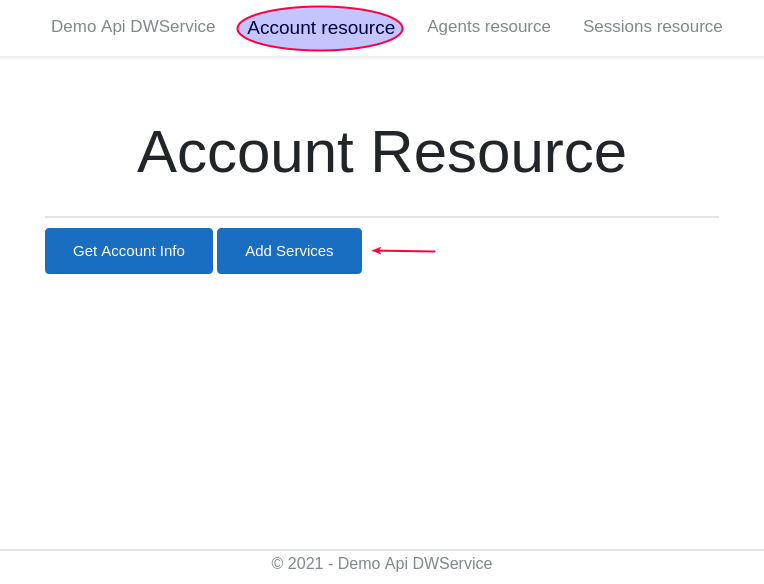
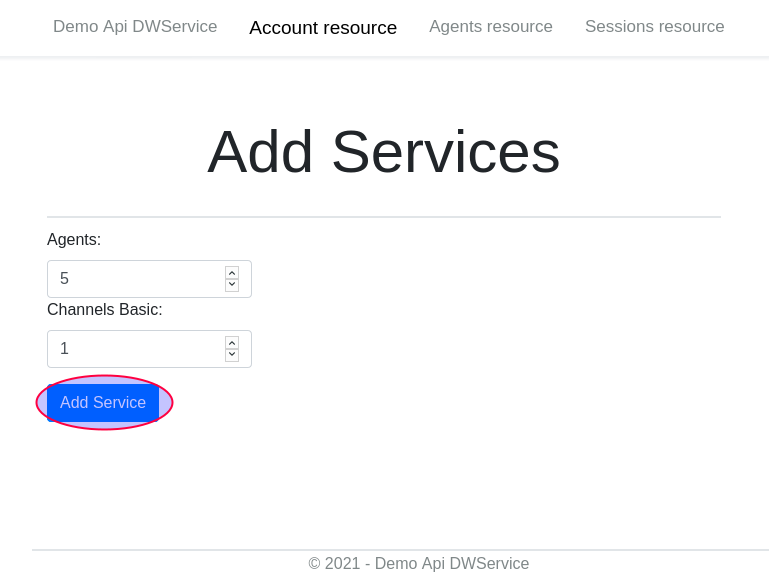
Click the menu button Account Resource, click the Add Services button in the opened page, add 5 agents and 1 channel:

Create An Agent

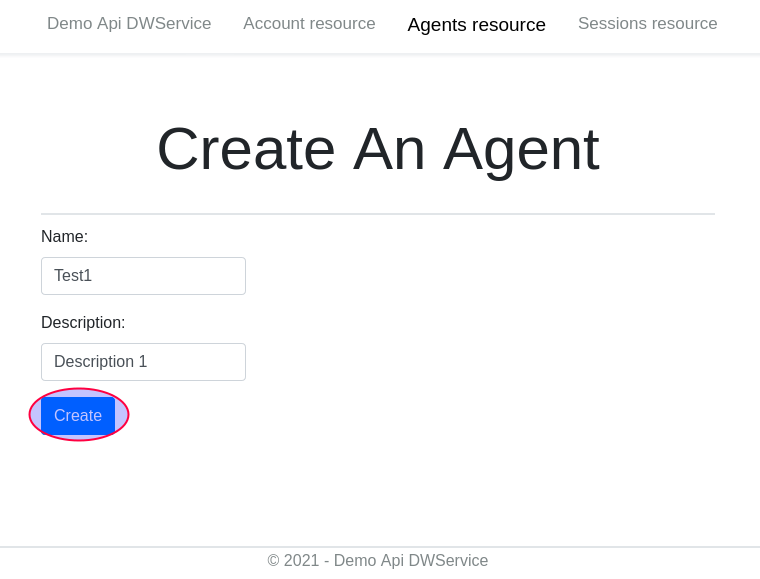
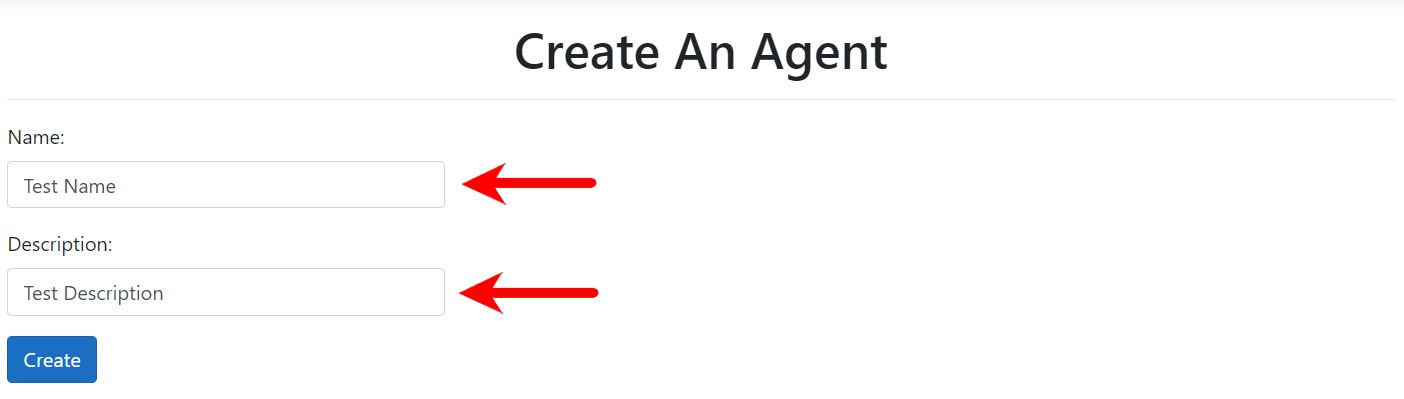
Click the menu button Agents Resource, click the Create button in the opened page. Enter a name and a description for the agent.

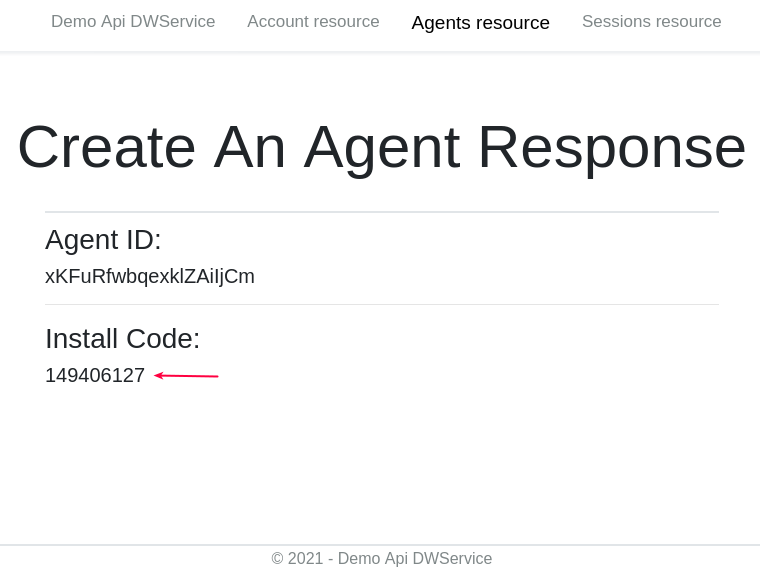
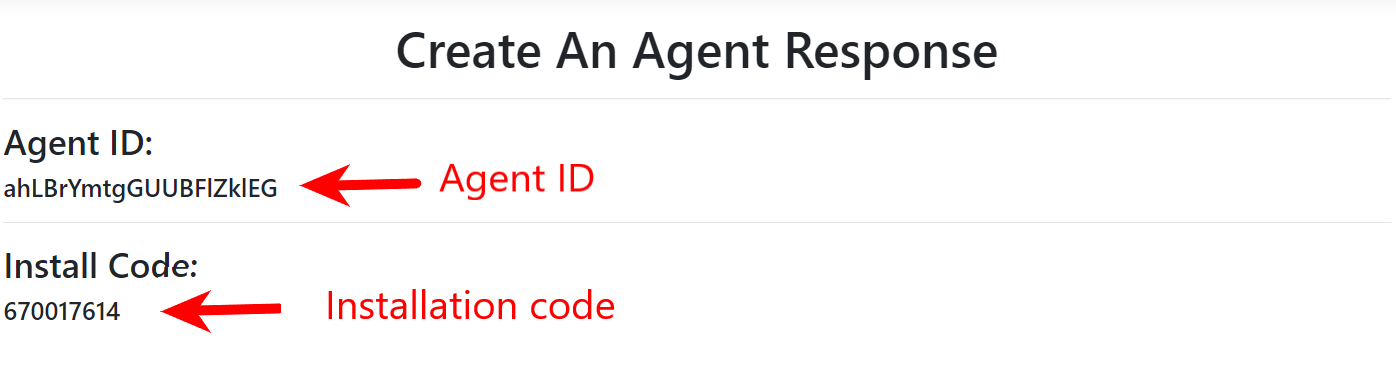
The response is the id associated with the agent.

Install Code is the code to enter when you install the agent on the PC you want to control.
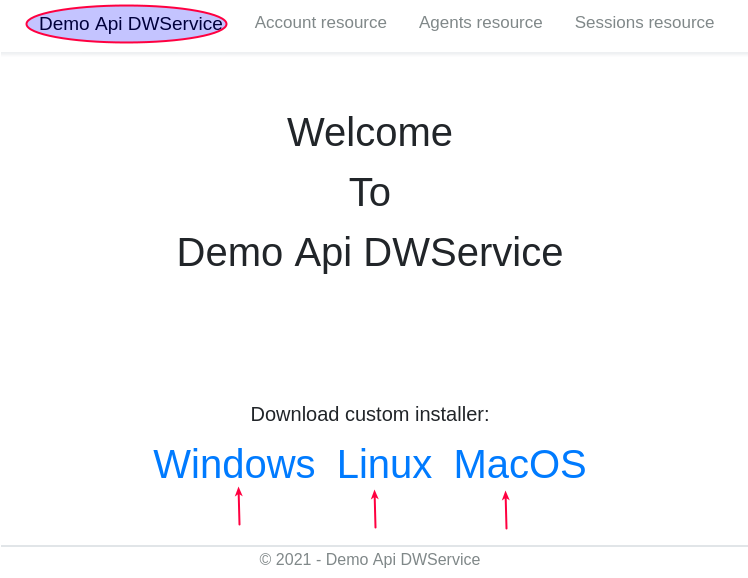
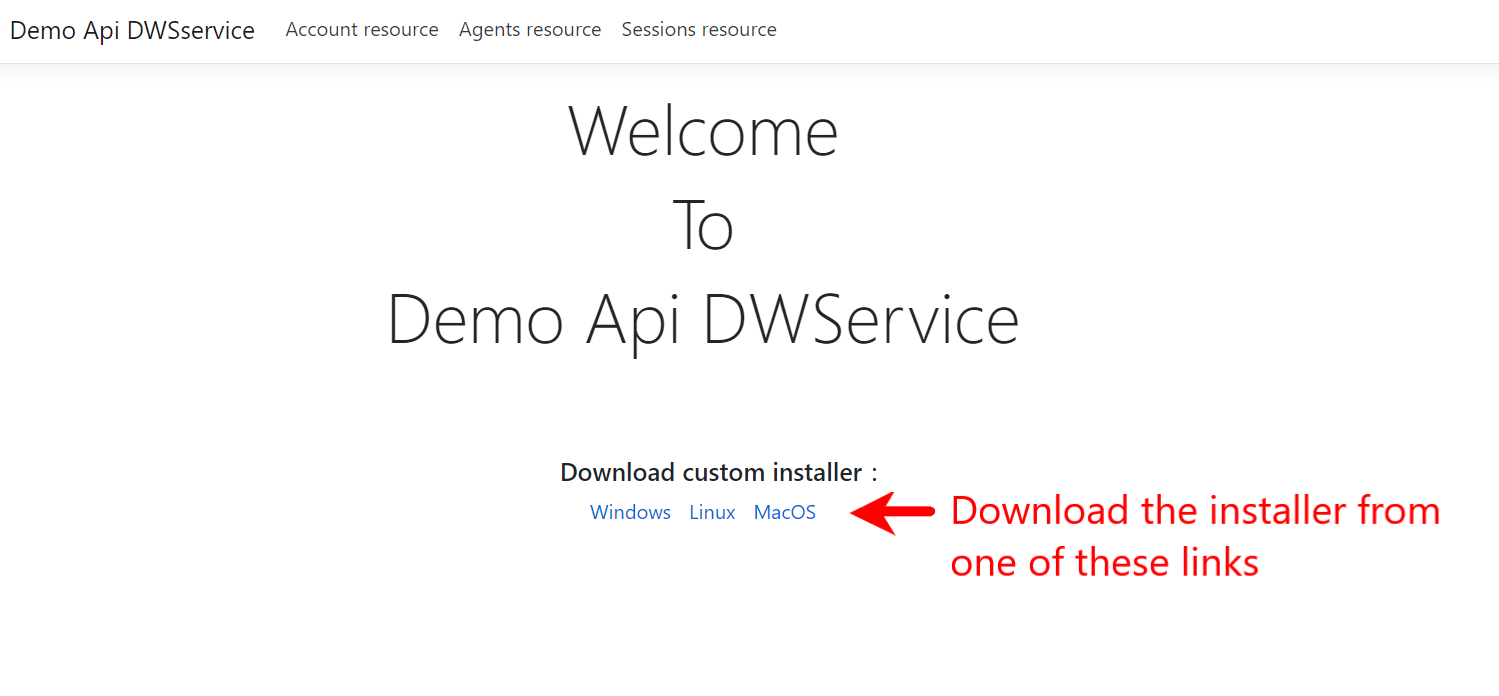
Download and install the custom installer for your OS from project home page:

Create a new session

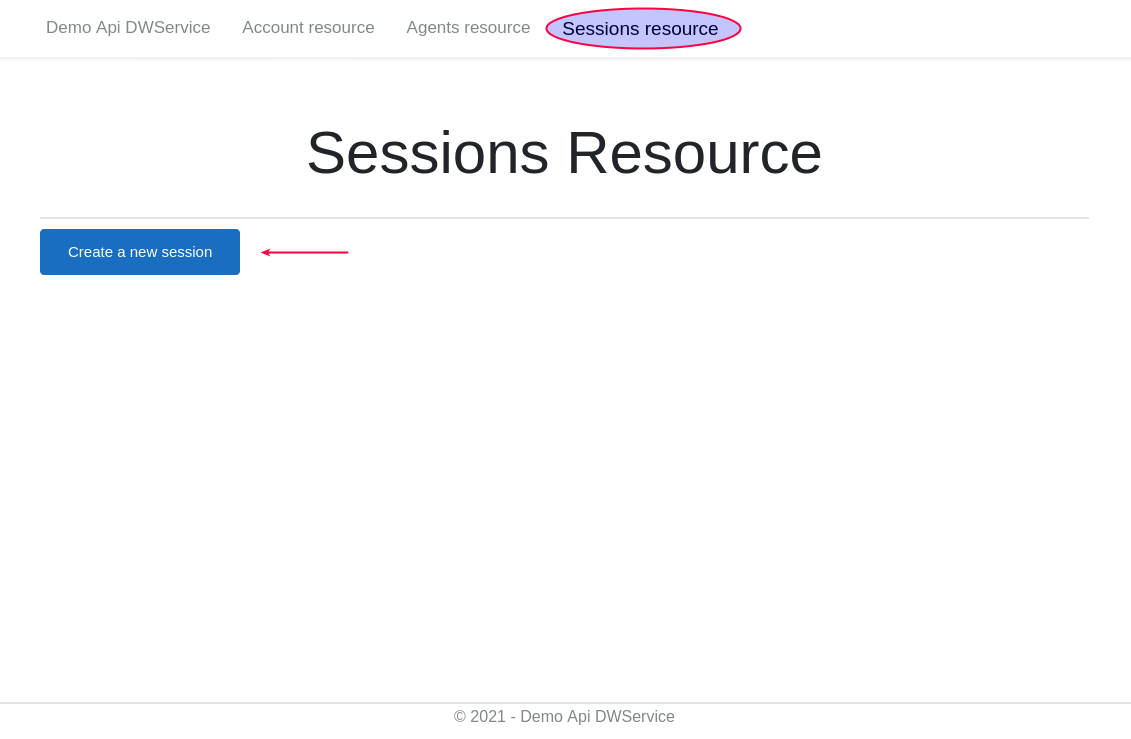
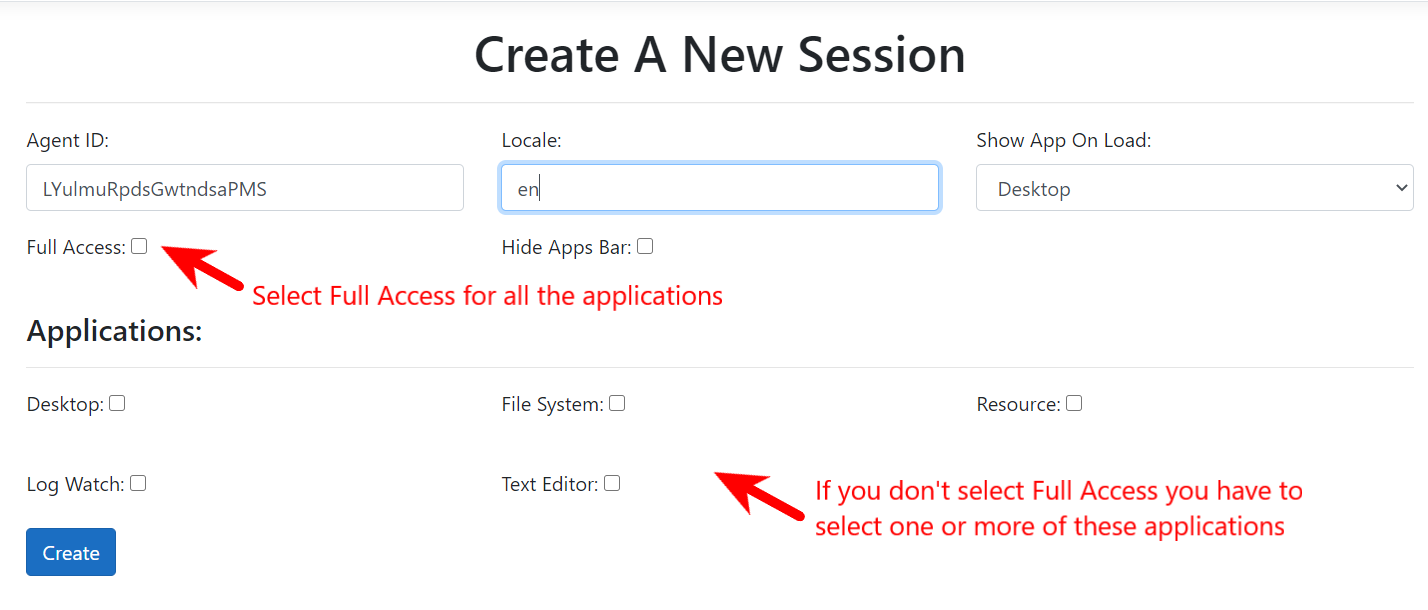
Click the menu button Sessions Resource, click the Create a new session button in the opened page.
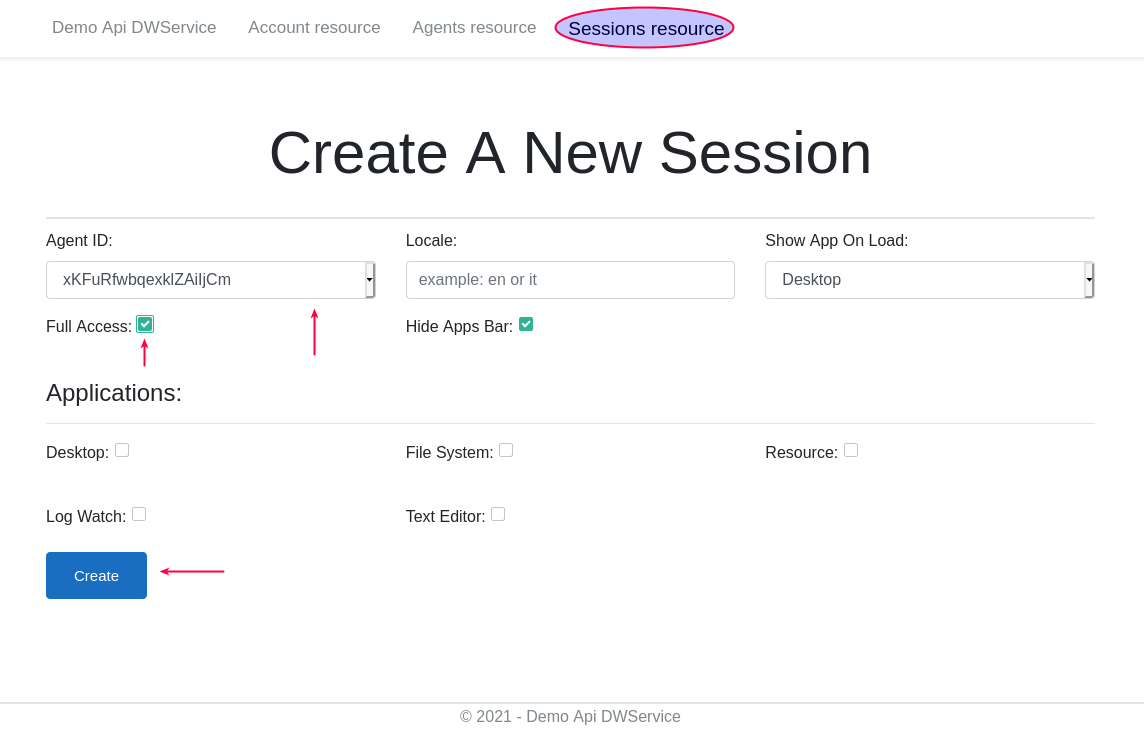
To create a new session you have to:

  • Enter the Id of the Agent you want to connect
  • Enter the language, for example en (by default is en)
  • Choose the app shown when the session opens
  • Choose if you want to see menu apps
  • Choose if you want all the applications by selecting Full Access or select them individually


C#

Requirements

  • Visual Studio 2019

Setting up the demo platform

  • Download this file: csharp_example.zip
  • Extract the files
  • Open the file DemoApiDwservice.sln with Visual Studio
  • Enter your key and secret in the file appsettings.json as shown in the figure:
  • Run the application

Discovering the demo platform

Add services

Click the menu button Account Resource, click the Add Services button in the opened page, add 5 agents and 1 channel:

Create An Agent

Click the menu button Agents Resource, click the Create An Agent button in the opened page. Enter a name and a description for the agent.

The response is the id associated with the agent.

Install Code is the code to enter when you install the agent on the PC you want to control.
Download and install the custom installer for your OS from project home page:

Create a new session

Click the menu button Sessions Resource, click the Create a new session button in the opened page.
To create a new session you have to:

  • Enter the Id of the Agent you want to connect
  • Enter the language, for example en (by default is en)
  • Choose the app shown when the session opens
  • Choose if you want to see menu apps
  • Choose if you want all the applications by selecting Full Access or select them individually

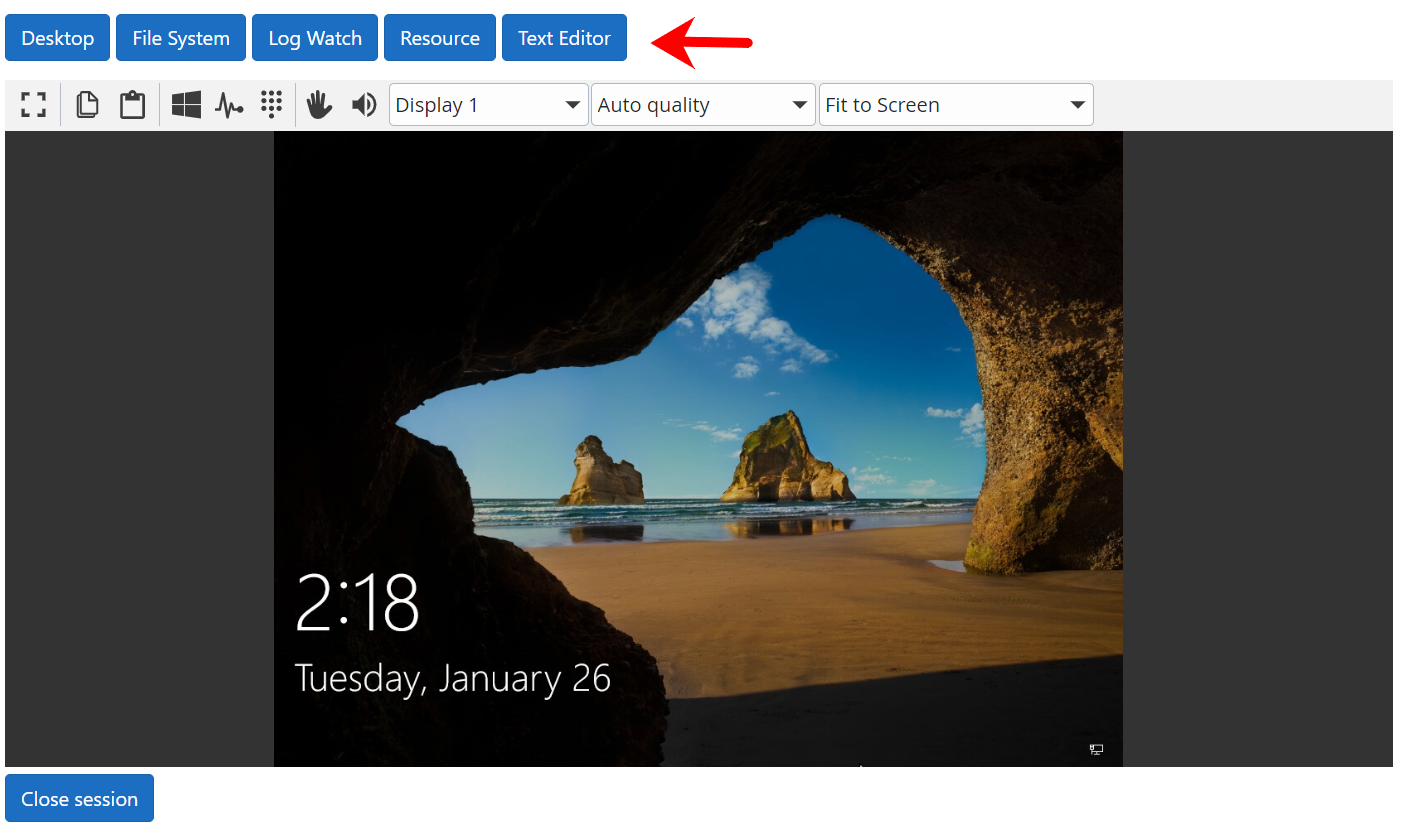
Once the session is open you can choose the various applications by clicking one of the buttons at the top.

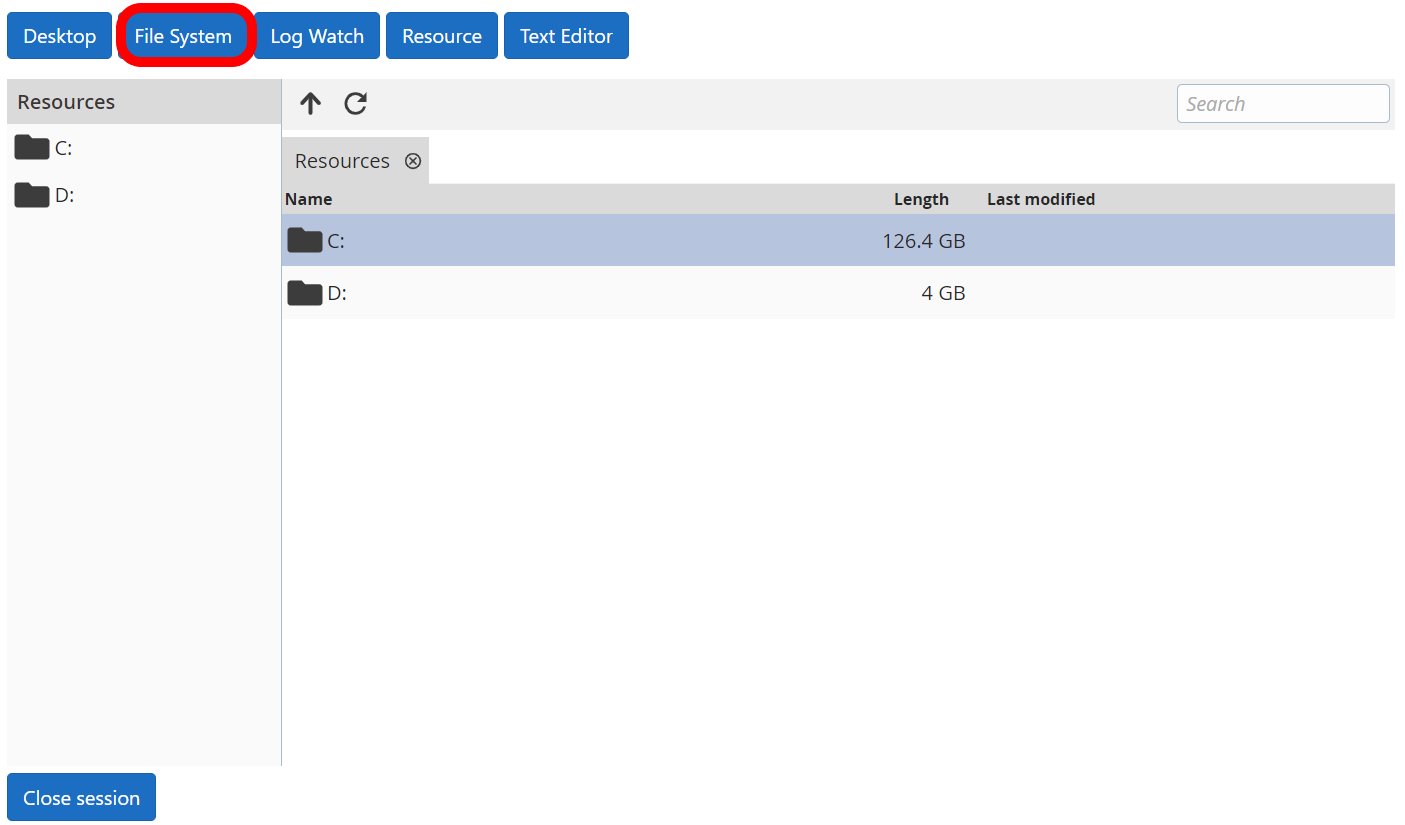
Clicking on the File System button you open the Files and Folders app:

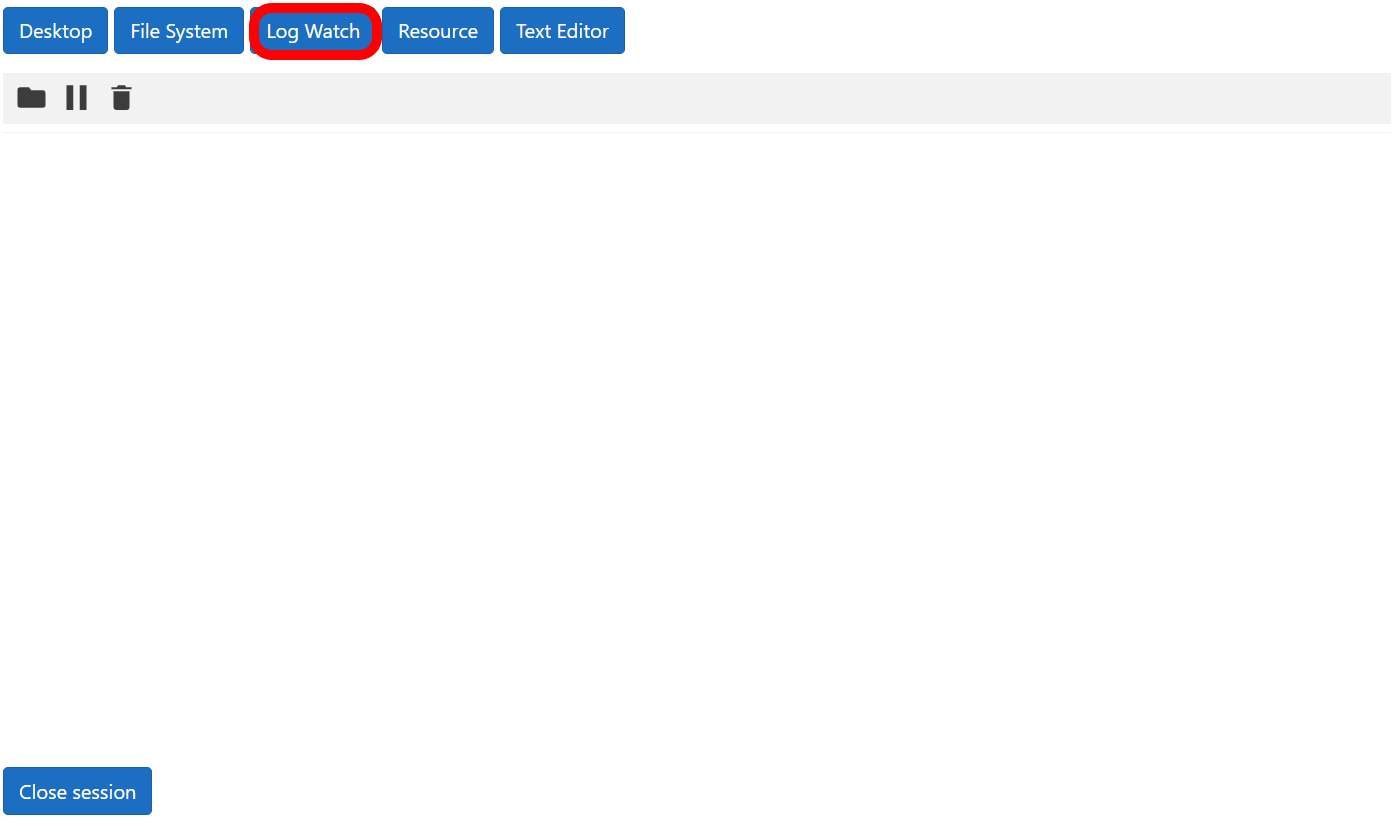
Clicking on the Log Watch button you open the Log watch app:

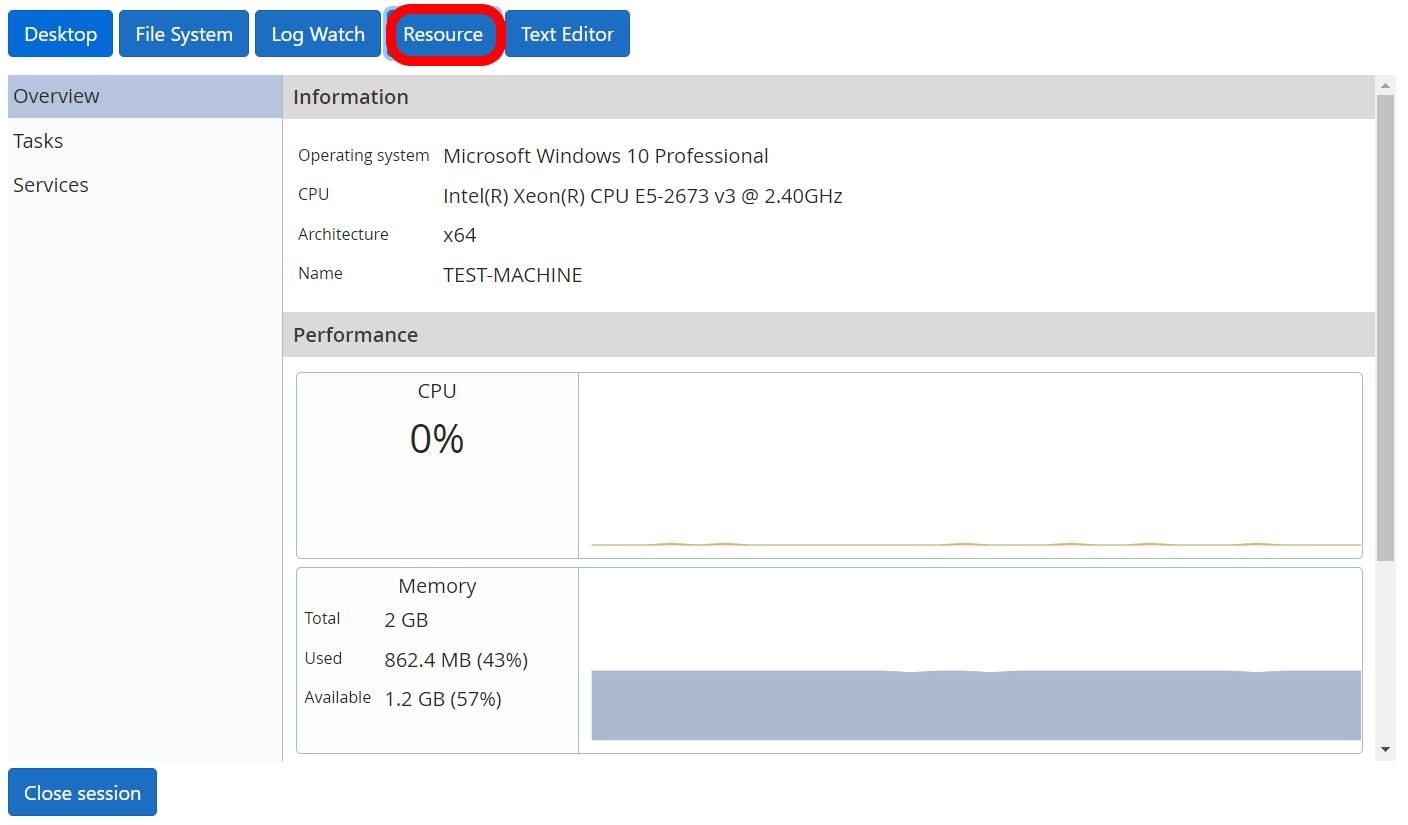
Clicking on the Resource button you open the Resource app:

Clicking on the Text Editor button you open the Text editor app:

Prerequisites

In order your Application to be fully functional in all browsers, your Web server needs a SSL certificate. This prerequisite is important is you use the IFrame.

Mac OS

To customize Mac OS installer you need:

  • Download the Mac OS installer: dwagent.dmg
  • Download the customization script: customize_installer_mac.sh
  • Open a Terminal and go to download path.
  • Give execute permissions to script: chmod +x customize_installer_mac.sh
  • Prepare file install.json and images.
  • Execute customize_installer_mac.sh <srcinstaller> <dstinstaller> <files>
    (e.g. ./customize_installer_mac.sh dwagent.dmg myinstaller.dmg install.json icon.icns icon.png icon16x16.bmp icon32x32.bmp icon48x48.bmp)
  • You are now ready to distribute your installer.

Linux

To customize Linux installer you need:

  • Download the Linux installer: dwagent.sh
  • Download the customization script: customize_installer_linux.sh
  • Open a Terminal and go to download path.
  • Give execute permissions to script: chmod +x customize_installer_linux.sh
  • Prepare file install.json and images.
  • Execute customize_installer_linux.sh <srcinstaller> <dstinstaller> <files>
    (e.g. ./customize_installer_linux.sh dwagent.sh myinstaller.sh install.json image.bmp icon.png icon16x16.bmp icon32x32.bmp icon48x48.bmp)
  • You are now ready to distribute your installer.

PHP

Requirements

  • PHP 7 (or later)

This example use hash_hmac function for authentication, if you do not have it, set $this->authtype=””; in the file dwsapi.php

Setting up the demo platform

  • Download this file: php_example.zip
  • Extract the files to the web server folder
  • Edit the file config.php:
    Set your authentication for :
    $dwsapiKey
    $dwsapiSecret
    (Refer to the section Authentication)

    Set $dwsapiPostMessageOrigin with your domain url
    e.g. https://www.company.com
    e.g. https://127.0.0.1
    e.g. https://localhost

  • Open index.php from your web browser
    e.g. https://127.0.0.1/php_example/index.php
  • Click “Account” example:
  • Add services, 5 Agents and 1 Channel:
  • Now you are ready to test it

Here an overview of the examples:

Discovering the demo platform

Account example

This example shows information about your API account. You can see your credit balance, your active services (channels and agents), the monthly costs, the price list and the credit transactions. Besides, from this example you can add and remove services.

Temporary agent connection example

This example illustrates how to connect to a temporary agent (no need to actually install the agent). Unlike the standard DWService installer, there is a “run only” option that generates user and password. A code is required to start the connection so you need to make a custom installer (see customize the installer runputcode=true).

To start a temporary session you have to click on one of the three Create session buttons:

When you create a new session, it will generate a code that you need to copy and paste in the custom agent

Now you need to execute the Agent on the PC or Mac you want to connect with. So you have to download the custom installer for your OS :

Execute the installer and choose the Run option.

To start a session, you have to paste the code and click Next button.


Finally the session is active and you will see the remote desktop on your web page.

Manage agents example

This example shows how to create, remove and install agents. After the agents has been installed, you can connect to it inside an IFrame or in a new window.

To begin, you have to create a new Agent then set a name and click the Create button:

You will see the Agent created and the “install code”. This is the code you have to use in order to initiate the Agent.

Now you need to install the Agent on the PC or Mac you want to connect with. So you have to download the custom installer for your OS:

Execute the installer and choose the Install option.

To complete to installation you have to put the install code and click the Next button.


From your web page, click Refresh list button and you will see your Agent status go online.

To start a session in your web page click the Desktop or the FileSystem button or if you want to initiate a session within new browser window, click the New Window button:


Examples

Before you start with examples, you need to create an API account. By doing so, you can generate an API Key in order to authenticate in our system. Please refer to the Authentication section.

Your Web server needs a SSL certificate for these examples to be fully functional in all browsers.