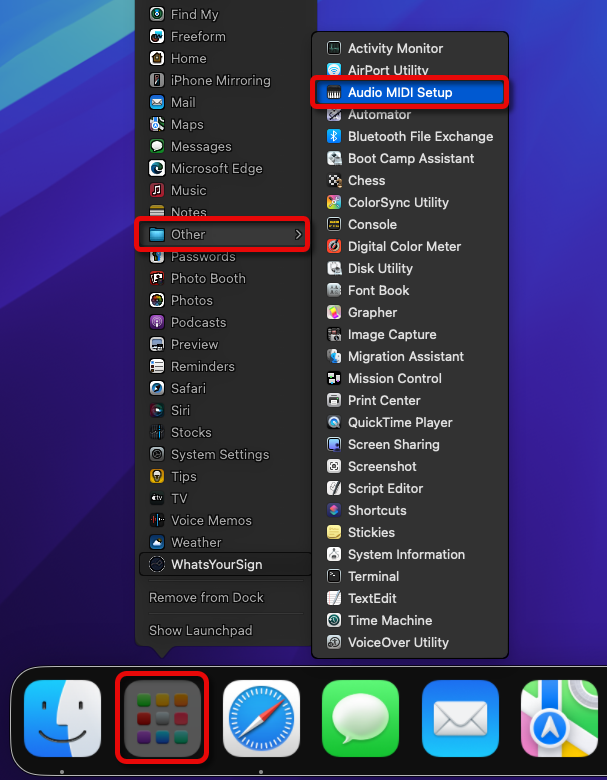
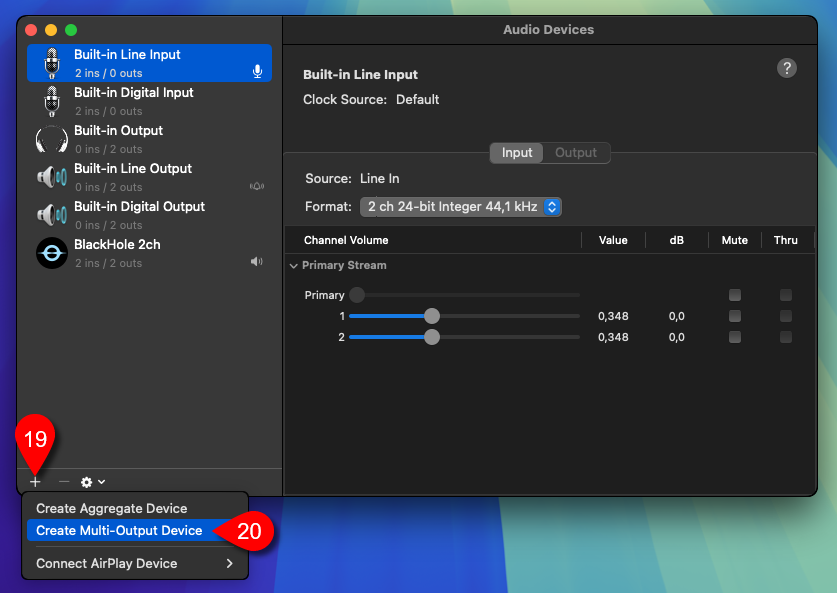
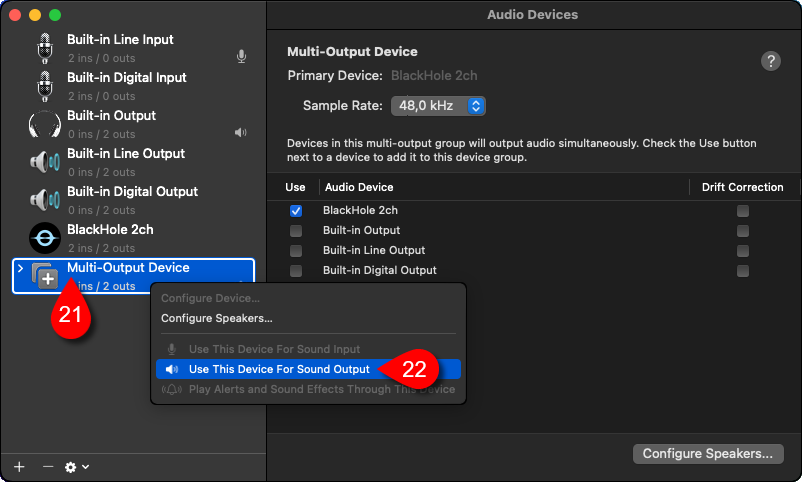
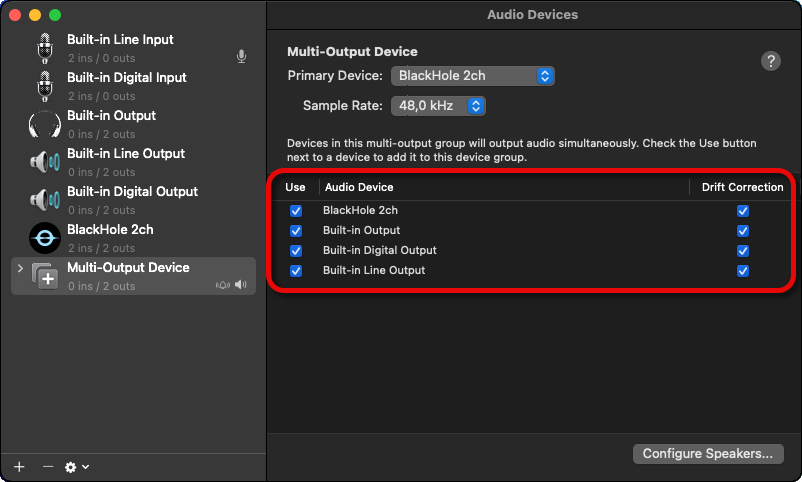
Windows
In case you choose this installation method, you should follow our next guide, step-by-step.
Visit our website: https://www.dwservice.net
1. Login to your account. You can read more about the login process here: Login
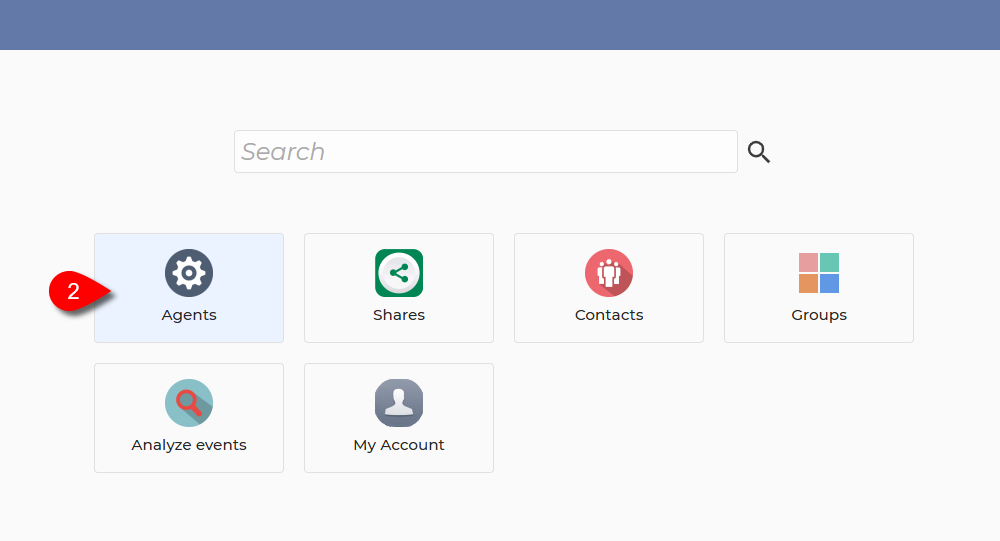
Your Dashboard appears:

2. Select Agents.
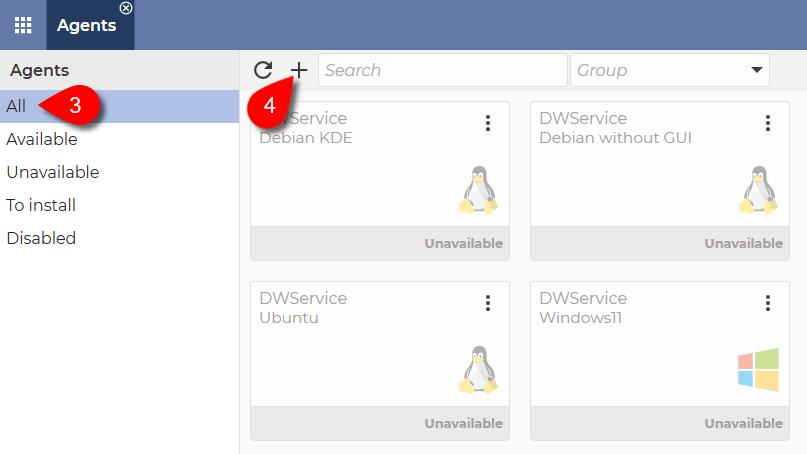
After selecting Agents, this will be displayed:

3. From the menu on the left, select the All.
4. Click the + (Plus) sign.
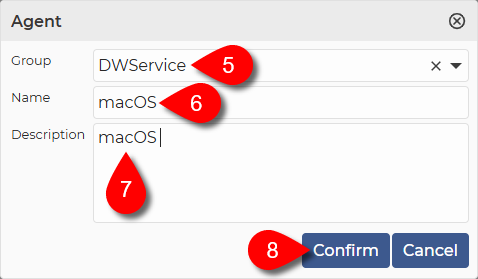
The following window will appear:

5. The selection of Group is optional.
- If you do not want to add the agent to a group, simply leave this field blank.
- If you want to add the Agent to a group, select the desired group from the drop-down menu. If there is no Group in the drop-down menu that suits you, you can create a new Group by selecting Groups in the Dashboard. For more details, click here: Groups.
6. Give a Name to the Agent you want to create.
7. Optionally, you can provide a Description of the Agent, which will help you to identify the Agent later.
8. To create the Agent, click on the Confirm button.
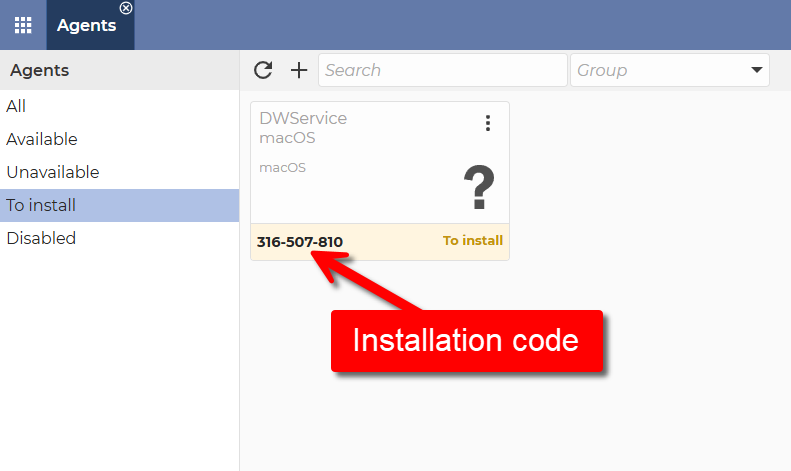
After the window closes, you will see this:

As you can see in the image above, the created Agent is displayed, which contains a generated Installation code. Each time you create an Agent, the system will generate such a code (consisting of numbers) for you. You must use this code during the Agent installation process.
After successfully creating the Agent, let’s see how to install the Agent.
Download the Agent installer for your device from our download page (https://www.dwservice.net/download.html).
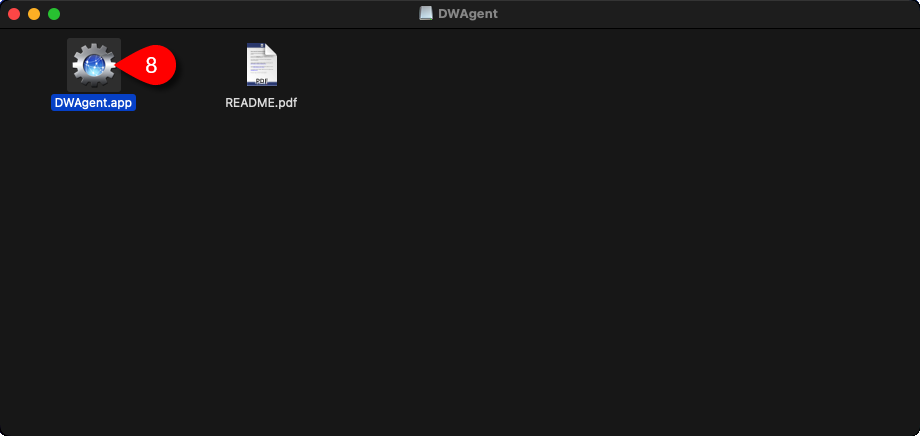
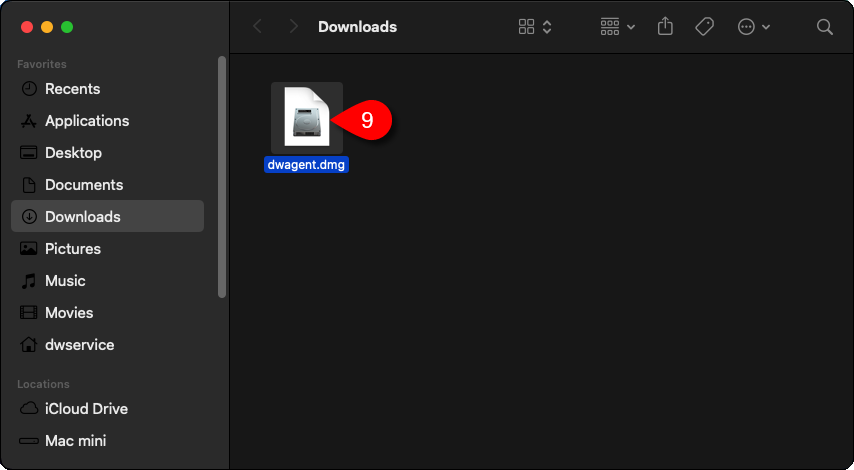
Open the folder where you downloaded the Agent. By default, the Downloads folder.

9. dwa
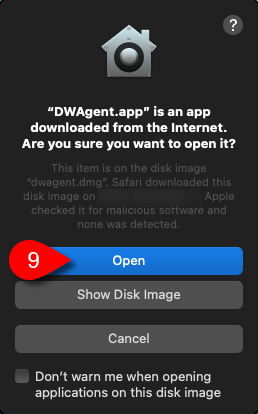
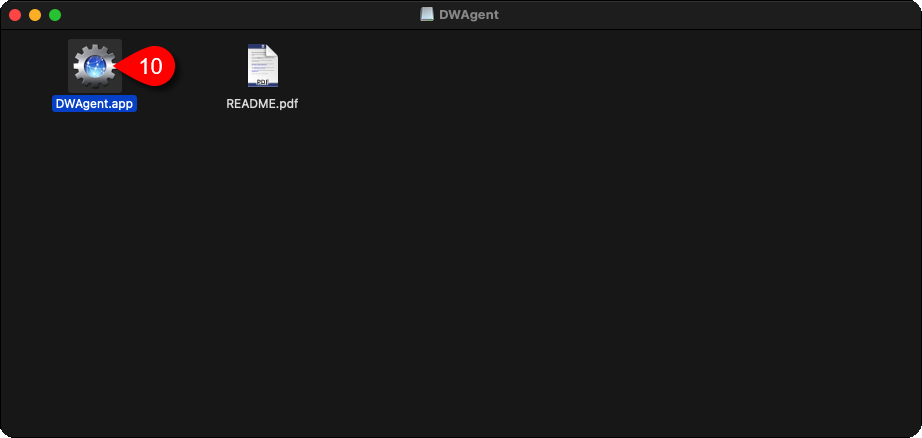
Another window appears on the screen:

10.

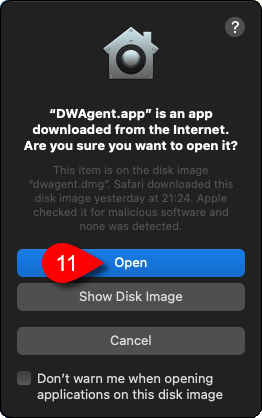
11. Click on the Open button.
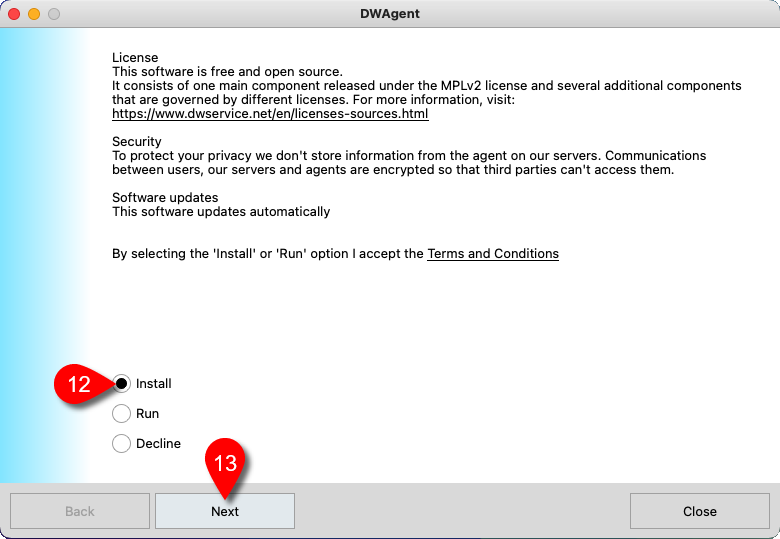
A wizard will be launched to guide you through the installation.

12. From the options, select Install.
13. Click on the Next button.
A confirmation window will appear:

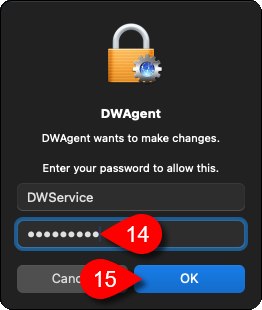
14. Enter the password of your MacOS.
15. Click on the OK button.
The Agent files are copied, installed, started.
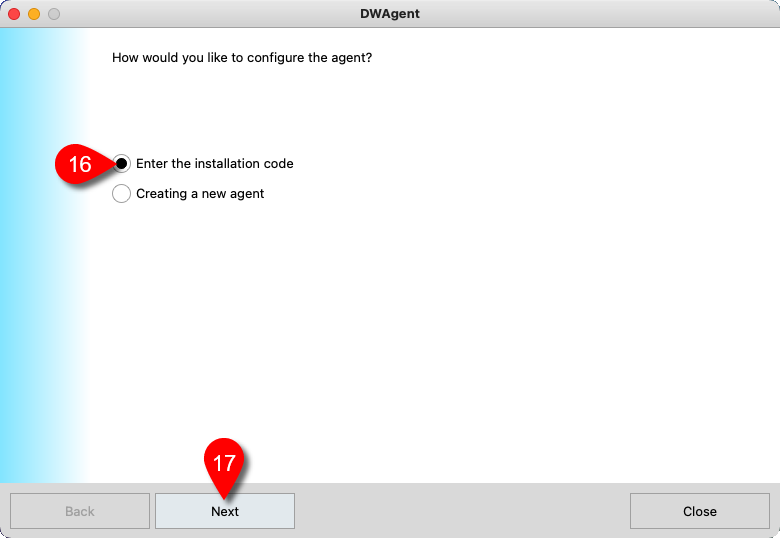
The next page of the wizard is displayed:

16. From the two installation modes, select the Enter the installation code option.
17. Click on the Next button.
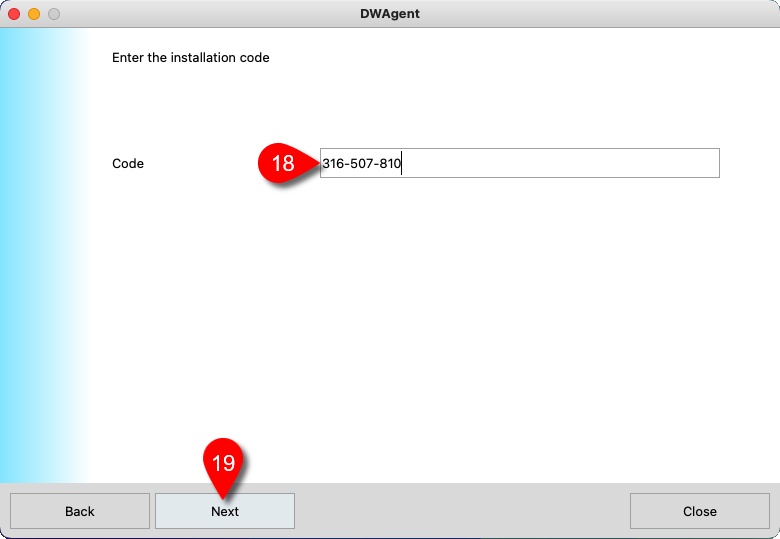
The next page of the wizard is displayed:

18. In this field, enter your Installation code. This is the code that the system previously generated for you when you created the Agent.
19. Click on the Next button.
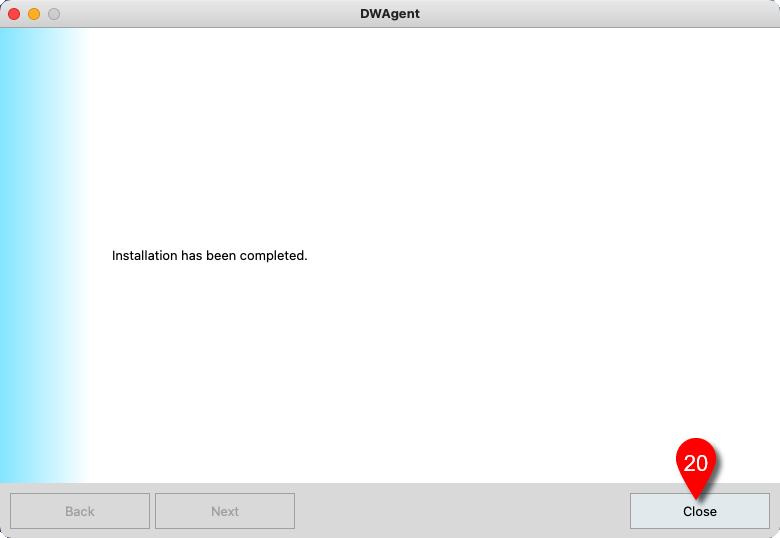
The next page of the wizard is displayed:

As you can see, the Agent has been successfully installed.
20. Click on the Close button to close the wizard.
Once the installation is complete, you will also need to grant permissions to use the Agent. You can do this as follows:

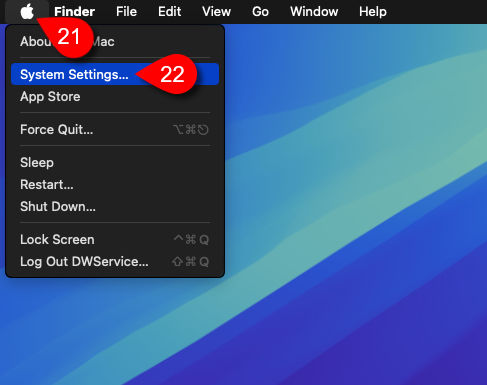
21. Click on the Apple button in the top left corner of your screen.
22. Select System Settings…
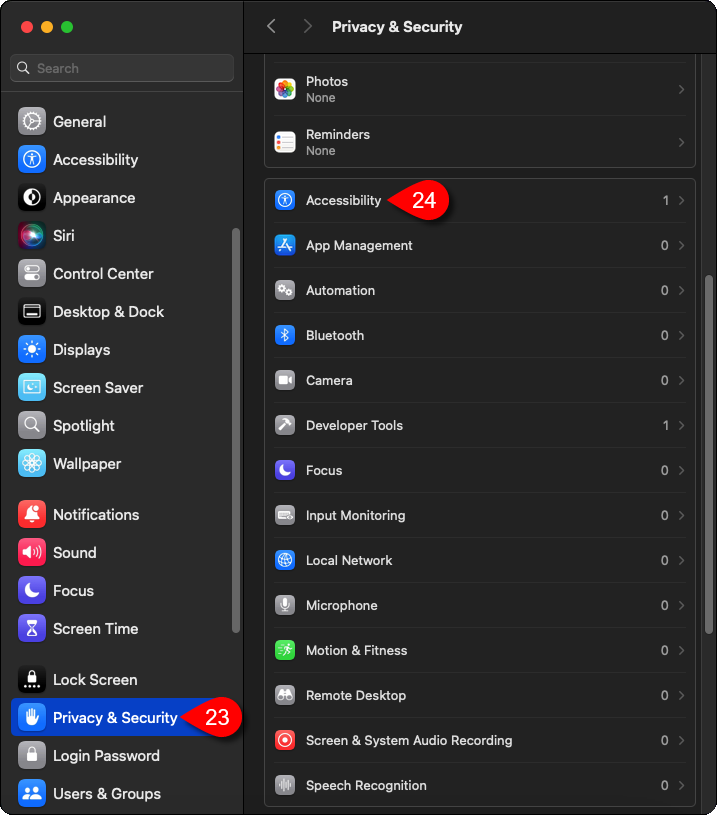
The System settings window appears:

23. From the menu on the left, select Privacy & Security.
24. From the menu on the right, select Accessibility.
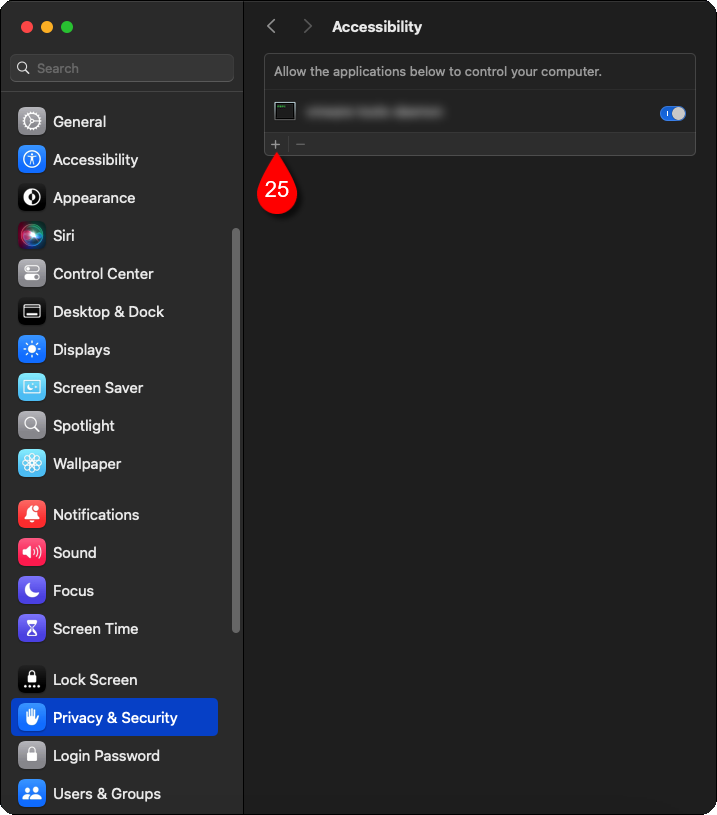
You will see the following window:

25. Click on the + (Plus) button.
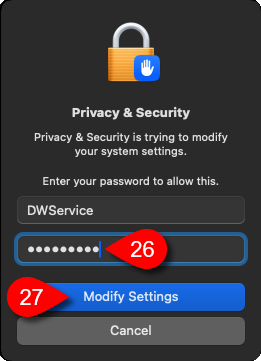
A password prompt window will appear:

26. Enter your MacOS password.
27. Click on the Modify Settings button.
The following window will appear:

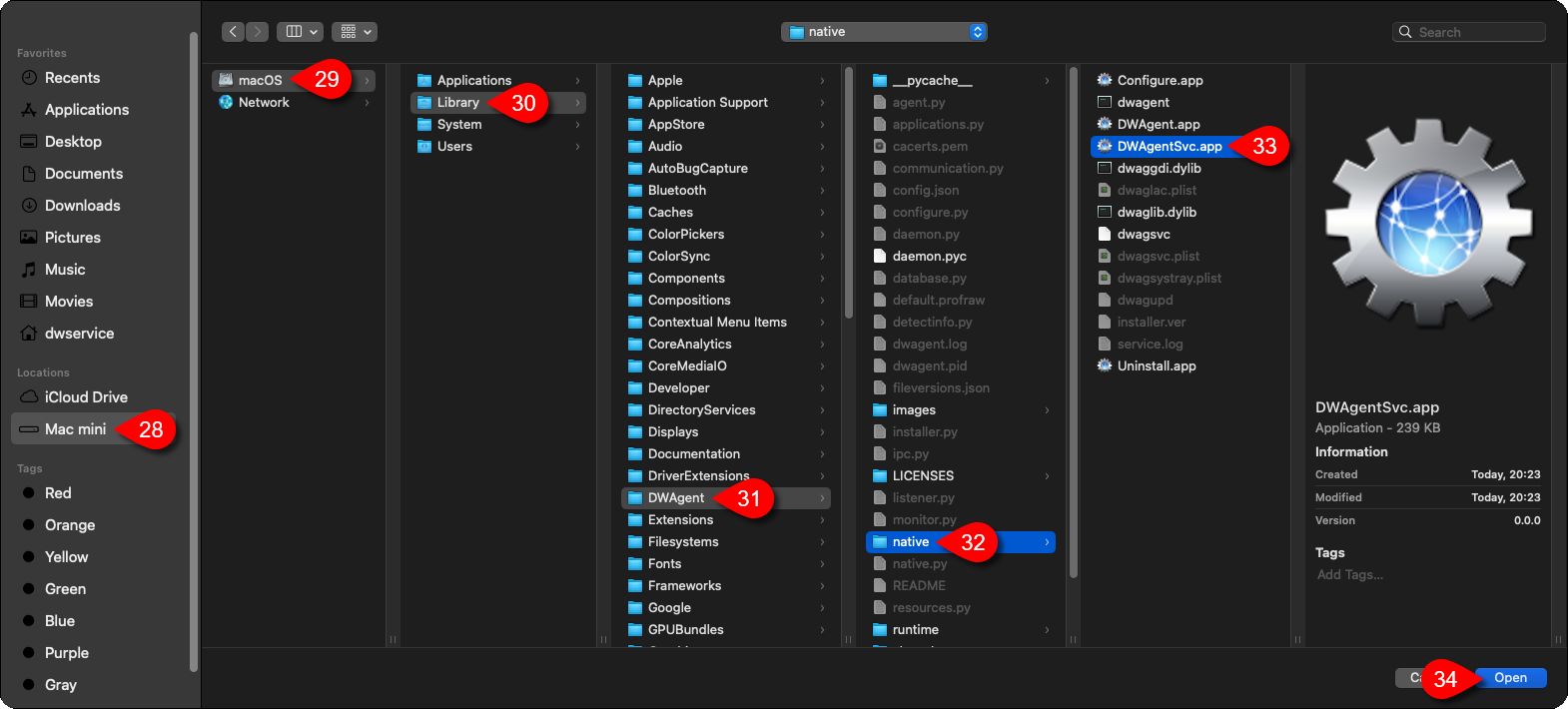
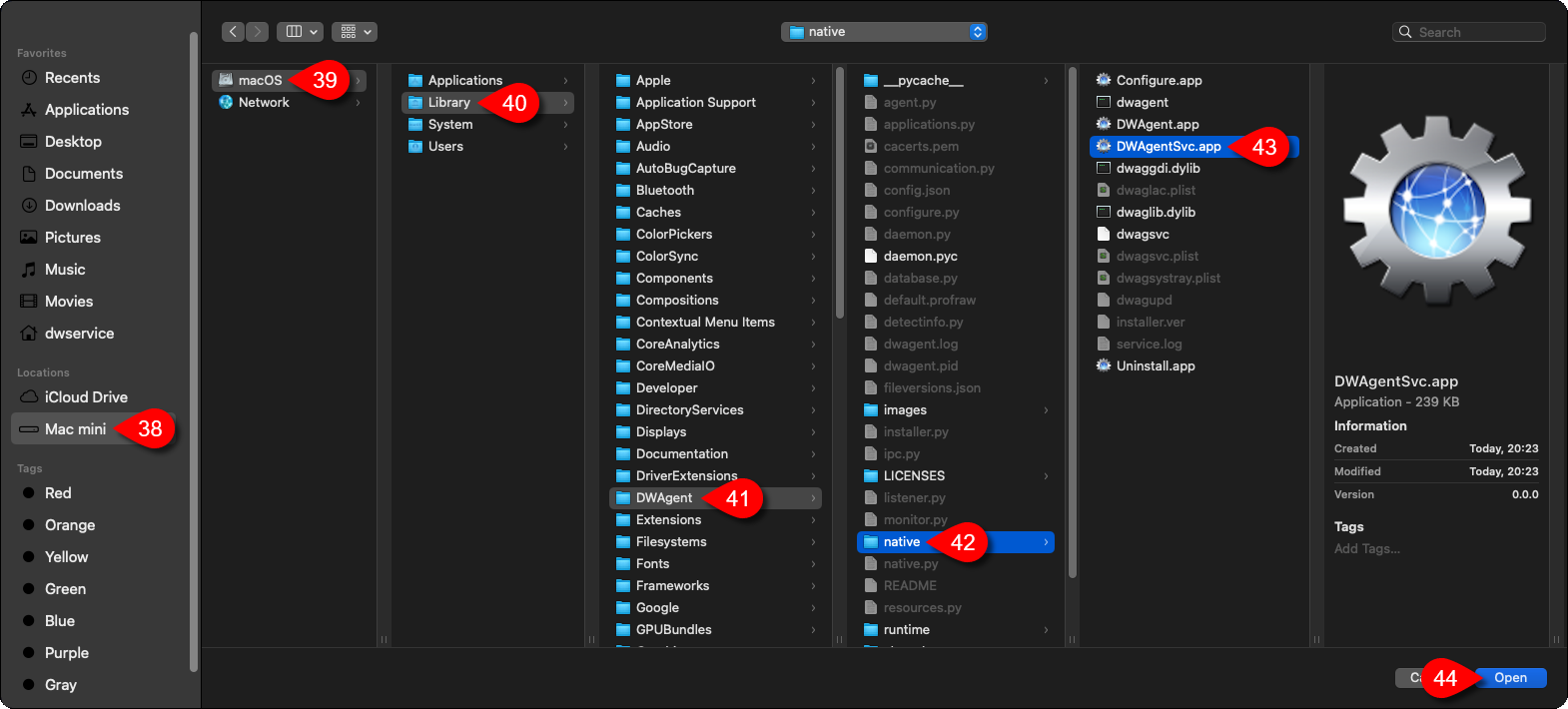
Select where the Agent is located (/Library/DWAgent/native/DWAgentSvc.app):
28. Select your Mac device.
29. Select the drive.
30. Select the Library folder.
31. Select the DWAgent folder.
32. Select native folder.
33. select the DWAgentSvc.app file.
34. Click on the Open button.
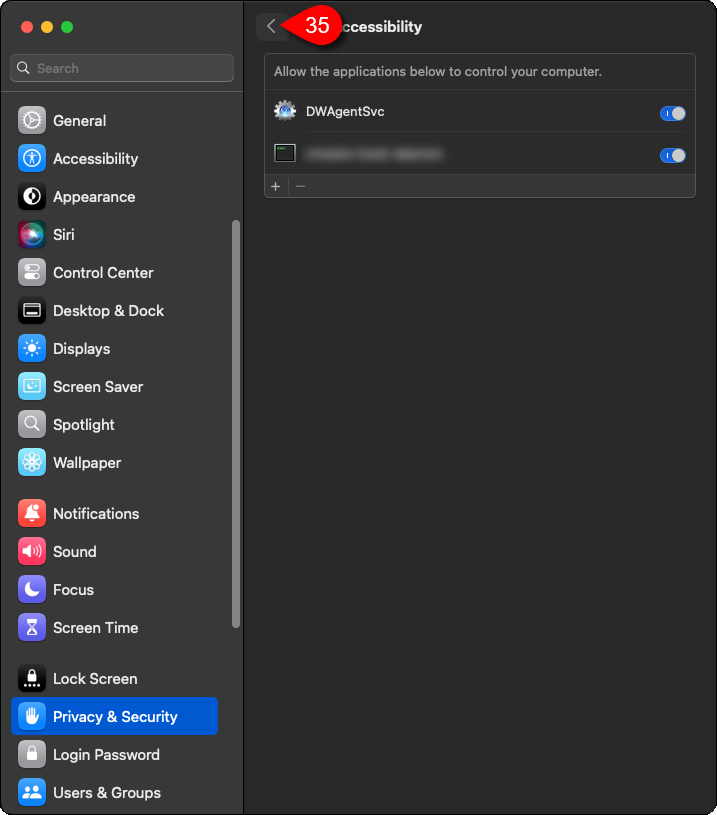
You will see the following window:

35. Click on the Back button.
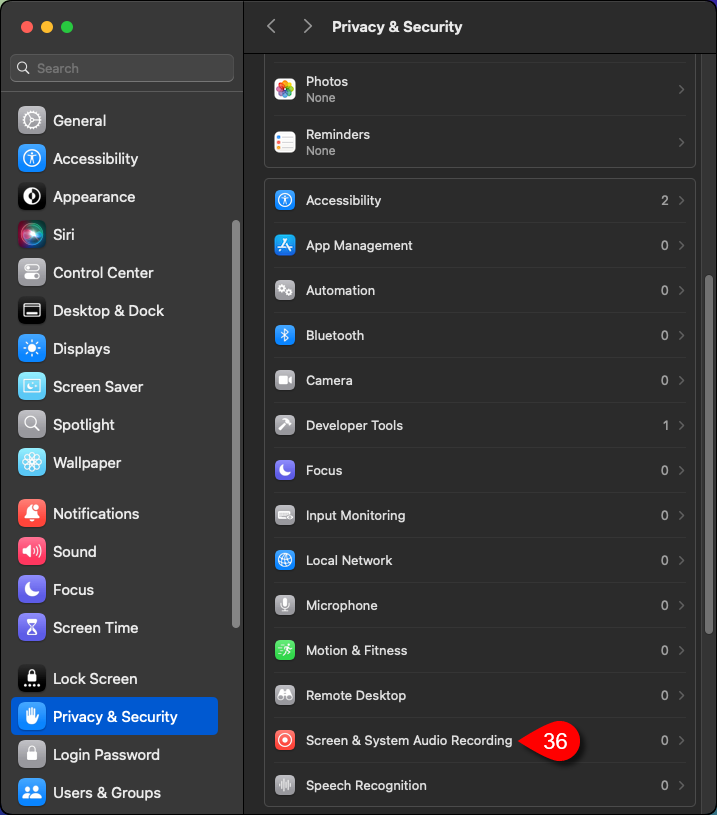
The System settings window appears again:

36. Select the Screen & System Audio Recording option.
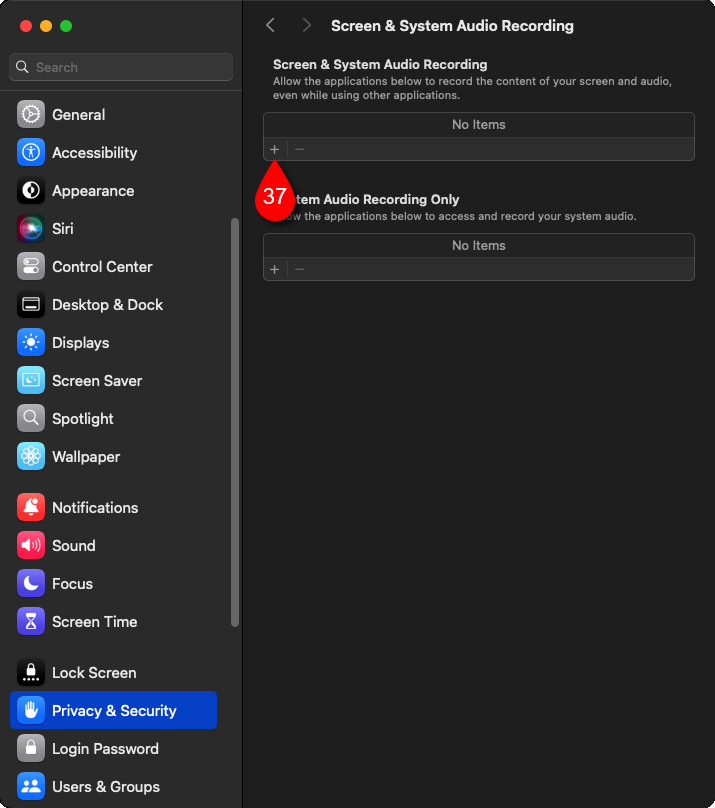
This will be displayed:

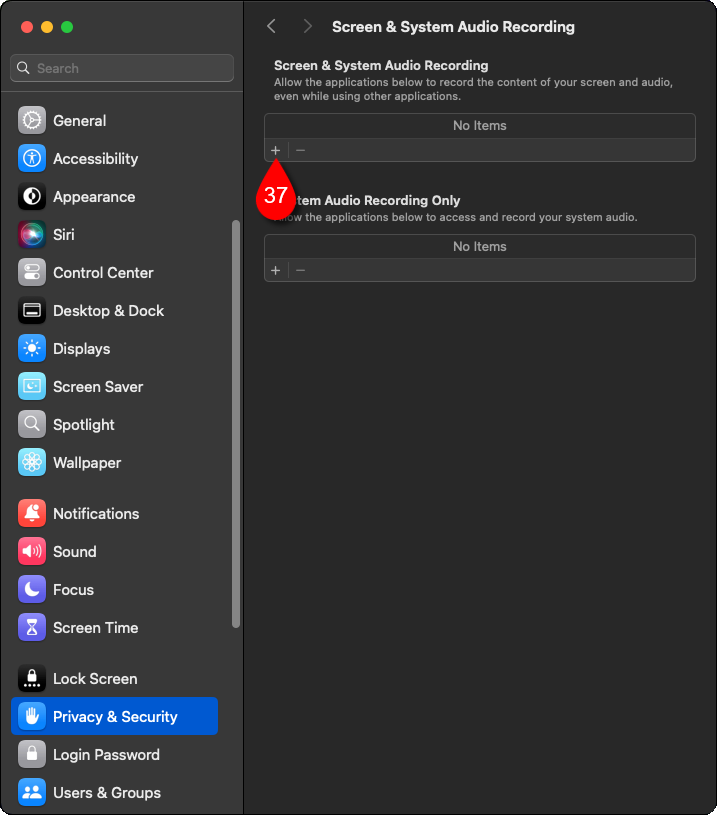
37. Click on the + (Plus) button.
The following window will appear:

Select where the Agent is located (/Library/DWAgent/native/DWAgentSvc.app):
38. Select your Mac device.
39. Select the drive.
40. Select the Library folder.
41. Select the DWAgent folder.
42. Select native folder.
43. Select the DWAgentSvc.app file.
44. Click on the Open button.
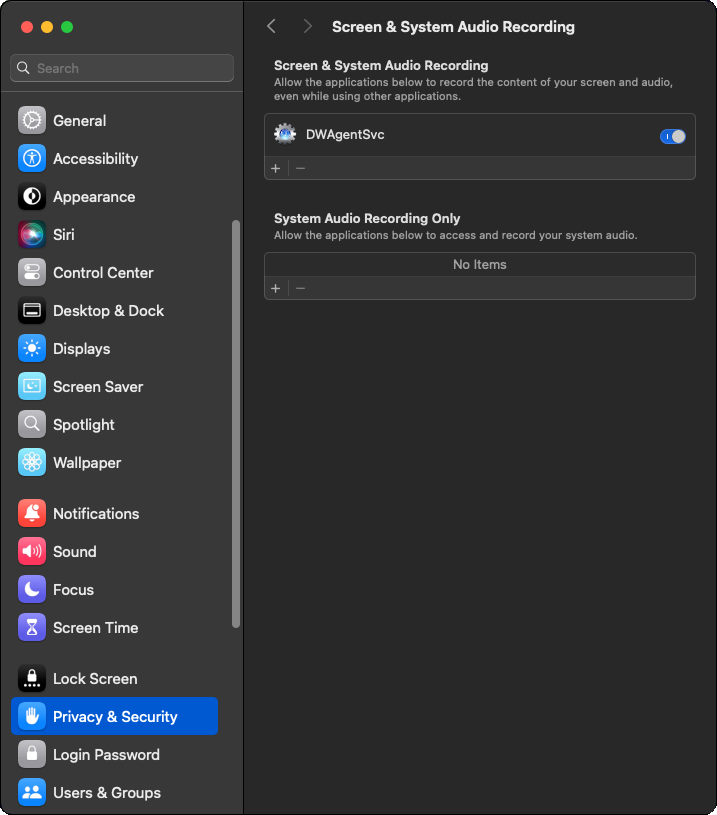
You will see the following window:

You can close the System settings window.

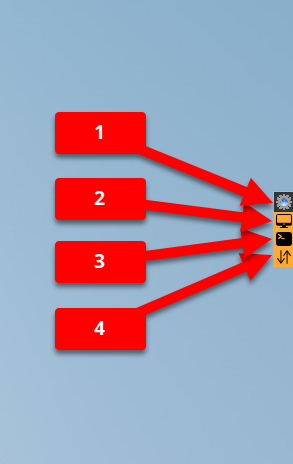
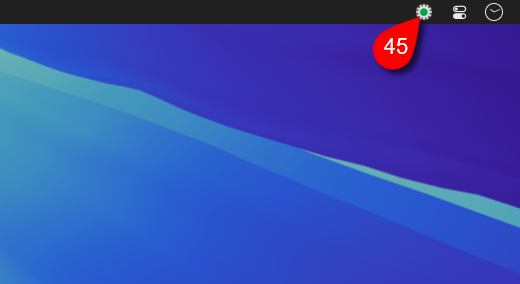
45. Click on the Monitor icon to show the DWAgent – Monitor window.
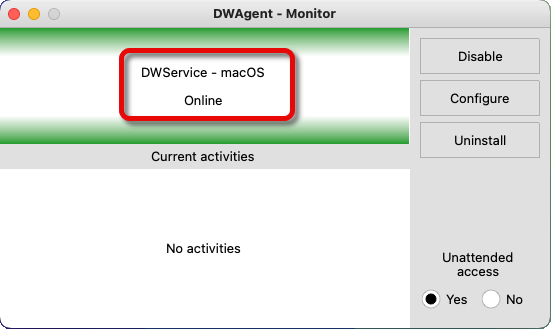
The DWAgent – Monitor window will appear:

In the image above you can see that the Agent is active and Online. From now on it is possible to connect to this Agent.
Now let’s go back to the account where you can see the Agent you created:

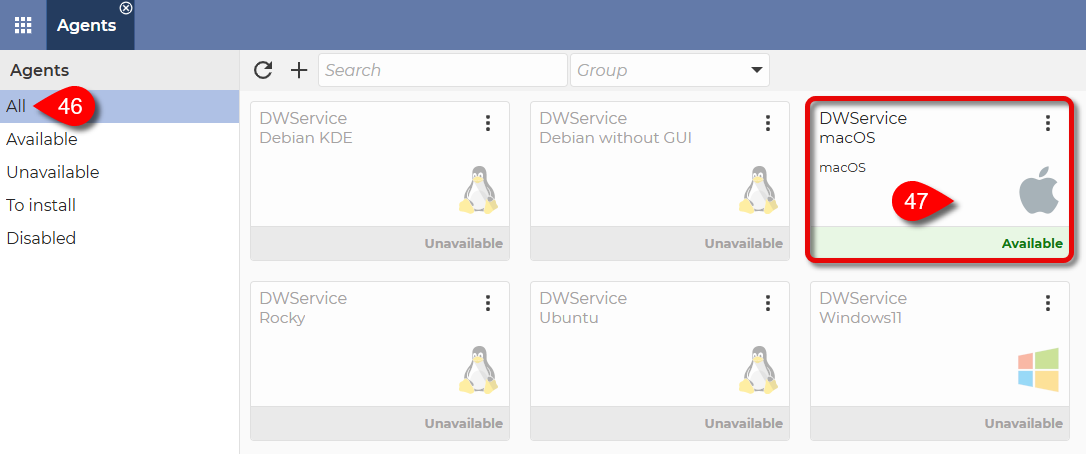
46. Select All from the menu on the left.
✅ The Agent is available and ready to use.
47. You can connect to the Agent by clicking on it.
Note: If you also need the remote audio function, you will need additional setup to use it. Our documentation, which guides you step-by-step through the setup process, is available here: How to set up remote audio on a remote macOS
This brings us successfully to the end of the installation process.
Use our service with maximum satisfaction. 😀
In case you choose this installation method, you should follow our next guide, step-by-step.
Visit our website: https://www.dwservice.net
1. Login to your account. You can read more about the login process here: Login
Your dashboard appears:
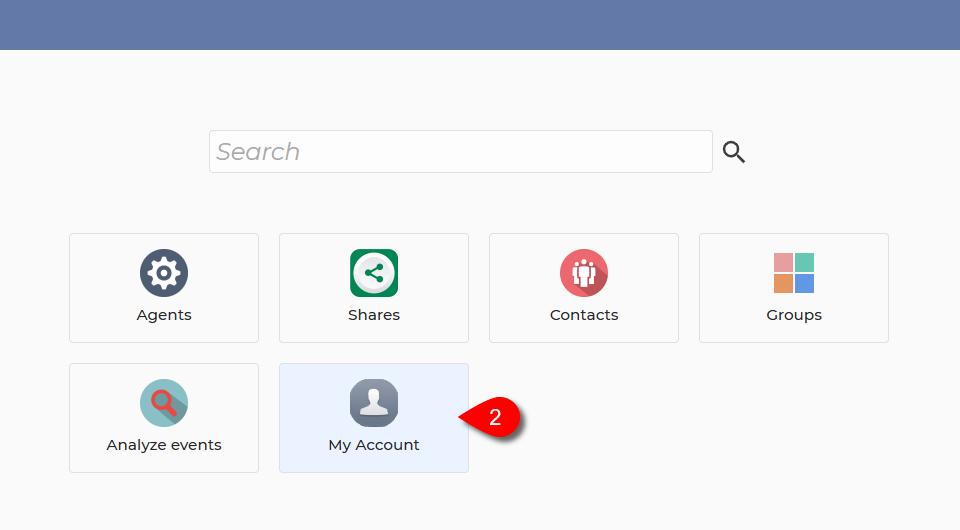
2. On your Dashboard, select My Account.
After selecting My Account, this will be displayed:
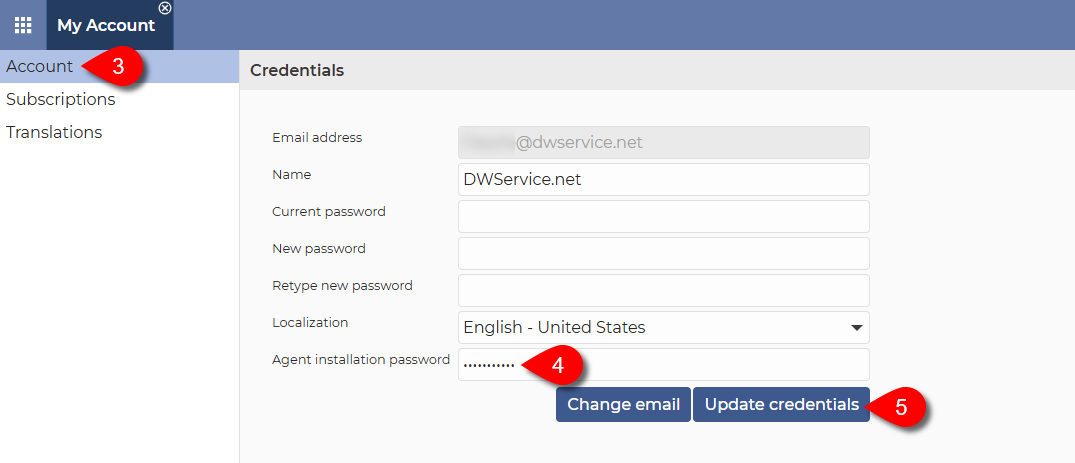
3. From the menu on the left, select Account.
4. Enter the Agent installation password, which you will be asked to enter when you install the Agent.
📖 Installation password
⚠️ Important: For security reasons, this password cannot be the same as your account password. Choose a different password.
5. To save the password, click on the Update credentials button.
The following window will appear:
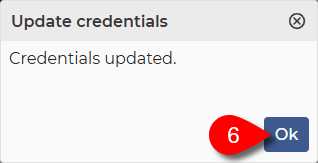
6. Click on the Ok button.
Now let’s see how to install the Agent.
Download the Agent installer for your device from our download page (https://www.dwservice.net/download.html).
Open the folder where you downloaded the Agent. By default, the Downloads folder.
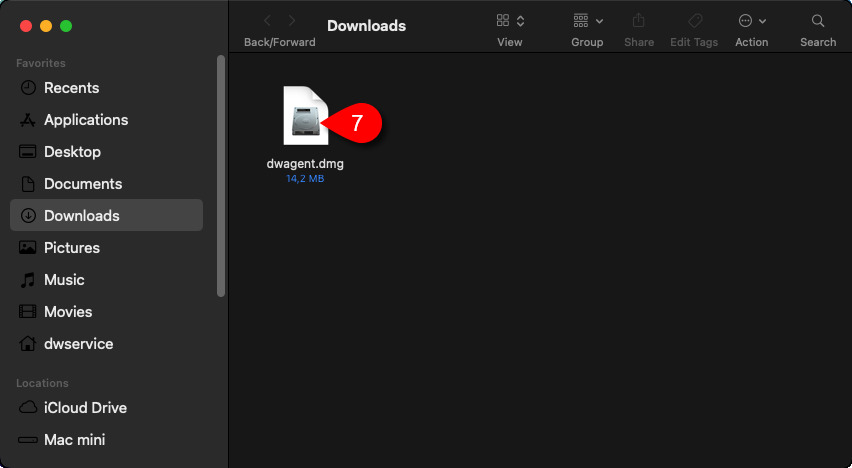
7. dwa
Another window appears on the screen:

8.

9. Click on the Open button.
A wizard will be launched to guide you through the installation.
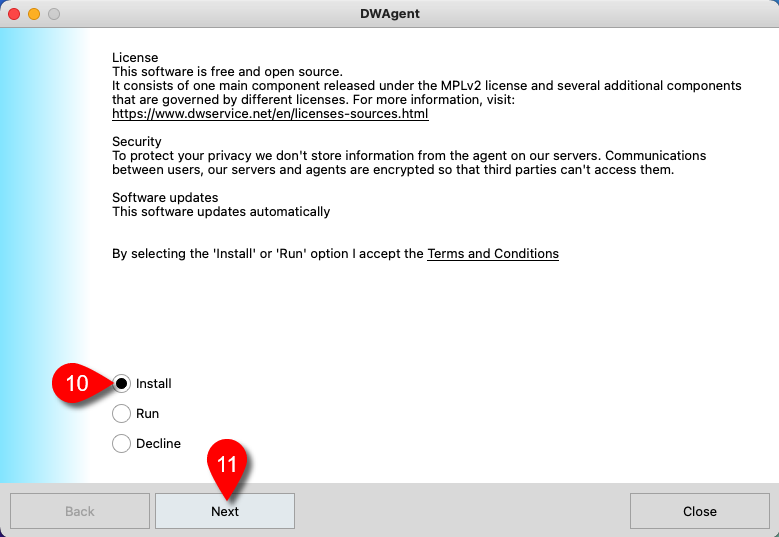
10. From the options, select Install.
11. Click on the Next button.
A confirmation window will appear:
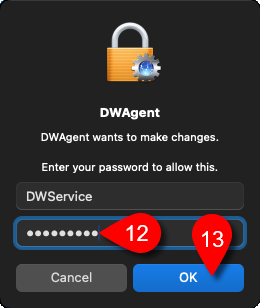
12. Enter the password of your MacOS operating system.
13. Click on the OK button.
Then the wizard appears again:
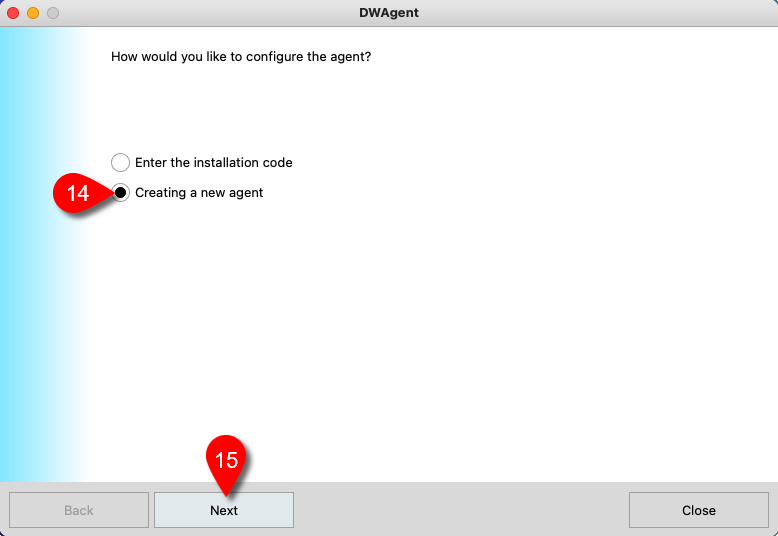
14. From the two installation modes, select the Creating a new agent option.
15. Click on the Next button.
The next page of the wizard is displayed:
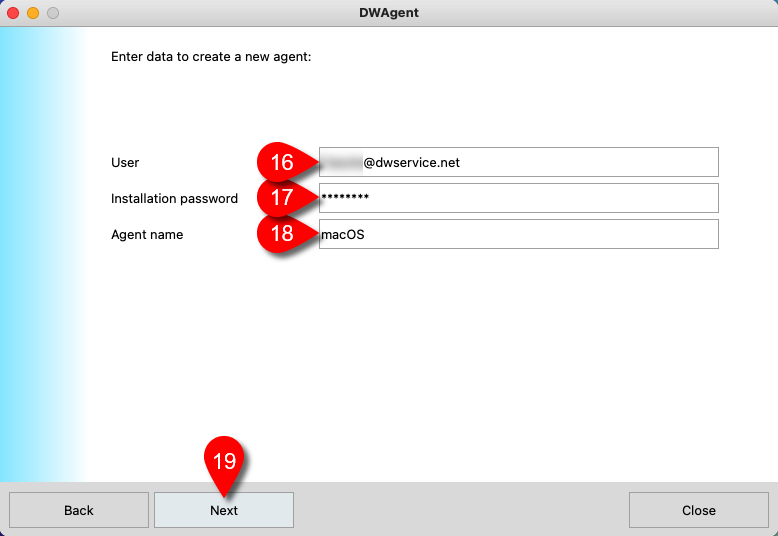
16. Enter your DWService account username (your email address)
17. Enter the Agent installation password. You have previously set this up in your account in the Credentials section. ⚠️ Important: this is not your account password.
18. Enter a name for the Agent you want to create.
19. Click on the Next button.
The next page of the wizard is displayed:
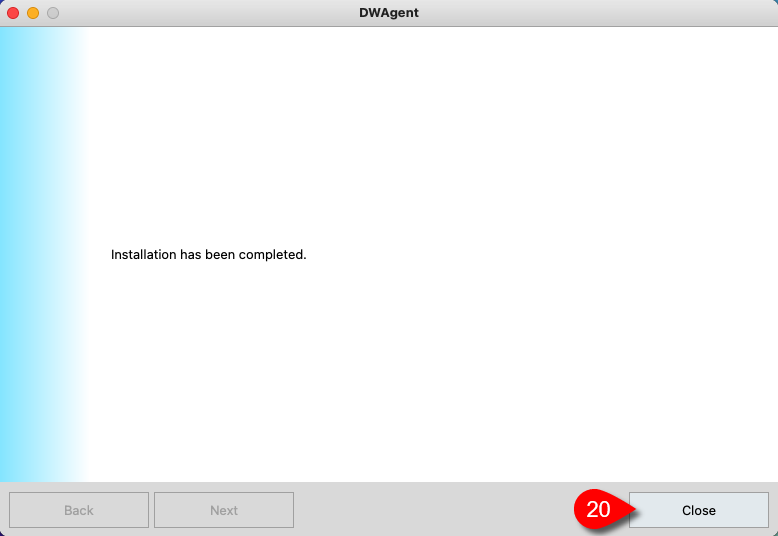
As you can see, the Agent has been successfully installed.
20. Click on the Close button to close the wizard.
Once the installation is complete, you will also need to grant permissions to use the Agent. You can do this as follows:
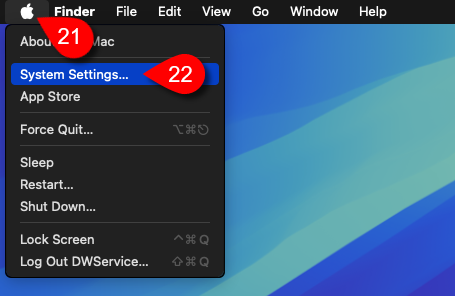
21. Click on Apple icon.
22. Select System Settings…
The System settings window appears:
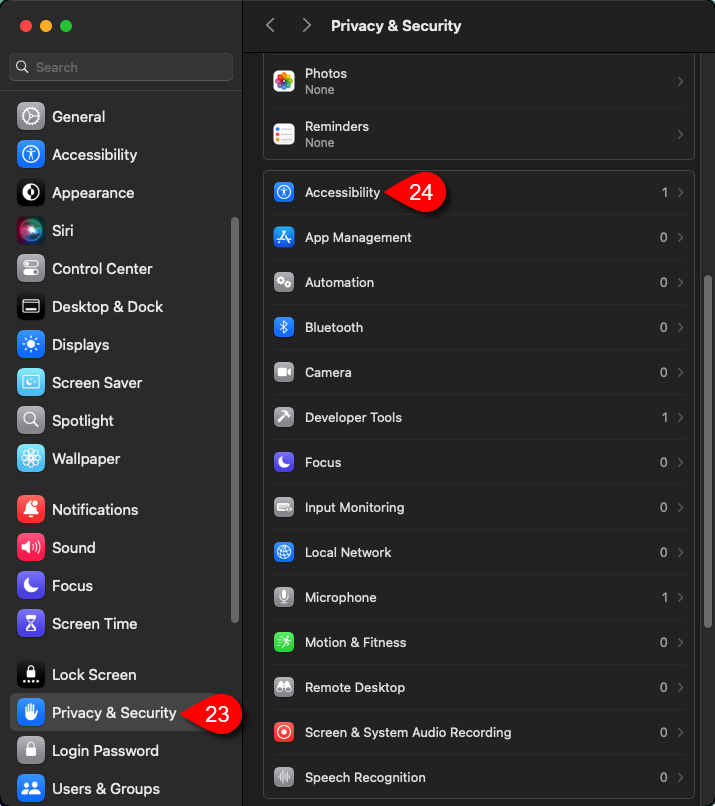
23. From the menu on the left, select Privacy & Security.
24. From the list on the right, select Accessibility.
You will see the following window:
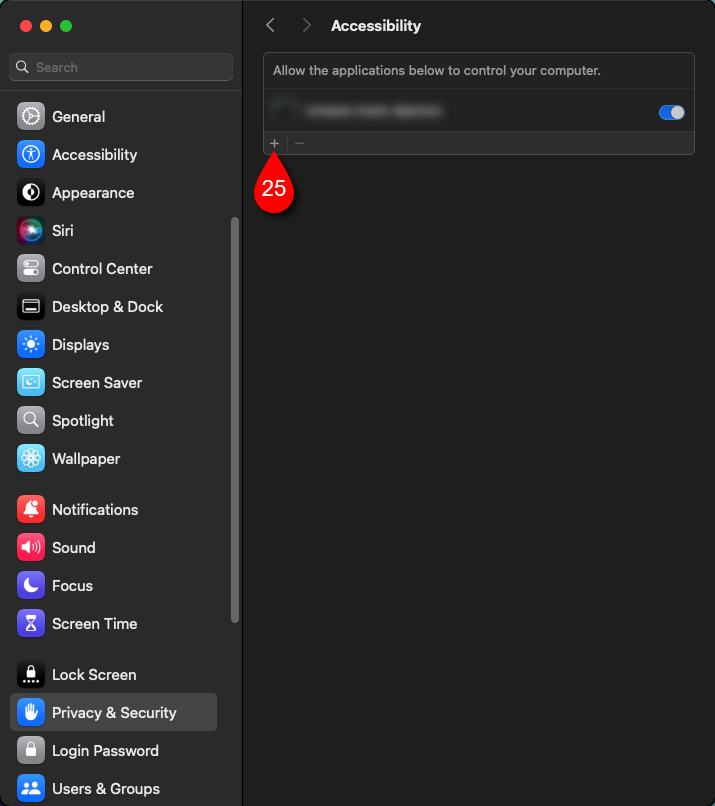
25. Click on the + (Plus) button.
A password prompt window will appear:
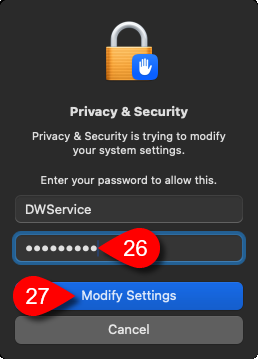
26. Enter your MacOS password.
27. Click on the Modify Settings button.
The following window will appear:
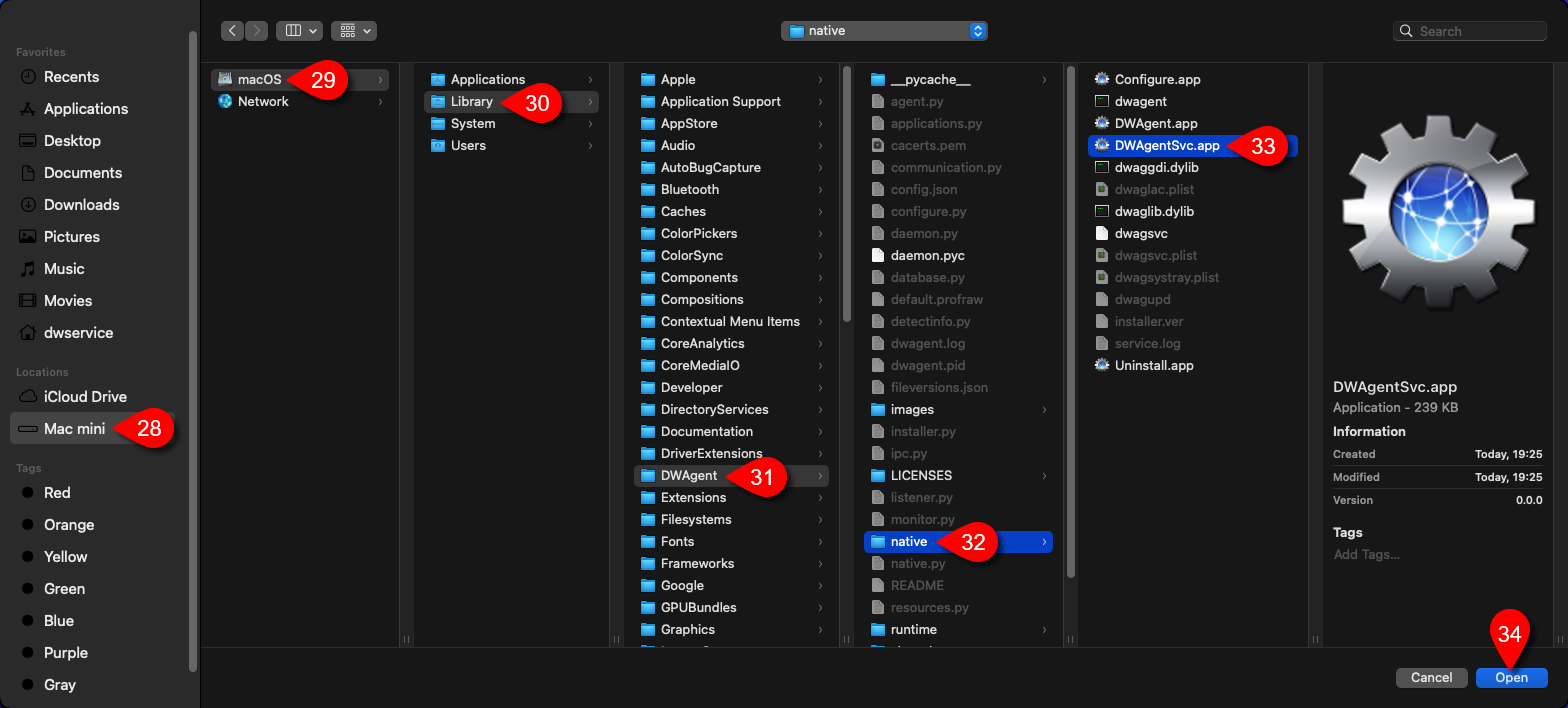
Select where the Agent is located (/Library/DWAgent/native/DWAgentSvc.app):
28. Select your Mac device.
29. Select the drive.
30. Select the Library folder.
31. Select the DWAgent folder.
32. Select native folder.
33. Select the DWAgentSvc.app file.
34. Click on the Open button.
You will see the following window:
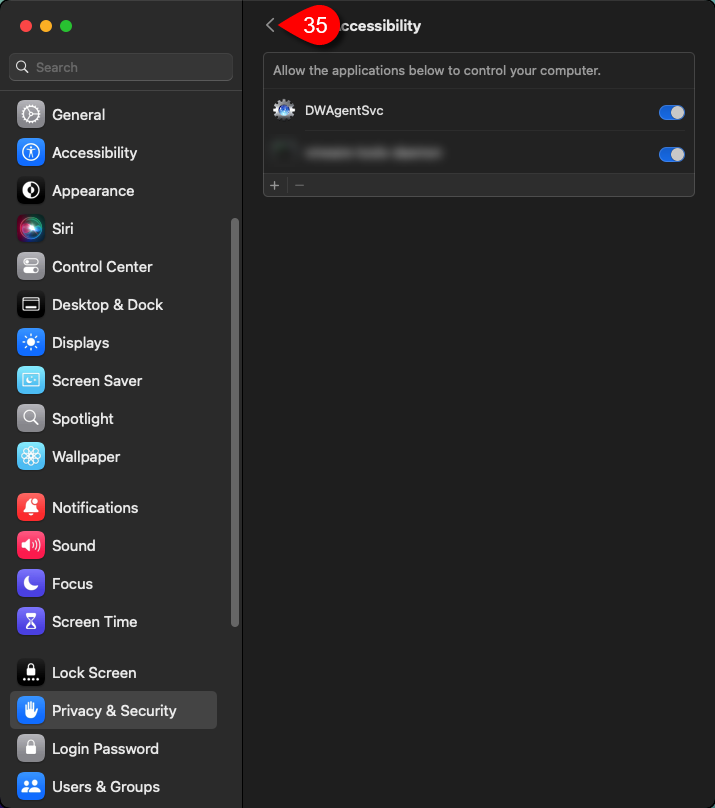
35. Click on the Back button.
The System settings window appears again:
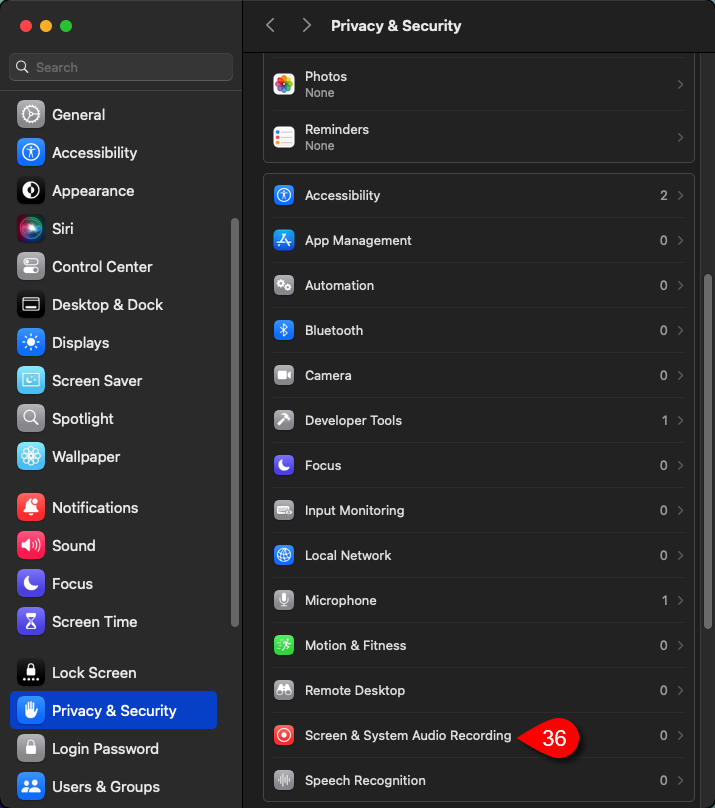
36. Select the Screen & Sytem Audio Recording option.
Note:
You will see this:

37. Click on the + (Plus) button.
The following window will appear:
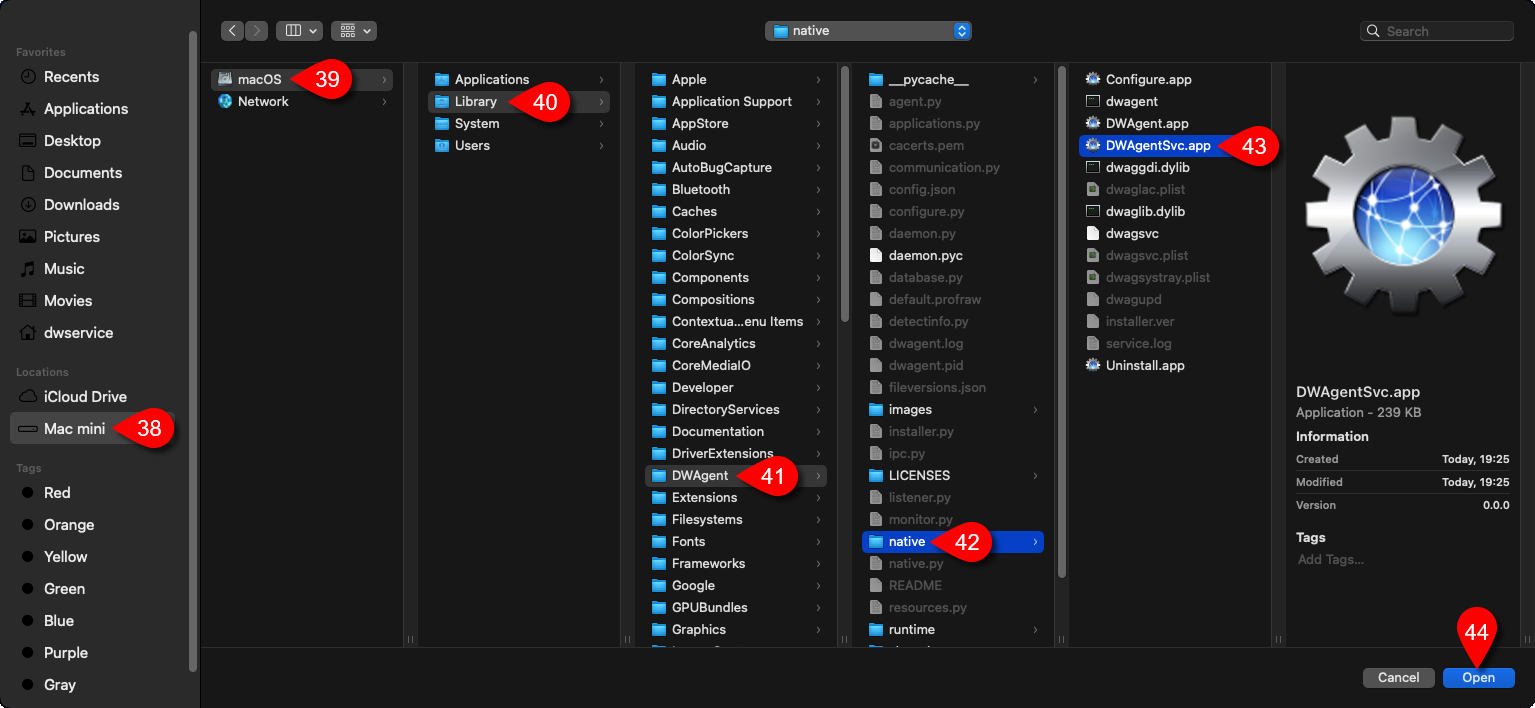
Select where the Agent is located (/Library/DWAgent/native/DWAgentSvc.app):
38. Select your Mac device.
39. Select the drive.
40. Select the Library folder.
41. Select the DWAgent folder.
42. Select native folder.
43. Select the DWAgentSvc.app file.
44. Click on the Open button.
You will see the following window:
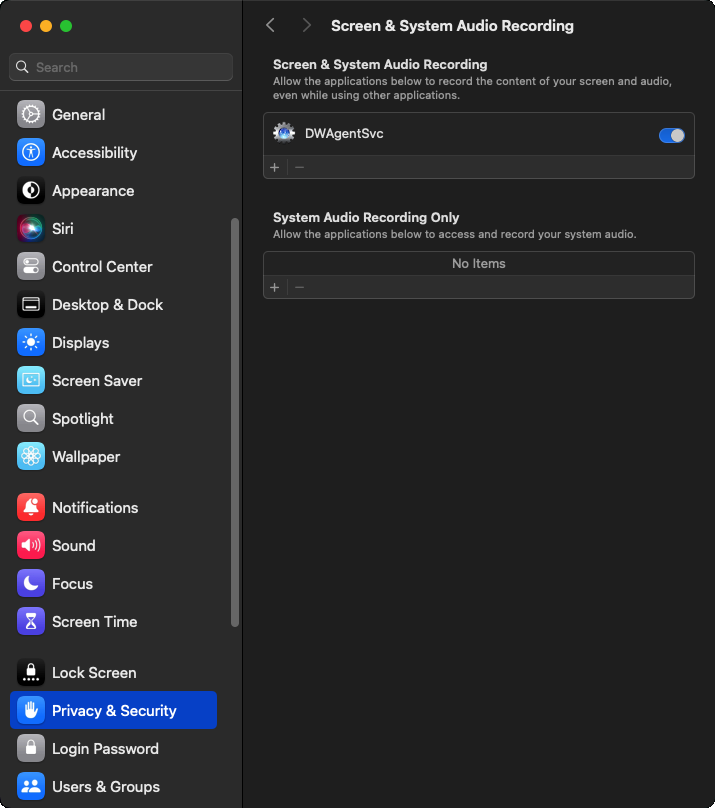
You can close the System Settings window.
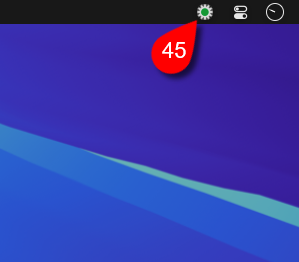
45. Click on the Monitor icon to show the DWAgent – Monitor window.
The DWAgent – Monitor will appear:
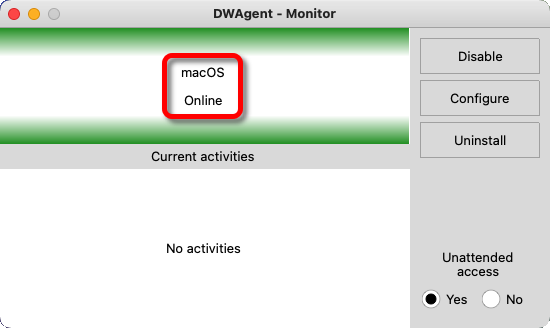
In the image above you can see that the Agent is active, and the status is Online. From now on it is possible to connect to this Agent.
Now let’s go back to the account where you can see the Agent you created:
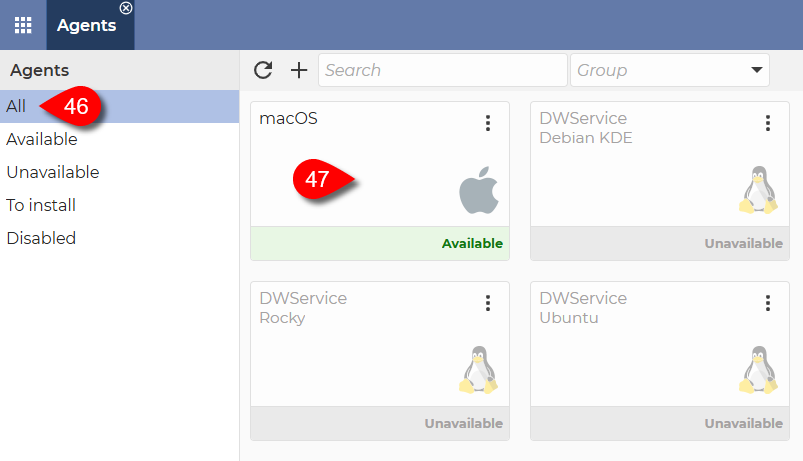
46. In the menu on the left, select All.
47. The Agent is available. As you can see, the agent created is not in a group, nor does it have a description. If you don’t need these, we are now at the end of the process. The Agent is ready for use.
You can connect to the agent by clicking on it.
If you would like to put the Agent in the group and/or add a description to it, please do the next few steps:
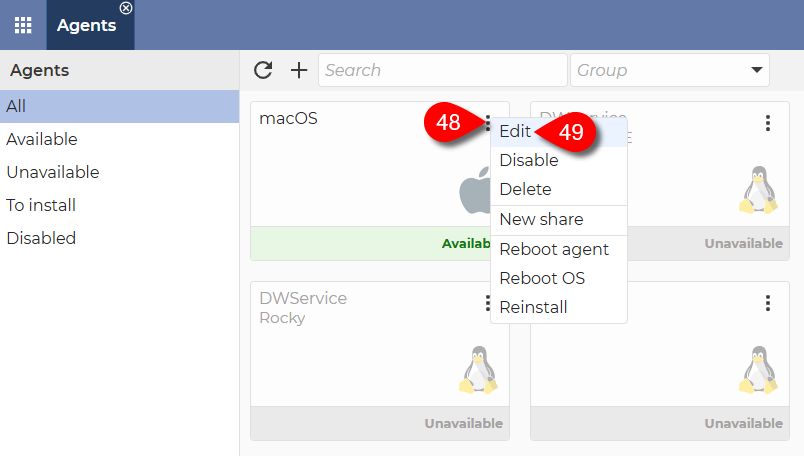
48. Click on the three dots in the top right corner of the Agent. This will open the menu of the Agent.
49. From the menu that appears, select Edit.
You see the Edit window of the Agent:
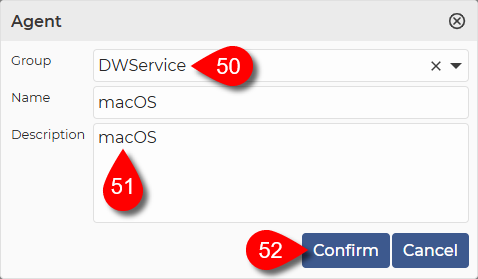
50. The selection of Group is optional.
- If you do not wish to add the agent to a group, simply leave this field blank.
- If you want to add the Agent to a group, select the desired group from the drop-down menu. If there is no Group in the drop-down menu that suits you, you can create a new Group by selecting Groups in the Dashboard. For more details, click here.
51. Optionally, you can provide a Description of the Agent, which will help you to identify the Agent later.
52. To save the changes, click on the Confirm button.
After the window closes, you will see this:
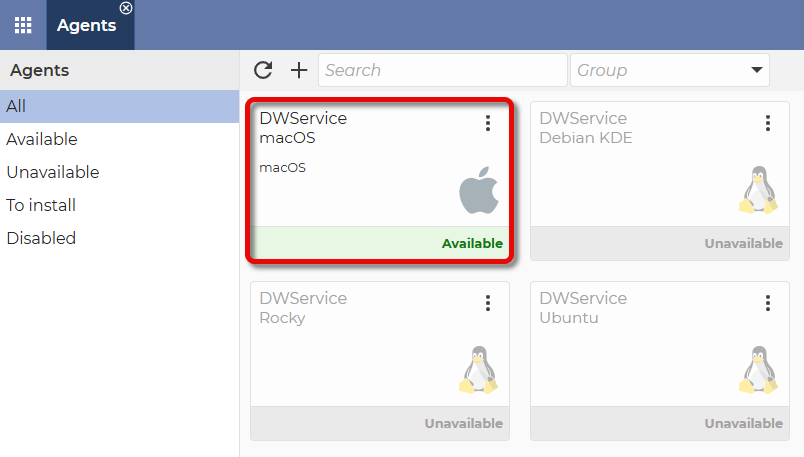
✅ The Agent is available and ready to use.
Note: If you also need the remote audio function, you will need additional setup to use it. Our documentation, which guides you step-by-step through the setup process, is available here: How to set up remote audio on a remote macOS
This brings us successfully to the end of the installation process.
Use our service with maximum satisfaction. 😀

ℹ️ Subscriptions and invoicing are handled by our reseller partner.
You can read more about our partner here: Paddle – The complete payments, tax, and subscriptions solution for SaaS
You will receive a receipt or invoice by email on a regular basis (monthly or yearly) until you cancel your subscription. The invoice you receive from help@paddle.com should be in your inbox.
⚠️ Note: Therefore, if you cannot find the email in your inbox, please check your Spam/Junk and any other folders in your mailbox as well.
window

1. Click on the Add VAT number text.
You will see the following form:

2. Enter the VAT number. (required)
3. Enter the Company name. (required)
4. Enter the Street name. (required)
Scroll a bit to see the rest of the form:

5. Enter the Town/City name. (required)
6. Enter the State/County name. (required)
7. Click on the Add VAT number button.
▶️ DWService – How to subscribe (if you decide to) – YouTube
The video will show you where and how to provide your invoicing information.
You received a receipt via email that includes a “View Receipt” button:

1. Click on the View Receipt button.
Your receipt opens, which looks like this:

2. Click on the Add address & VAT Number text.
A window will open where you can enter your invoicing details:

3. Tick the checkbox (This is a business purchase).
4. Enter your full name. (optional).
5. Enter your VAT Number. (required)
6. Enter your company name. (required)
7. Enter street address, building, etc. (required)
8. Enter city. (required)
9. Enter state or county (optional)
10. Enter postcode. (required)
11. Click on the Save button.
3. If you have already subscribed to our service – via the support site of our reseller partner.
ℹ️ Our subscriptions and invoicing are handled by our reseller partner (Paddle – The complete payments, tax, and subscriptions solution for SaaS), so you should contact them in this case. You can do this as follows:
➡️ Go to support website of our reseller partner: Paddle.net

1. Click on the Look up my purchase button.

2. Enter your e-mail address.
3. Tick the “Verify you are human” checkbox.
4. Click on the Locate my purchase button.

Check your mailbox. You will receive an email to your email address:

5. Click on the Verify and show purchases button.
A web page will open with the details of your subscription:

6. Click on the “Get Help” button.
A chat window will appear:

7. At the bottom of the chat window, you can request update details or request invoice.
➡️ You can check the following to find the cause of your problem:
- This is a plain text file that can be opened with any text editor (even remotely). If the Agent is installed in the default location, the log file is the following:
- Windows ⇒ C:\Program Files\DWAgent\dwagent.log
- Linux ⇒ /usr/share/dwagent/dwagent.log
- macOS ⇒ /Library/DWAgent/dwagent.log
Open the log file and check for errors (if any).
- related the DWAgent and Python
- If the remote device is running Linux operating system, you can check for other errors by running the dmesg command. Execute the dmesg command in a Terminal window:
-
- To display errors related to dwagent, enter this command:
sudo dmesg | grep dwagent
- To display errors related to dwagent, enter this command:
-
- To display errors related to python, enter this command:
sudo dmesg | grep python
- To display errors related to python, enter this command:
- pen the macOS Console and check for error messages related to the DWAgent or Python.
- For example: Microsoft Edge, Google Chrome, Mozilla Firefox, Brave, Opera, etc. Check if it works properly with another browser.
- web If it works without extensions, enable them one by one. This way you can find out which extensions are causing the problem.
- Clear the cache of your web browser, restart the browser and check if it works properly.
- If you have an Android device, you can also use our Client for Android to control your remote device.
- video
- If there is no monitor connected to the remote device (i.e. the remote device is a headless device), we suggest that you also have a look at this documentation: 🖥️❌ Set up a device without a monitor (headless) – DWService – Docs
➡️ If your problem persists, please share your recent experiences and the details of your problem with us at support@dwservice.net. Among other things, please share the following with us:
- Type and version of the operating systems.
- The version of the web browser.
- Version of the antivirus/firewall protection (if any).
- Error messages in the log file (if any).
- Agent-related error messages in the operating system (if any).
- Whether there is a monitor connected to the remote device.
We will do our best to help you further.
ℹ️ This is a general error message, which can be caused by several problems.
Typically, there are two situations in which this error message may appear:
1. When logging into your account
this
-
- Use a different web browser. For example: Safari (in case of mac devices), Microsoft Edge, Google Chrome, Mozilla Firefox, Brave, etc. Check if the problem occurs with another web browser as well.
- If your web browser has extensions, please temporarily disable all of them. If there are no errors without extensions, enable them one by one.
- Clear the cache of your web browser, restart the browser and check if it works properly.
- open In the window that opens, select the Console tab. Check for errors (if any).
-
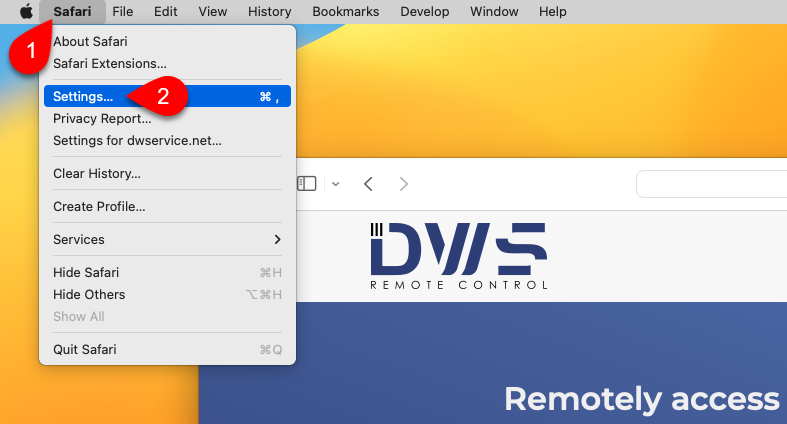
In case you do not have a Develop menu in your Safari browser, proceed as follows:

1. Select Safari.
2. Select Settings…
The following window will open:

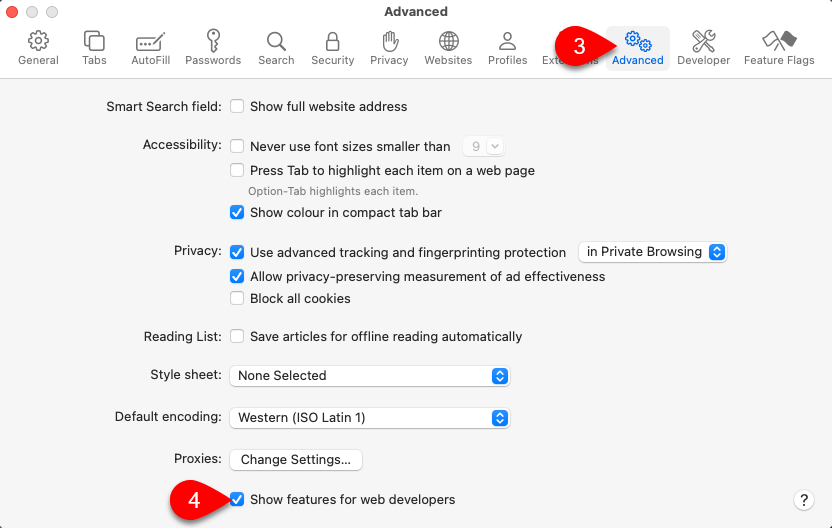
3. Select Advanced.
4. Tick the checkbox before the Show features for web developers.

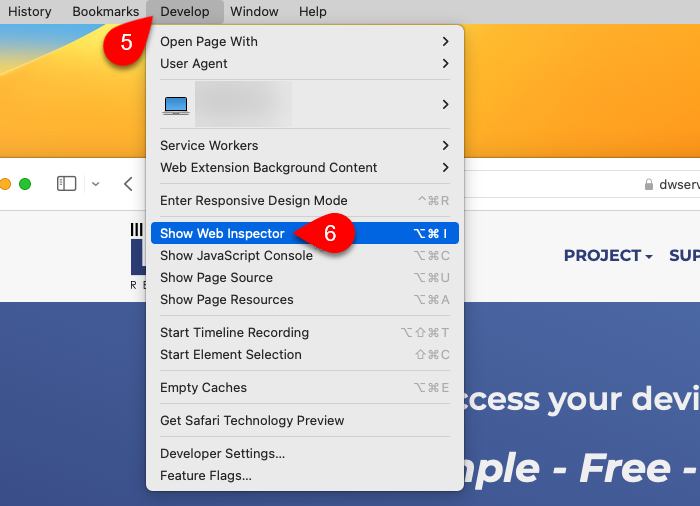
5. Select Develop.
6. Select Show Web Inspector.

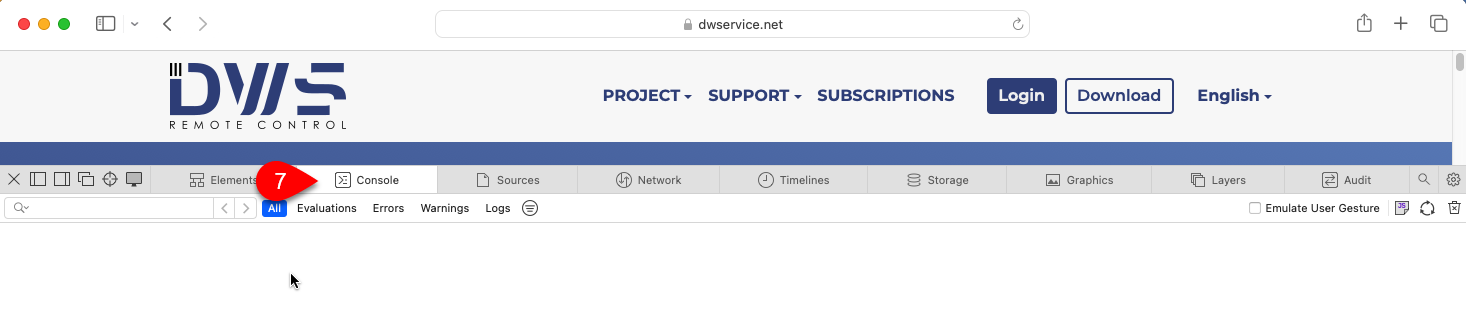
7. Select Console tab.
Check for errors (if any).
- If you have an Android device, try using our Client for Android. More info about it: Client – DWService – Docs
- In case you have any Antivirus/Firewall protections, please disable them temporally. Check that it works properly.
- Test your Internet connection. With Internet connections, it is not just speed that matters, but also quality. The quality of your internet connection is affected by several factors:
- Download speed – the faster the better
- Upload speed – the faster the better
- Latency (Ping) – the lower the better
- Jitter – the lower the better
- Packet loss – the lower the better (0 is best)
There are several tools on the internet to test the quality of your internet connection. A few examples:
- If you use Wi-Fi, check the strength and quality of your Wi-Fi signal.
- If you have network devices (modem, router, switch, etc.), reboot them.
- If you have the possibility, try to use a different internet connection (for example a mobile internet).
We will do our best to help you find a solution.
2. When connecting to an Agent
this
- The Agent contains a log file that records events related to the Agent. The log file is a plain text file that can be opened with any Text Editor. If the Agent is installed using the default path, the log file is as follows:
- Windows ⇒ C:\Program Files\DWAgent\dwagent.log
- Linux ⇒ /usr/share/dwagent/dwagent.log
- macOS ⇒ /Library/DWAgent/dwagent.log
Open the log file and check for errors (if any).
If your problem persists and you can’t find a solution, please contact us on our support contact (support@dwservice.net) and let us know the details of your problem. For example (operating system version, web browser version, any error messages, etc).
Thank you in advance for your cooperation.
would like to
- Create a PowerShell script (.ps1 file) containing the path to the Agent and the silent installation parameters.
- Create an .msi file containing the Agent and the silent installation parameters.
IF NOT EXIST "C:\Program Files\DWAgent\agent.py" copy \\xxx.xxx.xxx.xxx\log$\software\dwservice\dwagent.exe c:\temp\ & c:\temp\dwagent.exe -silent user=xxxxxx password=xxxxxx & DEL /F /S /Q /A "c:\temp\dwagent.exe"
Using a third-party (free) tool, you can create your own .msi file from the .exe file downloaded from our site and using the silent installation parameters, which you can then use to install the Agent.
- The free application to create the .msi file is available here: A free Exe to msi wrapper tool – AprelTech
- Or in the Microsoft Store here: Exe to msi converter free – Microsoft Apps
Once the application is installed, launch it. You will see the following window:

Browse to the .exe installation file downloaded from our download page:

Enter the parameters to use for the silent installation:

Then click on the Build MSI button:

The .msi file will be created. With the same name as the .exe file and in the same folder as the .exe file.
✅ You can then use the .msi file for a silent installation.
s In such a case, you can do the following:
2. Download the latest installer from our website (DWService – Download).
2. Launch the installer on the remote device.
3. Select Run.
4. In your local browser, open a new browser tab/window.
5. Visit the DWService website.
6. Connect to the remote device again using the username (xxx-xxx-xxx-xxx) and password (xxxx) you received on the remote device.
you have the possibility to uninstall the Agent from the remote device.
8. Uninstall the Agent.
9.
To avoid this problem, we have published an updated installer for the Agent.
➡️ The following is what you need to do:
1. From the remote device, uninstall the Agent.
2. Download the latest installer from our download site: DWService – Download
3. Use the latest installer to install the Agent.
✅ Once the Agent is reinstalled, the remote control will not freeze.
➡️
1. Use a script file to remove the Agent from the remote device. The commands to use to completely remove the Agent are available in our documentation:
2. Download the latest installer from our download site: DWService – Download
3. Use the silent installation feature to install the Agent.
✅ Once the Agent is reinstalled, the remote control will not freeze.
multiple
- Hardware solution
- Software solution for Windows
- Software solution for Linux
- Software solution for macOS
Hardware solution
DisplayPort or an
- The DisplayPort device looks like this:

More information about the device is available here:
- The HDMI device looks like this:

More information about the device is available here:
Software solution for Windows10 and Windows11
- One such application is available here:
The installer can be downloaded here: Releases · VirtualDrivers/Virtual-Display-Driver
Create persistent virtual displays in Windows with usbmmidd – kaanlabs
⚠️ Note: these solutions work properly with Windows10 and Windows 11 as well.
Software solution for Linux
Solution 1:
Setup Ubuntu Dummy Desktop & Remote Access – Thien-Minh Nguyen (brytsknguyen.github.io)
Solution 2:
https://gist.github.com/dragolabs/8e559113567faed32327ef24fdce775b?permalink_comment_id=4051635
Solution 3:
- First, install an Xorg dummy driver:
sudo apt-get install xserver-xorg-video-dummy
- Then write a config file for that driver that tells DWService this device is headless:
sudo nano /etc/X11/xorg.conf
- In this new file, copy and paste the following text:
Section "Device"
Identifier "Configured Video Device"
Driver "dummy"
# Default is 4MiB, this sets it to 16MiB
VideoRam 16384
EndSection
Section "Monitor"
Identifier "Configured Monitor"
HorizSync 31.5-48.5
VertRefresh 50-70
EndSection
Section "Screen"
Identifier "Default Screen"
Monitor "Configured Monitor"
Device "Configured Video Device"
DefaultDepth 24
SubSection "Display"
Depth 24
Modes "1024×800"
EndSubSection
EndSection
- Reboot the device.
✅ You should be able to use the Screen app.
Software solution for macOS