🔇 Disable audio on the Agent side

If you are experiencing problems with the audio of the Agent, you can disable the transmission of the audio of the Agent by using the solution below.

The folder of the Agent contains a configuration file (config.json).
If you have installed the Agent in the default location, the configuration file is:

  • Windows ⇒ C:\Program Files\DWAgent\config.json
  • Linux ⇒ /usr/share/dwagent/config.json
  • macOS ⇒ /Library/DWAgent/config.json

This configuration file can be opened with any text editor (even remotely – using the Text Editor).

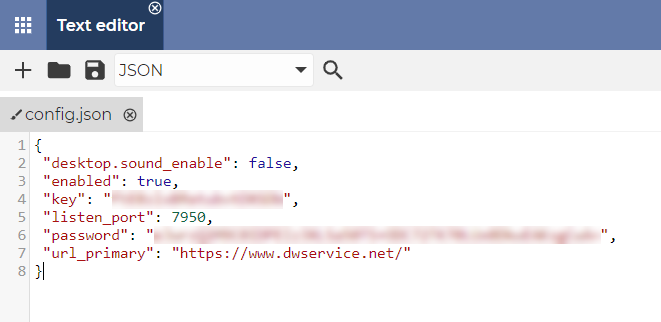
Open the configuration file and insert the following line:

"desktop.sound_enable": false,

Your configuration file should look similar after pasting:

⚠️ Important note: the parameters in the file are separated by a comma (,) at the end of each line (except the last parameter).
Please, pay attention to them. If there is a comma missing between two parameters, the Agent will not start.

When the change is made and everything is correct, Save the file.

Then Restart the Agent.

✅ With this setting, the audio from the Agent will not be transmitted.

🔲 Status of the Agent: Unavailable

In the event that the Agent’s status is Unavailable, there are several possible reasons.

Maybe it is just a temporary failure on the Agent side, in the Internet connection, or at the Node.
Please check your connection again a little bit later.

If the status is still “Unavailable”, the error will be most likely on the Agent side. Either with the internet connection or with the device itself.

➡️ You can check the following:

  • Check what DWAgent – Monitor indicates as status. More information about the Monitor is available in our documentation here: Monitor – DWService – Docs
  • Check that the Agent is not disabled. (If the Monitor icon is red, it means the Agent is disabled, please enable it)
  • The Agent has a log file that records events related to the Agent. The log file is a plain text file that can be opened with any text editor. If the Agent has been installed using the default path, the log file is the following:
    • Windows ⇒ C:\Program Files\DWAgent\dwagent.log
    • Linux ⇒ /usr/share/dwagent/dwagent.log
    • macOS ⇒ /Library/DWAgent/dwagent.log

Open the log file and check for errors.

  • Test your Internet connection. With Internet connections, it is not just speed that matters, but also quality. The quality of your internet connection is affected by several factors:
    • Download speed – the faster the better
    • Upload speed – the faster the better
    • Latency (Ping) – the lower the better
    • Jitter – the lower the better
    • Packet loss – the lower the better (0 is best)

There are several tools on the internet to test the quality of your internet connection. A few examples:

➡️ If your problem persists, please share your recent experiences and the details with us at support@dwservice.net.

We will do our best to find the cause of the problem and thus a solution.

⬛ Shell app – Using authentication for the Shell app

When connected to a remote device, you can use the Shell application to run commands on the remote device.

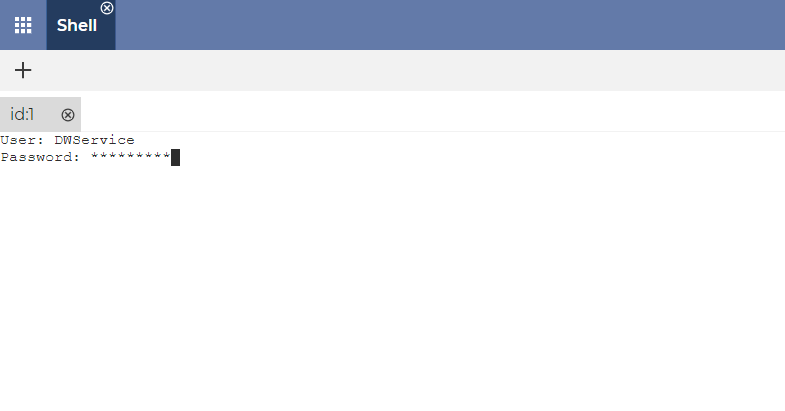
By default, you do not need to enter a username and password to use the Shell app. You can use it immediately. As seen here:

However, this behavior can be changed.

✅ By requiring the username and password of the remote device user to use the Shell application, the security of the agent can be further enhanced.

As seen here:


➡️ For more information on configuring the Shell application, click here: Configure the Shell app

🖥️ Screen app – Using two remote monitors on two local monitors

If there are two monitors on the remote device and your local device also has two monitors, and you would like to use both monitors simultaneously when managing the remote device, you need to do the following:

1. Visit our website: https://www.dwservice.net

2. Login to your account. You can read more about the login process here: Login

3. Your dashboard appears.

4. In your Dashboard, select Shares:


5. Create two separate shares for your Agent:

▶️ Our tutorial video on How to use Shares is available on our YouTube channel: DWService – How to use Shares (youtube.com)

💡 Hint 1: When creating a Share, you can give the Agent a more descriptive name (for example: Windows11 – Display1):

💡 Hint 2: When you create the share, you can set it to share only the Screen app:

💡 Hint 3: When creating the share, you have the possibility to share the Agent only for yourself:

Once you have created the two shares you can use them to connect.

6. Connect with one of the shares to the remote device, then in the toolbar, from the drop-down list, select Display1:

7. Then connect with the other share to the remote device as well, then in the toolbar, from the drop-down list, select Display2:

8. Display one browser window on one of your monitors and drag the other to the other one.

✅ This way you can use both remote monitors on your two local monitors at the same time.

💡 Hint: If you want to drag a window from one monitor to another you need to select the Extended display option from the toolbar and use this view:


▶️ Our tutorial video on How to use Shares is available on our YouTube channel:

💻 Error message appears when installing the Agent: no mountable file systems (for older macOS)


If
you would like to install the Agent on an older macOS device (for example El Capitan), the following error message window will appear during installation:

The reason for this error message is that your older macOS cannot handle this dwagent.dmg file properly.

The dwagent.dmg file contains two files: the installer (DWAgent.app) and a pdf file (IMPORTANT_NOTES.pdf):

➡️ This means that you need to access this DWAgent.app in the dwagent.dmg file in a different way.

There are two possible workarounds for this situation:

  • In addition to your older macOS, you also have a newer macOS device.
  • In addition to your older macOS, you also have a different (Windows or Linux) system.

In addition to the older macOS, you also have a newer macOS device

On the newer macOS device, open the downloaded dwagent.dmg file (with double click on it).

The following window will appear:

Rightclick on the DWAgent.app file. Click on the Copy in the popup menu. As seen below:

This copies the file to the clipboard.

Then right-click in one of the folders on your system. For example, in the Desktop folder. In the menu that appears, click Paste Item. As seen here:

This will copy the DWAgent.app file to the current folder.

➡️ After this, transfer the extracted DWAgent.app file to your older macOS.

You have several options to do this. A few examples:

  • using an USB drive (flash drive, external HDD, etc.)
  • use an email attachment
  • using a cloud service

➡️ On your older macOS, the Agent can already be installed.

💡 Our tutorial video on how to install the Agent is available on our YouTube channel:
DWService – How to install the Agent on Mac OS – YouTube

✅ Once installed, our service works fine.


In addition to the older macOS, you also have a different (Windows or Linux) system

If you have another device that runs Windows or Linux, you can also use 7Zip to extract the DWAgent.app from the dmg file.

➡️ Using 7Zip, extract the DWAgent.app file to another folder on your system. You can see the steps here:

Launch the 7Zip application and open the dwagent.dmg file. Then right-click on the DWAgent folder, and select Copy To… As seen here:

The following window appears:

Browse to the folder where you want to extract it.

Then click on the OK button.

➡️ After this, transfer the extracted item to your older macOS.

You have several options to do this. A few examples:

  • using an USB drive (flash drive, external HDD, etc.)
  • use an email attachment
  • using a cloud service

➡️ On your older macOS, the Agent can already be installed.

💡 Our tutorial video on how to install the Agent is available on our YouTube channel:
DWService – How to install the Agent on Mac OS – YouTube

✅ Once installed, our service works fine.


👤 Run the Agent with admin privileges on a Windows where the user has only user privileges


If
a user runs the Agent on a device where he/she has only user privileges, the Agent will also run with only user privileges.

If you would like to perform an operation remotely that requires administrator privileges, the window requesting administrator credentials will not appear to you (only to the remote user) because it is a protected window.

🧑🏼‍💻 The implementation of showing a password prompt window is also on our todo list. Unfortunately, we cannot tell you when it will be available. But in the meantime, the workaround detailed below can be used.

Depending on whether the remote user knows the administrator password, or not, there are two possible scenarios:

  • If the remote user knows the administrator password and enters it, and the Agent will run with administrator privileges.
  • If the remote user does not know the administrator password, but you do, continue reading to find out how you can manage this situation.

The situation

The remote user asks you to connect to his/her device. To accomplish this, the remote user runs the Agent (with user privileges).

Then he/she shares the username and password with you. 

Connect to his/her Agent.

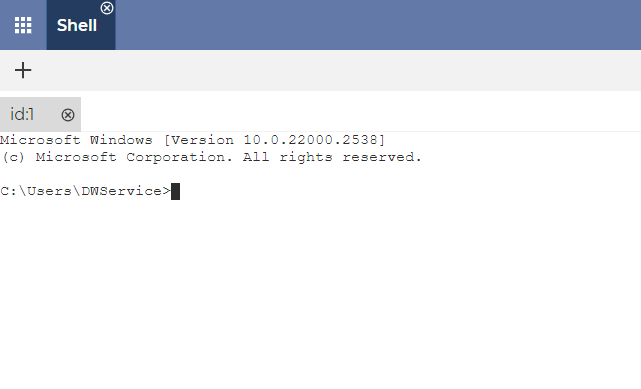
➡️ On the remote device, open the command prompt (cmd.exe) and enter the following command:

runas /user:administrator dwagent.exe

Then press Enter.

Note: this command runs the Agent as a different user.

⚠️ Of course, you must replace “administrator” with the username of the administrator on the remote device.

In the following example image, the administrator account name is DWService:

➡️ Then enter the password of the administrator.

⚠️ Important note: The remote user will not see what you type because you must enter the password blindly.

Once you have entered the password, press Enter.

Another instance of the Agent is launched.

➡️ Select Run and click on the Next button.

Then a window will pop up for the remote user (which you cannot see because it is a protected window). The remote user sees this window:

➡️ The remote user simply needs to click on the Yes button.

✅ You can then connect to the Agent with your new credentials (username and password). You will now have administrator privileges on the remote device.

🖨️ Remote printing


🧑🏼‍💻 The
implementation of printing is also on our todo list, but not yet available.

In the meantime, the following workarounds can be used.


Printing a remote document to a local printer

✅ Using the Files and Folders application, download the document and print it on your local printer.

➡️ If the thing to be printed is not a specific document, you can follow these steps:

  1. Print it to a pdf file on the remote device (using any pdf printer solution).
  2. Download this pdf document to your device – using the Files and Folders app.
  3. Print the pdf file on your local printer.

Printing a local document to a remote printer

✅ Using the Files and Folders application, upload the document and print it on the remote printer.

➡️ If the thing to be printed is not a specific document, you can follow these steps:

  1. Print it to a pdf file on your local device (using a pdf printer solution).
  2. Upload this pdf document to the remote device – using the Files and Folders app.
  3. Print the pdf file on the remote printer (using the Screen application).

🖥️ Screen app – Error: XWayland is not supported – workaround for Raspberry

✅ Wayland support is now available and ready to use.
⚠️ However, there are currently some limitations.
📖 You can read more about these here: Wayland

If you decide to use X11 instead of Wayland, you can follow the instructions below.

There are two ways to set up the workaround:


Command

Open a Terminal window and type the following command:

sudo raspi-config nonint do_wayland <W1>

Press Enter.

Enter your password.

Press Enter.

⚠️ Note: you will not see the cursor move while typing. Regardless, type the password.

You can then verify that the setting is correct by using the following command:

echo $XDG_SESSION_TYPE

Press Enter.

If the result is X11, the setting is correct.

➡️ Restart the Raspberry.

✅ With this setting, our Screen application will also work properly.

💡 In case you would like to revert to Wayland using a command, use the following command:

sudo raspi-config nonint do_wayland <W2>

You can read about the command here: Raspberry Pi Documentation – Configuration


Graphical interface

Open a Terminal window and type the following command:

sudo raspi-config

Press Enter.

Enter your password.

⚠️ Note: you will not see the cursor move while typing. Regardless, type the password.

Press Enter.

The following window appears:

Select Advanced Options.

💡 Hint: use the arrow keys to navigate and press Enter to select.

The following menu appears:

Select Wayland.

Here you can change the system from Wayland to X11.

Use this option to switch between the X11 and Wayland backends. The Wayland backend was introduced in Bookworm, X11 was used in older versions of Raspberry Pi OS.

➡️ Switch to X11.

If the setting to X11 is done, restart the Raspberry.

✅ With this setting, our Screen application will also work properly.

📁 Files and Folders app – Upload or download a folder


🧑🏼‍💻 Implementing
a feature that allows copying a folder is on our todo list, but not yet available.

➡️ Therefore, until this feature is available, the following workaround can be used.

In this section, you can learn about:


Upload a folder to the remote device

Zip the folder (on your device) you want to copy.
Right click on the folder that you would like to zip ⇒ Send to ⇒ Compressed (zipped) folder.

Name the file and press Enter.

A zip file is created in the same folder.

In the Files and Folders application use the Upload function to copy the zip file to the remote device:
1. Click on the Upload button.

The Upload window appears:
2. Click on the Choose a file text or drag the zip file into the window.

3. Click on the Upload button.

On the remote device (using the Screen application), unzip the zip file as follows:
Right click on the zip file ⇒ Extract All…

The following windows appears:
4. Select the Destination where you want to extract the folder.

5. Click on the Extract button.


Download a folder from the remote device

Zip the folder (on the remote device) you want to copy – using the Screen app.

Right click on the folder that you would like to zip ⇒ Send to ⇒ Compressed (zipped) folder.

Name the file and press Enter.

A zip file is created in the same folder.

In the Files and Folders application use the Download function to copy the zip file from the remote device:

1. Click on the Download button.

The zip file downloads to your device.

Unzip the copied zip file:

Right click on the zip file ⇒ Extract All…

The following windows appears:

2. Select the Destination where you want to extract the folder.

3. Click on the Extract button.


🖥️ Screen app – Error: XWayland is not supported

✅ Wayland support is now available and ready to use.
⚠️ However, there are currently some limitations.
📖 You can read more about these here: Wayland

If you decide to use X11 instead of Wayland, you can follow the instructions below:

1. Visit our website: https://www.dwservice.net

2. Login to your account. You can read more about the login process here: Login

3. Your dashboard appears:

4. Select Agents.

After selecting Agents, you will see your Agents:

5. Click on the Agent (which shows you the XWayland error message) to connect to it. You will see the applications:

6. Select the Files and Folders application.

The application opens:

7. Search for the following file: /etc/gdm3/custom.conf (or /etc/gdm/custom.conf):

8. Open the custom.conf file (double click on it).

The file opens in the Text Editor application:

9. Delete the # character from the beginning of the line WaylandEnable=false.

10. Click on the Save icon to save the file.

Close the applications window. You are back to your Agent.

11. Click on the 3 dot to open the menu.

12. Click on the Reboot OS.

After restarting the remote system, the Screen application will work.

✅ You can watch our tutorial video on the above setting on our YouTube channel: