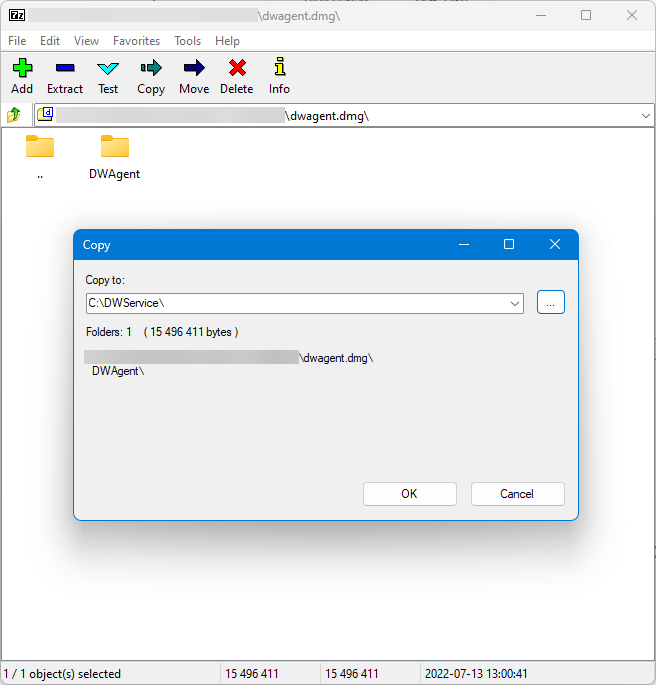
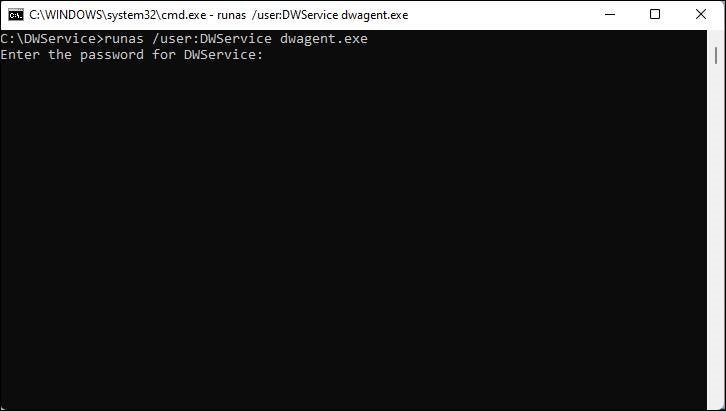
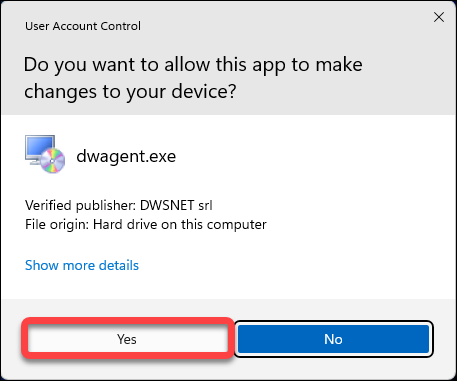
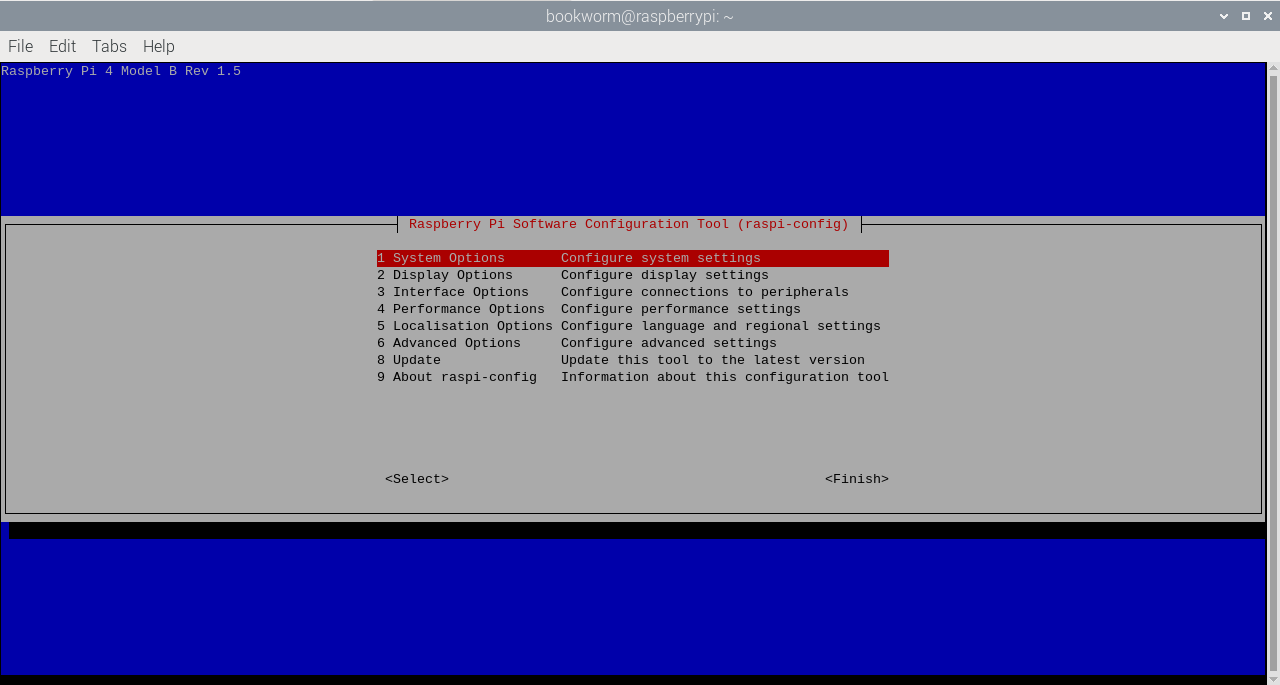
Workarounds


πŸ§‘πŸΌβ€πŸ’» The
implementation of several features is on our todo list.


βœ… As long as these functions are not available, temporary workarounds can be applied to certain situations.

πŸ—’οΈ Currently, we are aware of the workarounds listed below.

πŸ“§ If you have information about other workarounds (not mentioned here), please let us know at support@dwservice.net. Thank you.

Two-Factor Authentication (2FA)


πŸ›‘οΈ Nowadays, personal information and data need to be protected more and more. Security and privacy are very important to us, which is why we have made it possible for everyone to use Two-Factor Authentication to protect their personal accounts.

⭐ In fact, we offer three different solutions (For details click on one of the links below):

βœ… However, the effectiveness of your account protection is up to you. You need to enable one of these solutions.
We encourage you to activate it and take advantage of the enhanced protection.

πŸ’‘ It is much better to prevent trouble, data loss and other harms. Do not let your personal data be exposed to an unauthorized person.

πŸ“§ If you have doubts, concerns, questions or any feedback, please feel free to contact us at support@dwservice.net.

TOTP

πŸ“– More information on TOTP is available here: TOTP

A form of TwoFactor Authentication that can be selected when you enable TwoFactor Authentication.

To benefit from this 2FA protection, you need to enable Two-Factor Authentication as follows:

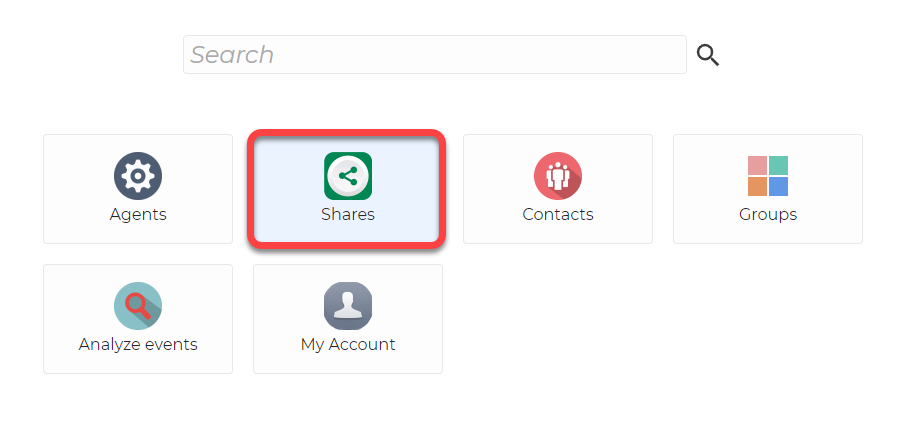
After signing in to your personal account, you will see these options:
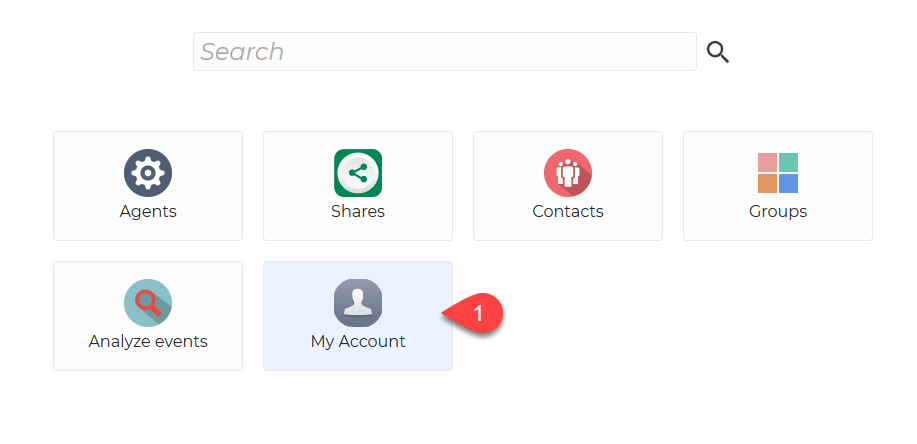
  1. Select My Account

Look for the TwoFactor Authentication section:

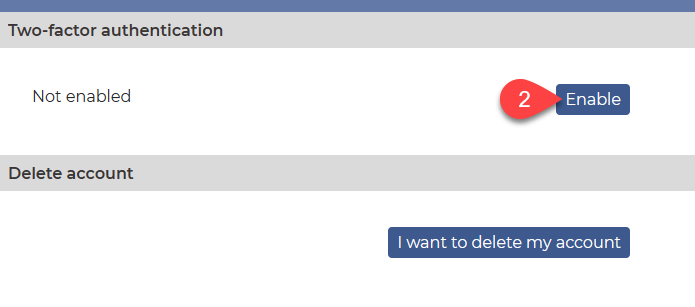
2. Click on the Enable button.

The following list appears:
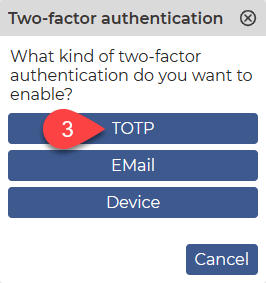
3. Click on the TOTP

The following window appears:
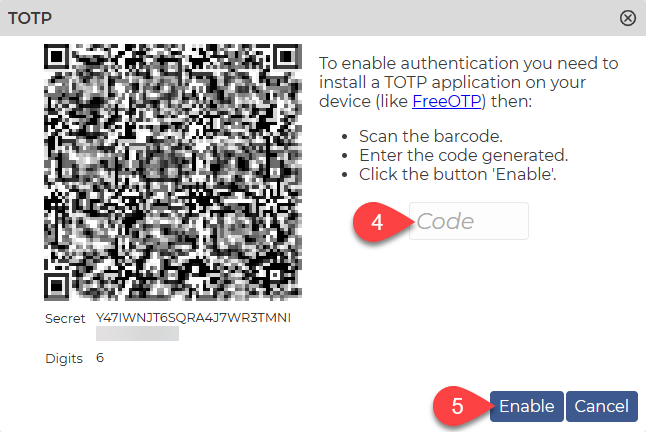
Add a new authentication on your mobile device or in your app (You can find instructions here: TOTP):

  • If you have a camera, use the QR code to add the authentication.
  • Alternatively, or if you do not have a camera, enter the Secret (32 digits) below the QR code

Use your device or application to generate a code.

4. Enter the resulting code in the Code field.

5. Click on the Enable button.

The following window appears:
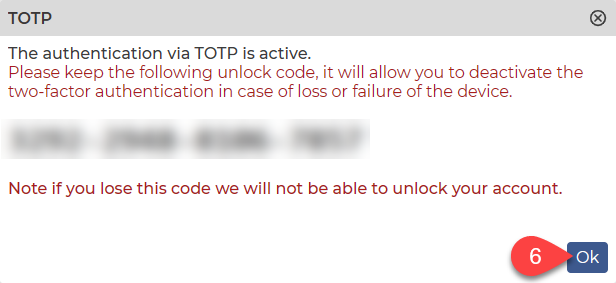
⚠️ Keeping the Unlock Code is extremely important. Keep it in a really safe place.

πŸ“– You can read more about the Unlock Code here:Β Unlock Code

6. Click the Ok button.

βœ… You have successfully set up your Android device as a TwoFactor Authentication device.

EMail

A form of TwoFactor Authentication that can be selected when you enable TwoFactor Authentication.

To benefit from this 2FA protection, you need to enable Two-Factor Authentication as follows:

After signing in to your personal account, you will see these options:
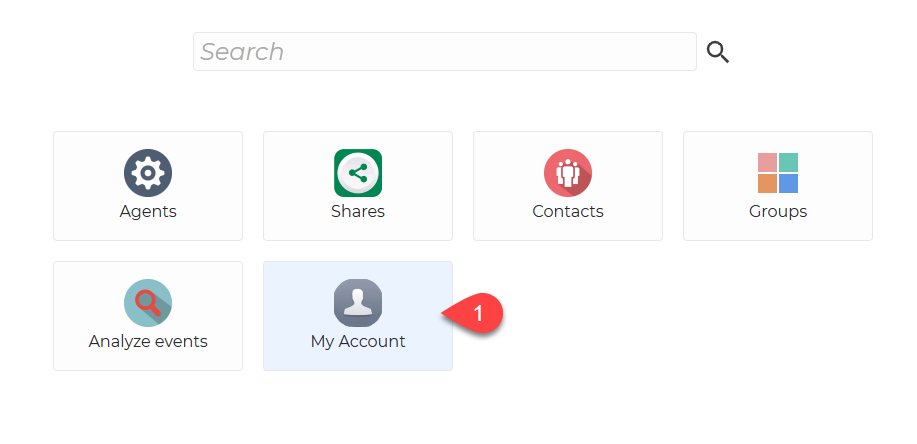
 

  1. Select My Account

Look for the TwoFactor Authentication section:


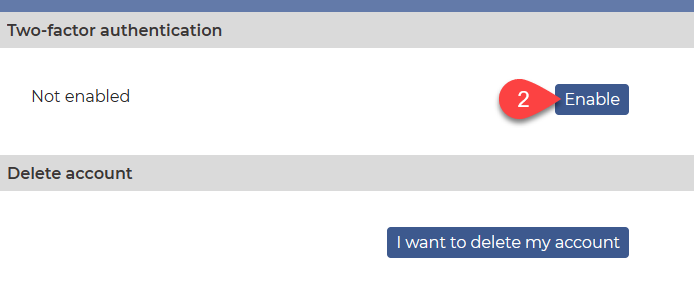
2. Click on the Enable button.

The following list will appear:
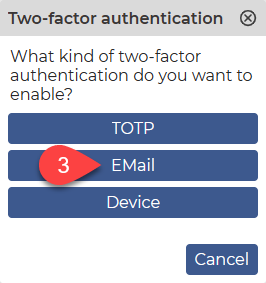
 

3. Select the EMail option.

You will see the following window:
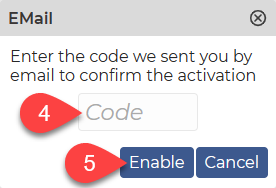


4. Enter in the Code field the 6-digit code that was sent to your email address.

5. Click on the Enable button.

If you have entered the correct code, you will see the following window:
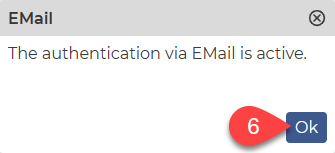
 

6. Click on the Ok button.

βœ… You have successfully activated Two-Factor Authentication via Email.

Device

A form of TwoFactor Authentication that can be selected when you enable TwoFactor Authentication.

You can enable it as follows:

  • Download and install our Client for your Android device. You can find more information here: Client
  • Add your account and sign into your account.


After signing in to your personal account, you will see these options:
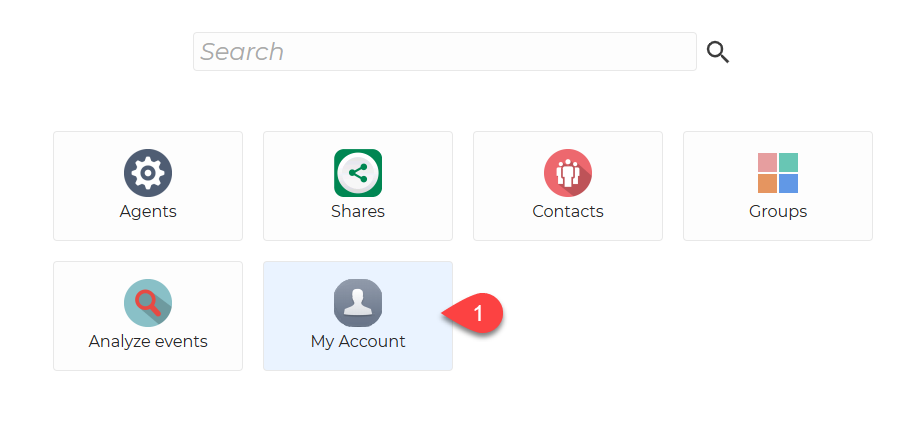
 

  1. Select My Account

You will see your device in the Authorized devices section:
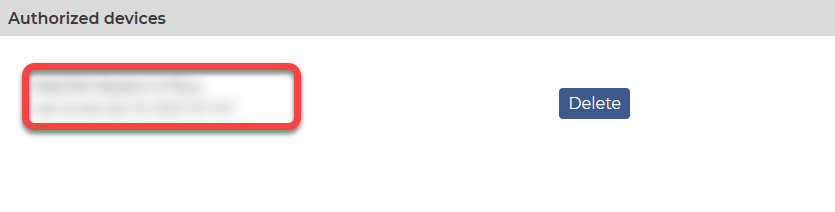
 

After that, look for the TwoFactor Authentication section:


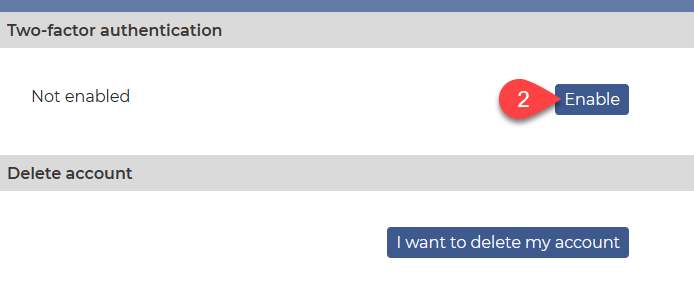
2. Click on the Enable button.

The following list will appear:
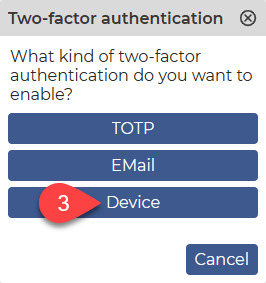
 

3. Click on the Device button.

The next window appears:
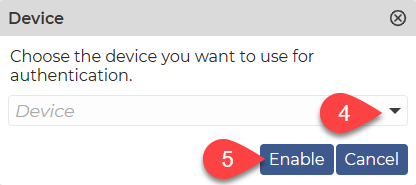
 

4. Select your device using the drop-down list.

5. Click on the Enable button.

Accept the request on your Android device.

Your Unlock Code appears:
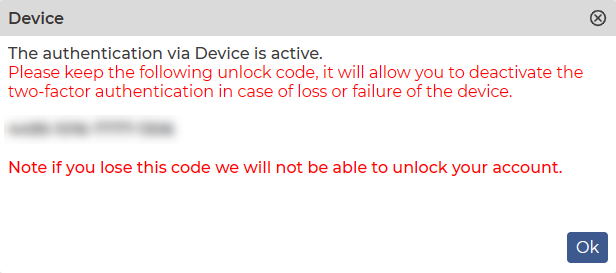
 

⚠️ Keeping the Unlock Code is extremely important. Keep it in a really safe place.

πŸ“– You can read more about the Unlock Code here:Β Unlock Code

Click the Ok button.

βœ… You have successfully set up your Android device as a TwoFactor Authentication device.

Payment method

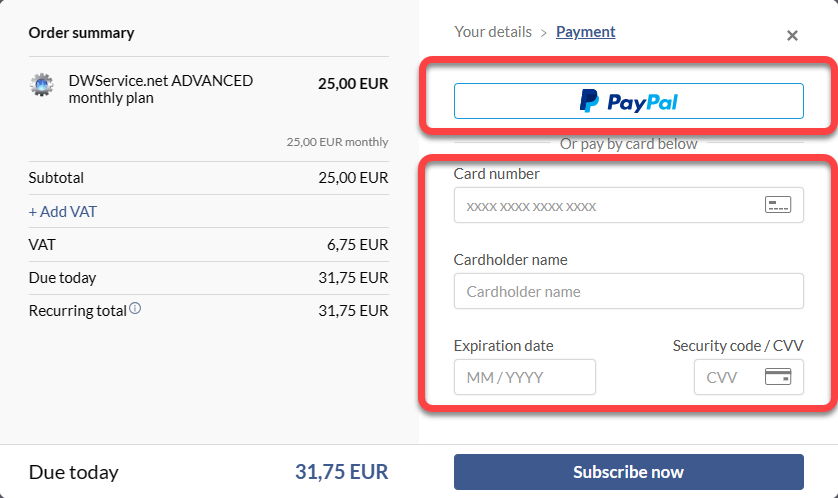
Our subscriptions and invoicing are managed by our partner Paddle.

When you subscribe, you can currently choose between two payment methods:

  • PayPal
  • Card

To find out more about why we chose Paddle’s solution, you can read our blog here: DWService now available with a merchant of record – DWService – News

Log file

The Agent has a log file that records events related to the Agent. If the Agent has been installed using the default path, depending on the operating system, the log files are the following:

  • Windows β‡’ C:\Program Files\DWAgent\dwagent.log
  • Linux β‡’ /usr/share/dwagent/dwagent.log
  • MacOS β‡’ /Library/DWAgent/dwagent.log

πŸ’‘Log files are plain text files that can be opened with any text editor (even remotely).

In case of an error, the log file may contain valuable information about the problem. For example: connection error, file loading error, etc.

Desktop notification

When you connect to a remote device, a notification is displayed on the remote device by default.

Depending on the activity, 1-4 icons will appear on the right edge of the screen.

The icons can be one of the following:

The meaning of the icons:

1 β‡’ This icon appears when someone is connected to the Agent.

2 β‡’ This icon appears when someone is using the Screen application, i.e. viewing the contents of the screen.

3 β‡’ This icon appears when someone is using the Shell application.

4 β‡’ This icon appears when someone is copying data (uploading or downloading).

These icons are visible by default. The behavior can be changed by configuring the Agent.

Configuration

The configuration of Desktop Notifications is as follows:

Open Monitor.

1.Β  Click on the Configure button.

The Wizard will start.


2. Select Configure monitor.

3. Click Next.

4. Select Desktop notification.

5. Click Next.

The following three options appear:

Explanation of the options:

6. Visible – The notification is displayed continuously during the connection.

7. Automatically hide – The notification is displayed when connected and then automatically hidden.

8. None – The notification does not appear at all during the connection.

9. Click Next.

10. Click Close.

⚠️ For this change to take effect, the user must logout and login again. Or restart the device.

Watch the configuration process in our tutorial video on YouTube:

Connection info

The Connection info button is available on the toolbar in the Screen application.

If you click on the button, a small window will appear in the top left corner displaying information about the connection.

We will now explain the meaning of each piece of information, which will allow you to better understand the data it contains.

FENC β‡’ Frame Encoder. β‡’ The way the frames are processed. Possible values are:
PALCMP_V1 β‡’ old, obsolete version
TJPEG_V1 β‡’ Turbo jpeg Version 1
TJPEG_V2 β‡’ Turbo jpeg Version 2 (default)

QA β‡’ Quality of the FENC (Frame Encoder) β‡’ Possible values are: 0-9
The higher the number, the better the quality.
If Minimum quality is selected from the drop-down list on the toolbar, this value is always 0.
If Low quality is selected from the drop-down list on the toolbar, this value is always 3.
If Medium quality is selected from the drop-down list on the toolbar, this value is always 6.
If Maximum quality is selected from the drop-down list on the toolbar, this value is always 9.
If Auto Quality is selected from the drop-down list on the toolbar, this value will constantly change between 0 and 9, in order to get the best quality for the current bandwidth.
A high number means better quality, but requires more bandwidth.

FPS β‡’ Frames Per Second (User side) β‡’ The number of frames displayed per second. The higher the number, the better the quality.
⚠️ Note: The DWService sends frames only when necessary. This means that if there is no change on the screen, no frames will be sent. This means that the value can be 0 even if the quality of the connection is good and the bandwidth is sufficient. In other words, a small value does not necessarily indicate an error.
When troubleshooting, it is recommended to start a video on the remote device and monitor this value. If this value is low, it means that the browser is slow to display the frames.

FPSCAP β‡’ Frames Per Second (Agent side) β‡’ Frame Per Second Capturing β‡’ This means how many frames the agent is capturing in one second. The higher the number, the better the quality.
⚠️ Note: The DWService sends frames only when necessary. This means that if there is no change on the screen, no frames will be sent. This means that the value can be 0 even if the quality of the connection is good and the bandwidth is sufficient. In other words, a small value does not necessarily indicate an error.
When troubleshooting, it is recommended to start a video on the remote device and monitor this value. If this value is low, it means that the remote device image capture process is slow, typically due to old hardware.

BPS β‡’ Bits Per Second β‡’ The amount of data transferred.
When troubleshooting, it is recommended to start a video on the remote device and monitor this value. The higher the value, the better.

TDIFF β‡’ This value shows lag time from Agent. This value is displayed in milliseconds.

FDIFF β‡’ This value shows lag frame from Agent.

PING β‡’ This value shows how long it takes a data packet to make a round trip. One of the indicators of the quality of your internet connection. This value is displayed in milliseconds. The lower the value, the better.

Linux – Install the Agent with Code (console)

In case you choose this installation method, you should follow our next guide, step-by-step.

1. Visit our website: https://www.dwservice.net

2. Login to your account. You can read more about the login process here: Login

3. You will see your dashboard:

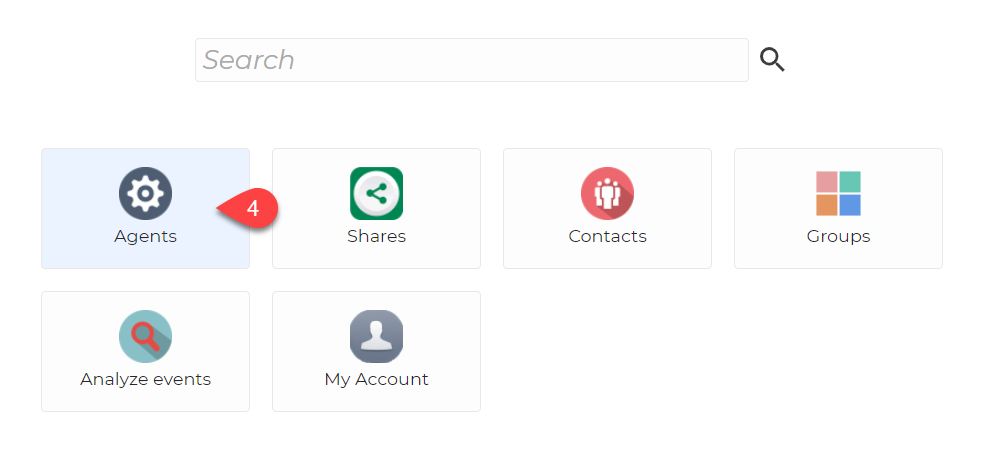
4. On your Dashboard, select Agents.

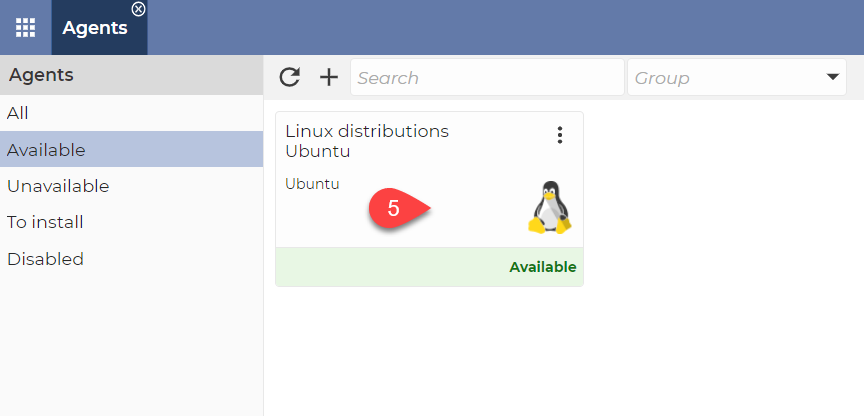
After selecting Agents, this will be displayed:

5. From the menu on the left, select the All option.
6. Click the + (Plus) sign.

The following window will appear:

7. The selection of Group is optional. If you do not wish to add the agent to a group, simply leave this field blank. If you want to add the Agent to a group, select the desired group from the drop-down menu. If there is no Group in the drop-down menu that suits you, you can create a new Group by selecting Groups in the Dashboard. For more details, click here.
8. Give a name to the Agent you want to create.
9. Optionally, you can provide a Description of the Agent, which will help you to identify the Agent later.
10. To create the Agent, click the Confirm button.

After the window closes, you will see this:

As you can see in the image above, the completed Agent is displayed, which contains a generated Installation Code. Each time you create an Agent, the system will generate such a code (consisting of numbers) for you. You must use this code during the Agent installation process.

After successfully creating the Agent, let’s see how to install the Agent.
In case you use a Linux with Desktop Environment, Start the Terminal application:

11. Open the folder where you want to install the Agent. For example, the Downloads folder.
⚠️ Note: Folders are case sensitive.

Now, let’s download the Agent:

12. You can use the wget command to download the Agent:
wget -N https://www.dwservice.net/download/dwagent.sh

πŸ’‘ Using -N, if the folder already contains a dwagent.sh file, it will be overwritten.

13. If you are using Linux that does not include a Desktop Environment, type sudo bash dwagent.sh and hit Enter.
If you are using Linux that includes a Desktop Environment, type sudo bash dwagent.sh -console and hit Enter.

14. Enter the password for the Linux user.
⚠️ Note: The system does not display the way you type the characters. But just type the password. Then press Enter.

A wizard will be launched to guide you through the installation process.
πŸ’‘ In the wizard, you can step back one step by typing #BACK at the prompt and then pressing Enter. To exit the wizard, type #EXIT at the prompt and press Enter.

15. From the options, select the option Install, which is option 1. Then press Enter.

16. Here you can change the path where the Agent will be installed.
The default path is: /usr/share/dwagent
If you want to install the Agent in the default folder, just hit Enter.

17. To confirm the installation path, from the options, select Yes, which is option 1. Then press Enter.

18. From the two installation options, select the option Enter the installation code, which is option 1. Then hit Enter.

19. Enter the installation code that our system generated for you when you created the Agent. Then hit Enter.

As you can see in the picture above, the installation has been successfully completed. The Agent is ready to use.

Switch back to the account.

20. In the menu on the left, select All.
21. The Agent is available. You can connect to the agent by clicking on it.

This brings us successfully to the end of the installation process.
Use it with maximum satisfaction.


Linux – Install the Agent with Credentials (console)

In case you choose this installation method, you should follow our next guide, step-by-step.

1. Visit our website: https://www.dwservice.net

2. Login to your account. You can read more about the login process here: Login

3. You will see your dashboard:

4. On your Dashboard, select My Account.

After selecting My Account, this will be displayed:

5. From the menu on the left, select Account.
6. Enter the Agent installation password, which you will be asked to enter when you install the Agent.
⚠️ Important: For security reasons, this password cannot be the same as your account password. Choose a different password.
7. To save the password, click the Update credentials button.
The following window will appear:

8. Click on the Ok button.

Now let’s see how to install the Agent.
In case you use a Linux with Desktop Environment, Start the Terminal application:

9. Open the folder where you want to install the Agent. For example, the Downloads folder.
⚠️ Note: Folders are case sensitive.

Now, let’s download the Agent:

10. You can use the wget command to download the Agent: wget -N https://www.dwservice.net/download/dwagent.sh
❗ Using -N, if the folder already contains a dwagent.sh file, it will be overwritten.

11. If you are using Linux that does not include a Desktop Environment, type sudo bash dwagent.sh and hit Enter.
If you are using Linux that does include a Desktop Environment, type sudo bash dwagent.sh -console and hit Enter.

12. Enter the password for the Linux user.
⚠️ Note: The system does not display the way you type the characters. But just type the password. Then press Enter.

A wizard will be launched to guide you through the installation process.
❗ In the wizard, you can step back one step by typing #BACK at the prompt and then pressing Enter. To exit the wizard, type #EXIT at the prompt and press Enter.


13. From the options, select the option Install, which is option 1. Then press Enter.

14. Here you can change the path where the Agent will be installed.
The default path is: /usr/share/dwagent
If you want to install the Agent in the default folder, just hit Enter.

15. To confirm the installation path, from the options, select Yes, which is option 1. Then press Enter.

16. From the two installation options, select the option Creating a new agent, which is option 2. Then hit Enter.

17. Enter your username (email address) associated with your DWService account. Then press Enter.

18. Type the Agent installation password. Then press Enter.
⚠️ Note: This is not your account password, but a password created specifically for this purpose in your account (Dashboard –> My Account –> Credentials –>Agent installation password).

19. Enter a name for the Agent. Then press Enter.

As you can see in the picture above, the installation has been successfully completed. The Agent is ready to use.

Switch back to the account.

20. In the menu on the left, select All.
21. The Agent is available. You can connect to the agent by clicking on it.

βž• Additional configuration option (optional):
As you can see, the agent created is not in a group, nor does it have a description. If you don’t need these, we are now at the end of the process. The Agent is ready for use.

If you would like to put the Agent in the group and/or add a description to it, please do the next few steps:
22. Click on the three dots in the top right corner of the Agent. This will open the menu for the Agent.

23. From the menu that appears, select Edit.
You see the Edit window of the Agent:

24. The selection of Group is optional. If you do not wish to add the agent to a group, simply leave this field blank. If you want to add the Agent to a group, select the desired group from the drop-down menu. If there is no Group in the drop-down menu that suits you, you can create a new Group by selecting Groups in the Dashboard. For more details, click here.
25. Optionally, you can provide a Description of the Agent, which will help you to identify the Agent later.
26. To save the changes, click on the Confirm button.
After the window closes, you will see this:

The Agent is available and ready to use.
To connect to the Agent, click on the Agent.

This brings us successfully to the end of the installation process.
Use it with maximum satisfaction.

Path

When you install the Agent, the installer will offer you a default path to install the Agent.

This installation path can be one of the following, depending on the operating system:

  • Windows β‡’ C:\Program Files\DWAgent\
  • Linux β‡’ /usr/share/dwagent
  • MacOS β‡’ /Library/DWAgent

The installation path can be changed during the installation process, allowing the Agent to be installed in any location.

Backlink

A backlink is a link that points back to your website or your company’s website.

If someone subscribes to our service, they can appear on our subscribers’ page. The list of subscribers is available here (under the plans): DWService – Subscriptions

Our subscriptions are the following:

  • Entry β‡’ 8 Mbps
  • Lite β‡’ 10 Mbps
  • Basic β‡’ 14 Mbps
  • Advanced β‡’ 20 Mbps
  • Professional β‡’ 30 Mbps
  • Premium β‡’ 50 Mbps

If you choose Entry, Lite or Basic, your name will appear at the bottom of the list.

If you choose Advanced, Professional or Premium, your logo will be listed with a link to your website.

You can check how this works by scrolling down the page listing the subscriptions.Β DWService – Subscriptions