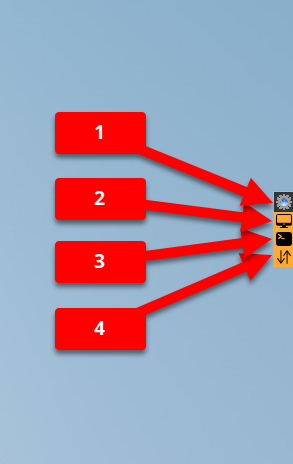
Unlock Code

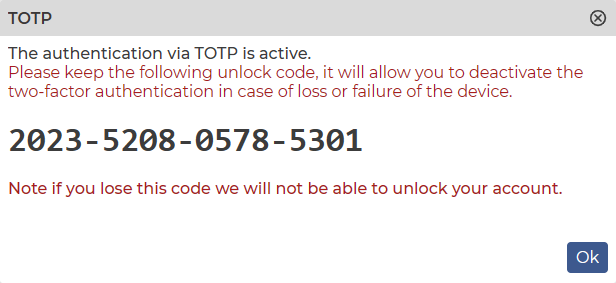
When you activate TOTP for our Two-Factor Authentication (2FA) service, our system will generate a code for you. This is called the Unlock Code.

The unlock code is a 16-digit code that looks like this: 1234-5678-9012-3456

An example:

⚠️ This code should be kept in a very good place, which will be surely available for you also in the future.

Why is it so important?
The answer is very simple. If anything happens to your authentication device (loss, theft, breakage, hardware failure, software failure), you can still sign into our system with this code and generate a new code for your new device.

Here are some suggestions:

  • Do not store the code only on the device that is doing the authentication.
  • Store the code in a location that will be accessible to you in the future.
  • Make a copy of the code.
  • If you are using a cloud service, you can save it to that storage location.
  • If you use a password manager application, you can save it there.

⚠️ This code is very important for the preservation of your account, so take care to ensure you can use it in the future.

How to use the Shell application?

When you connect to the Agent, the Applications will appear. Select Shell. The remote command line opens.

Depending on your settings, you can use the application in multiple ways.

There are parameters that can be set to control how the function works:
"shell.enable_authentication": true
"shell.enable_authentication": false
"shell.users_allowed": [{"name": "*", "enable": true}]

These parameters must be entered/modified in the config.json file.
The config.json file can be also edited remotely using the Text Editor app.

If the Agent has been installed using the default path, the config.json file is:

  • Windows  ⇒  C:\Program Files\DWAgent\config.json
  • MacOS  ⇒ /Library/DWAgent/config.json
  • Linux  ⇒ /usr/share/DWAgent/config.json

"shell.enable_authentication": true  ⇒ When the shell app is started, a username and password must be specified.
"shell.enable_authentication": false  ⇒  No username or password is required when starting the shell app.

If “shell.enable_authentication”: true, then one of the following parameters are also valid:

"shell.users_allowed": [{"name": "*", "enable": true}]  ⇒ All users are enabled.
"shell.users_allowed": [{"name": "root", "enable": true}, {"name": "*", "enable": false}]  ⇒ Only the root user is enabled.
"shell.users_allowed": [{"name": "root", "enable": false}, {"name": "*", "enable": true}]  ⇒ All users are enabled except the root user.

An example for the config.json file (Does not request a username and password.):

{
 "shell.enable_authentication": false,
 "enabled": true,

 "key": "<AGENT KEY>",
 "listen_port": 7950,
 "password": "<AGENT PASSWORD>",
 "url_primary": "https://www.dwservice.net/"
}

An example for the config.json file (Requests a username and password, and all users are enabled for Shell.):

{
 "shell.enable_authentication": true,
 "shell.users_allowed": [{"name": "*", "enable": true}],
 "enabled": true,
 "key": "<AGENT KEY>",
 "listen_port": 7950,
 "password": "<AGENT PASSWORD>",
 "url_primary": "https://www.dwservice.net/"
}

An example for the config.json file (Requests a username and password, and all users except the root user are enabled for Shell.):

{
 "shell.enable_authentication": true,
 "shell.users_allowed": [{"name": "root", "enable": false}, {"name": "*", "enable": true}],
 "enabled": true,
 "key": "<AGENT KEY>",
 "listen_port": 7950,
 "password": "<AGENT PASSWORD>",
 "url_primary": "https://www.dwservice.net/"
}

An example for the config.json file (Requests a username and password, and only the root user is enabled for Shell.):

{
 "shell.enable_authentication": true,
 "shell.users_allowed": [{"name": "root", "enable": true}, {"name": "*", "enable": false}],
 "enabled": true,
 "key": "<AGENT KEY>",
 "listen_port": 7950,
 "password": "<AGENT PASSWORD>",
 "url_primary": "https://www.dwservice.net/"
}

⚠️ Important: Please pay attention to the use of the “,” character at the end of the line, as it separates each parameter. Without them, the Agent will not work properly.

After modifying and saving the config.json file, the Agent must be restarted (no need to reboot the operating system).

💡 Note: This modification can be done remotely as well.

Linux – Install the Agent with Credentials (Graphical User Interface)

In case you choose this installation method, you should follow our next guide, step-by-step.

1. Visit our website: https://www.dwservice.net

2. Login to your account. You can read more about the login process here: Login

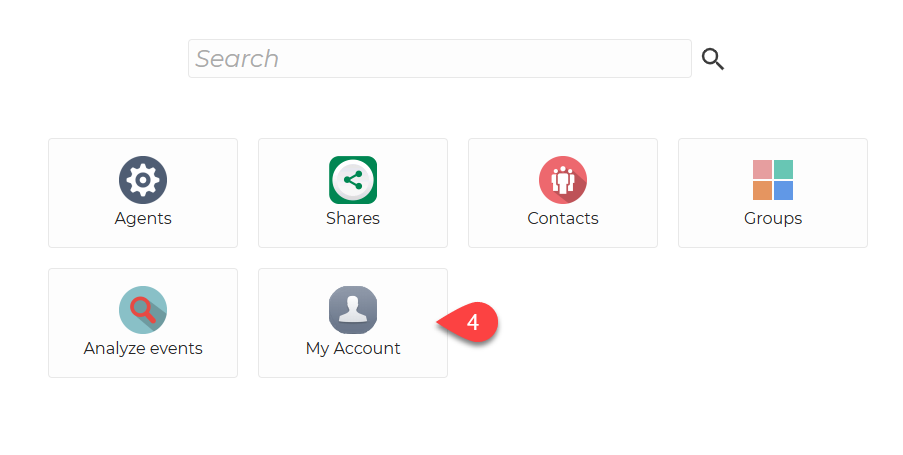
3. You will see your dashboard:

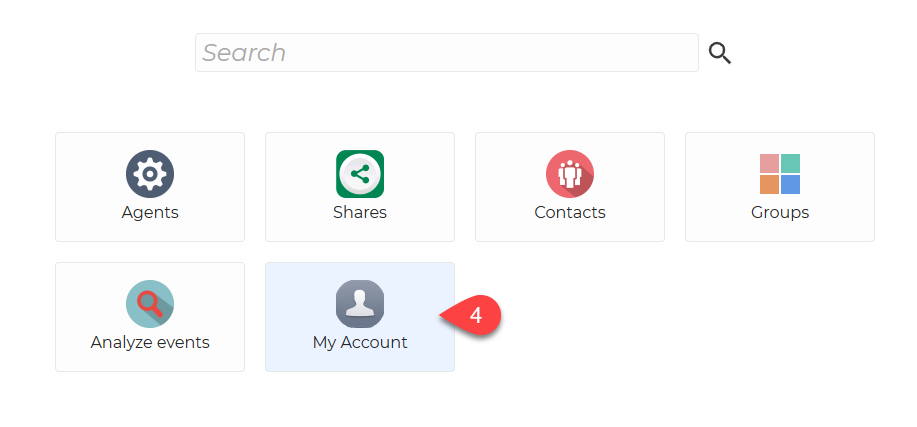
4. On your Dashboard, select My Account.

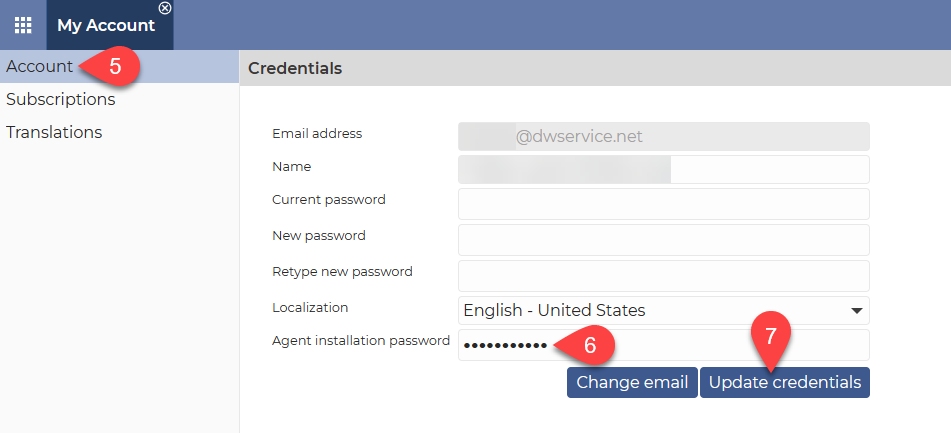
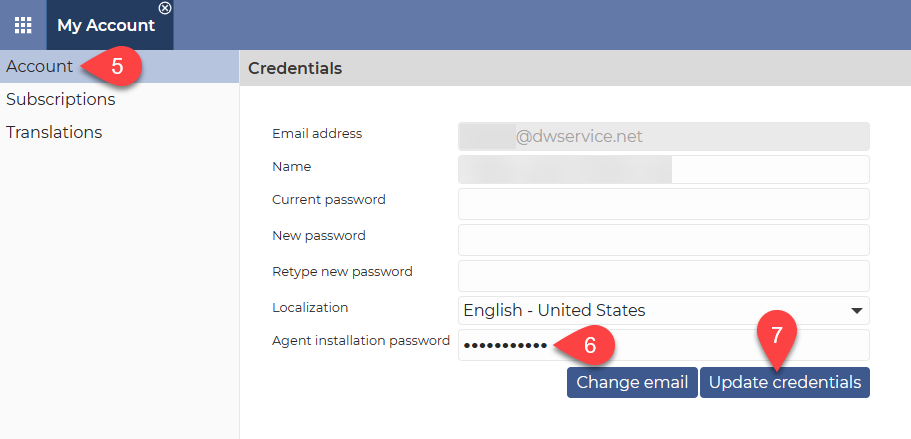
After selecting My Account, this will be displayed:

5. From the menu on the left, select Account.

6. Enter the Agent installation password, which you will be asked to enter when you install the Agent.

⚠️ Important: For security reasons, this password cannot be the same as your account password. Choose a different password.

7. To save the password, click the Update Credentials button.

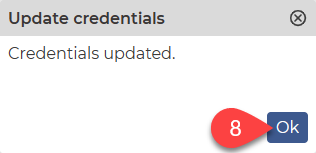
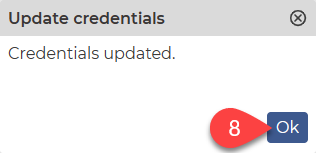
The following window will appear:

8. Click on the Ok button.

Now let’s see how to install the Agent.
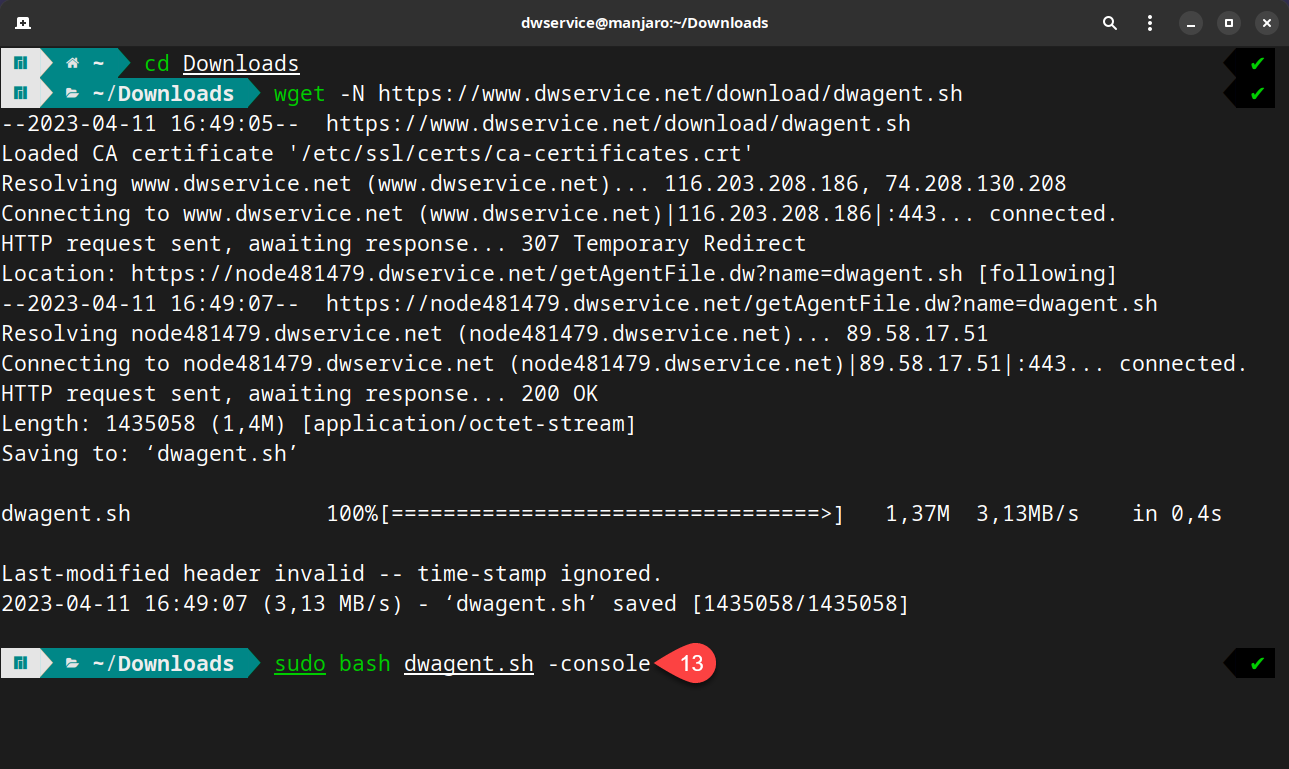
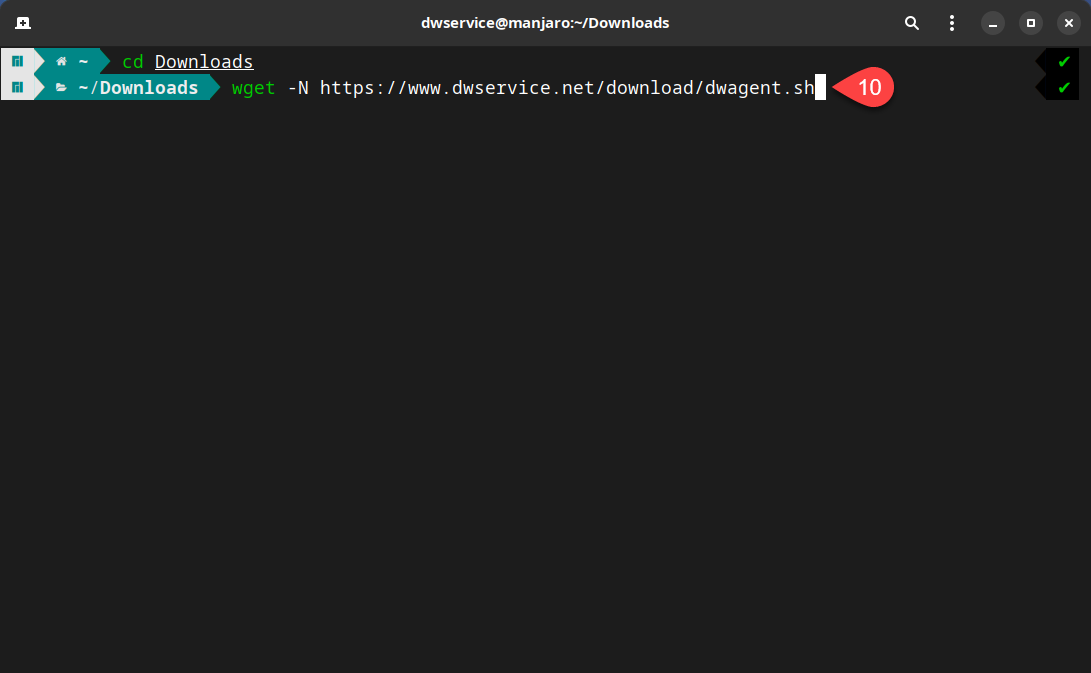
Download the Agent installer for your device from our download page (https://www.dwservice.net/download.html).
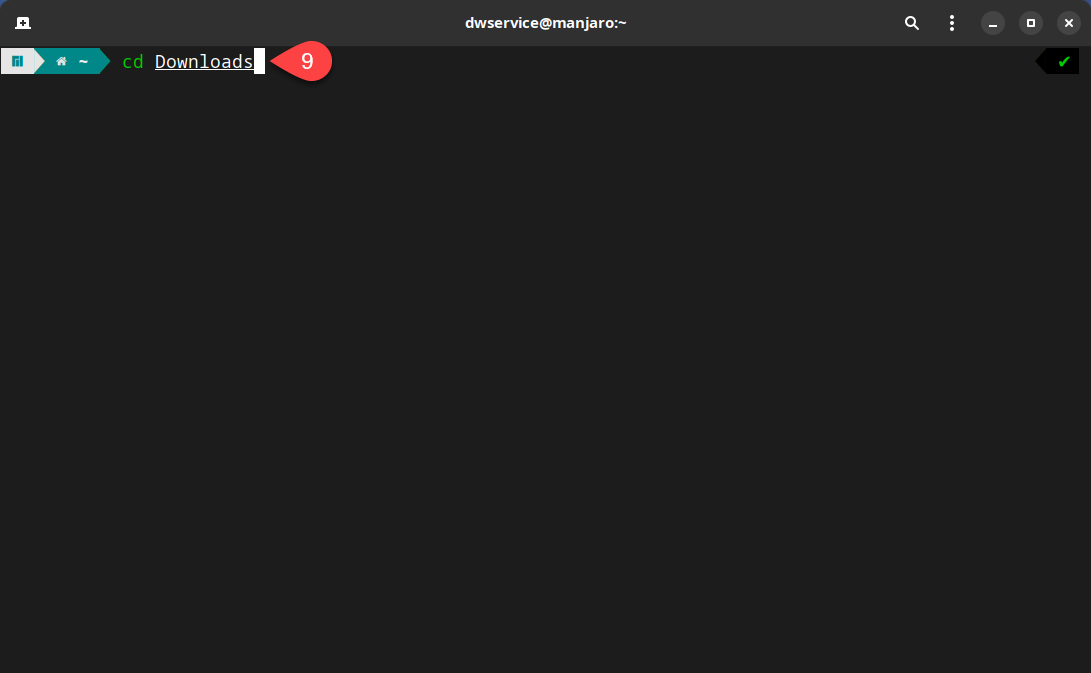
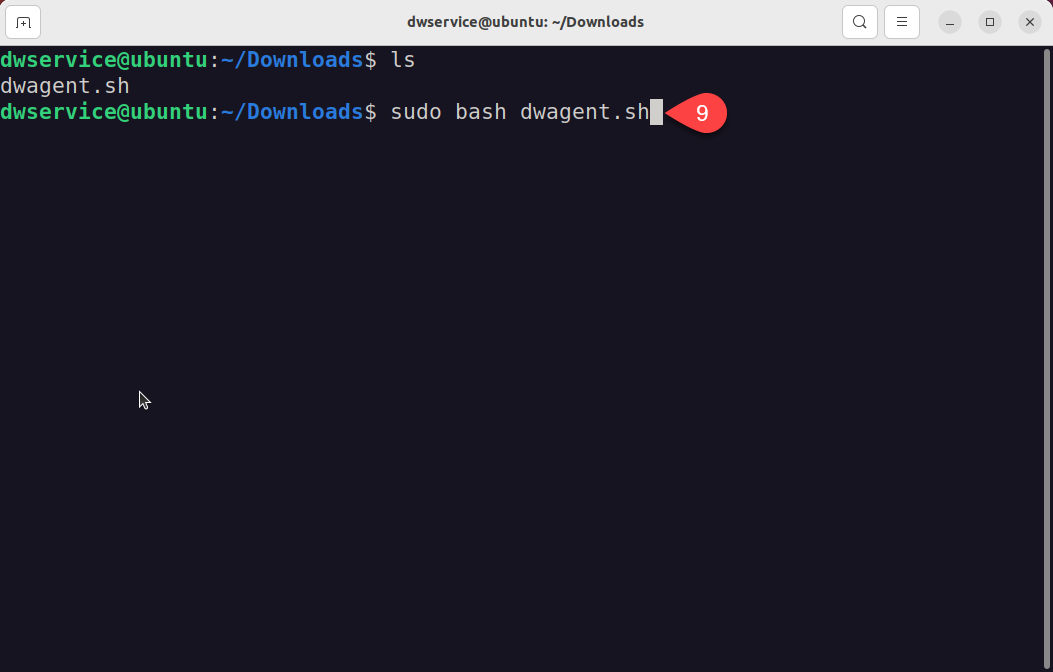
After downloading the Agent file, start the Terminal. You should open the folder where you saved the Agent file. In our case, this is the ‘Downloads’ folder.
⚠️  Note: When changing folders, note that folder names are case sensitive.

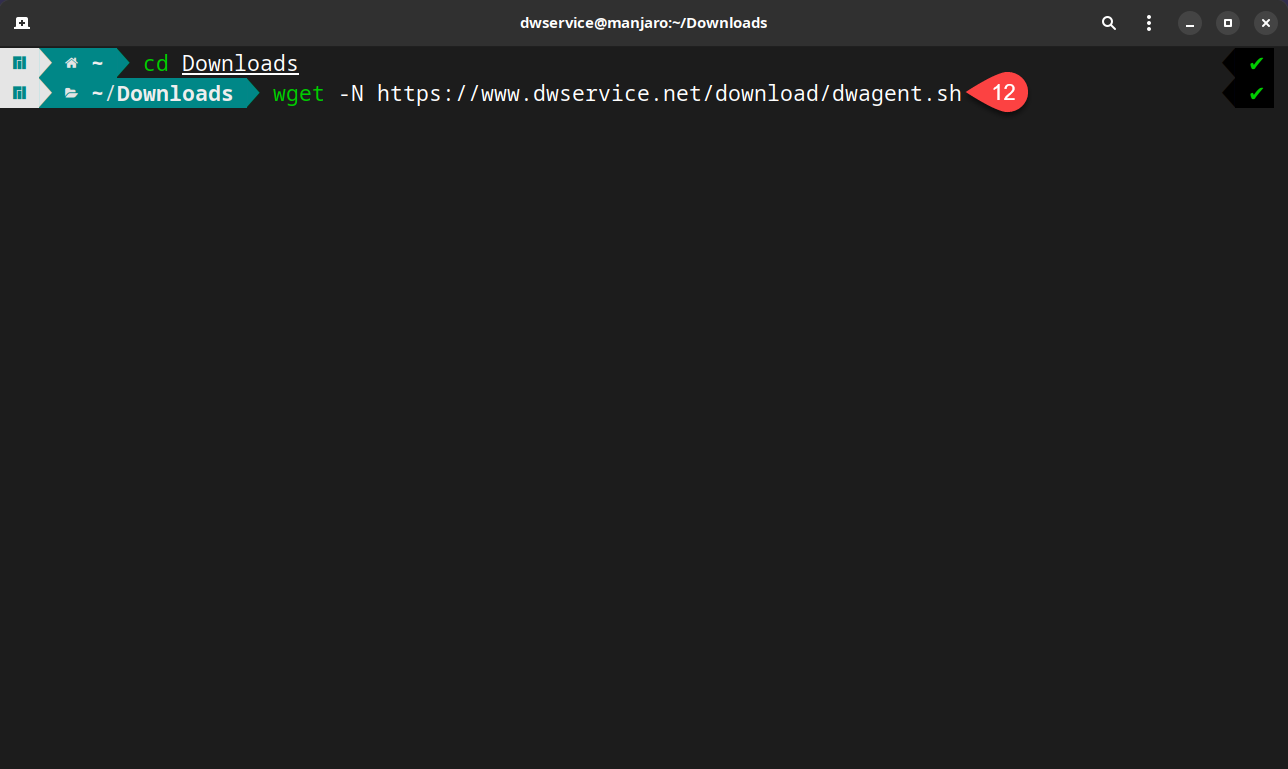
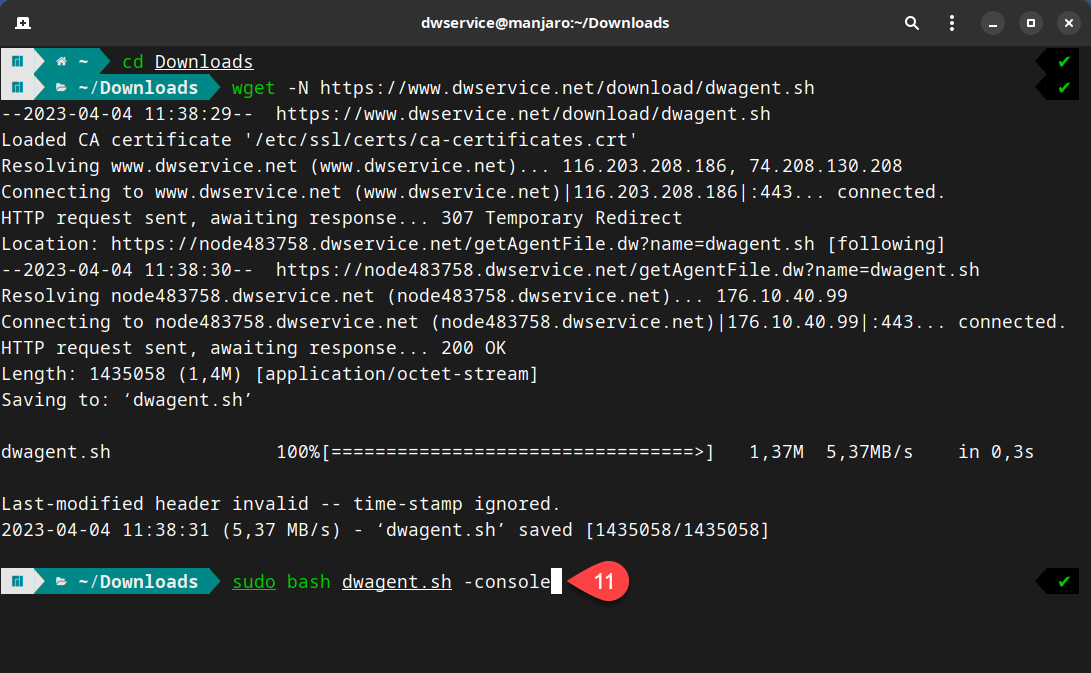
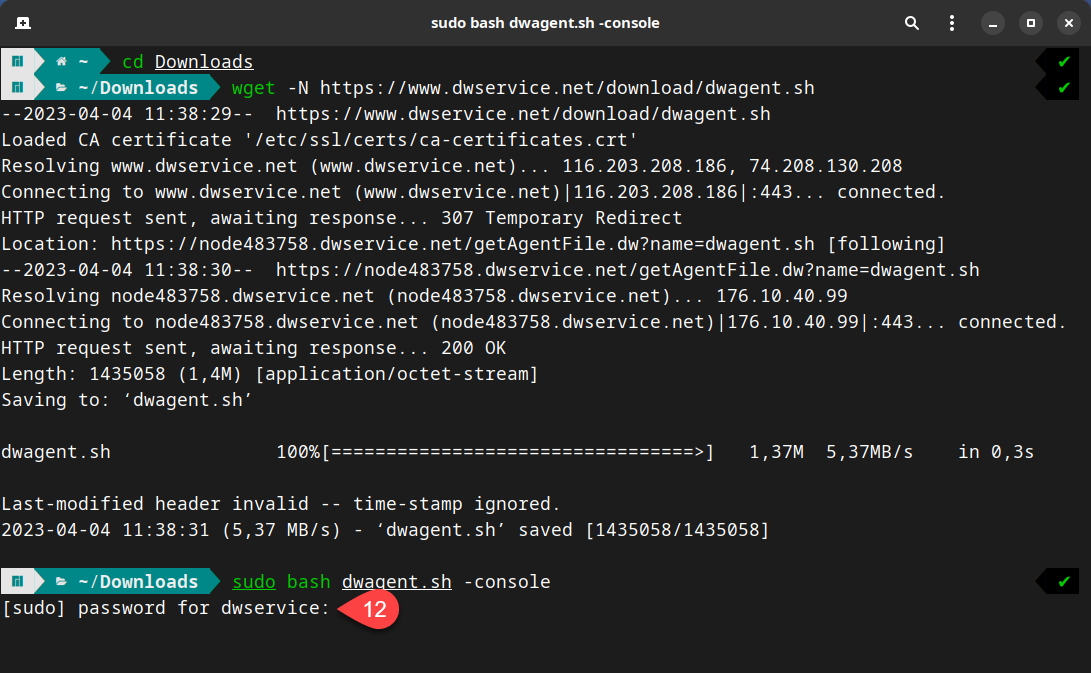
9. Type the following command: sudo bash dwagent.sh
At the end of the command, press Enter.
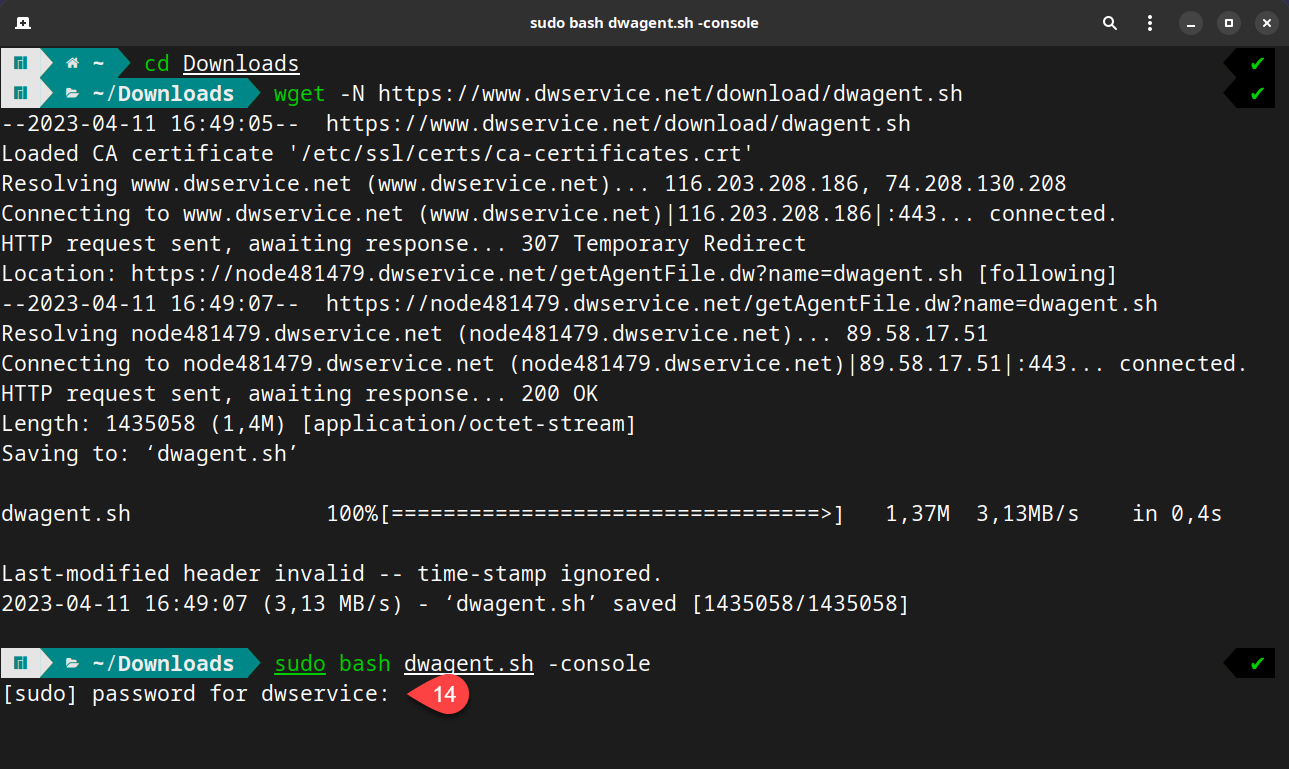
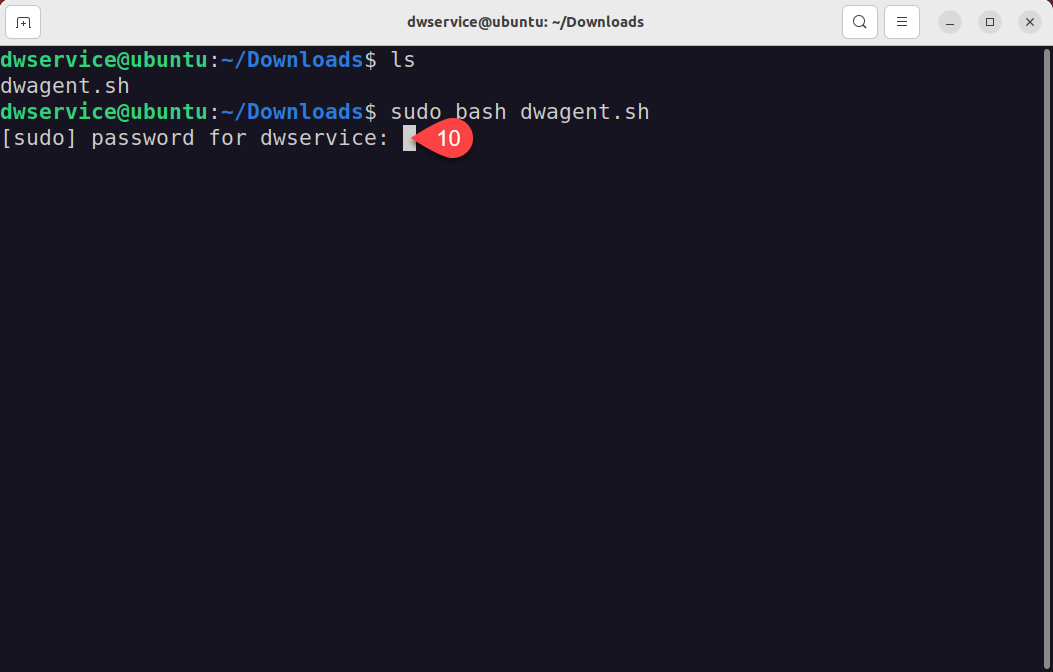
After pressing Enter, you will be prompted for the password:

10. Enter the password for the Linux username.
⚠️ Note: For security reasons, the screen does not show you typing your password. But the password will be entered. After typing your password, press Enter again.

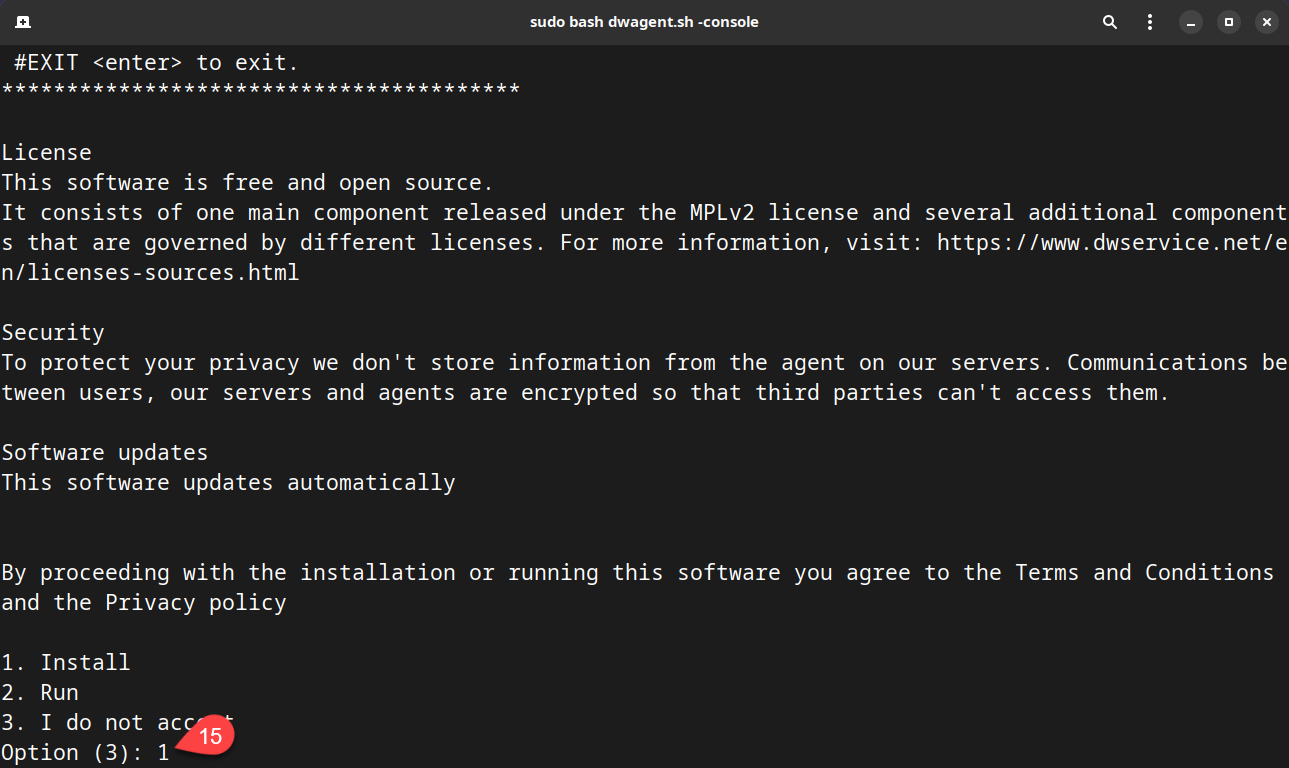
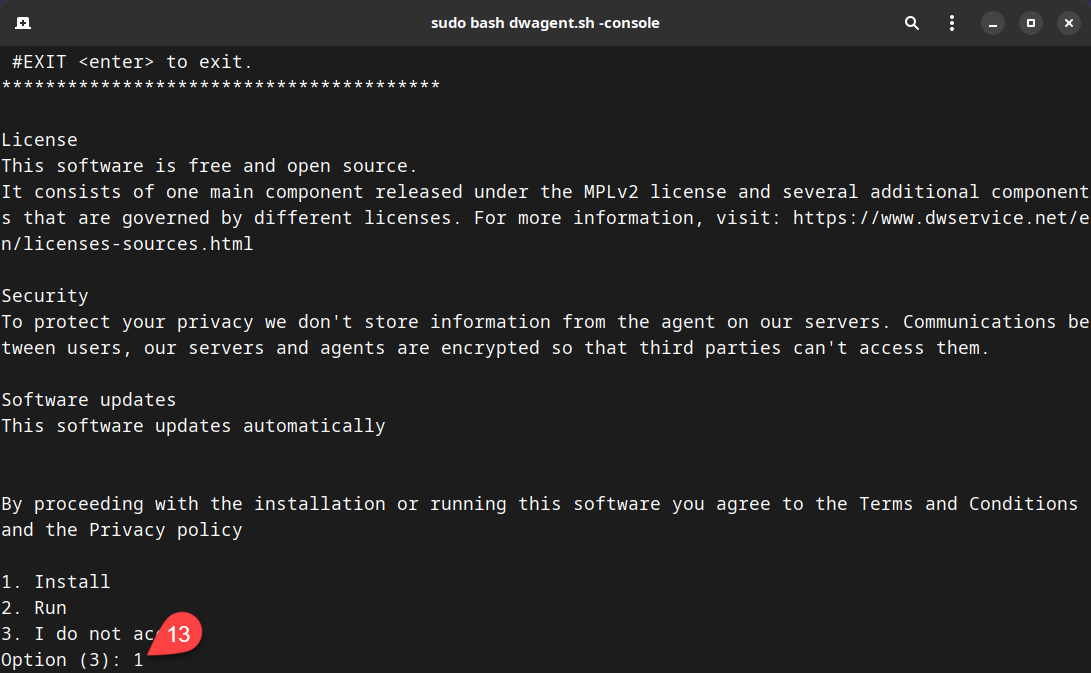
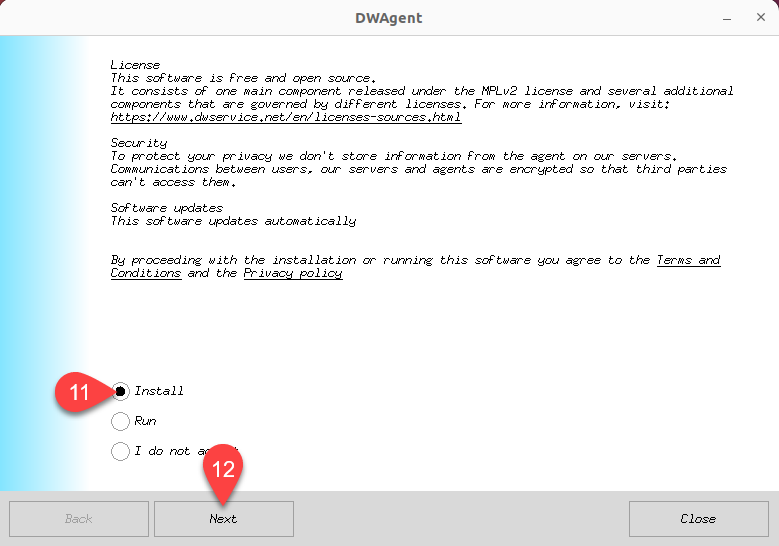
A wizard will be launched to guide you through the installation.

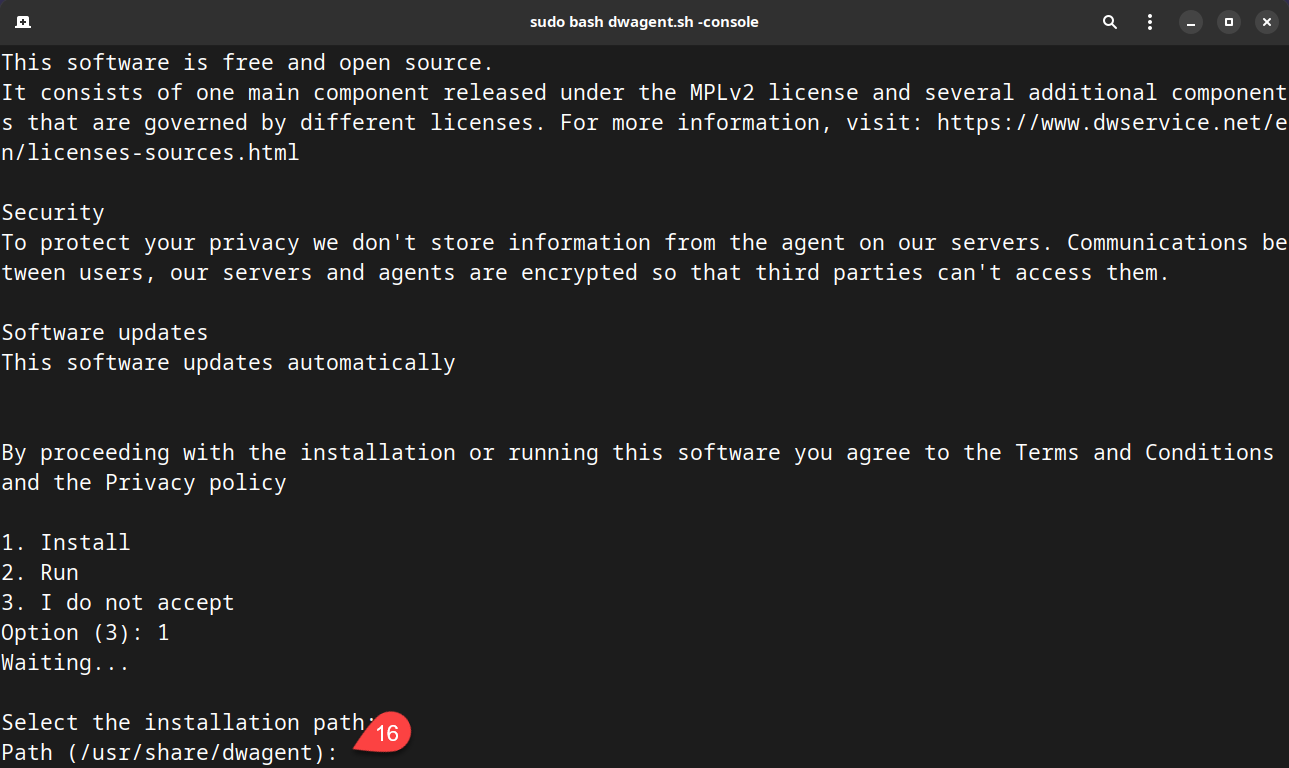
11. From the options, select Install.
12. Click on the Next button.
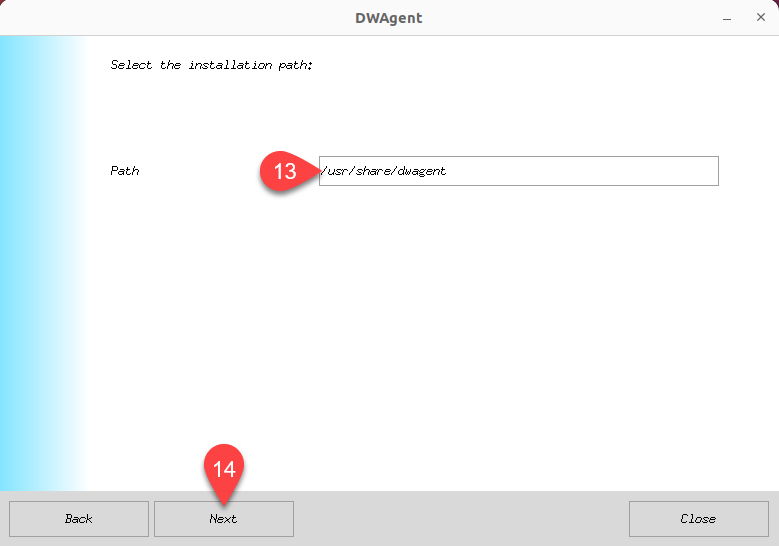
The next page of the wizard is displayed:

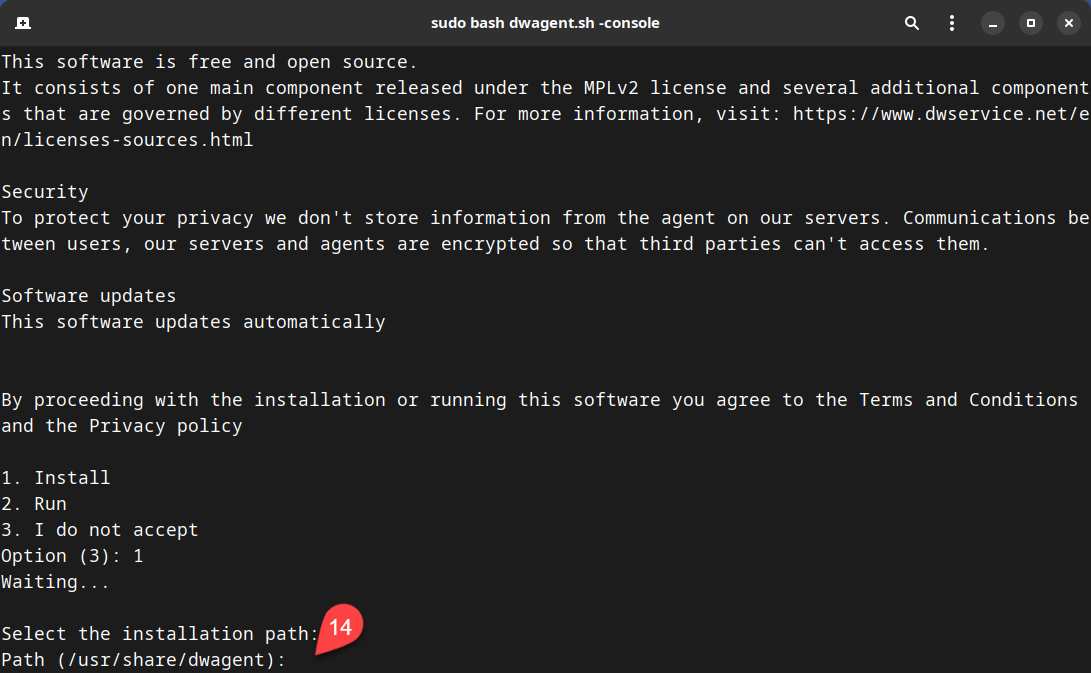
13. Here you can see the location (Path) where the Agent will be installed. If you want to install the Agent somewhere else, you can change the path here. The default path is: /usr/share/dwagent
14. Click on the Next button.
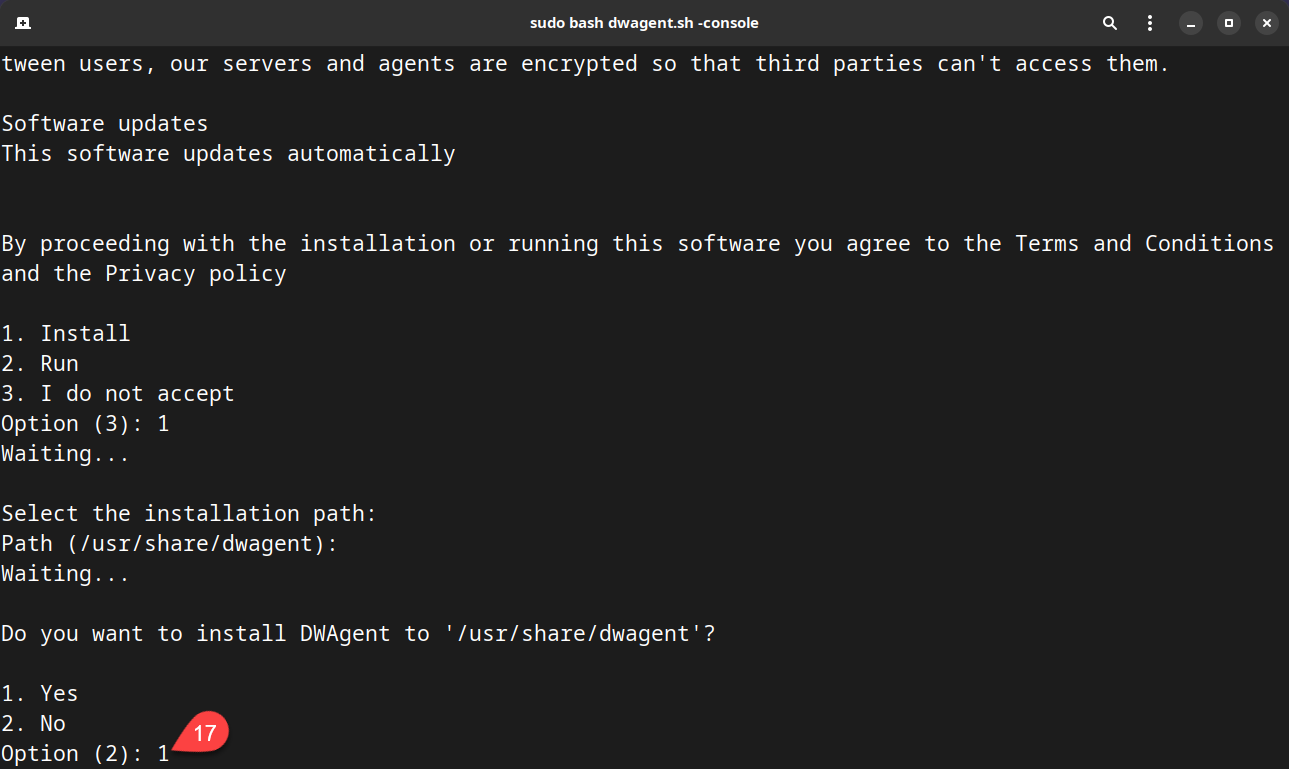
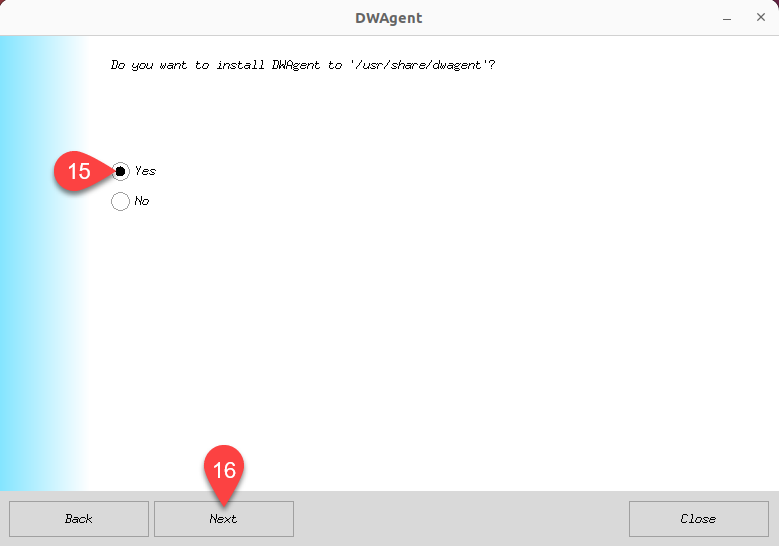
The next page of the wizard is displayed:

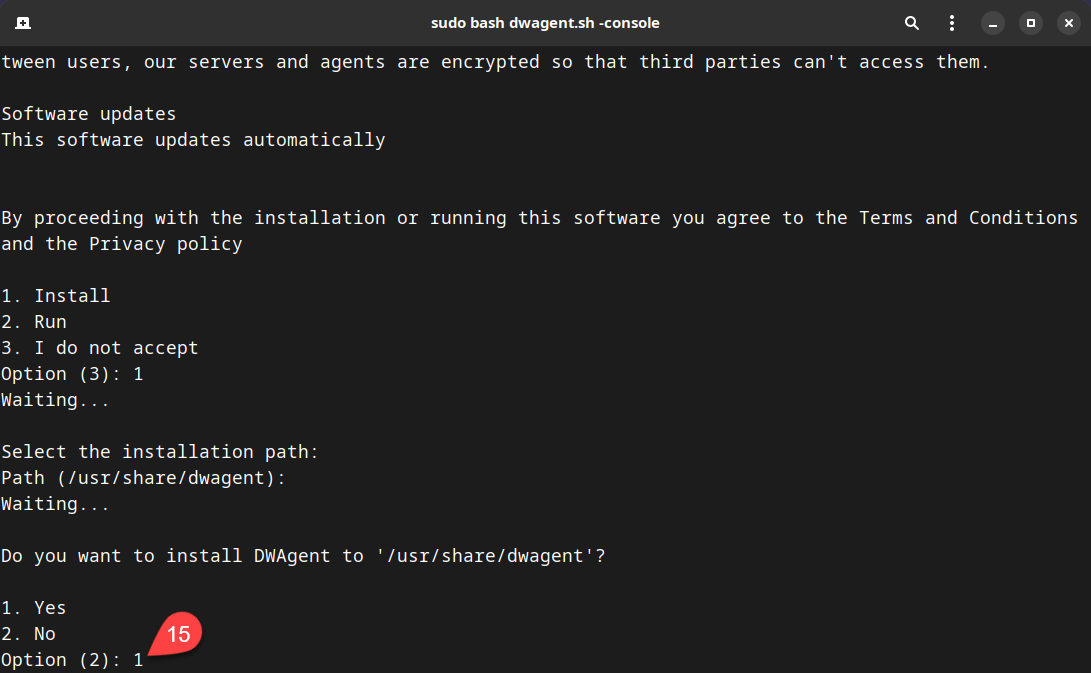
15. Select Yes to confirm that the specified installation path is correct.
16. Click on the Next button.
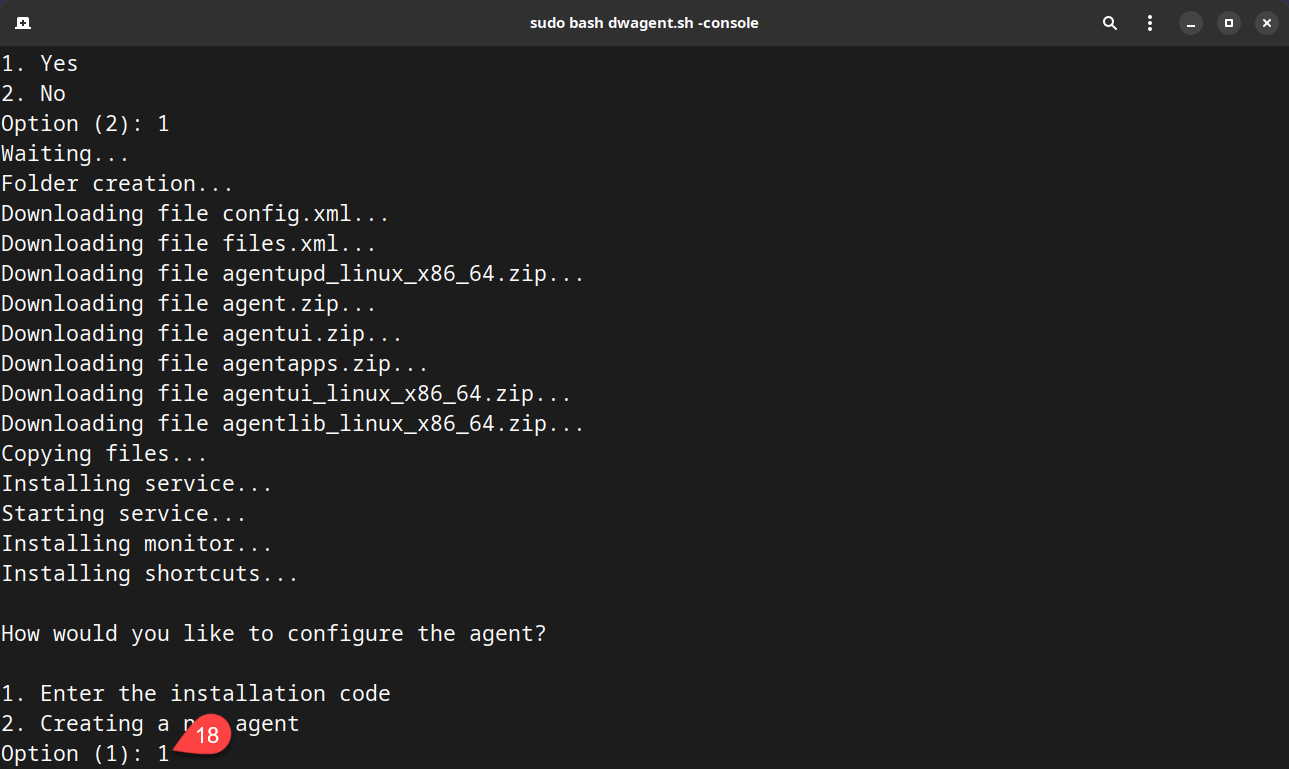
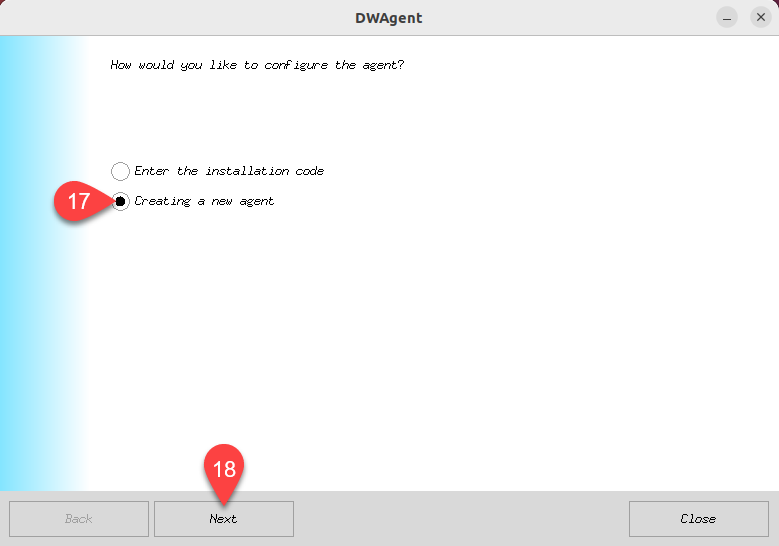
The next page of the wizard is displayed:

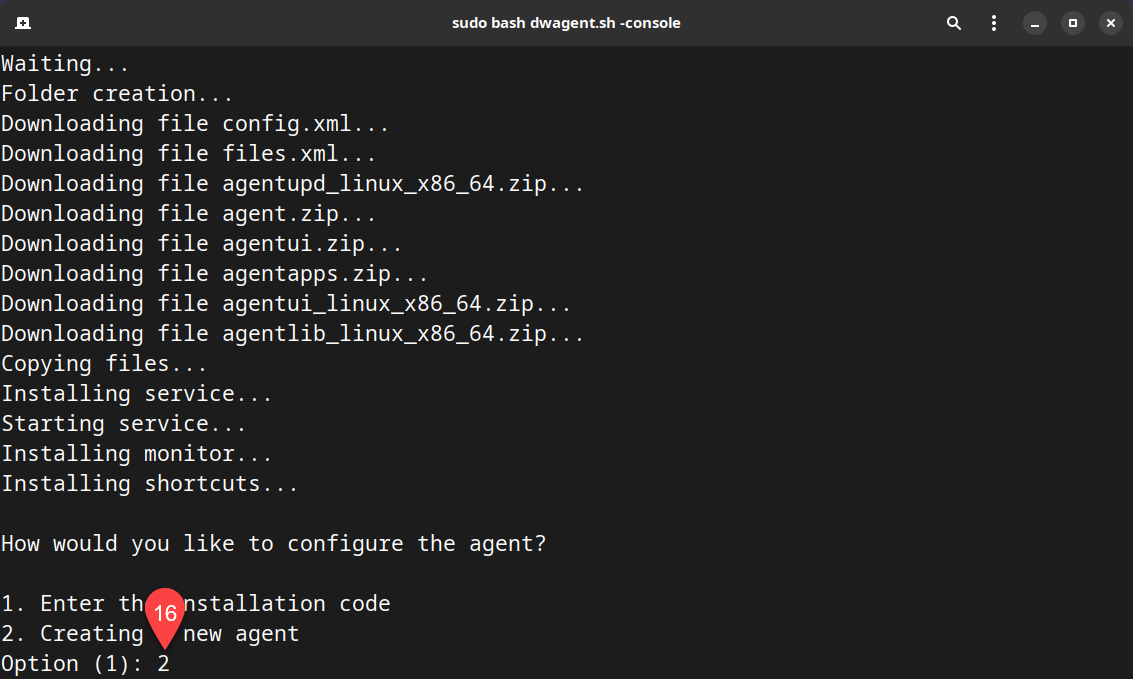
17. From the two installation modes, select the ‘Creating a new agent‘ option.
18. Click the Next button.
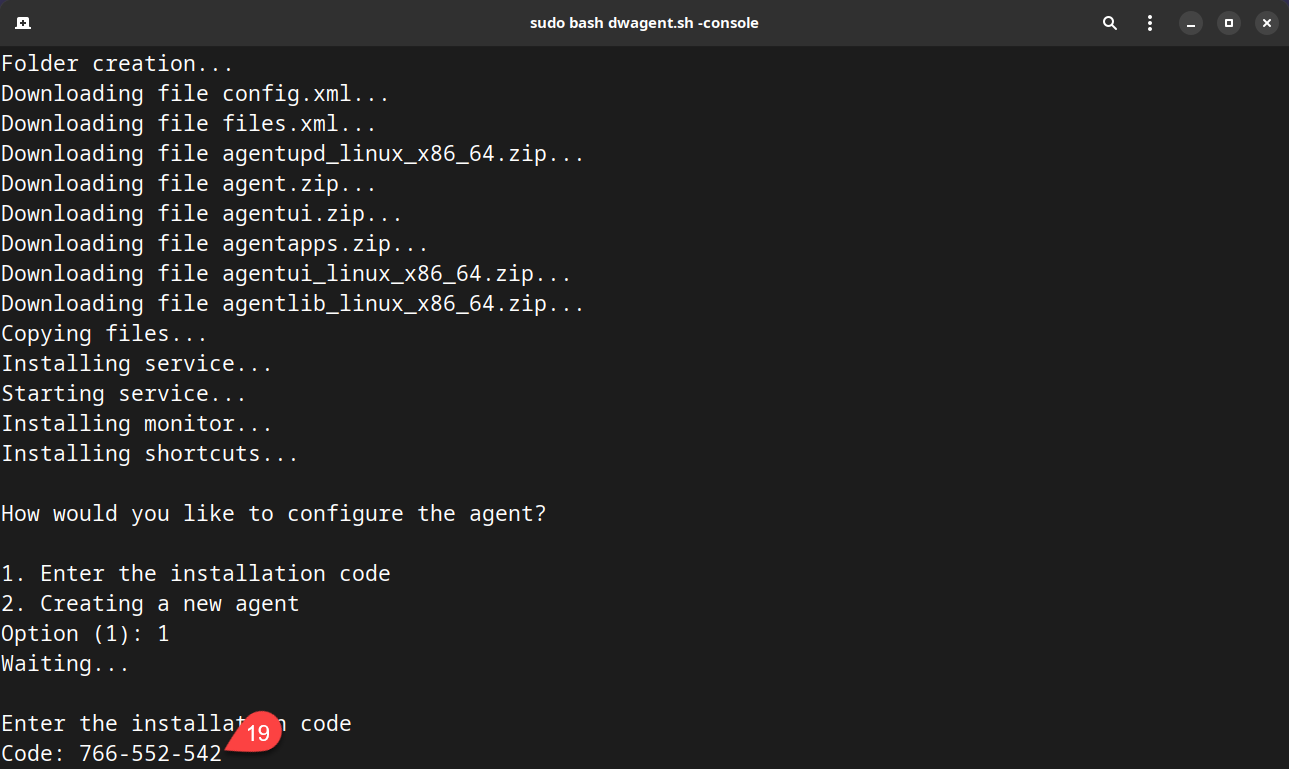
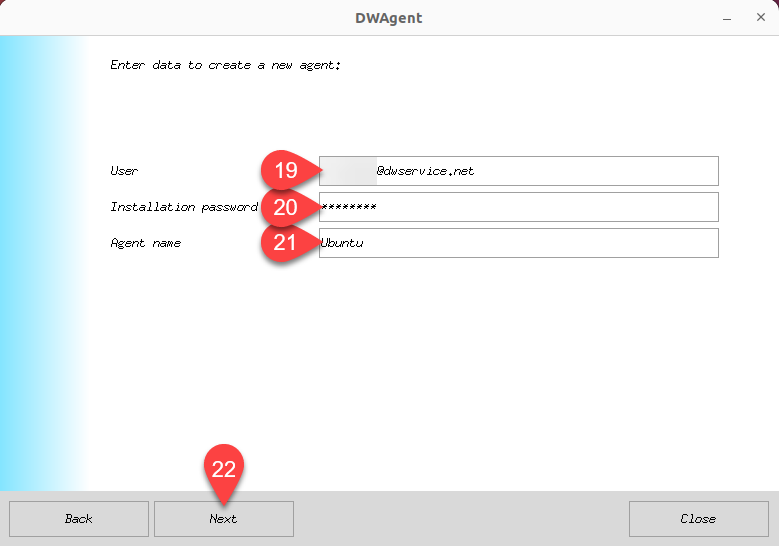
The next page of the wizard is displayed:

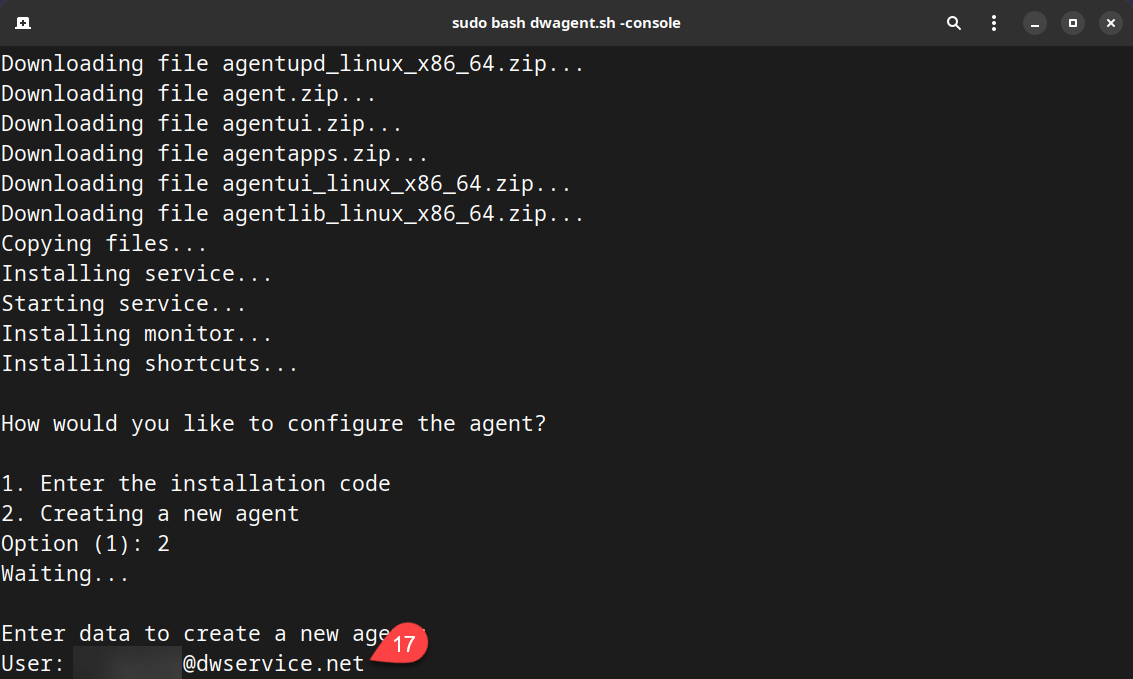
19. Enter your DWService account username (your email address)
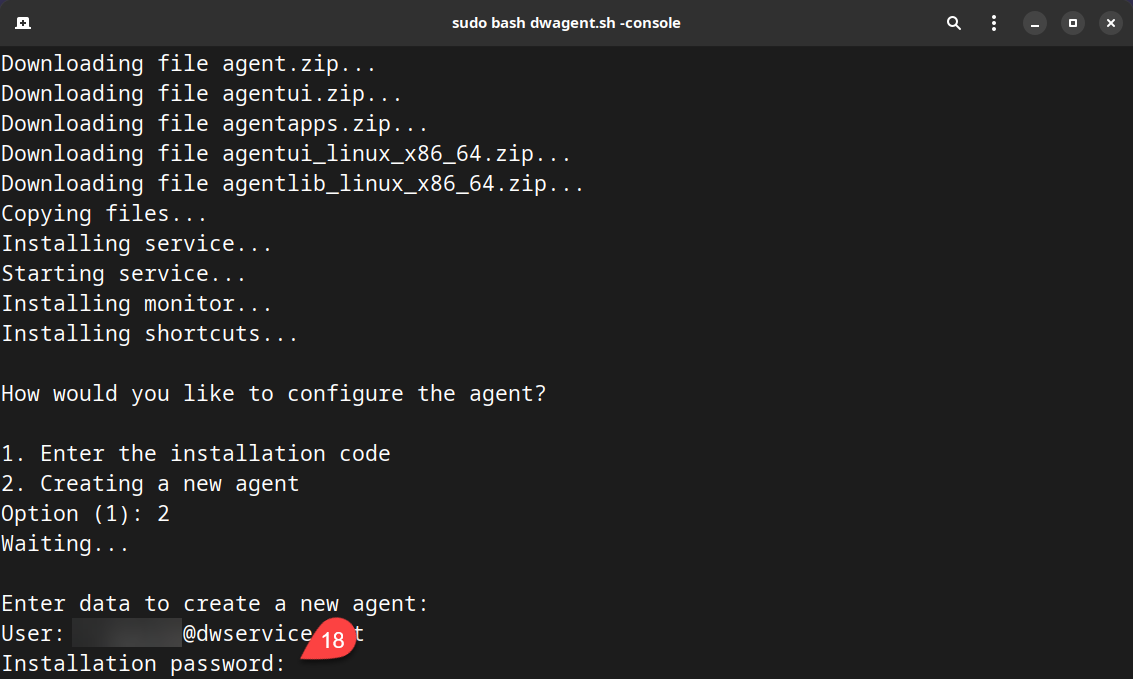
20. Enter the Agent installation password. You have previously set this up in your account in the Credentials section. Important: this is not your account password.
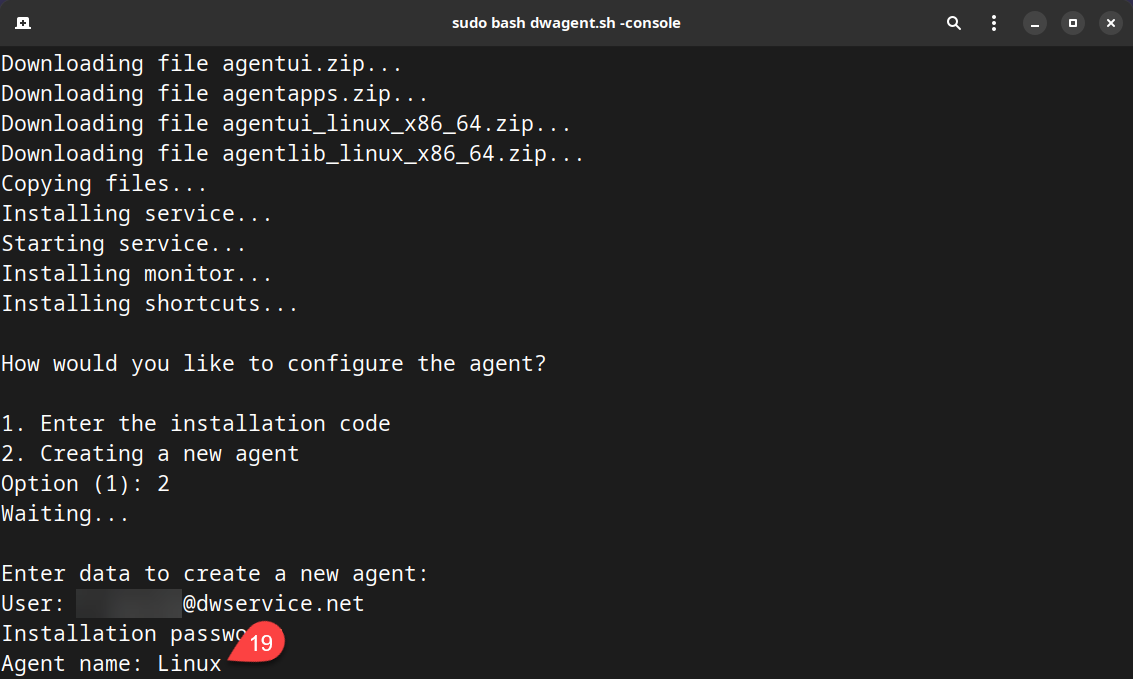
21. Enter a name for the Agent you want to create.
22. Click on the Next button.
The next page of the wizard is displayed:

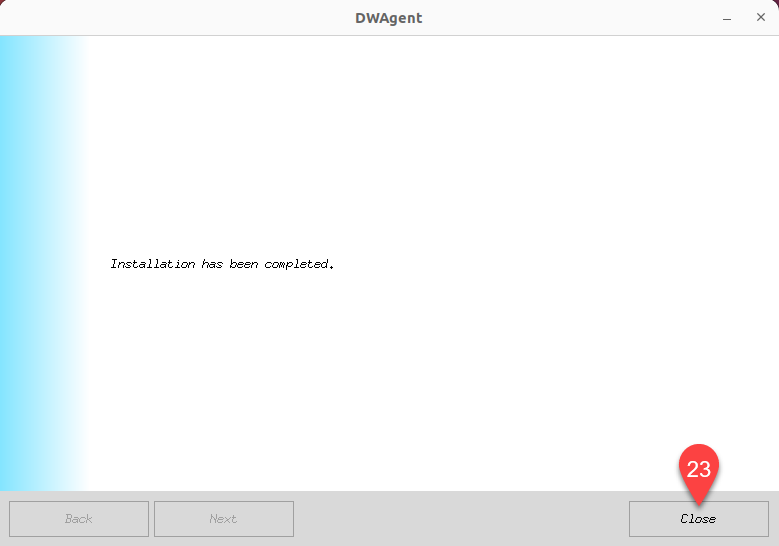
As you can see, the Agent has been successfully installed.
23. Click the Close button to close the wizard.
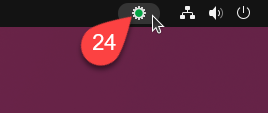
After installation, the Monitor icon appears in the taskbar.

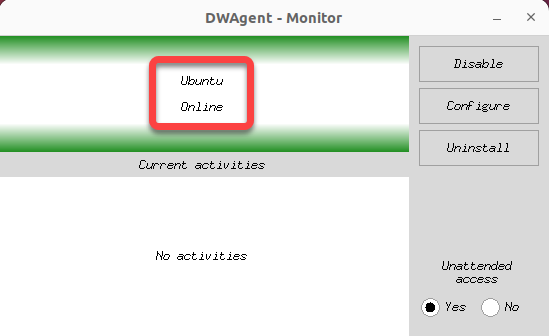
24. Click on the Monitor icon to show the DWAgent – Monitor window.

In the image above you can see that the Agent is active and Online. From now on it is possible to connect to this Agent.

Now let’s go back to the account where you can see the Agent you created:

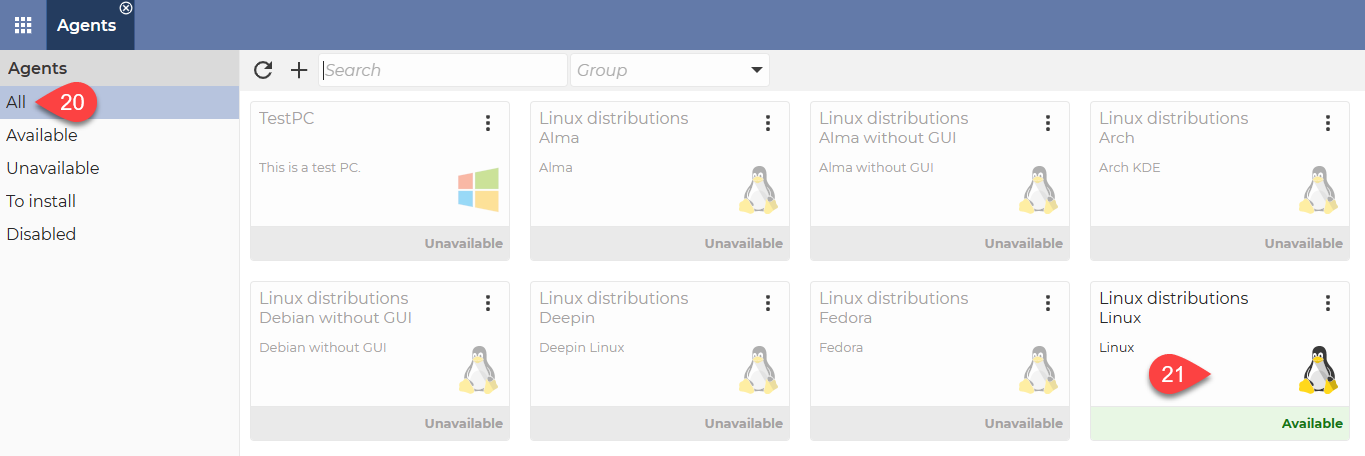
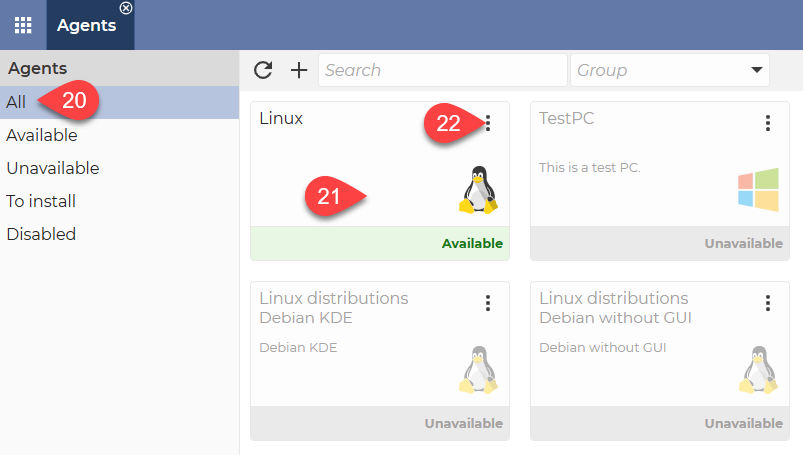
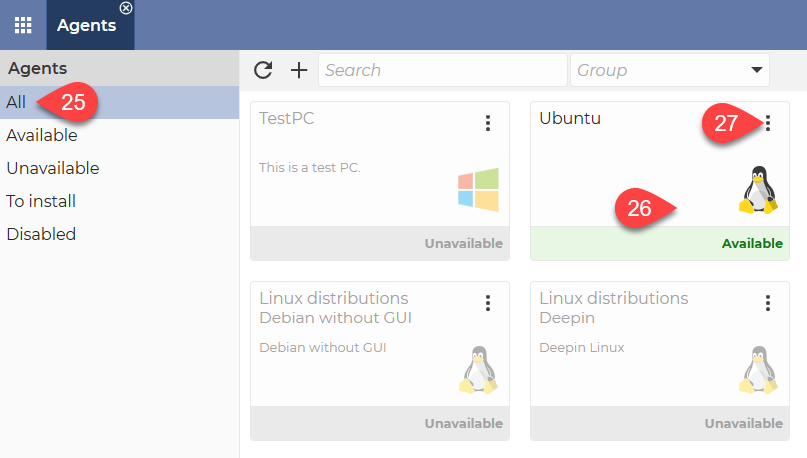
25. In the menu on the left, select All.
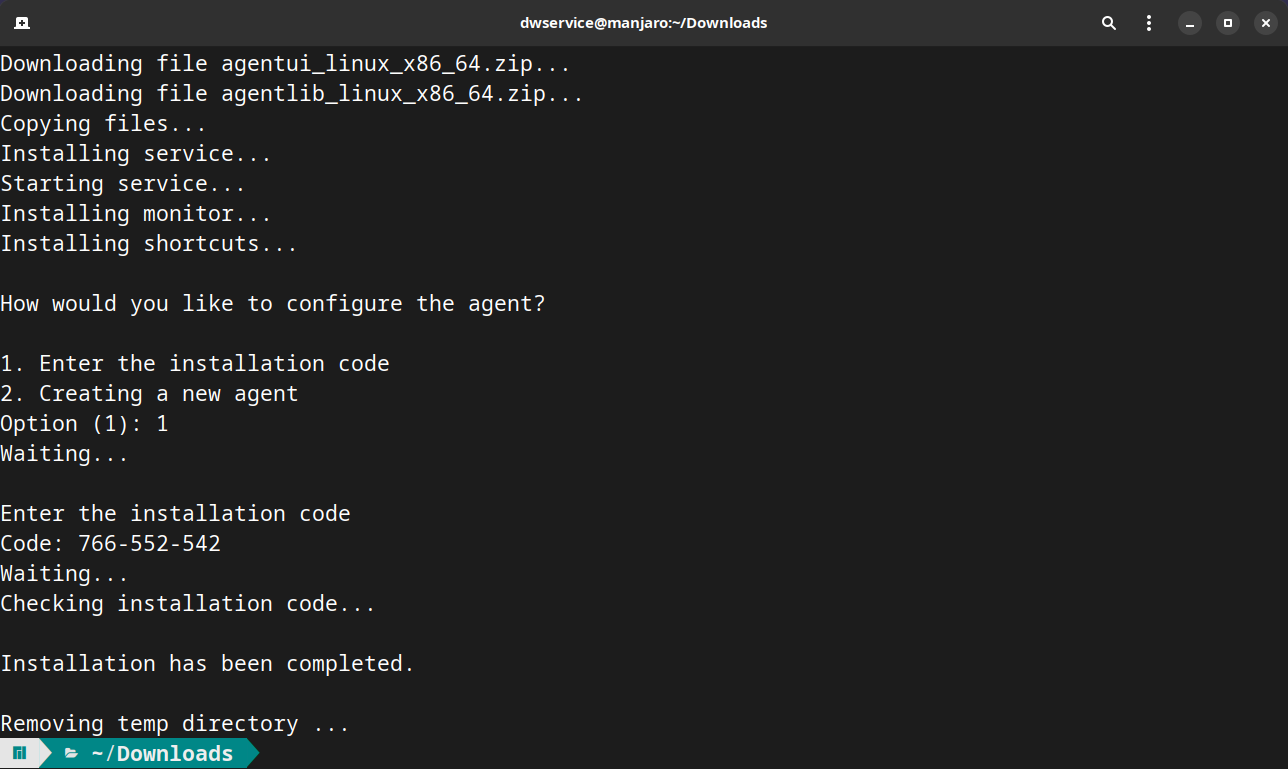
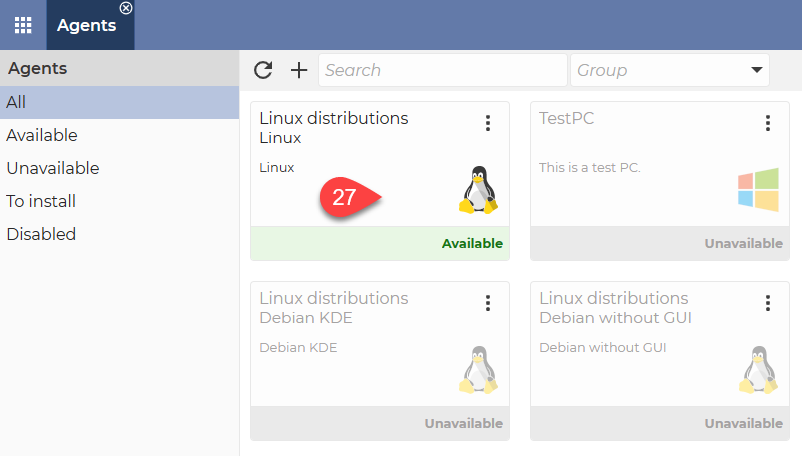
26. The Agent is available. You can connect to the agent by clicking on it.

As you can see, the agent created is not in a group, nor does it have a description. If you don’t need these, we are now at the end of the process. The Agent is ready for use.

If you would like to put the Agent in the group and/or add a description to it, please do the next few steps:
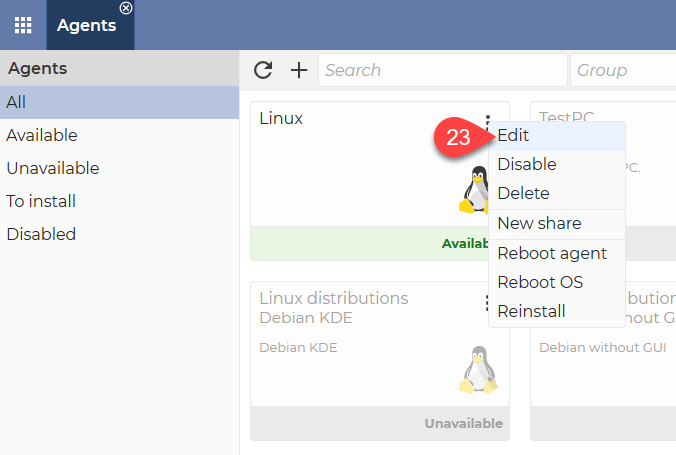
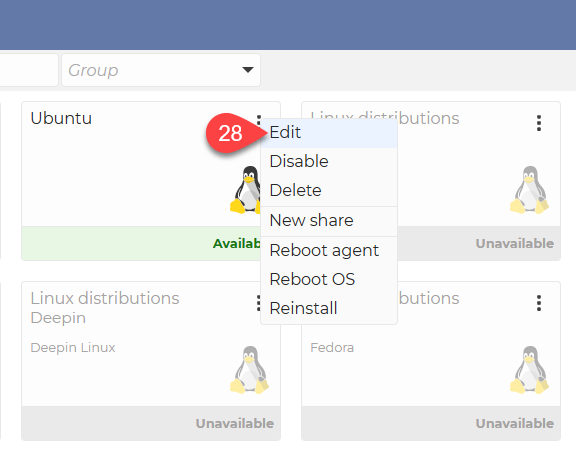
27. Click on the three dots in the top right corner of the Agent. This will open the menu for the Agent.

28. From the menu that appears, select Edit.
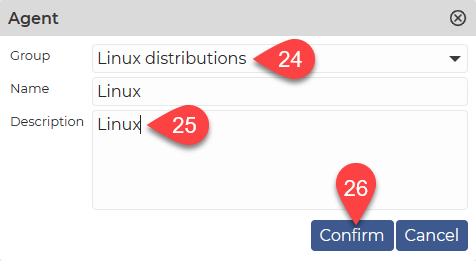
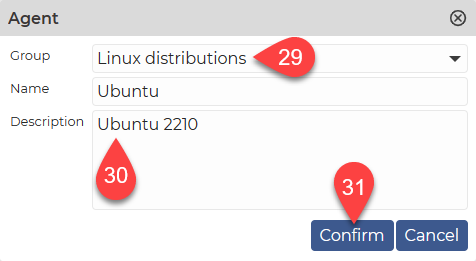
You see the Edit window of the Agent:

29. The selection of Group is optional. If you do not wish to add the agent to a group, simply leave this field blank. If you want to add the Agent to a group, select the desired group from the drop-down menu. If there is no Group in the drop-down menu that suits you, you can create a new Group by selecting Groups in the Dashboard. For more details, click here.
30. Optionally, you can provide a Description of the Agent, which will help you to identify the Agent later.
31. To save the changes, click on the Confirm button.
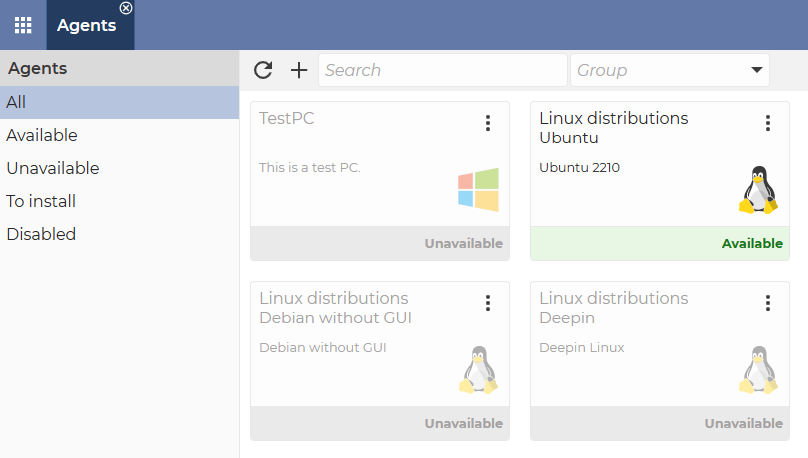
After the window closes, you will see this:

The Agent is available and ready to use.

This brings us successfully to the end of the installation process.
Use it with maximum satisfaction.

Linux – Install the Agent with Code (Graphical User Interface)

In case you choose this installation method, you should follow our next guide, step-by-step.

1. Visit our website: https://www.dwservice.net

2. Login to your account. You can read more about the login process here: Login

3. You will see your dashboard:

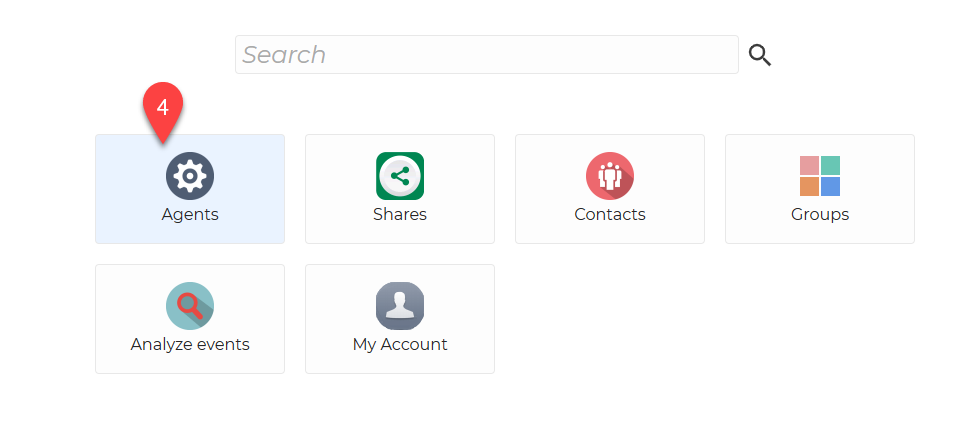
4. Select Agents.

After selecting Agents, this will be displayed:

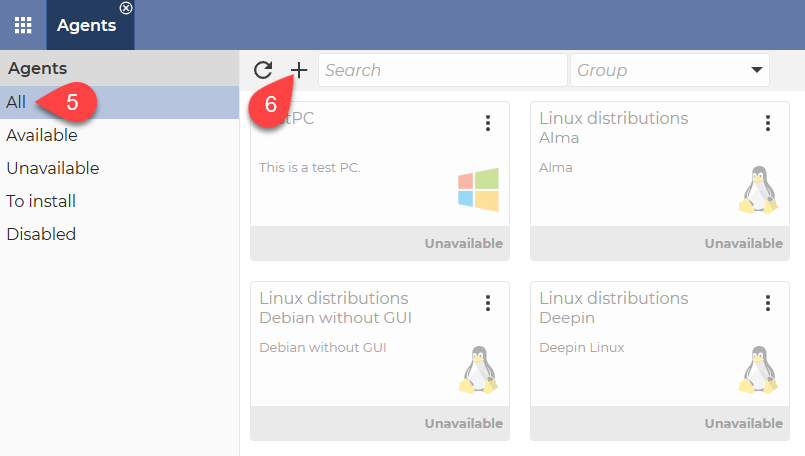
5. From the menu on the left, select the All option.
6. Click the + (Plus) sign.
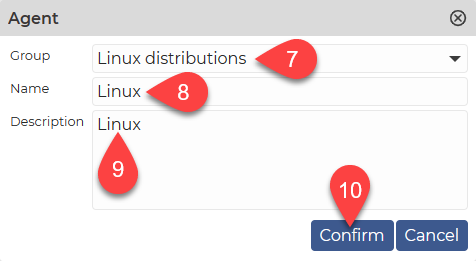
The following window will appear:

7. The selection of Group is optional. If you do not wish to add the agent to a group, simply leave this field blank. If you want to add the Agent to a group, select the desired group from the drop-down menu. If there is no Group in the drop-down menu that suits you, you can create a new Group by selecting Groups in the Dashboard. For more details, click here.
8. Give a Name to the Agent you want to create.
9. Optionally, you can provide a Description of the Agent, which will help you to identify the Agent later.
10. To create the Agent, click the Confirm button.
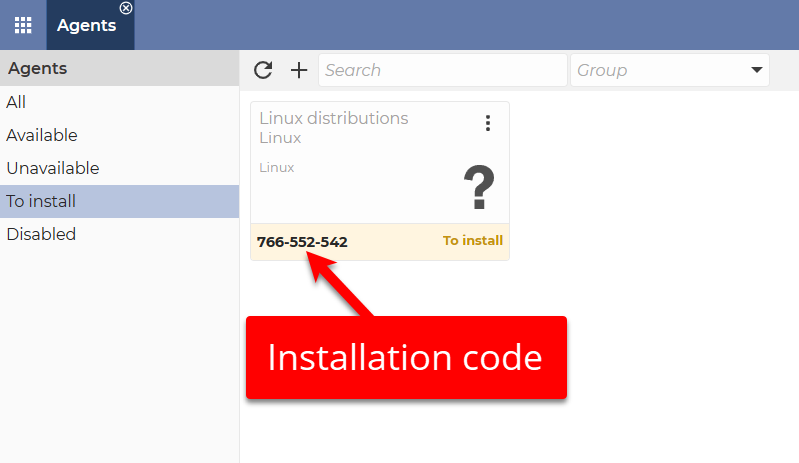
After the window closes, you will see this:

As you can see in the image above, the completed Agent is displayed, which contains a generated Installation Code. Each time you create an Agent, the system will generate such a code (consisting of numbers) for you. You must use this code during the Agent installation process.

After successfully creating the Agent, let’s see how to install the Agent.

Download the Agent installer for your device from our download page (https://www.dwservice.net/download.html).

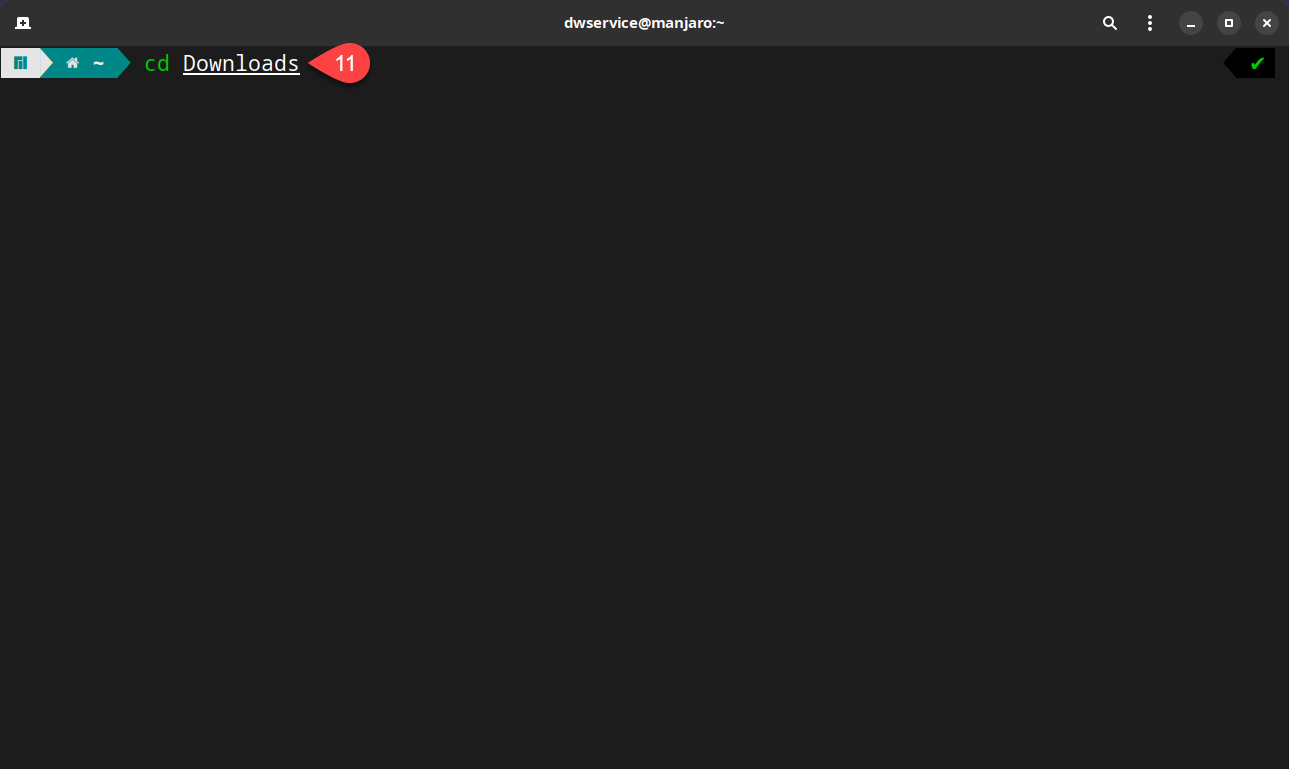
After downloading the Agent file, start the Terminal. You should open the folder where you saved the Agent file. In our case, this is the ‘Downloads’ folder.

⚠️ Note: When changing folders, note that folder names are case sensitive.

11. Type the following command: sudo bash dwagent.sh

At the end of the command, press Enter.

After pressing Enter, you will be prompted for the password:

Enter the password.

⚠️Note: For security reasons, the screen does not show you typing your password. But the password will be entered. After typing your password, press Enter again.

A wizard will be launched to guide you through the installation:

  1. From the options, select Install.
  2. Click on the Next button.

The next page of the wizard is displayed:

  1. Here you can see the location where the Agent will be installed. This is the default path. If you want to install the Agent somewhere else, you can change the path here.
  2. Click on the Next button.

The next page of the wizard is displayed:

  1. Select Yes to confirm that the specified installation path is correct.
  2. Click on the Next button.

The next page of the wizard is displayed:

  1. From the two installation modes, select the ‘Enter the installation code‘ option.
  2. Click on the Next button.

The next page of the wizard is displayed:

  1. In this field, enter your Installation code. This is the code that the system previously generated for you when you created the Agent.
  2. Click on the Next button.

The next page of the wizard is displayed:

As you can see, the Agent has been successfully installed.

  1. Click the Close button to close the wizard.

After installation, the Monitor icon appears in the taskbar.

  1. Click on the Monitor icon to show the DWAgent – Monitor window.

In the image above you can see that the Agent is active and Online. From now on it is possible to connect to this Agent.

Now let’s go back to the account where you can see the Agent you created:

  1. Select All from the menu on the left.
  2. You can connect to the Agent by clicking on it.


This brings us successfully to the end of the installation process.
Use it with maximum satisfaction.

If you would like to watch the process on video, we recommend you watch our tutorial video on How to install Agent on Ubuntu with GUI:

Windows – Install the Agent with Credentials

In case you choose this installation method, you should follow our next guide, step-by-step.

1. Visit our website: https://www.dwservice.net

2. Login to your account. You can read more about the login process here: Login

3. You will see your dashboard:

4. On your Dashboard, select My Account.

After selecting My Account, this will be displayed:


5. From the menu on the left, select Account.

6. Enter the Agent installation password, which you will be asked to enter when you install the Agent. ⚠️ Important: For security reasons, this password cannot be the same as your account password. Choose a different password.

7. To save the password, click the Update Credentials

The following window will appear:

Now let’s see how to install the Agent.
Download the Agent installer for your device from our download page (https://www.dwservice.net/download.html).
After downloading the file, open it to start the installation process.
A wizard will be launched to guide you through the installation.

9. From the options select the Install option.
10. Click on the Next button.
A confirmation window will appear:

11. This must be approved before the installer can make changes to the device. To continue the installation, you must allow it, which is done by clicking the Yes button.
Then the wizard appears again:

12. Here you can see the location where the Agent will be installed. This is the default path. If you want to install the Agent somewhere else, you can change the path here.
13. Click on the Next button.

The next page of the wizard is displayed:

14. Select Yes to confirm that the specified installation path is correct.
15. Click on the Next button.
The next page of the wizard is displayed:

16. From the two installation modes, select the ‘Creating a new agent‘ option.
17. Click on the Next button.

The next page of the wizard is displayed:

18. Enter your DWService account username (Your email address)
19. Enter the Agent installation password. You have previously set this up in your account in the Credentials section. ⚠️Important: this is not your account password.
20. Enter a Name for the Agent you want to create.
21. Click on the Next button.

The next page of the wizard is displayed:

As you can see, the Agent has been successfully installed.
22. Click on the Close button to close the wizard.

After installation, the Monitor icon appears in the taskbar.

23. Click on the Monitor icon to show the DWAgent – Monitor window.

In the image above you can see that the Agent is active and Online. From now on it is possible to connect to this Agent.
Now let’s go back to the account where you can see the Agent you created:

24. In the menu on the left, select All.
25. The Agent is available. You can connect to the agent by clicking on it.

As you can see, the agent created is not in a group, nor does it have a description.

If you don’t need these, we are now at the end of the process. The Agent is ready for use.

If you would like to put the Agent in the group and/or add a description to it, please do the next few steps:

26. Click on the three dots in the top right corner of the Agent.

This will open the menu for the Agent:

27. From the menu that appears, select Edit.
You see the Edit window of the Agent:

28. The selection of Group is optional. If you do not wish to add the agent to a group, simply leave this field blank. If you want to add the Agent to a group, select the desired group from the drop-down menu. If there is no Group in the drop-down menu that suits you, you can create a new Group by selecting Groups in the Dashboard. For more details, click here.
29. Optionally, you can provide a Description of the Agent, which will help you to identify the Agent later.
30. To save the changes, click on the Confirm button.
After the window closes, you will see this:


The Agent is available and ready to use.

This brings us successfully to the end of the installation process.
Use it with maximum satisfaction.

If you would like to watch the process on video, we invite you to watch our tutorial video on How to install Agent with Credentials:

Windows – Install the Agent with Code

In case you choose this installation method, you should follow our next guide, step-by-step.

1. Visit our website: https://www.dwservice.net

2. Login to your account. You can read more about the login process here: Login

3. You will see your dashboard where you should select Agents.

After selecting Agents, this will be displayed:

4. From the menu on the left, select the All

5. Click the + (Plus) sign.

The following window will appear:

6. The selection of Group is optional. If you do not wish to add the agent to a group, simply leave this field blank. If you want to add the Agent to a group, select the desired group from the drop-down menu. If there is no Group in the drop-down menu that suits you, you can create a new Group by selecting Groups in the Dashboard. For more details, click here.

7. Give a Name to the Agent you want to create.

8. Optionally, you can provide a Description of the Agent, which will help you to identify the Agent later.

9. To create the Agent, click the Confirm button.

After the window closes, you will see this:

As you can see in the image above, the completed Agent is displayed, which contains a generated Installation Code. Each time you create an Agent, the system will generate such a code (consisting of numbers) for you. You must use this code during the Agent installation process.

After successfully creating the Agent, let’s see how to install the Agent.

Download the Agent installer for your device from our download page (https://www.dwservice.net/download.html).

After downloading the file, open it to start the installation process.

A wizard will be launched to guide you through the installation.

10. From the options, select Install.
11. Click on the Next button.

A confirmation window will appear.

12. This must be approved before the installer can make changes to the device. To continue the installation, you must allow it, which is done by clicking the Yes button.

Then the wizard appears again:

13. Here you can see the location where the Agent will be installed. This is the default path. If you want to install the Agent somewhere else, you can change the path here.
14. Click on the Next button.

The next page of the wizard is displayed:

15. Select Yes to confirm that the specified installation path is correct.
16. Click on the Next button.

The next page of the wizard is displayed:

17. From the two installation modes, select the ‘Enter the installation code‘ option.
18. Click on the Next button.

The next page of the wizard is displayed:

19. In this field, enter your Installation code. This is the code that the system previously generated for you when you created the Agent.
20. Click on the Next button.

The next page of the wizard is displayed:

As you can see, the Agent has been successfully installed.

21. Click on the Close button to close the wizard.

After installation, the Monitor icon appears in the taskbar.

22. Click on the Monitor icon to show the DWAgent – Monitor window.

In the image above you can see that the Agent is active and Online. From now on it is possible to connect to this Agent.
Now let’s go back to the account where you can see the Agent you created:

23. Select All from the menu on the left.
24. You can connect to the Agent by clicking on it.

This brings us successfully to the end of the installation process.

Use our service with maximum satisfaction.

If you would like to watch the process on video, we recommend you watch our tutorial video on How to install Agent with Code:

Agent installation – step-by-step

This section demonstrates the Agent installation process step by step.

My Account

After logging into your account, you’ll see the Dashboard where you’ll find My Account.

You can use My Account to access the settings for the account you are currently using. After opening My Account, this is what you will see:


  1. Account menu → This is the default menu item when you open My Account from the Dashboard. This section contains the settings for your account.
  2. Subscriptions menu → You can find the subscription plans under the Subscriptions menu. Here you can choose the one you want and subscribe to it.
  3. Translations menu → The Translations menu contains the section where you can translate our service (if it is not already managed by someone else).
  4. Email address → This field contains the email address that this account is associated with.
  5. Name → The name field contains your name. This name will be displayed to others if you have been contacted through Contacts.
  6. Current password → You must fill in the Current password field if you want to change your password. This is a security procedure to make sure that you are the person who wants to change your own password.
  7. New password → This field must be filled in in case of password change. This field contains the new password. It is recommended to enter a password that is not only a strong password but also a unique password.
  8. Retype new password → In this field you have to confirm the new password, which means that you have to enter the new password here again.
  9. Localization → From this drop-down list you can select the language and country you want to use. If the selected language has already been translated, the interface will be displayed in the selected language.
  10. Agent installation password → You can enter a password in this field. If you want to install the agent with Credentials, use this password when installing the Agent. For security reasons, this password cannot be the same as your account password.
  11. Change email button → Use this button to change the registered email address to another email address.
  12. Update credentials button → Use this button to save changes to the fields in the Credentials section.
  13. Device name → Here you can see the devices that have the DWService Android Client application installed. You can also see when the last access was made from that device to this account.
  14. Delete button → Use the Delete button to remove a device from this list.
  15. Two-Factor Authentication mode → Here you can see if Two-Factor Authentication is enabled. If yes, the Two-Factor Authentication mode is shown. This can be one of the following: TOTP, Email, Device.
  16. Settings button → Use the Options button to display the Two-Factor Authentication settings.
  17. Enable/Disable button → If Two-Factor Authentication is not already enabled, the Enable button will be displayed to enable this protection. If Two-Factor Authentication is enabled, the Disable button will be displayed to disable this protection. It is recommended that you only turn it off when absolutely necessary.
  18. I want to delete my account button → Use this button to delete your account. This action is permanent and cannot be undone.

Current activities

You can track whether someone is currently connected to the Agent and, if so, what that person is using (for example: Screen application, Shell application, etc.).

There are two situations:

  1. The Agent is installed → In this case, it is the Monitor that shows the Current activities:
  2. The Agent is not installed, it is just running → In this case, it is the running Agent that shows the Current activities:


Configure proxy

If you are using a proxy to access the Internet, you will also need to configure the Agent to access the Internet.

To do this, you need to do the following:

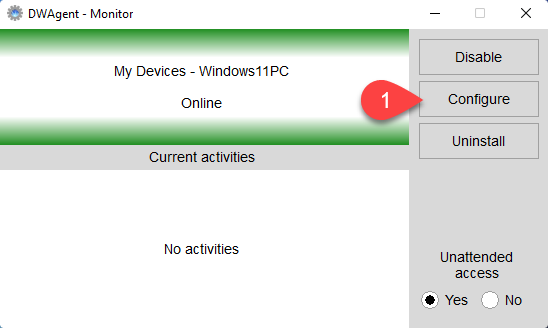
Use the Configure button on the Monitor to start the configuration process.

The following window will appear:

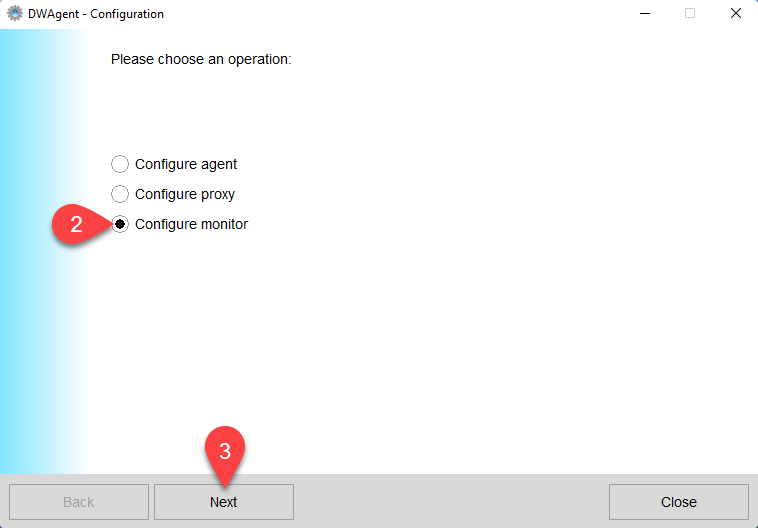
  1. Select the Configure proxy option.
  2. Click on the Next button.

A list of available proxies will be displayed:

3. From the options, select the correct proxy, one you currently have.

4. Click on the Next button.

The following window will appear:

Enter the details of the proxy you are currently using here:

5. Host → Enter the address of the proxy server.

6. Port → Enter the port number used for the proxy server.

7. User → Enter the username used for the proxy server.

8. Password → Enter the password used for the proxy server.

9. Next button → Click this button to save the settings.

If you have entered the correct information, after you exit the configuration, the Agent will go online.

Watch our tutorial video on How to configure the Agent: