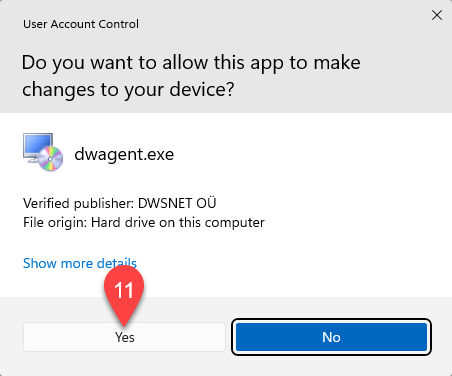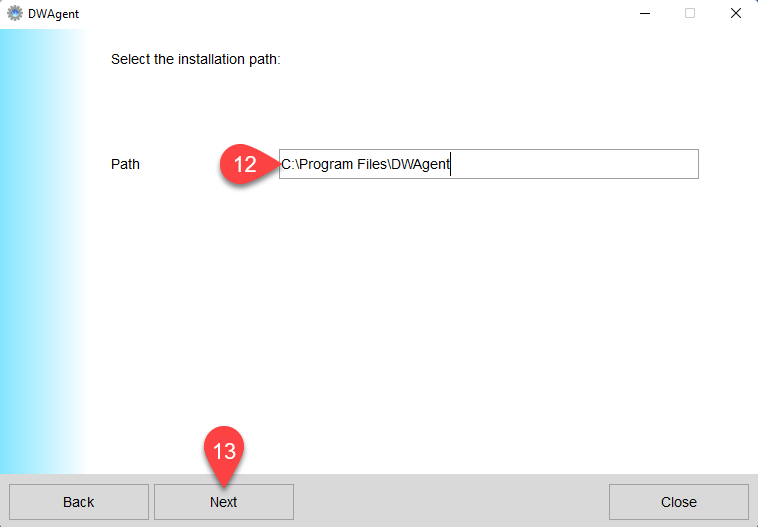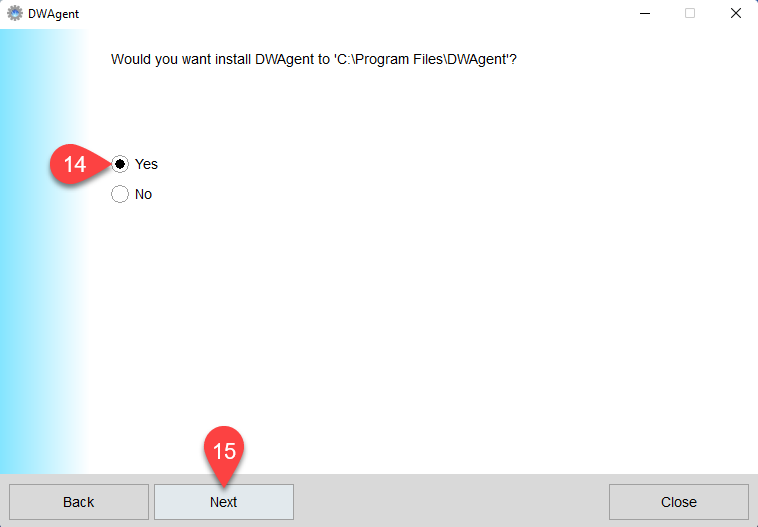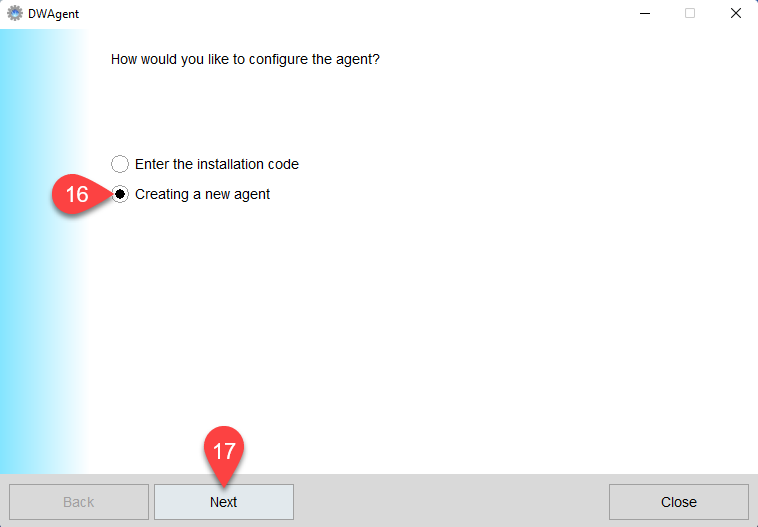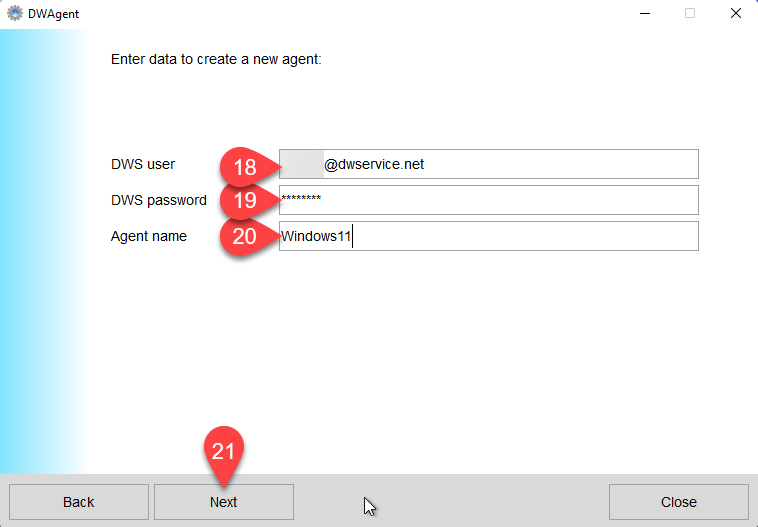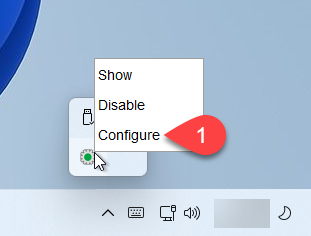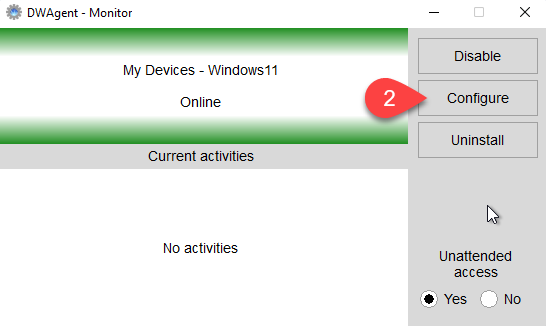
In case you choose this installation method, you should follow our next guide, step-by-step.
1. Visit our website: https://www.dwservice.net
2. Login to your account. You can read more about the login process here: Login
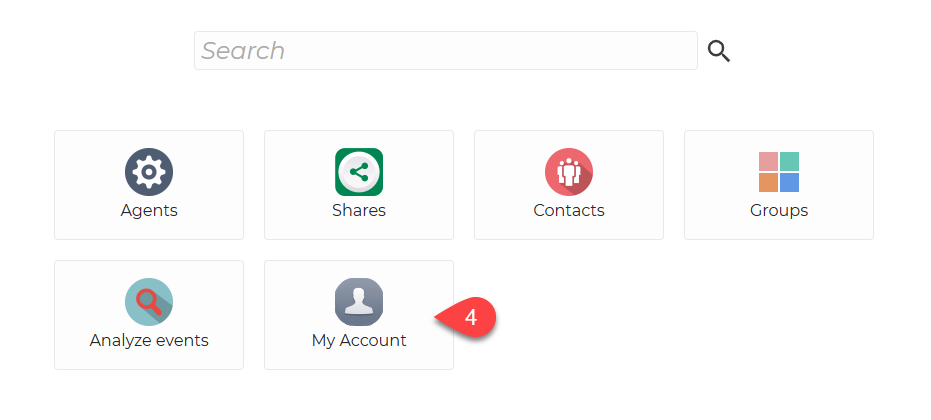
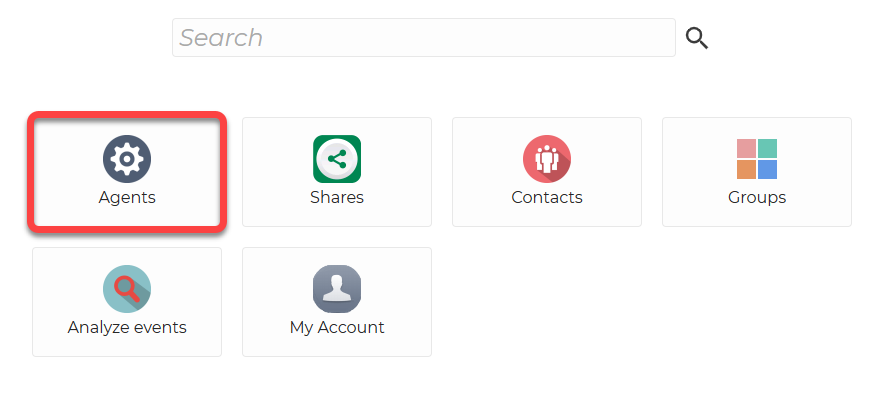
3. You will see your dashboard:
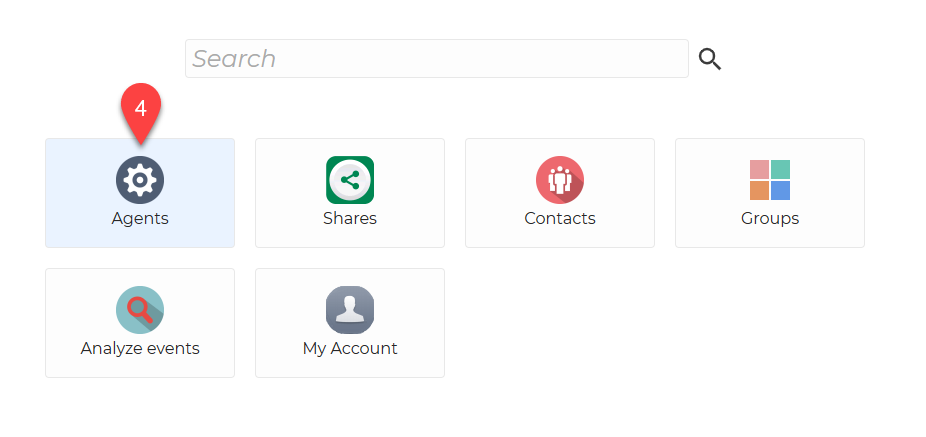
4. Select Agents.
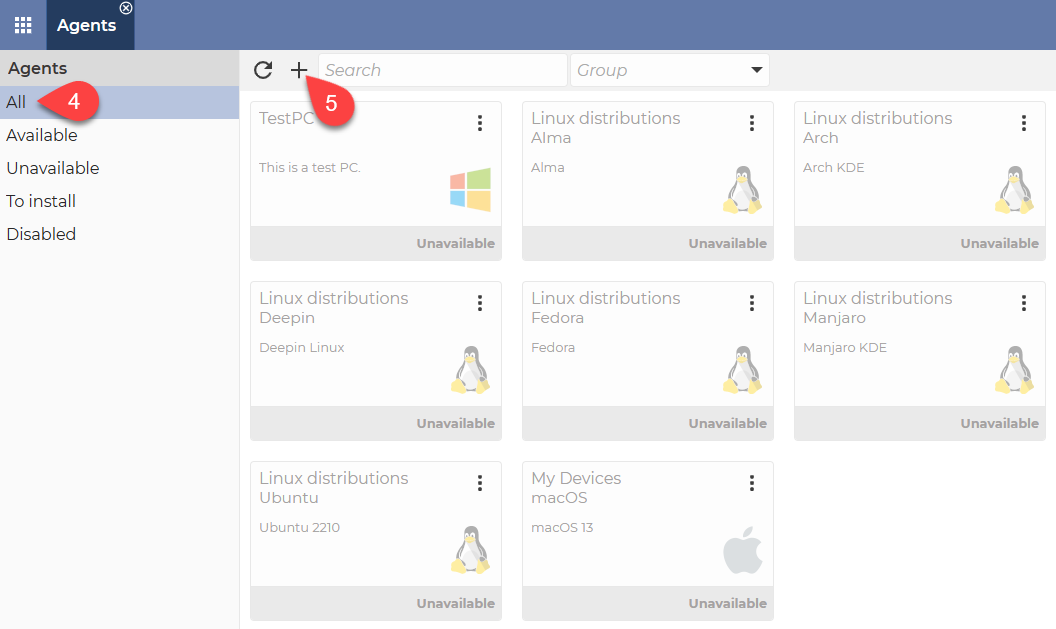
After selecting Agents, this will be displayed:
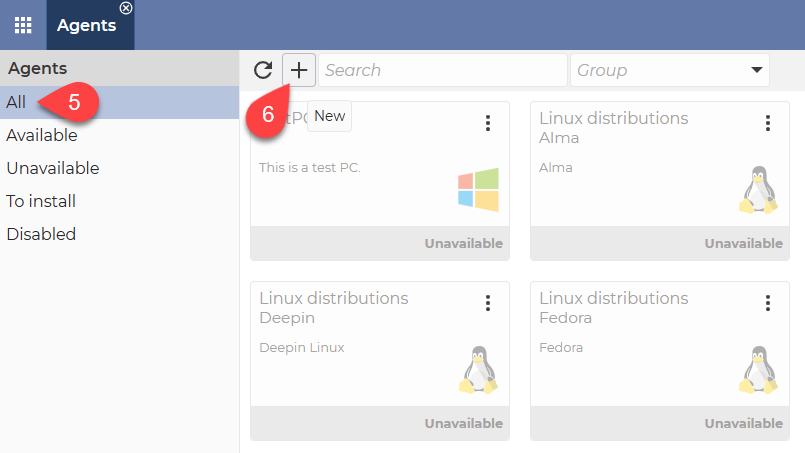
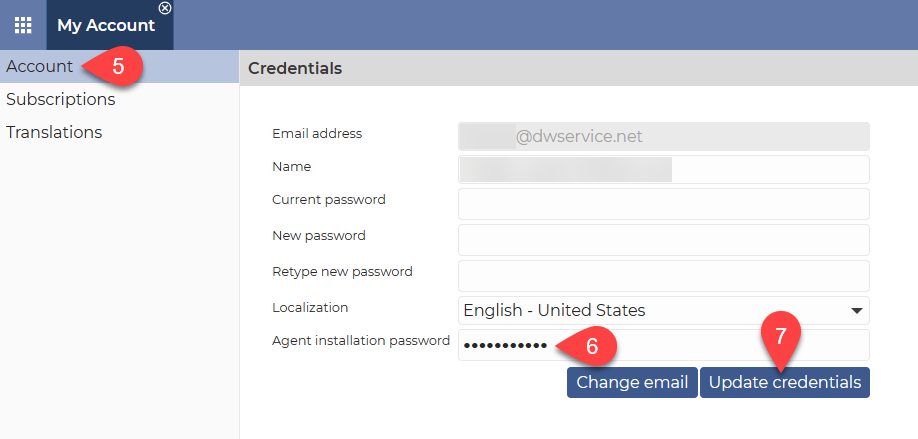
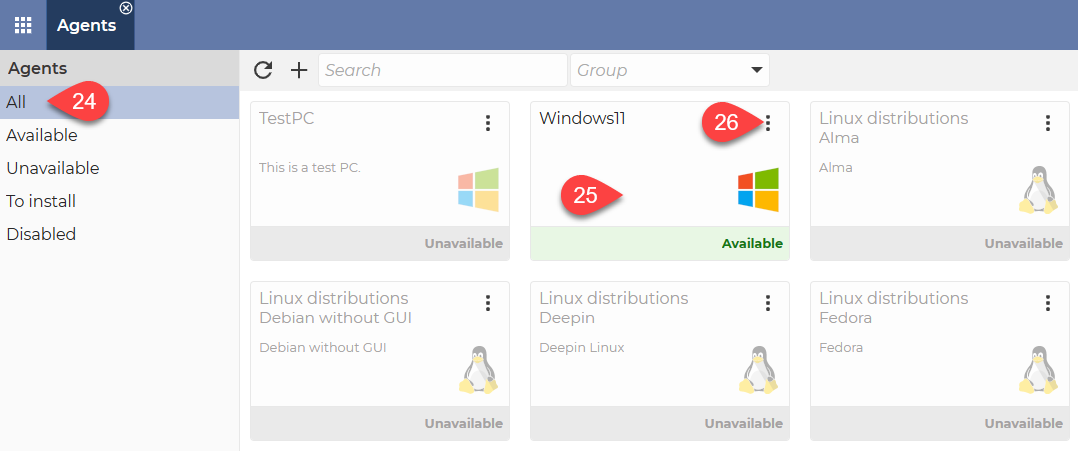
5. From the menu on the left, select the All option.
6. Click the + (Plus) sign.
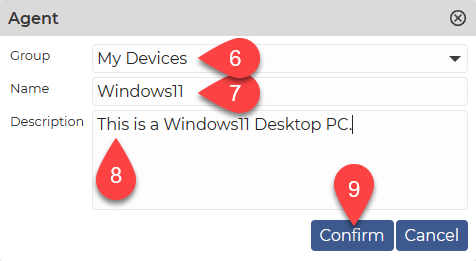
The following window will appear:
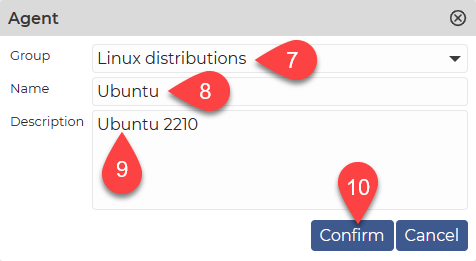
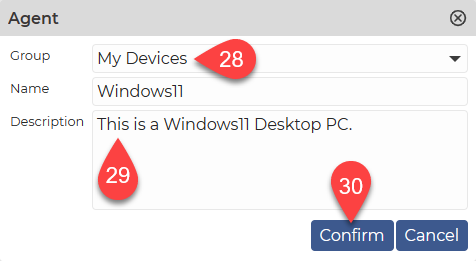
7. The selection of Group is optional. If you do not wish to add the agent to a group, simply leave this field blank. If you want to add the Agent to a group, select the desired group from the drop-down menu. If there is no Group in the drop-down menu that suits you, you can create a new Group by selecting Groups in the Dashboard. For more details, click here.
8. Give a Name to the Agent you want to create.
9. Optionally, you can provide a Description of the Agent, which will help you to identify the Agent later.
10. To create the Agent, click the Confirm button.
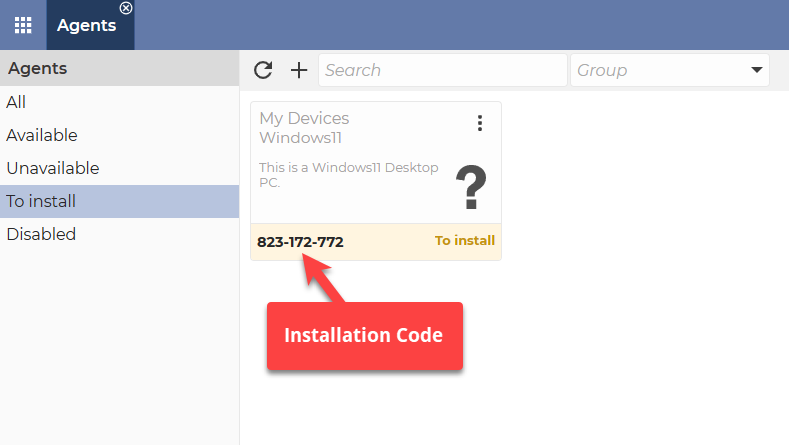
After the window closes, you will see this:
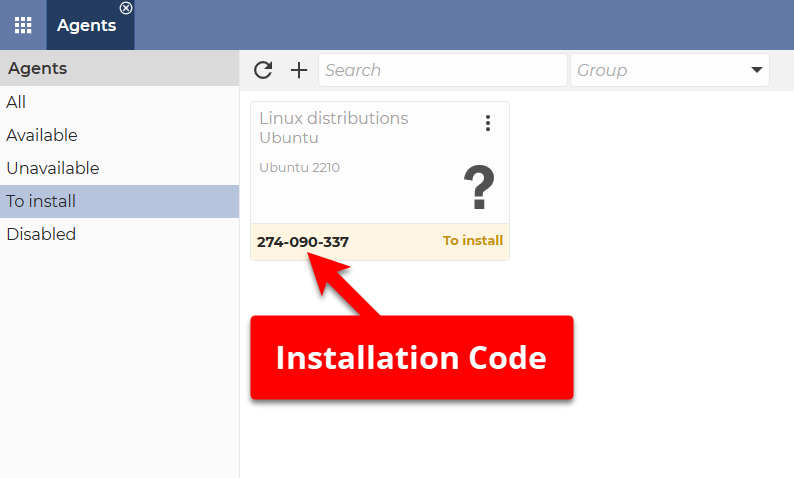
As you can see in the image above, the completed Agent is displayed, which contains a generated Installation Code. Each time you create an Agent, the system will generate such a code (consisting of numbers) for you. You must use this code during the Agent installation process.
After successfully creating the Agent, let’s see how to install the Agent.
Download the Agent installer for your device from our download page (https://www.dwservice.net/download.html).
After downloading the Agent file, start the Terminal. You should open the folder where you saved the Agent file. In our case, this is the ‘Downloads’ folder.
⚠️ Note: When changing folders, note that folder names are case sensitive.
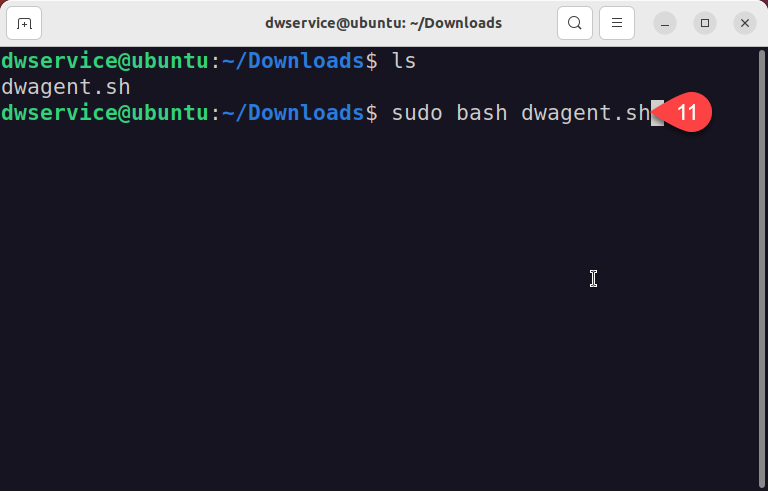
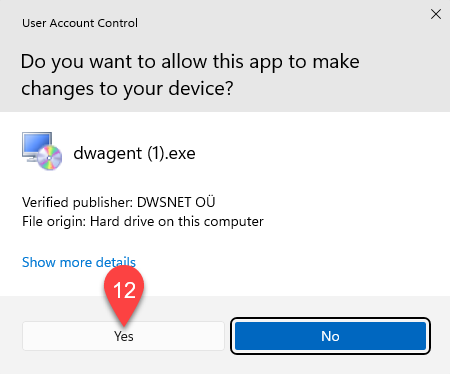
11. Type the following command: sudo bash dwagent.sh
At the end of the command, press Enter.
After pressing Enter, you will be prompted for the password:
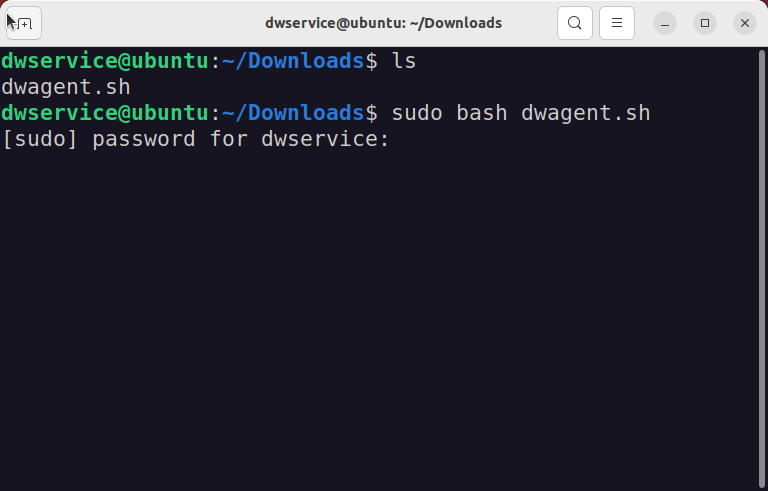
Enter the password.
⚠️Note: For security reasons, the screen does not show you typing your password. But the password will be entered. After typing your password, press Enter again.
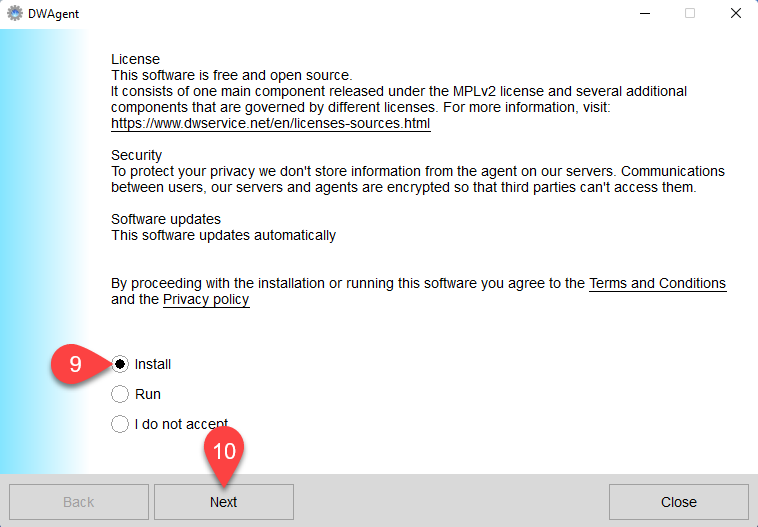
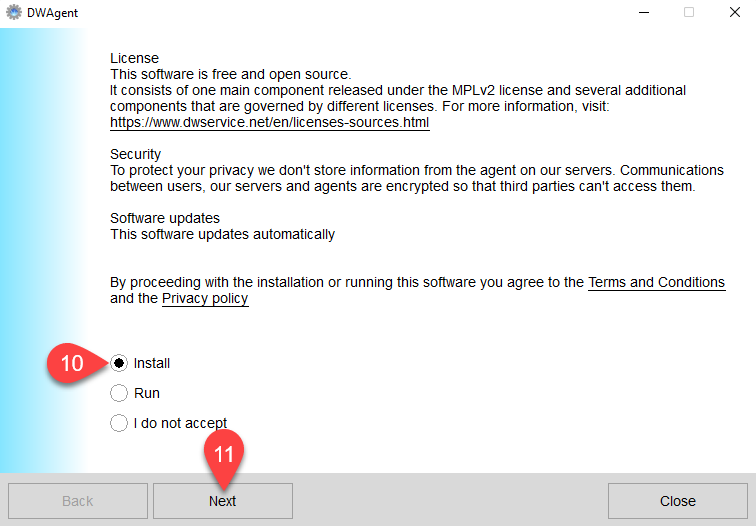
A wizard will be launched to guide you through the installation:
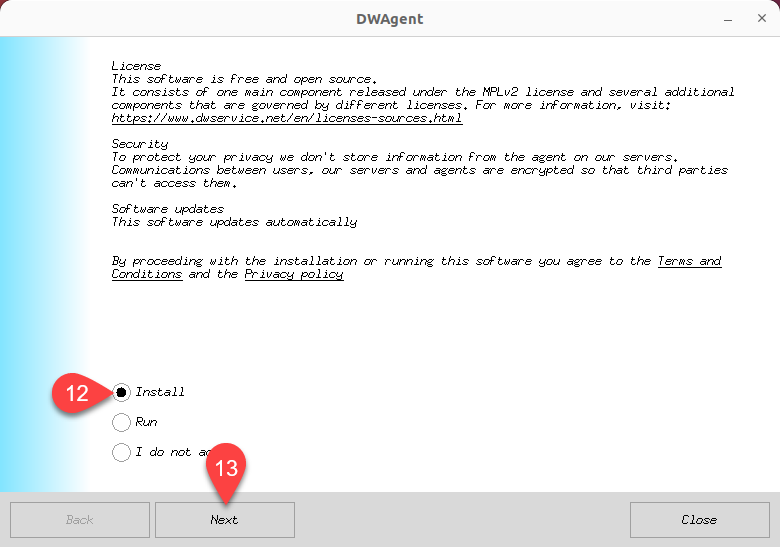
- From the options, select Install.
- Click on the Next button.
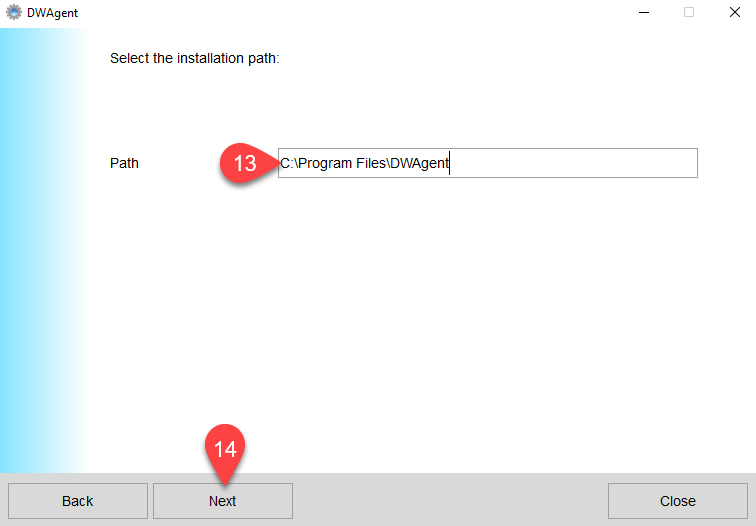
The next page of the wizard is displayed:
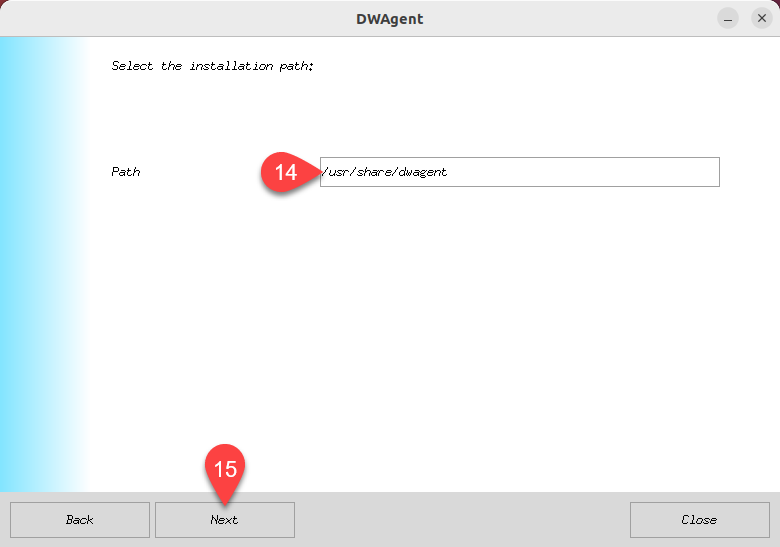
- Here you can see the location where the Agent will be installed. This is the default path. If you want to install the Agent somewhere else, you can change the path here.
- Click on the Next button.
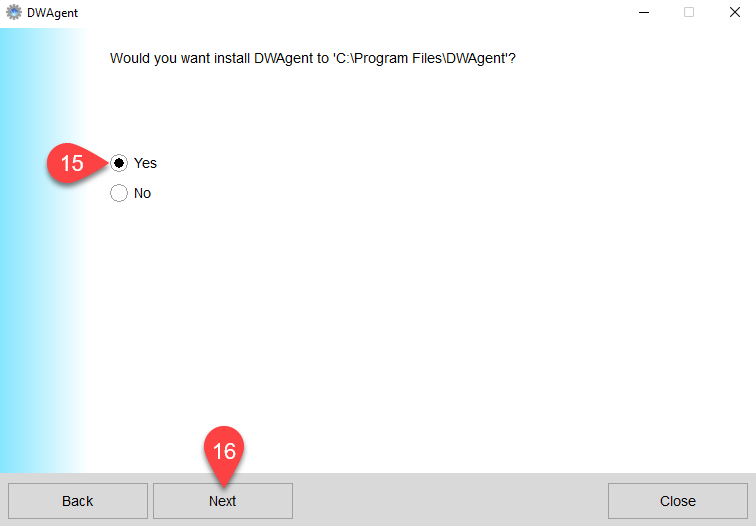
The next page of the wizard is displayed:
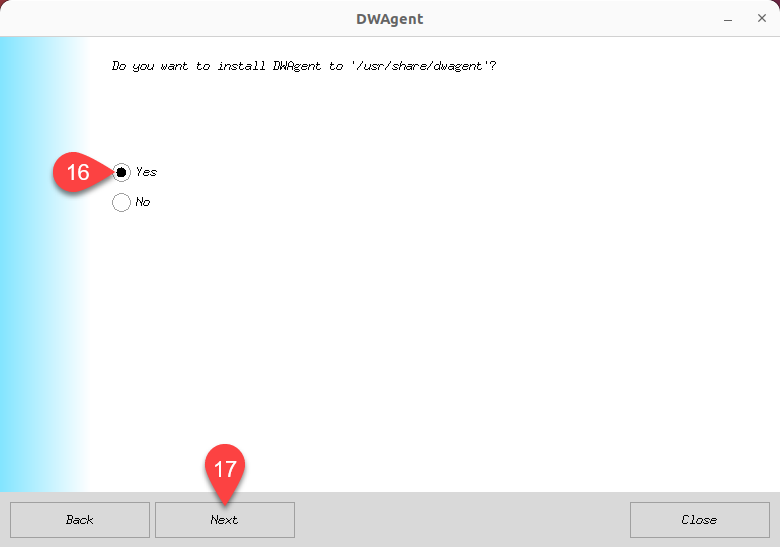
- Select Yes to confirm that the specified installation path is correct.
- Click on the Next button.
The next page of the wizard is displayed:
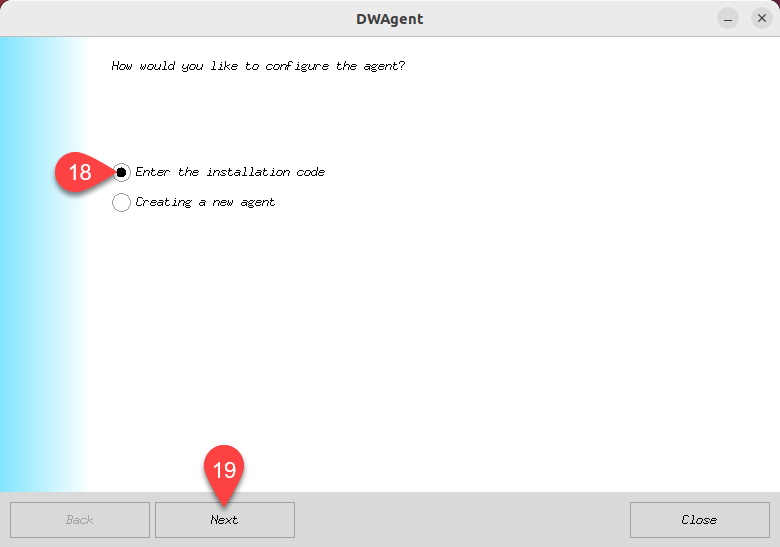
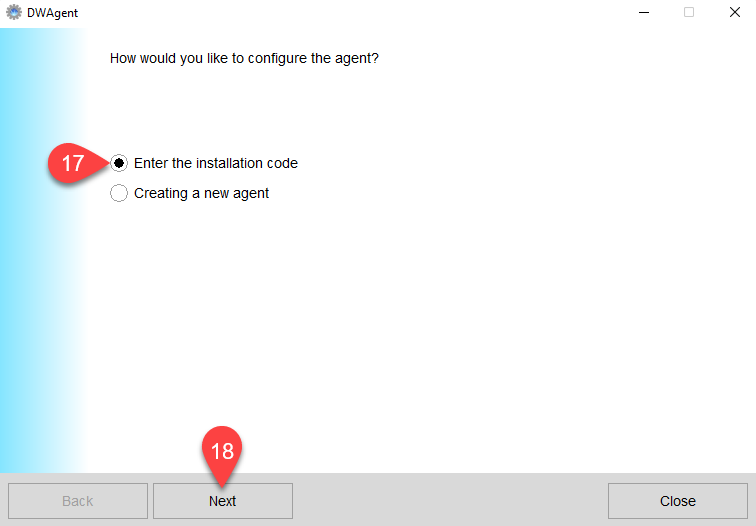
- From the two installation modes, select the ‘Enter the installation code‘ option.
- Click on the Next button.
The next page of the wizard is displayed:
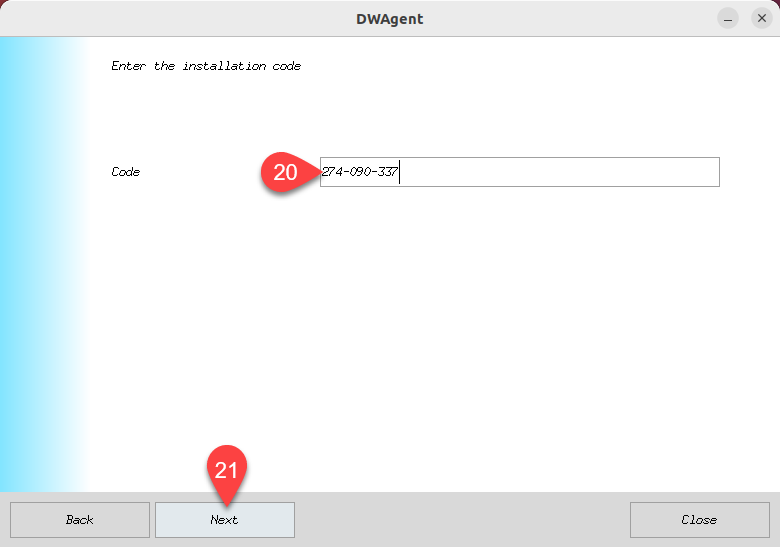
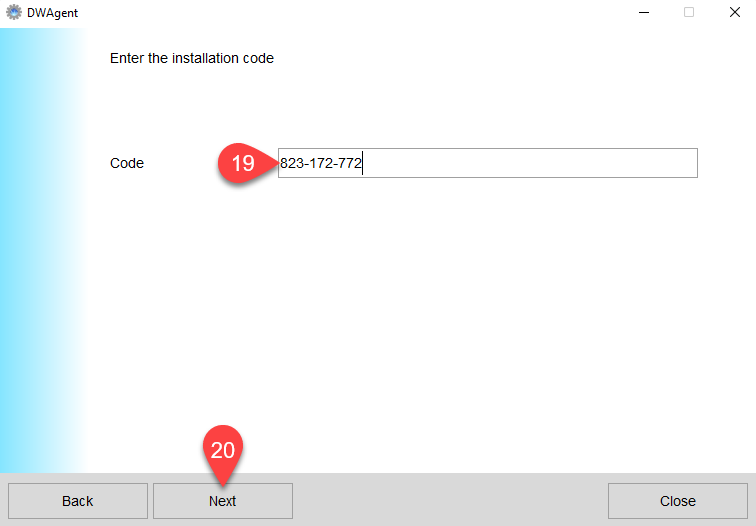
- In this field, enter your Installation code. This is the code that the system previously generated for you when you created the Agent.
- Click on the Next button.
The next page of the wizard is displayed:
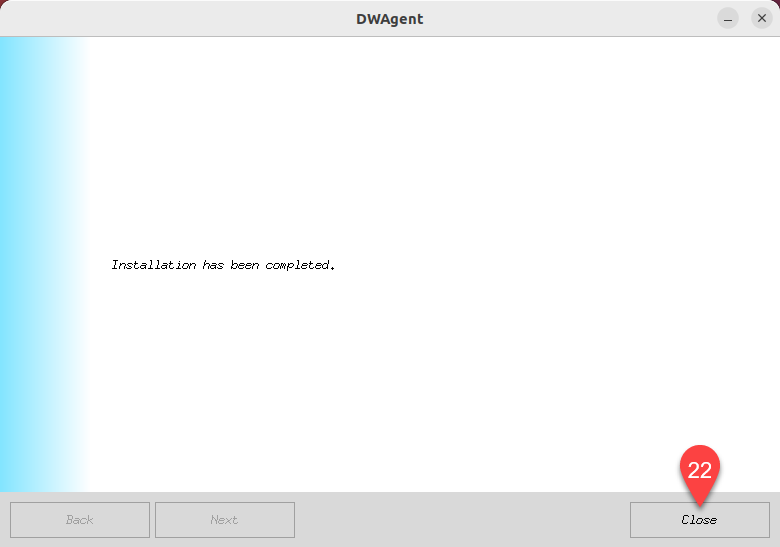
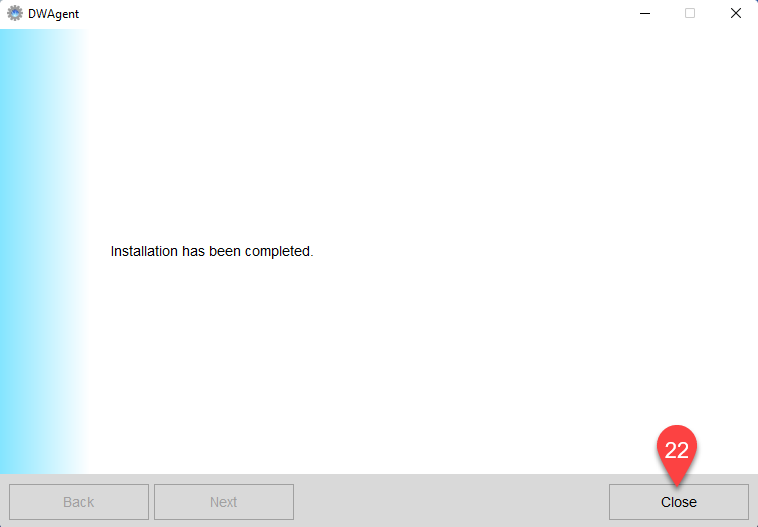
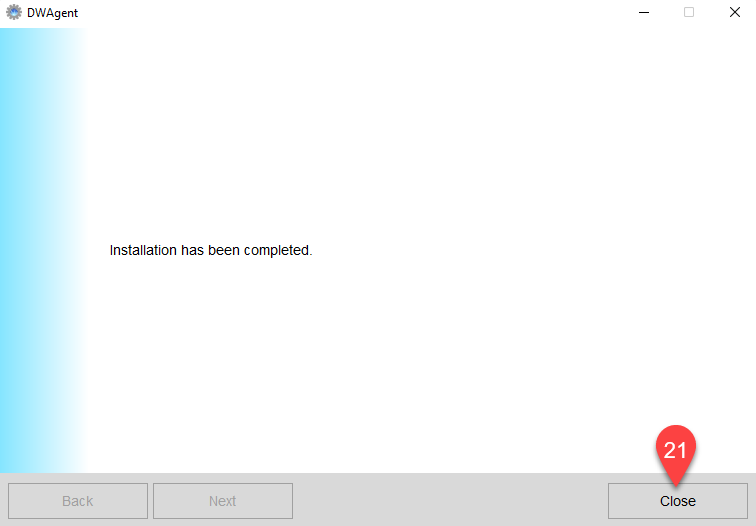
As you can see, the Agent has been successfully installed.
- Click the Close button to close the wizard.
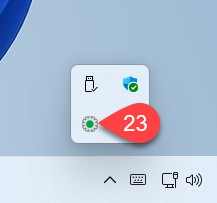
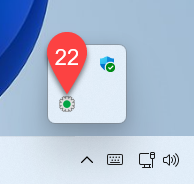
After installation, the Monitor icon appears in the taskbar.
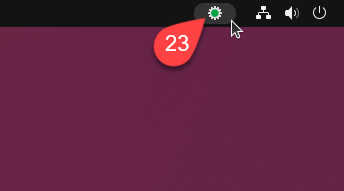
- Click on the Monitor icon to show the DWAgent – Monitor window.
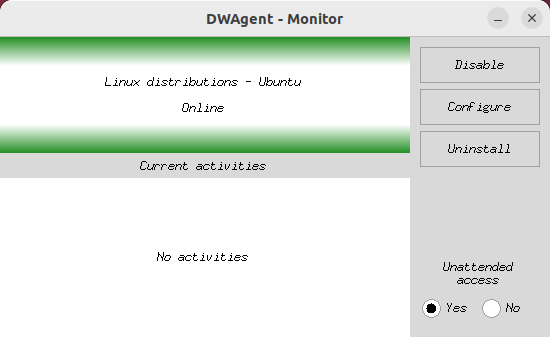
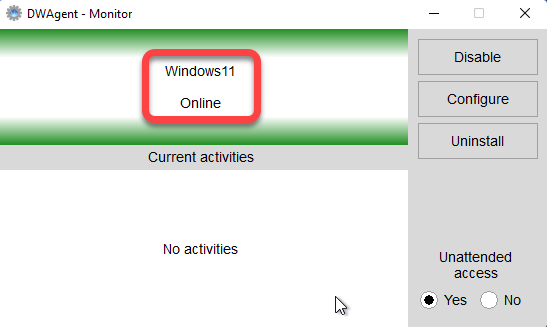
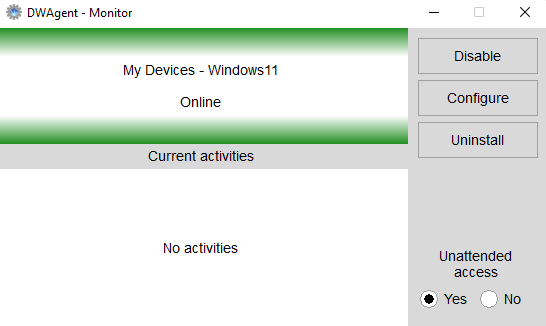
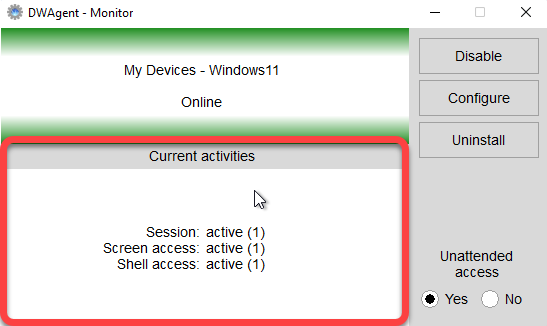
In the image above you can see that the Agent is active and Online. From now on it is possible to connect to this Agent.
Now let’s go back to the account where you can see the Agent you created:
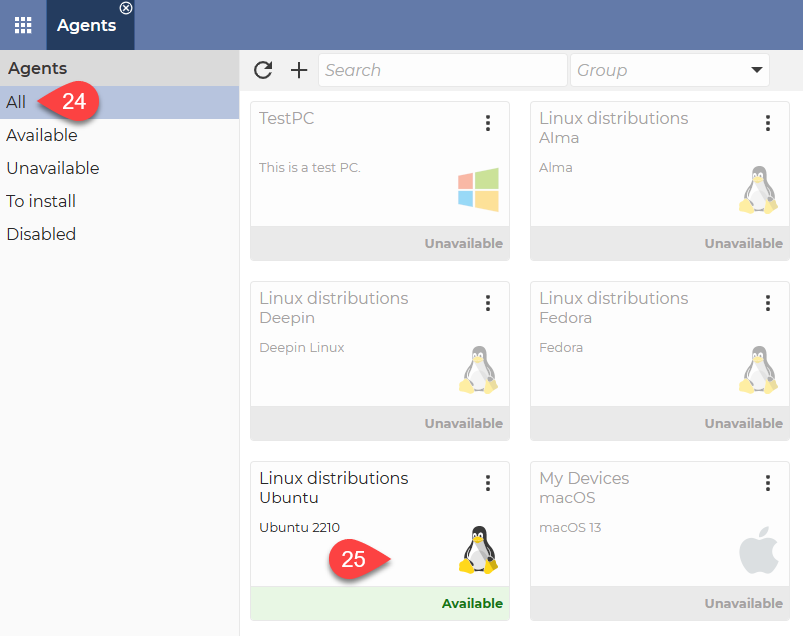
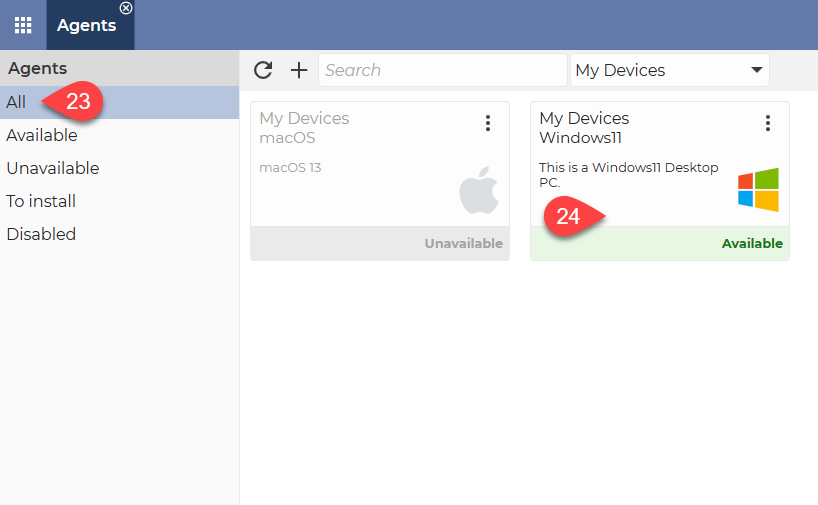
- Select All from the menu on the left.
- You can connect to the Agent by clicking on it.
This brings us successfully to the end of the installation process.
Use it with maximum satisfaction.
If you would like to watch the process on video, we recommend you watch our tutorial video on How to install Agent on Ubuntu with GUI: