Services (Resources)

The Services section allows you to keep track of the services on the remote system. If necessary, the selected service can be Stopped or Started.

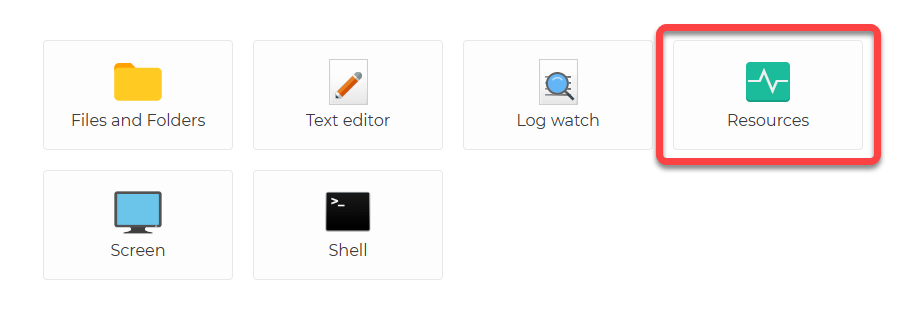
When you are connected to the Agent, applications will appear:

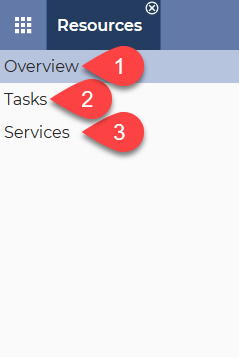
After selecting Resources, you can access Services from the menu on the left (3):

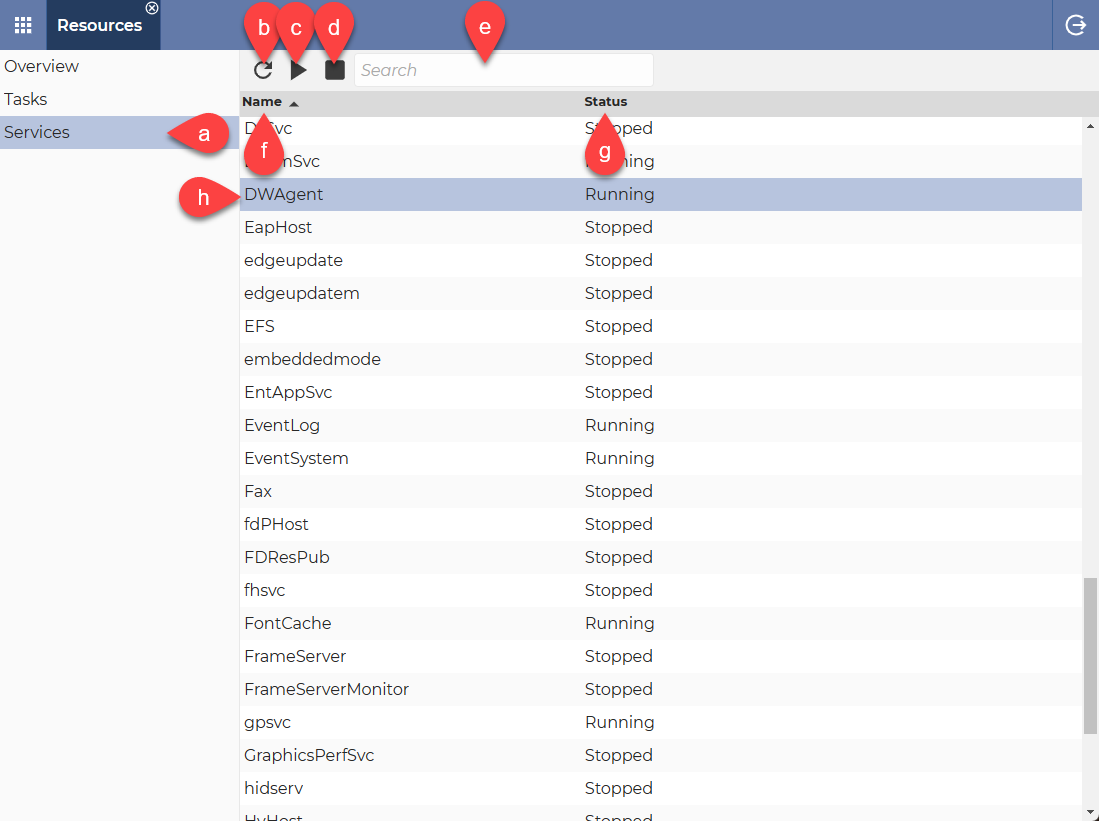
After selecting Services, the following is displayed:

a. Services – The currently selected menu item.

b. Refresh button – Use this button to refresh the Services list.

c. Start button – Use this button to start the selected Service.

d. Stop button – Use this button to stop the selected Service.

e. Search field – Use it to easily find the Service you are looking for.

f. Name column – This column shows the name of the Service.

g. Status column – This column shows the status of the Service (Running/Stopped)

h. DWAgent – The selected Service.


πŸ’‘Hint: You can switch the sort order by clicking on the column names (Ascending orderβ–² / Descending orderβ–Ό).

ℹ️ If you are using a mobile device, the Stop and Start options appear when you tap the Service.

Related articles: Resources application, Overview, Tasks

Tasks (Resources)

The Tasks section allows you to keep track of the processes running on the remote system. If necessary, the selected process can be stopped.

When you are connected to the Agent, applications will appear:

After selecting Resources, you can access Tasks from the menu on the left (2):

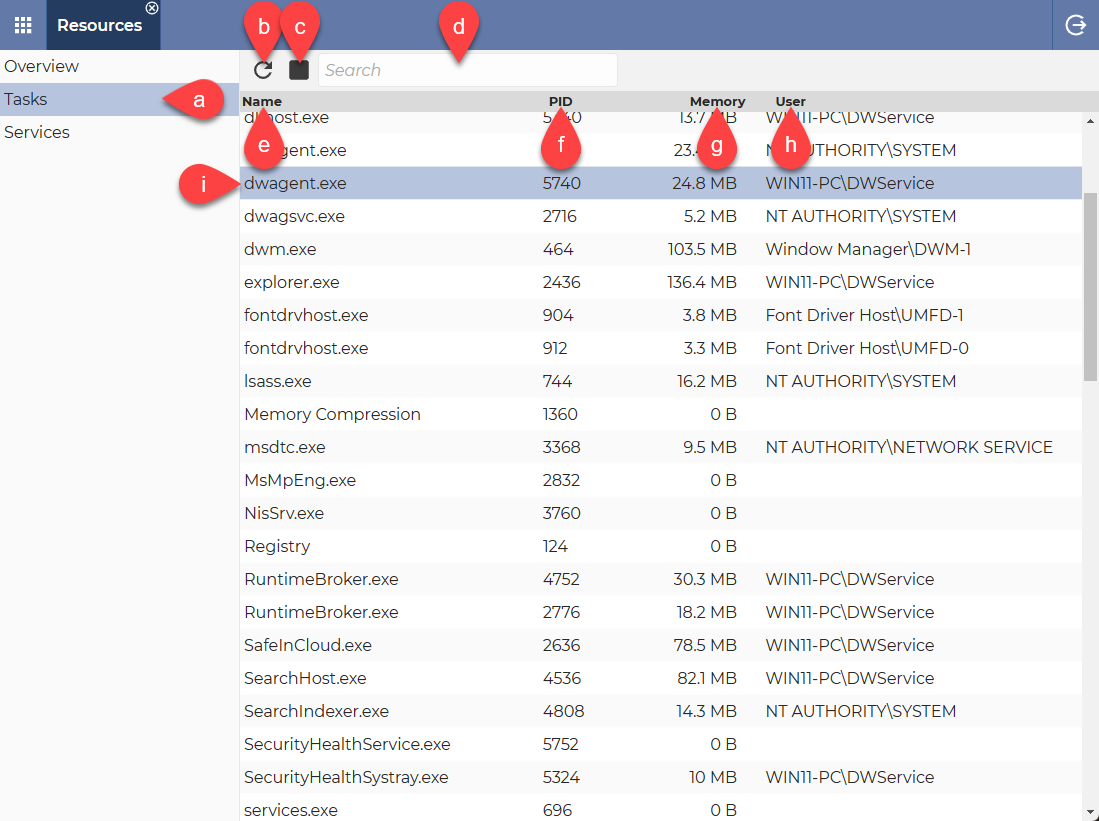
After selecting Tasks, the following is displayed:

a. Tasks β†’ This is the currently selected menu item.

b. Refresh β†’ Use this button to refresh the Tasks list.

c. Stop button β†’ This button is used to stop the Task selected from the list.

d. Search field β†’ Use this field to quickly find a specific Process.

e. Name column β†’ This column displays the name of the Process.

f. PID column β†’ This column displays the Process ID.

g. Memory column β†’ This column displays the amount of memory used by the Process.

h. User column β†’ This column displays the user associated with the Process.

i. dwagent.exe β†’ The currently selected Process.


πŸ’‘Hint: You can switch the sort order by clicking on the column names (Ascending orderβ–² / Descending orderβ–Ό).

ℹ️ If you are using a mobile device, the Stop option appears when you tap the Process.

Related articles: Resources application, Overview, Services

Resources application

The Resources application allows you to monitor the status of the remote system by getting information about memory, processors, disks, processes and services. It also allows you to perform some operations such as start/stop services, terminate processes, etc.

When you are connected to the Agent, applications will appear:

The Resources application consists of 3 main parts:

  1. Overview β†’ Get useful information about the remote device (Operating System, CPU, Memory, Storage).
  2. Tasks β†’ View the running processes and Stop them if necessary.
  3. Services β†’ View running services and Stop or Start them if necessary.

⚠️ Use the links above to access a more detailed description of each part.

Paste

The Paste function allows you to paste text from the local device to the remote device.

This function is used, for example, by the Screen application.

In the following, the process of pasting will be explained.

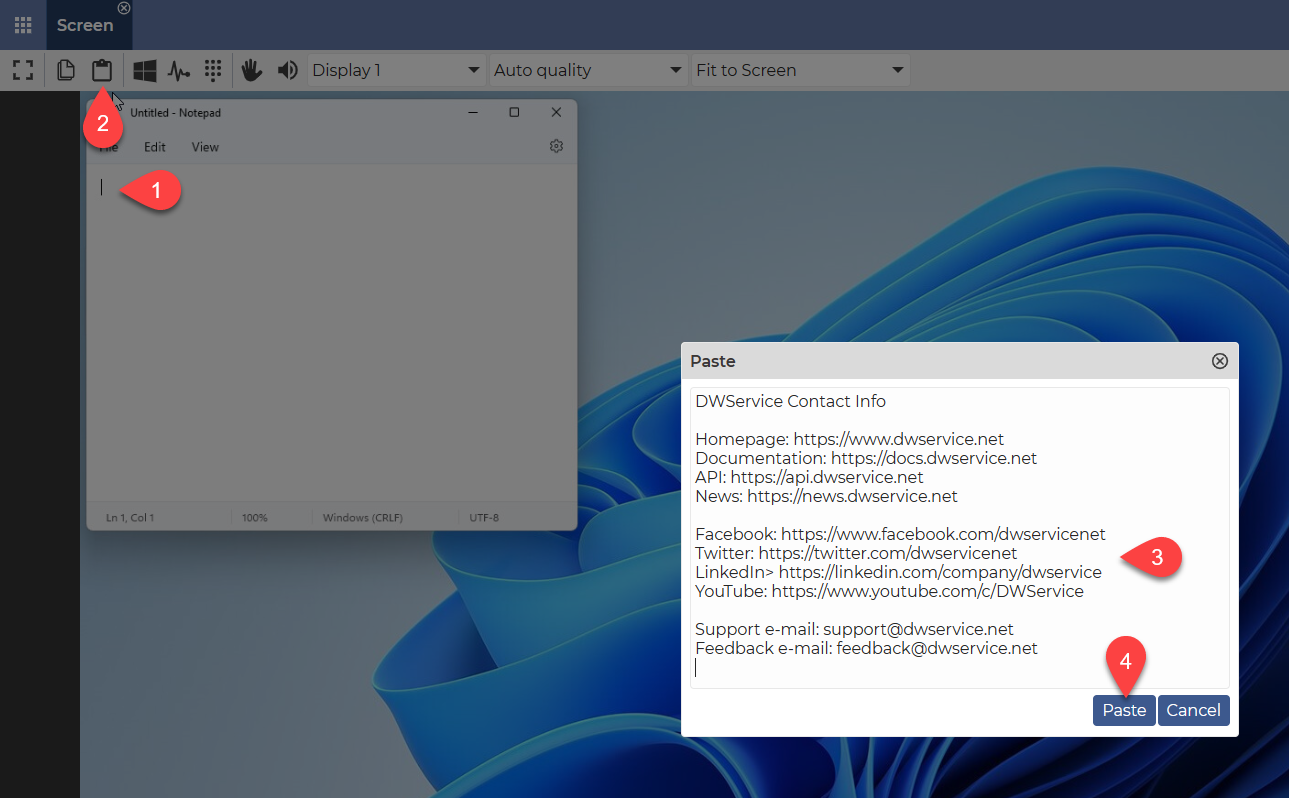
The Screen application is shown in the following image:

Steps of pasting:

  1. Open the location where you want to insert the text.
  2. Click on the Paste icon on the toolbar.
  3. In the window that appears, paste the text. You can do this in several ways:
    • Type the text in with your keyboard.
    • Paste the text from the clipboard β†’ Ctrl+V or Command+V keyboard shortcut.
    • Paste the text from the clipboard β†’ right-click β†’ context menu β†’ Paste.
  1. Click on the Paste button.

The above 4 steps will allow you to paste text into the remote device.

Related articles: Copy, Screen application

Watch our tutorial video on How to use the Screen application (the use of Paste is also visible):

Copy

The Copy function allows you to copy the text selected on the remote machine to the clipboard. You can then paste the copied text into the appropriate location on your own device.
This feature is used, for example, by the Screen application.

In the following, we explain how it works.

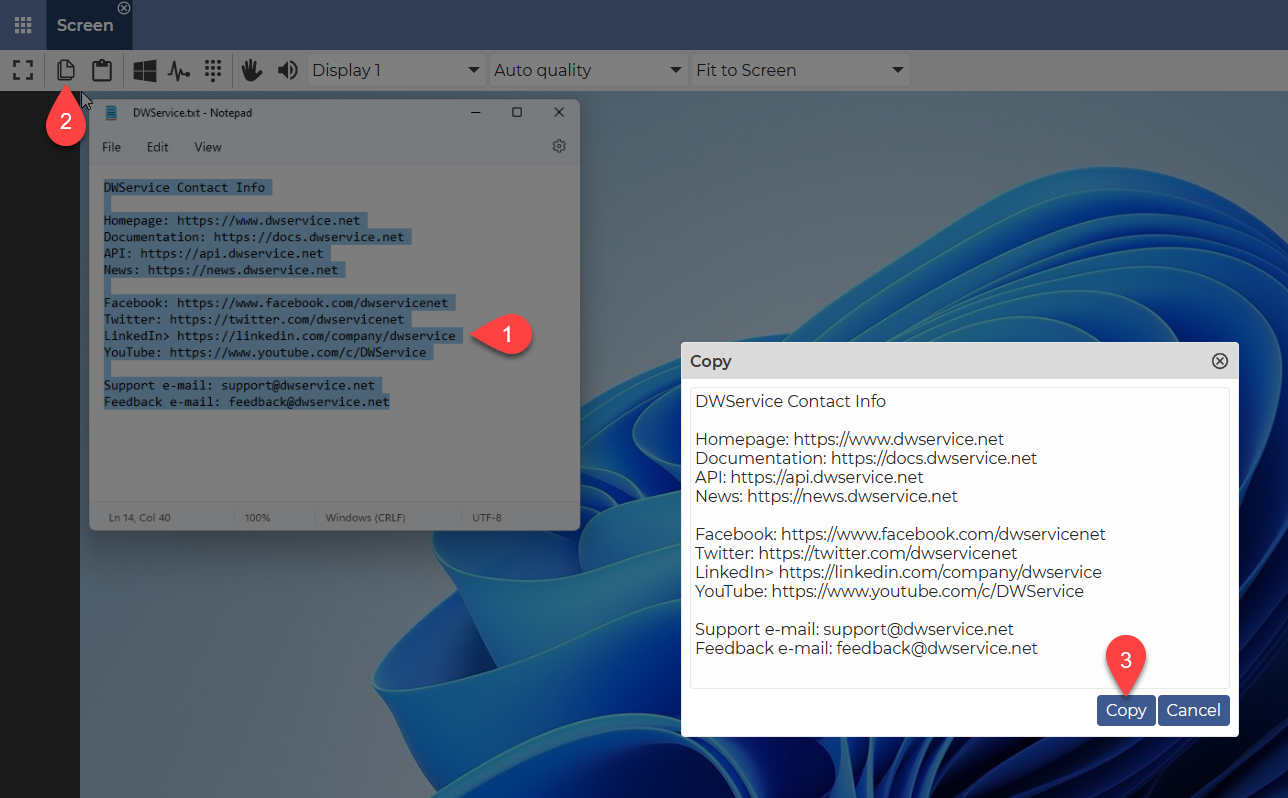
The Screen application is shown in the following image:

Steps of copying:

  1. Select the text you want to copy to the clipboard.
  2. Click the Copy button on the toolbar.
  3. In the window that appears, press the Copy button.

The above 3 steps have copied the text selected on the remote device to the clipboard of the local device. Now you can paste the text wherever you want.

πŸ’‘Hint: You can edit the copied text in the opened window before copying it to the clipboard.

Related articles: Paste, Screen Application

Watch our tutorial video on How to use the Screen application (the use of the Copy function is also visible):

Files and Folders application

With Files and Folders, you can manage files and folders on your remote device.

When you are connected to the Agent, applications will appear:
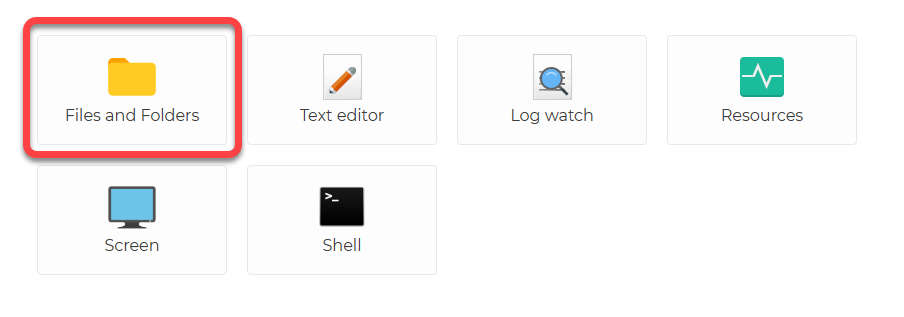
The Files and Folders application looks like this when in use:
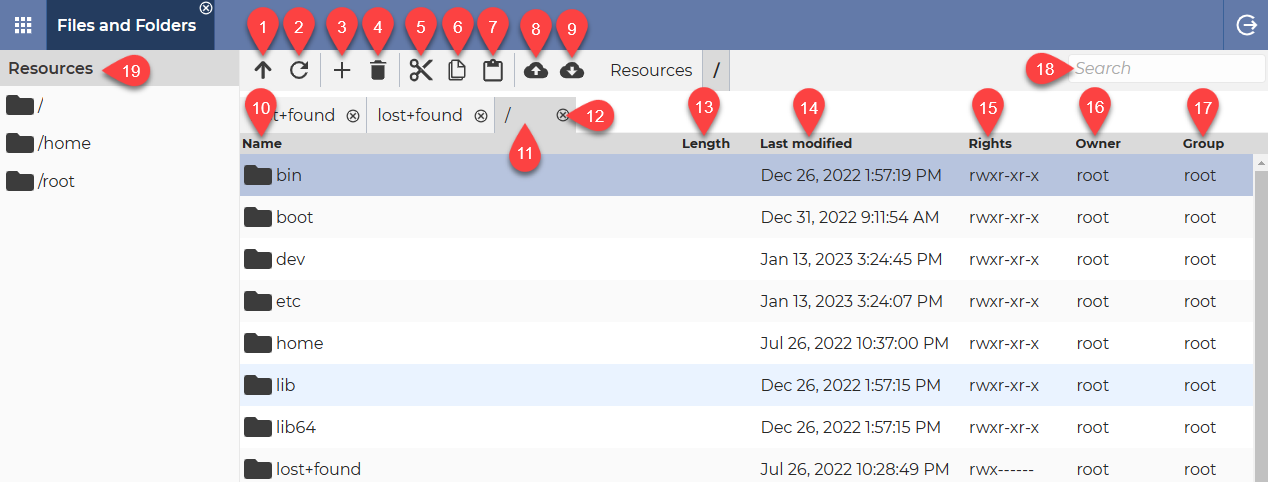
  1. Up β†’ Moves up one folder.
  2. Refresh β†’ Updates the information in folders and files.
  3. New folder β†’ It creates a folder in the current folder.
  4. Delete β†’ Deletes the selected file(s) or folder(s).
  5. Cut β†’ Move the selected file(s) or folder(s) to the clipboard.
  6. Copy β†’ Copies the selected file(s) or folder(s) to the clipboard.
  7. Paste β†’ Paste the selected file(s) or folder(s) from the clipboard.
  8. Upload β†’ It allows you to upload a file from the local device to the remote folder.
  9. Download β†’ Allows you to download a file from the remote folder to the local device.
  10. Name column β†’ This column shows the names of files and folders.
  11. Tabs β†’ You can open multiple tabs at once, allowing you to perform multiple tasks in parallel.
  12. Close Tab button β†’ It can be used to close the given tab.
  13. Length column β†’ This column shows the size of the files.
  14. Last modified column β†’ This column shows the dates when files and folders were last modified.
  15. Rights column β†’ This column shows the rights that apply to the given file or folder.
  16. Owner column β†’ This column shows the Owner of the files or folders.
  17. Group column β†’ This column shows the Group
  18. Search field β†’ This field allows you to browse files and folders. This makes it easier to find the file or folder you are looking for.
  19. Resources list β†’ This list contains the drives for Windows operating systems or the root and User folder for Linux.

πŸ’‘Hint: You can switch the sort order by clicking on the column names (Ascending order β–² / Descending order β–Ό).

Using the right-click, you can access the context menu (for a folder):
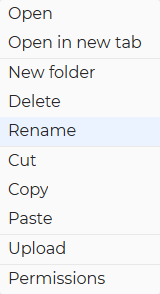
Using the right-click, you can access the context menu (for a file):
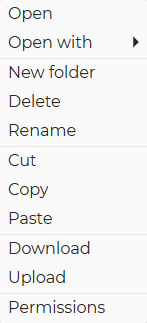
Open β†’ This option opens the selected item.

Open with β–Ί β†’ This option allows you to decide whether to open the file using the Text editor application or Log watch application. This option is only available for files.

Open in new tab β†’ This option opens the selected item in a new tab. This option is only available for folders.

New folder β†’ It allows you to create a new folder.

Delete β†’ It can be used to delete the selected item.

Rename β†’ It allows you to rename the selected file or folder.

Cut β†’ It cuts the selected file or folder to the clipboard.

Copy β†’ It copies the selected file or folder to the clipboard.

Paste β†’ It pastes the selected file or folder from the clipboard.

Download β†’ It allows you to download the remote file to the local device.

Upload β†’ It allows you to upload a file to the remote folder.

Permissions β†’ This option allows you to set the following permissions:

  1. Owner β†’ Here you can change the Owner of the file or folder.
  2. Group β†’ Here you can change the Group of the file or folder.
  3. Owner β†’ Here you can change the rights for the Owner (reading, writing, execution)
  4. Group β†’ Here you can change the rights for the Group (reading, writing, execution)
  5. All β†’ Here you can change the rights for All (reading, writing, execution)
  6. Apply permissions to all subfolders and files β†’ If the checkbox is checked, the permissions set above will be applied to all subfolders and files.

Related articles: Applications

Text editor application

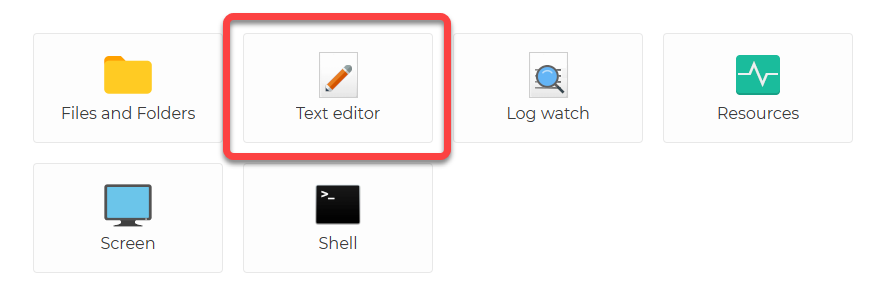
You can use the Text editor to create new text files or edit existing ones. To edit a text file, you do not need to download the file and then upload it after editing. You open the file, edit it, save it.

When you are connected to the Agent, applications will appear:

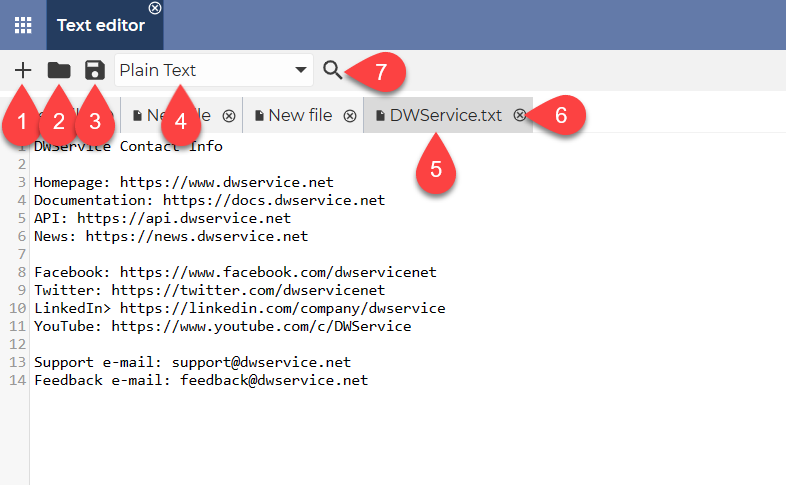
The Text editor application looks like this when in use:

  1. Add file button β†’ Use the Plus sign button to create a new file. A new tab will appear.
  2. Open button β†’ Press the Open button to open a text file from the remote machine. You can also edit the opened file.
  3. Save button β†’ The Save button allows you to save your changes. Using this button will save the changes to the file immediately.
  4. Text format drop-down menu β†’ You can select the type of text file you want to create from the drop-down menu.
  5. Tabs β†’ You can open multiple tabs at once, allowing you to perform multiple tasks in parallel.
  6. Close Tab button β†’ It can be used to close the given tab.
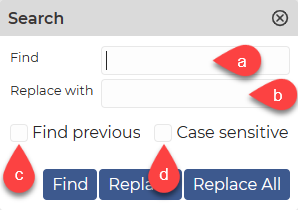
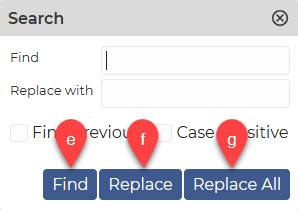
  7. Search button β†’ By clicking on the Search button, you can access the following options:

a. Find field β†’ You can search the text in this field in the text file.

b. Replace with field β†’ You can replace the text in the search field with the text in this field.

c. Find previous checkbox β†’ If the checkbox is selected, it searches backwards in the document.

d. Case sensitive checkbox β†’ If the checkbox is ticked, it differentiates between upper- and lower-case letters. If not checked, upper- and lower-case letters are processed as equals.

e. Find button β†’ By clicking the Find button, you can start the search for the text you entered in the Find field.

f. Replace button β†’ By clicking the Replace button, you can search for the text you entered in the Find field and replace it with the text you entered in the Replace with field.

g. Replace All button β†’ Clicking the Replace All button will start the search for the text you specified in the Find field and replace any texts found in the document with the text you specified in the Replace with field.

Log watch application

A log file is a text file in which a program (or the system itself) collects information about events. If you want to track changes to a certain log file, you can do so using the Log watch application. You can see the changes in the text file in real time.

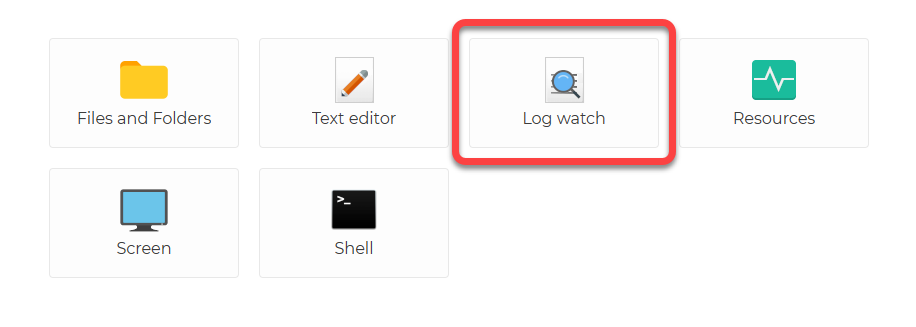
When you are connected to the Agent, applications will appear:


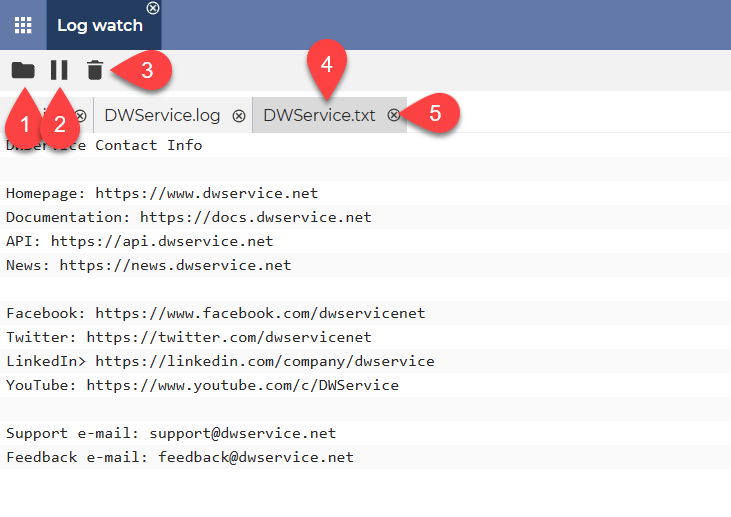
The Log watch application looks like this when in use:

  1. Open β†’ You can open a log file from the remote device that you can monitor.
  2. Pause β†’ You can pause the monitoring of changes to the file.
  3. Delete β†’ Deletes the text on the screen. ⚠️ Important: The file content is not changed; the text is not deleted from the file. The remote file remains unchanged.
  4. Tabs β†’ You can open multiple tabs at once, allowing you to perform multiple tasks in parallel.
  5. Close tab button β†’ It can be used to close the given tab.

Related Articles: Applications
Shell application

The Shell application allows you to run commands on a remote device using a terminal, so you do not need to use the remote device Screen to do this.

⚠️ In case of Agent for Windows, the Shell application uses Windows Pseudo Console (ConPty) technology, so the Shell application has system requirements:

  • For Windows systems β‡’Β Windows 10 (version 1809 and later) or Windows 11.
  • For Windows Servers β‡’Β Windows Server 2019 andΒ later.

For systems that do not meet the above requirements, the Shell app will not appear as an application.


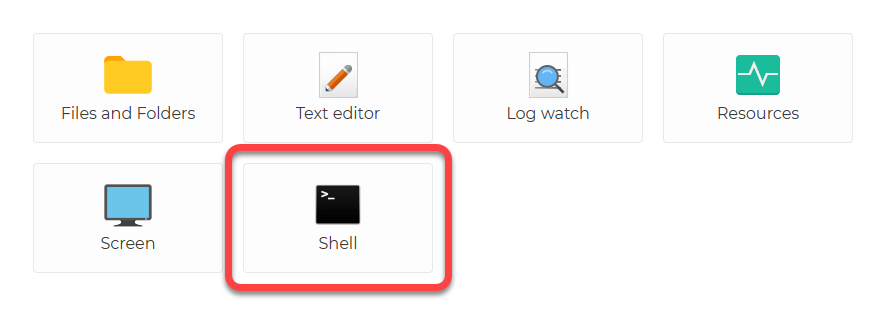
When you are connected to the Agent, applications will appear:

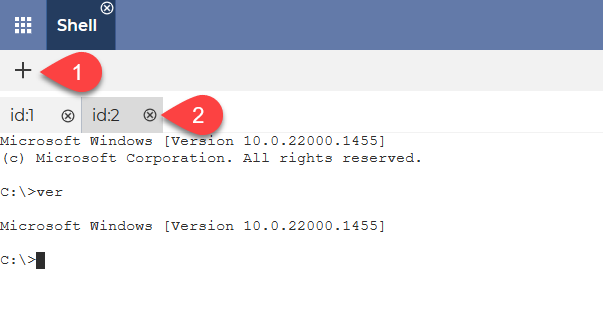
The Shell application looks like this when in use:

  1. Add Shell β†’ Adds a new Shell tab.
  2. Tabs β†’ You can open multiple tabs at once, allowing you to perform multiple tasks in parallel.

Related Articles: Applications

Screen application

The Screen app allows you to view the screen of your remote device. You can also control the remote device, depending on your settings.
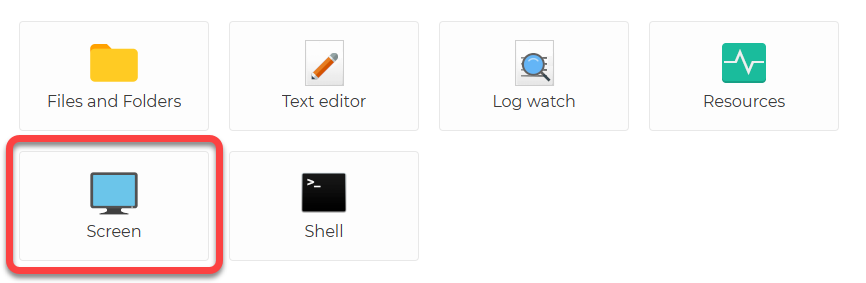
When you are connected to the Agent, applications will appear:

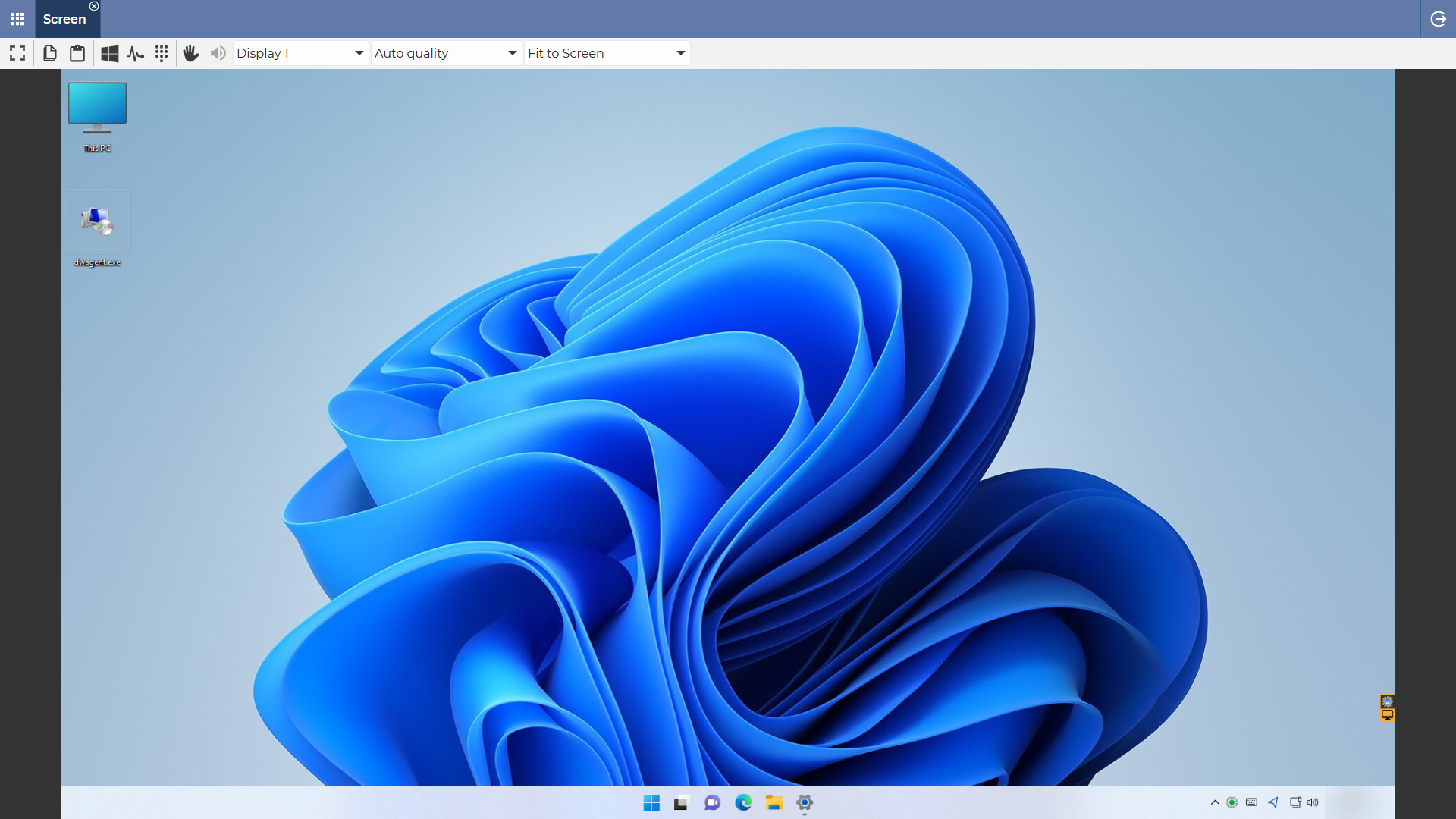
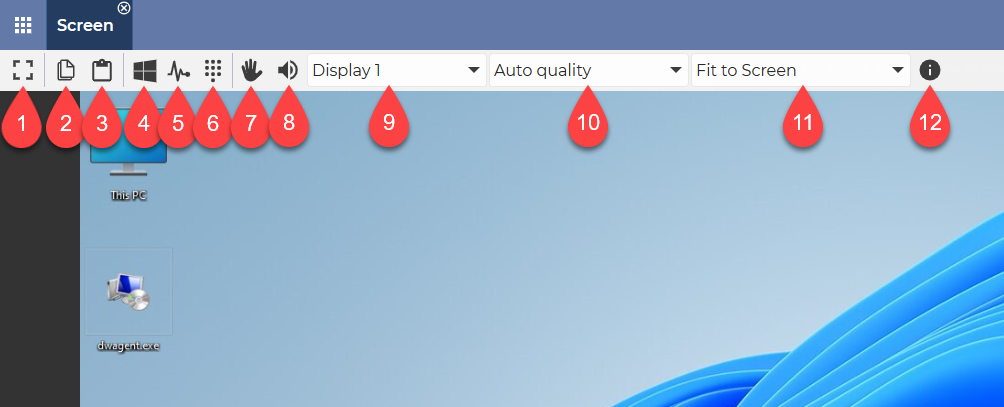
After launching the Screen application, this screen appears:

Explanation of the menu bar that appears at the top:

  1. Full-screen mode on/off β‡’ It allows you to switch the full-screen mode on and off.
  2. Copy β‡’ The text selected on the remote device can be copied to the clipboard.
    More information about the Copy function is available here: Copy
  3. Paste β‡’ Text can be pasted from the clipboard to the remote device.
    More information about the Paste function is available here: Paste
  4. Win+Esc β‡’ Opens the Start menu.
  5. Ctrl+Alt+Del β‡’ Sends Ctrl+Alt+Del keyboard shortcut to the remote device.
  6. Sending keystrokes β‡’ It sends the key combination you have selected.
    Windows β‡’Β WIN, CTRL, ALT, SHIFT + any character
    MacOS β‡’ CMD, CTRL, ALT, SHIFT + any character
    Linux β‡’ SUPER, CTRL, ALT, SHIFT + any character
  7. Mouse/keyboard enable/disable β‡’ The use of the mouse and keyboard can be disabled or enabled. If disabled, view-only mode is activated.
  8. Audio enable/disable β‡’ It allows you to turn the sound of the remote device on and off.
  9. Screen selection β‡’ If you are using multiple screens, you can use this drop-down list to select the right one.
    Or for example two displays side by side.
  10. Screen quality β‡’ Select the quality that suits your bandwidth from the drop-down list. You can choose from Minimum, Low, Medium, Maximum, Auto.
  11. Screen size β‡’ The screen size can be selected from the drop-down list. A value less than 100% means zoom out, a value greater than 100% means zoom in. Fit to screen adjusts the screen of the remote device to the size of the current window.
    πŸ’‘You can either select a value from the drop-down menu or enter a value manually.
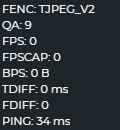
  12. Show/Hide connection info β‡’ It shows information about the quality of the connection.
    More details on the displayed information:
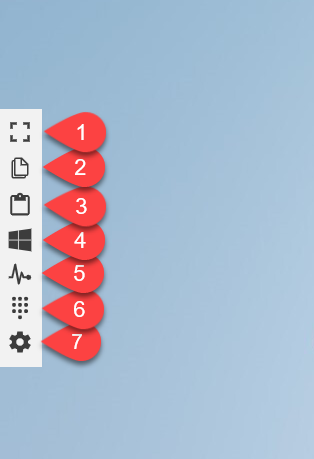
In the case of full screen mode, the menu appears on the left side of the screen. The menu is explained as follows:

  1. Full-screen mode on/off β‡’ It allows you to switch the full-screen mode on and off.
  2. Copy β‡’ The text selected on the remote device can be copied to the clipboard.
    More information about the Copy function is available here: Copy
  3. Paste β‡’ Text can be pasted from the clipboard to the remote device.
    More information about the Paste function is available here: Paste
  4. Win+Esc β‡’ Opens the Start menu.
  5. Ctrl+Alt+Del β‡’ Sends Ctrl+Alt+Del keyboard shortcut to the remote device.
  6. Send keystrokes β‡’ It sends the key combination you have selected.
    Windows β‡’Β WIN, CTRL, ALT, SHIFT + any character
    MacOS β‡’ CMD, CTRL, ALT, SHIFT + any character
    Linux β‡’ SUPER, CTRL, ALT, SHIFT + any character
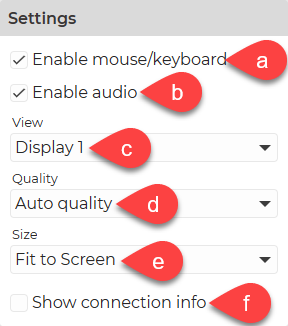
  7. Settings β‡’ The following settings are available:

a. Mouse/keyboard enable/disable β‡’ The use of the mouse and keyboard can be disabled or enabled. If disabled, view-only mode is activated.

b. Audio enable/disable β‡’ It allows you to turn the sound of the remote device on and off.

c. Screen selection β‡’ If you are using multiple screens, you can use this drop-down list to select the right one.
Or for example two displays side by side.

d. Screen quality β‡’ Select the quality that suits your bandwidth from the drop-down list. You can choose from Minimum, Low, Medium, Maximum, Auto.

e. Screen size β‡’ The screen size can be selected from the drop-down list. A value less than 100% means zoom out, a value greater than 100% means zoom in. Fit to screen adjusts the screen of the remote device to the size of the current window.
πŸ’‘You can either select a value from the drop-down menu or enter a value manually.

f. Show/Hide connection info β‡’ It shows information about the quality of the connection.
More details on the displayed information:

Watch our tutorial video on How to use the Screen application: