
ℹ️ When you launch the Agent installer and when you select “Run,” temporary folders will be created on your system.
Depending on your operating system, you can access the temporary folders as follows:
Access temporary folder on Windows
When you execute the dwagent.exe file, a folder named dwagentxxxxxxxxxxxxxx will be created in your temporary folder.
To open the temporary folder, open the File Explorer and navigate to the %TEMP% folder. As seen below:
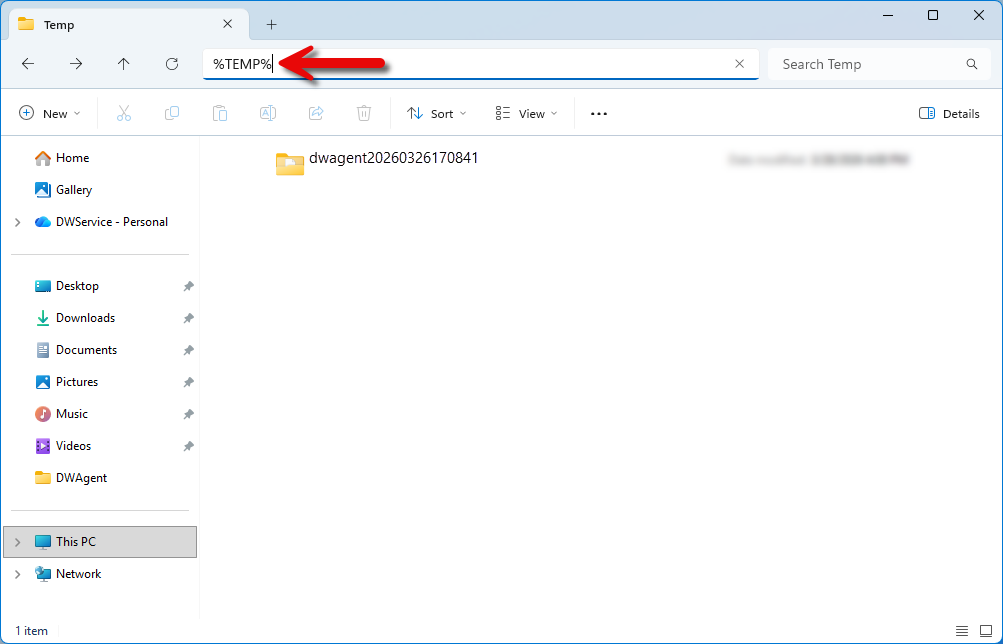
There you will see the temporary dwagent folder. For example, as shown in the screenshot: dwagent20260326170841
Note: The folder is named according to when it was created: dwagent + year + month + day + hour + minute + second.
When you select Run in the installer, a dwagentonfly folder is also created. You can see this in the following screenshot:
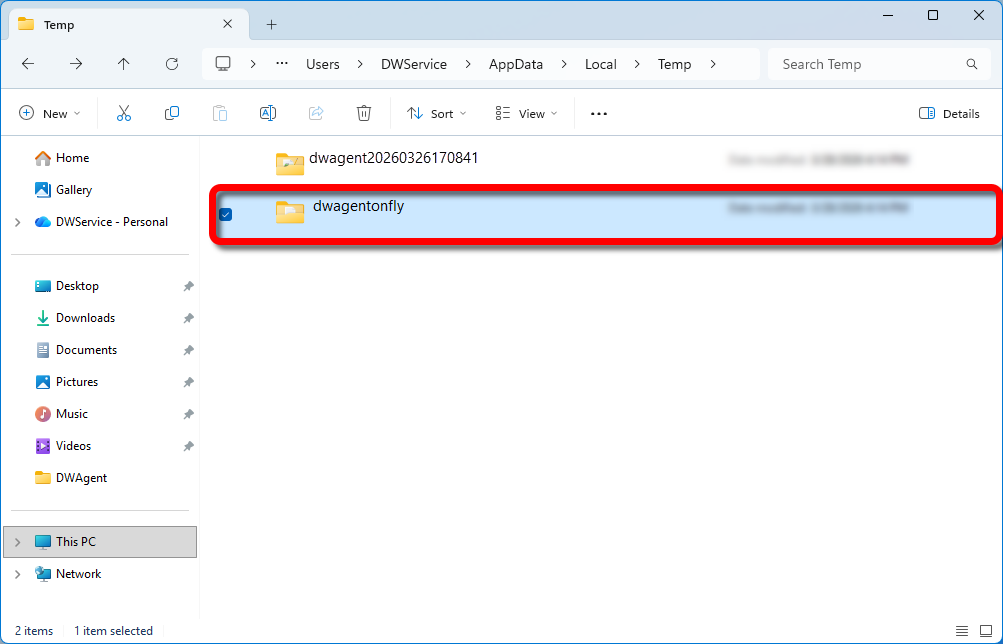
ℹ️ When the Agent is Run, it is executed from the dwagentonfly folder. The log files needed for troubleshooting are also located in this folder.
📖 You can read more about the log files here: Log files
If you encounter any problems when Running the Agent, please follow these steps:
- Close the Agent.
- Delete the dwagentonfly folder completely.
- Run the Agent again and check to see if it is working properly.
Access temporary folder on Linux
When you execute the dwagent.sh file, a folder named dwagent_installxxxxxxxxxxxxxx will be created in your temporary folder.
To open the temporary folder, open the Files application and navigate to the /tmp folder. As seen below:
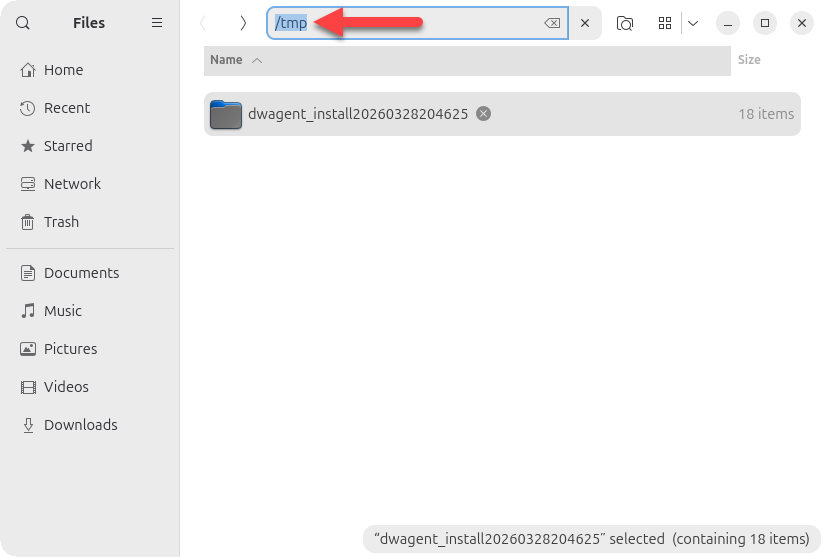
There you will see the temporary dwagent_install folder. For example, as shown in the screenshot: dwagent_install20260328204625
Note: The folder is named according to when it was created: dwagent_install + year + month + day + hour + minute + second.
When you select Run in the installer, a dwagentonfly folder is also created. You can see this in the following screenshot:
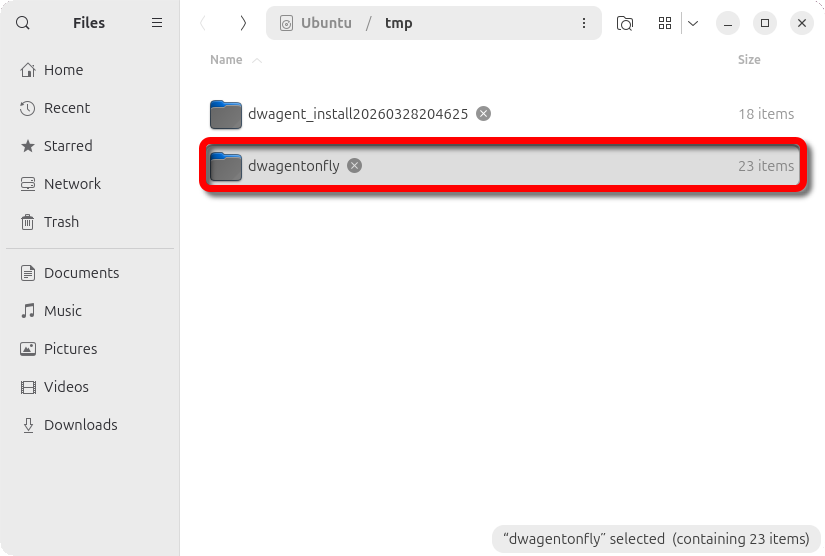
ℹ️ When the Agent is Run, it is executed from the dwagentonfly folder. The log files needed for troubleshooting are also located in this folder.
📖 You can read more about the log files here: Log files
If you encounter any problems when Running the Agent, please follow these steps:
- Close the Agent.
- Delete the dwagentonfly folder completely.
- Run the Agent again and check to see if it is working properly.
Access temporary folder on macOS
When you execute the dwagent.dmg file, a folder named dwagentinstallxxxxxxxxxxxxxx will be created in your temporary folder.
To open the temporary folder, open a Terminal window and execute the following command: open $TMPDIR
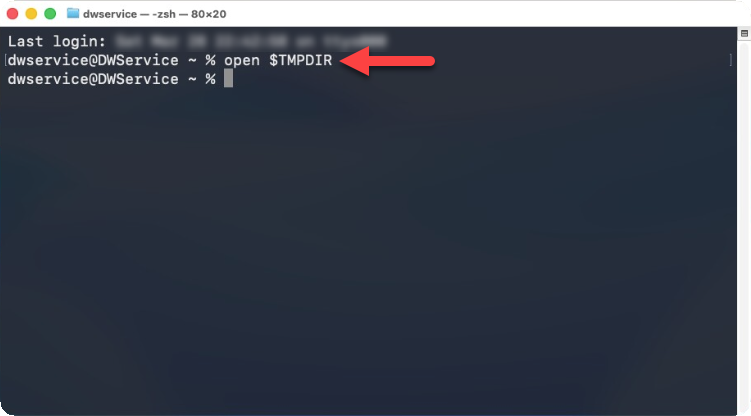
The execution of the open $TMPDIR command will open the temporary folder in a new window. As seen below:
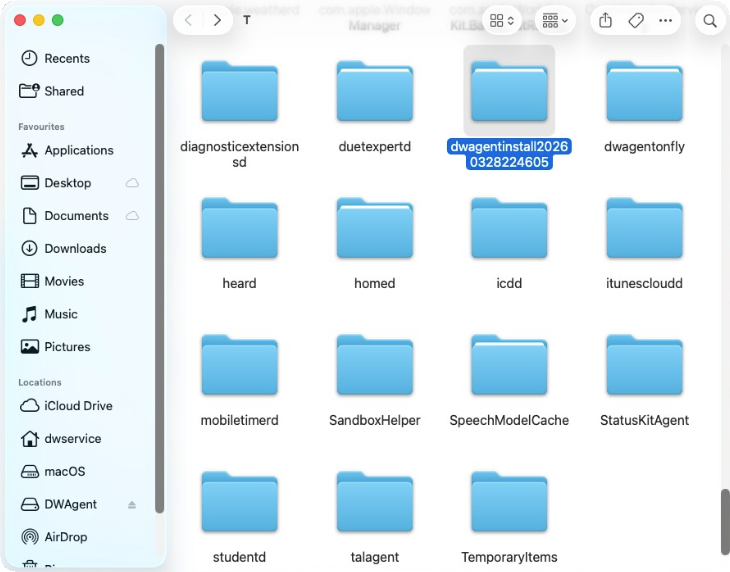 There you will see the temporary dwagent folder. For example, as shown in the screenshot: dwagentinstall20260328224605
Note: The folder is named according to when it was created: dwagentinstall + year + month + day + hour + minute + second.
When you select Run in the installer, a dwagentonfly folder is also created. You can see this in the following screenshot:
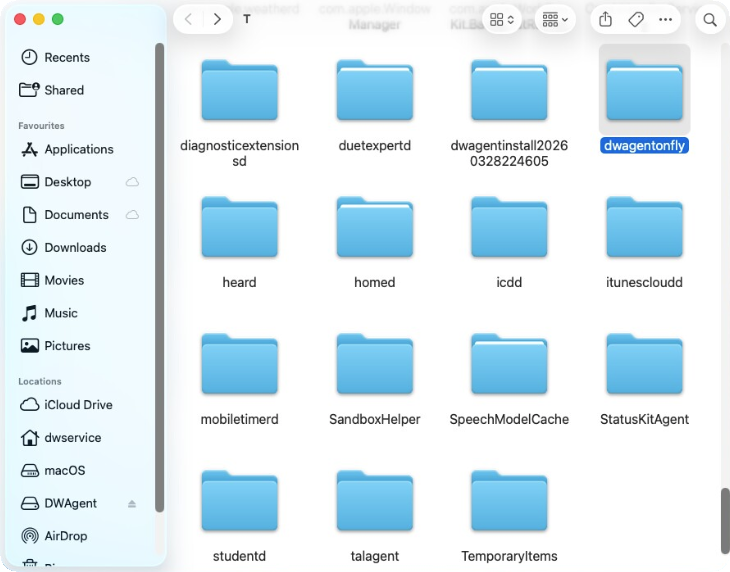
ℹ️ When the Agent is Run, it is executed from the dwagentonfly folder. The log files needed for troubleshooting are also located in this folder.
📖 You can read more about the log files here: Log files
If you encounter any problems when Running the Agent, please follow these steps:
- Close the Agent.
- Delete the dwagentonfly folder completely.
- Run the Agent again and check to see if it is working properly.
📧 If you encounter any issues, please contact us at support@dwservice.net and let us know the details of your problem.