
ℹ️ Wayland support is not yet 100%. We are currently working on finding and implementing a final solution. In the meantime, we suggest the following workaround:
If you are running Linux with Wayland and using Gnome (for example: Ubuntu), you can access the lock screen remotely using a third-party extension.
To do this, follow these steps:
1. In a Terminal window, run the following command: sudo apt install gnome-shell-extension-manager
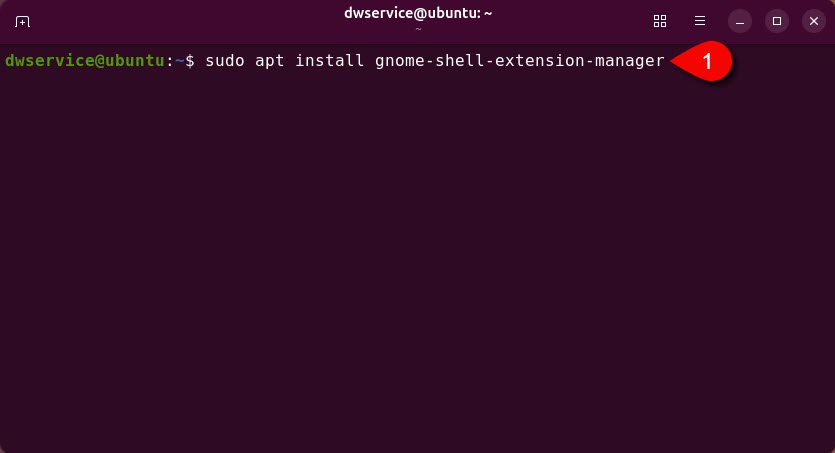
The Extension Manager will be installed on your device.
2. Open the installed Extension Manager.
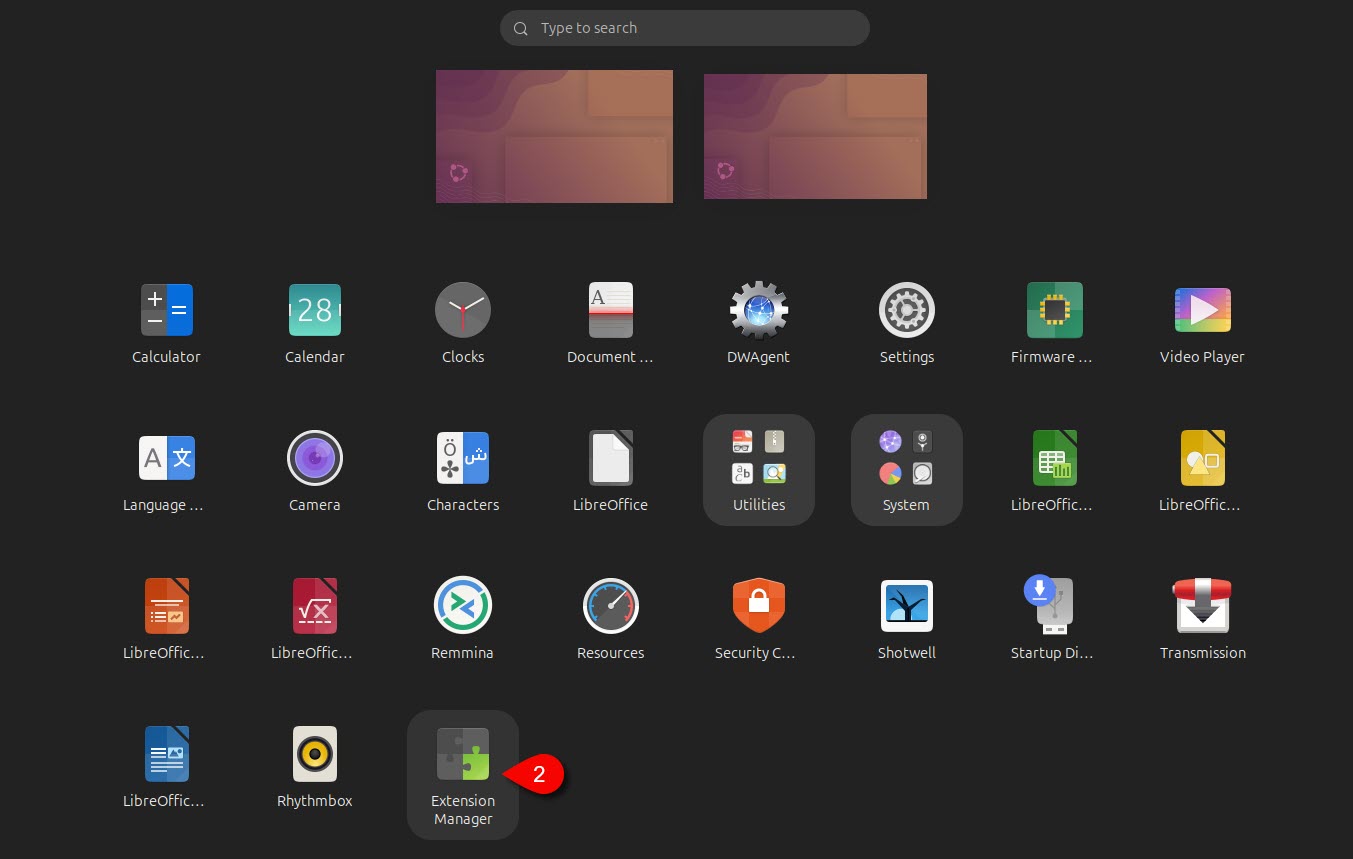
3. In the window that appears, select the Browse tab.
4. In the search box, type the following: Allow Locked Remote Desktop
5. Click the Install… button.
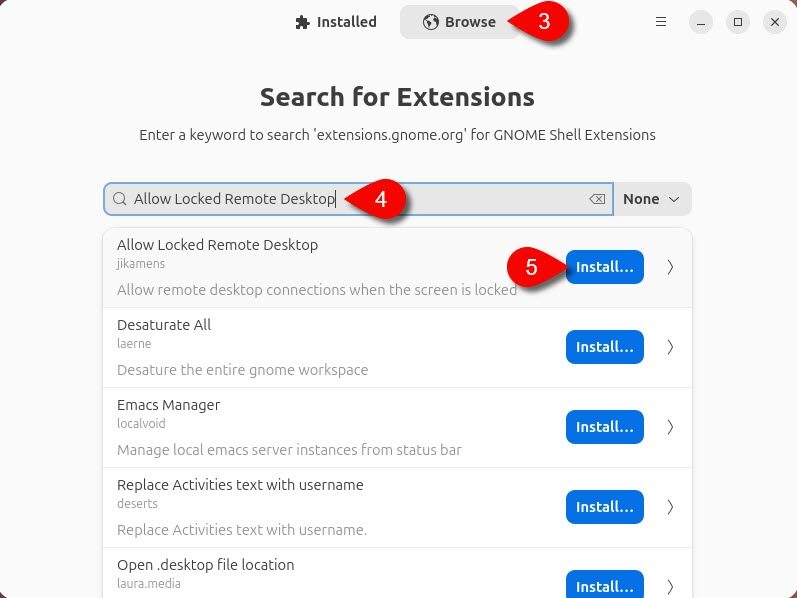
The extension will be installed on your device.
6. Click on the Installed tab.
7. Verify that the extension is installed and enabled.
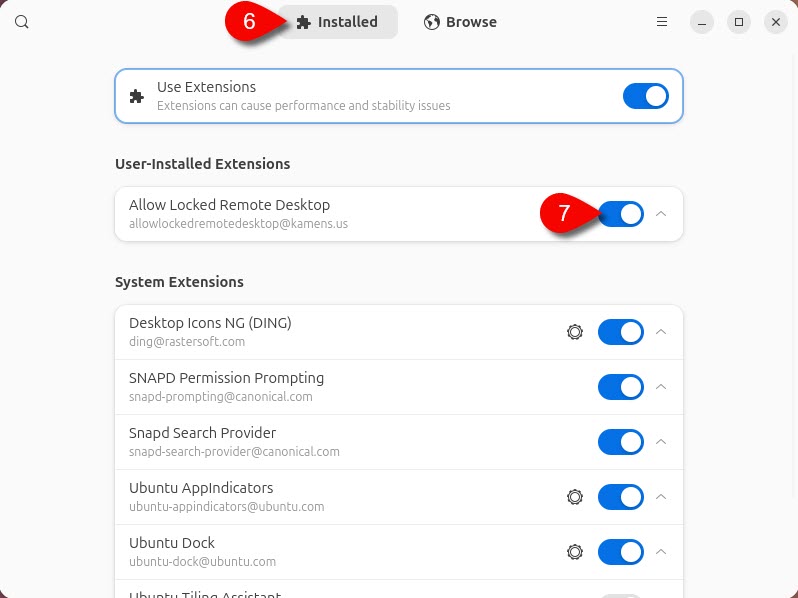
✅ After configuring this setting, you will be able to access the locked screen remotely, even when Wayland is in use.