
ℹ️ The Paste feature allows you to transfer content from the clipboard of your local device to the clipboard of the remote device.
Below you can see how this function works:
1. Place the desired content on the clipboard of your local device using one of the following methods:
- On Windows ⇒ select content, then press Ctrl + C
- On Linux (in graphical applications) ⇒ select content, then press Ctrl + C
- On Linux (in terminal windows) ⇒ select content, then press Shift + Ctrl + C
- On Mac ⇒ select content, then press Command + C (⌘ + C)
- Select content, mouse right-click, then select Copy
2. Click (tap) on the Send to remote clipboard button on the Screen application toolbar:
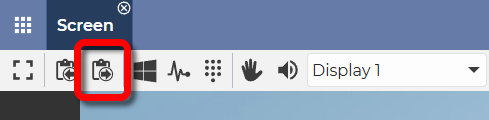
A window will appear:
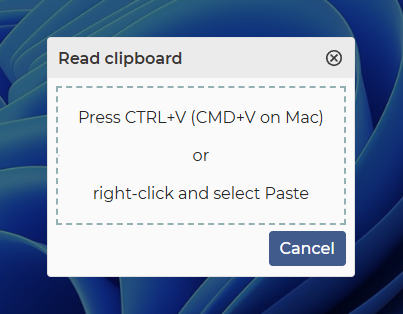
3. Here, use one of the methods used for pasting:
- On Windows ⇒ Ctrl + V
- On Linux ⇒ Ctrl + V
- On Mac ⇒ Command + V (⌘ + V)
- Right-click, then Paste
As a result, the content on your local clipboard has been moved to the remote device’s clipboard.
4. You can paste the content into the desired location on the remote device using one of the following methods:
- On Windows ⇒ Ctrl + V
- On Linux (in graphical applications) ⇒ Ctrl + V
- On Linux (in terminal windows) ⇒ Shift + Ctrl + V
- On Mac ⇒ Command + V (⌘ + V)
- Mouse right-click, then select Paste
📧 If you have any questions or feedback regarding the functioning of this feature, please let us know at support@dwservice.net.