
ℹ️ When you log in to your account using a web browser, you must enter your username, password, and—if two–factor authentication is enabled for your account—that as well.
If you are using a device and browser for remote access that you fully trust, you can mark your device as trusted. After that, you will not need to enter your login credentials on that device; you can log in with just one click. To do this, follow these steps:
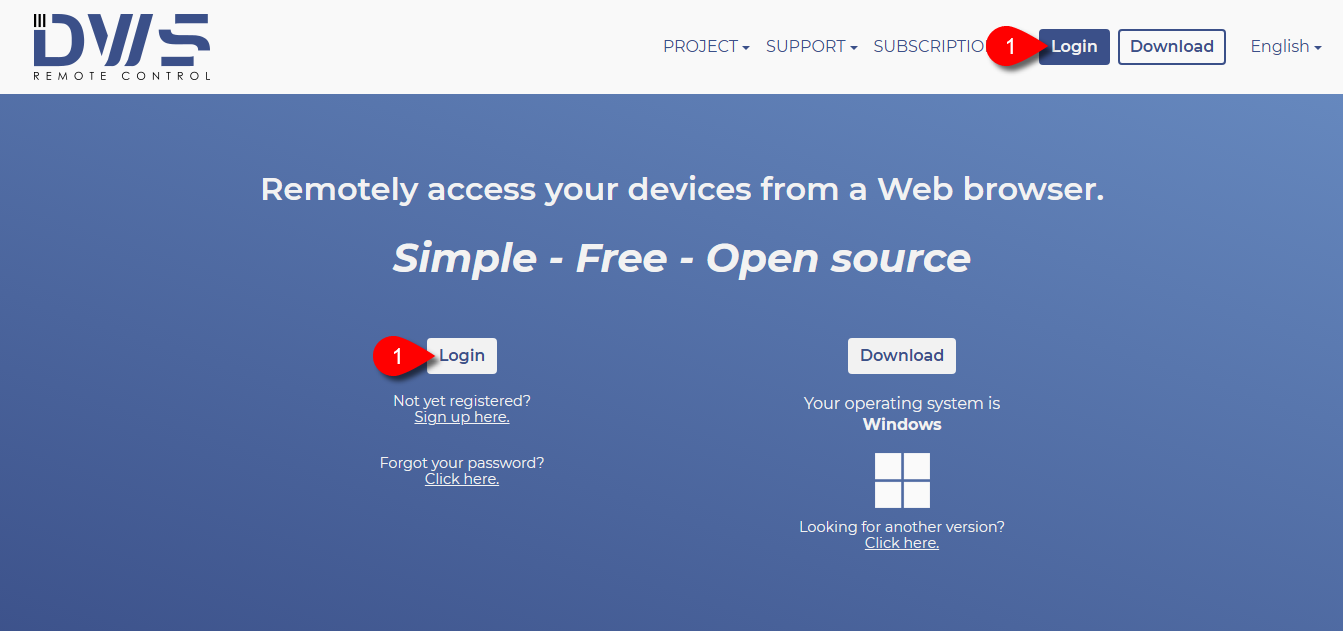
1. On our website, click one of the Login buttons.
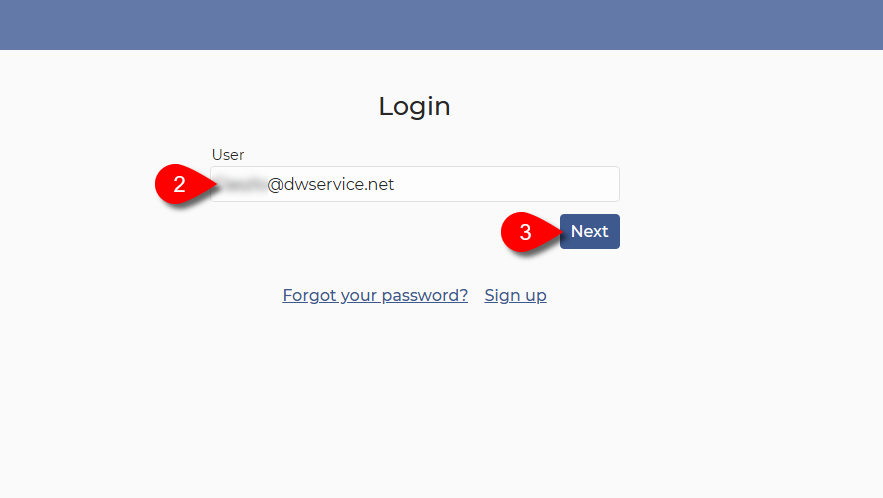
2. Enter the email address associated with your DWService account.
3. Click on the Next button.
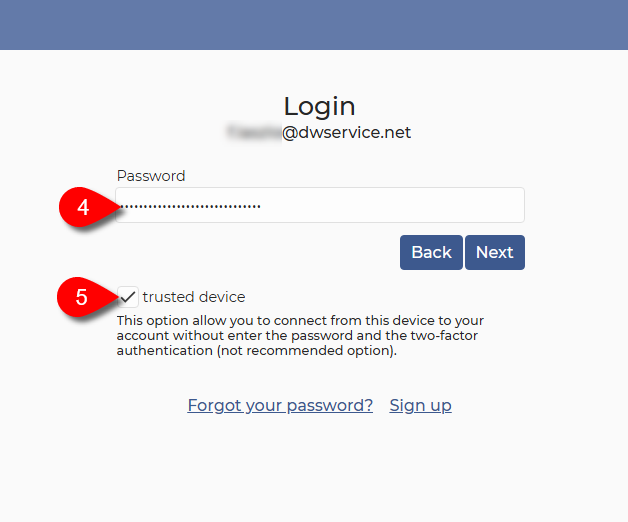
4. Enter the password associated with your account.
5. Check the trusted device checkbox.
When you select the checkbox, an important warning message appears:
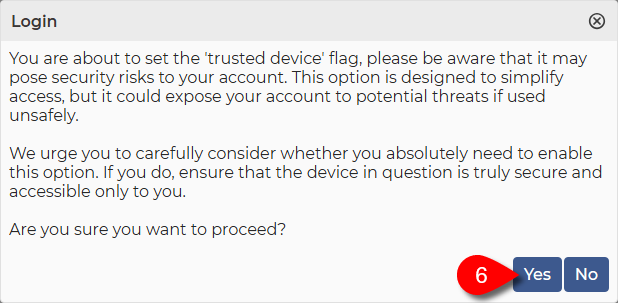
6. Click the Yes button to confirm your decision.
You will return to the previous window:
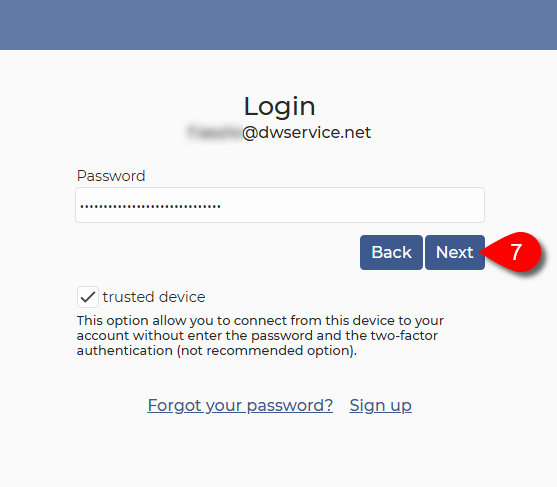
7. Click on the Next button.
In case Two-Factor Authentication is enabled for your account, complete the authentication process as well.
This will log you into your account.
The next time you want to log in to your account, you will see the following:
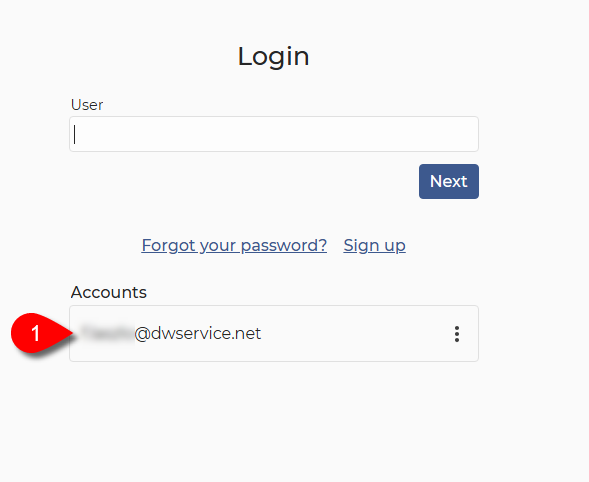
1. Select your email address.
✅ You will be logged into your account without having to enter any login credentials.
If you no longer need your device to be marked as trusted, you can remove that mark by following these steps:
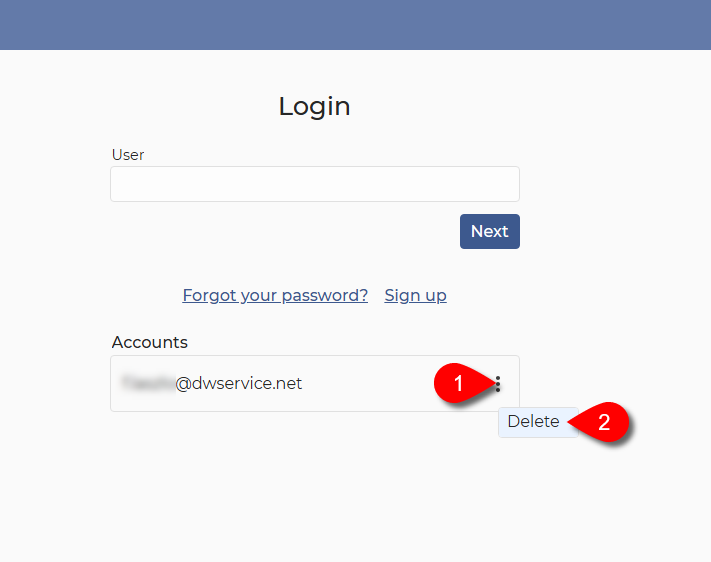
1. During the sign–in process, click the three dots next to the account.
2. Then click the Delete button.
This will remove the current device from your trusted devices.
Alternatively, you can remove trusted devices from your account. Here’s how:
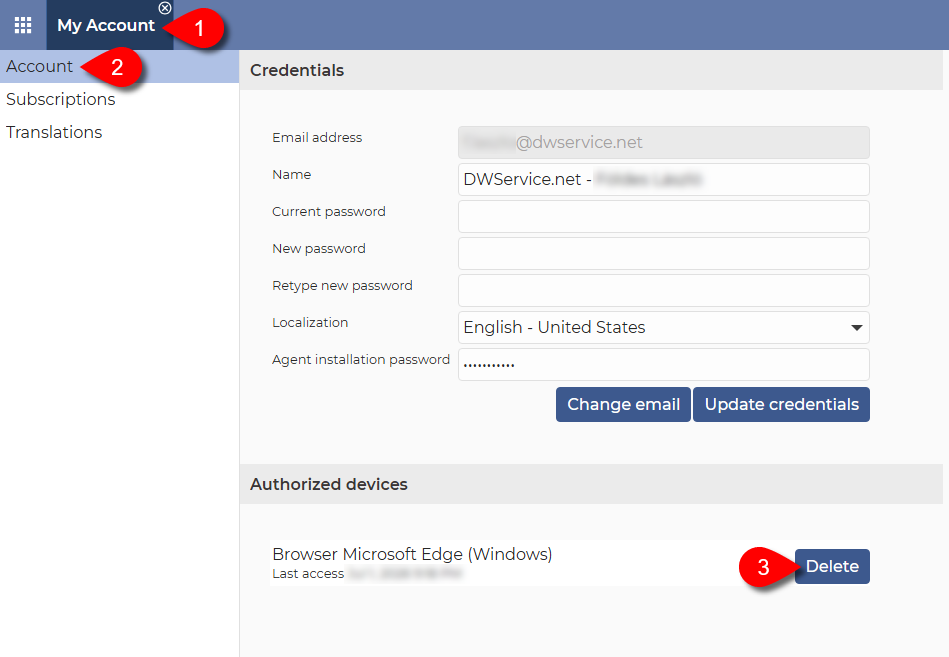
1. On your Dashboard, select My Account.
2. Select Account from the menu on the left.
3. From the list of trusted devices, select the device you want to delete, and click the Delete button.